Ray DelVecchio's Blog, page 8
April 1, 2020
Web Design Bulletin: Visual WordPress Builder, PatientPop, Connect with Video
Cool Tool, Service or Resource

The Worlds #1 WordPress Theme & Visual Page Builder
As a long-time WordPress user, most of the websites I manage have an older theme installed. It still works, but it’s become obsolete compared to what’s available today.
After surveying thousands of subscribers who are learning or actively using WordPress, there is one clear winner – Divi by Elegant Themes.
I bought it immediately because I was ready to dig into a modern theme. It took about 5 minutes to become a believer. Since then, it’s my default recommendation both for WordPress beginners who want to design visually, and web designers who want to churn out professional layouts quickly.
Need to learn more before choosing Divi? Watch this step-by-step tutorial, teaching you how to build a website from scratch.
Web Design Example
PatientPop
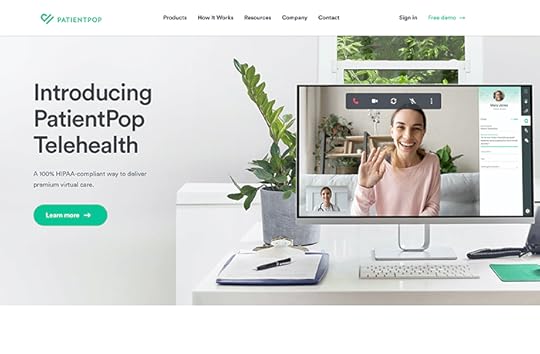
This digital marketing agency operates in a very similar manner to my freelancing business – except they work in the medical practice industry and have full-time employees.
Because of their business niche, their client websites often have two features – online booking and HIPAA compliance. These are two things I have no experience with since my clients prefer emails and phone call leads. With that said, I’d bet you could solve the booking problem quickly with a WordPress plugin.
PatientPop’s company website is on a custom-designed WordPress theme with one primary contrast color (bright green).
To promote their business, they run advertisements on YouTube and host weekly webinars. Their primary goal is to get practice owners to sign-up for their free demo, where they will pitch their packages.
How to Find Clients
Roofing Marketing Pros – YouTube Channel
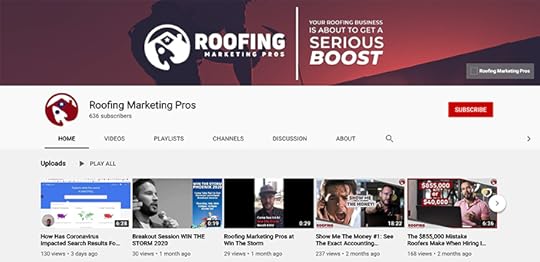
Here’s another digital marketing company on YouTube that is going after roofing contractors. Overall their channel has 27,000 views.
On a platform like YouTube, it’s tough to reach a local audience (without ads). However, if your videos are super-targeted, you can get a massive global reach.
There is no doubt they’ve heard from a roofing business owner somewhere across the country through these educational screencast presentations like the one above entitled, “How to Market Your Roofing Company with Facebook Ads.”
Here is proof from a YouTube commenter, who I suspect is a roofer.

It’s amazing what happens when you commit to promoting yourself instead of blindly hoping the right opportunities will magically find you!
15 Tools to Start Your Web Design Business
Your information will not be shared or sold, period.
The post Web Design Bulletin: Visual WordPress Builder, PatientPop, Connect with Video appeared first on Website Profit Course.


February 28, 2020
Web Design Bulletin: Free Icons, ButcherBox, Meetup
Cool Tool, Service or Resource
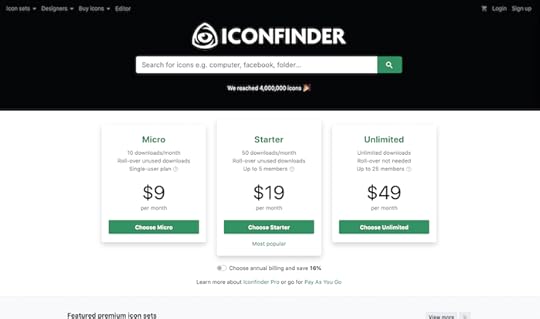
Iconfinder
In addition to stock photos, you need a library of graphics when you’re making a website. Iconfinder is my go-to source for design inspiration and a place to download free icon sets for commercial use. They are especially useful for custom social media icons.
Web Design Example

ButcherBox
I follow a few folks in the diet space who are affiliates for this meat delivery subscription company from Boston, MA.
What sets apart ButcherBox is its high-quality products, including organic chicken and grass-fed beef. I’m hungry just thinking about it.
Quick website analysis:
Built on WordPress & MailchimpBlack & white color schemeCTA color – light redChat help – bottom-rightFree Turkey offer to capture your emailFixed phone # when you scroll on desktopTestimonials from well-known health advocates
How to Find Clients
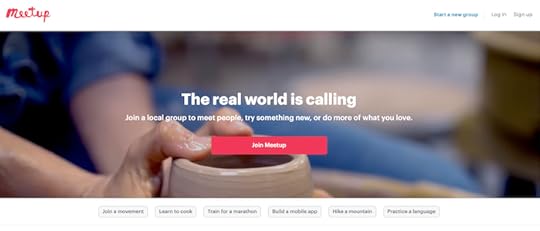
Meetup
This website is a place to find local events that are either professional or fun. Sometimes the best way to find a new client is through building more relationships to expand your network. Meetup allows you to get in touch with interesting people near you who you might not find otherwise!
Do you dream about working from home with websites? Click here for a proven blueprint to get past your fear of starting!
The post Web Design Bulletin: Free Icons, ButcherBox, Meetup appeared first on Website Profit Course.
February 14, 2020
Web Design Bulletin: ColorZilla, Worthington Millwork, Facebook Messanger
Cool Tool, Service or Resource
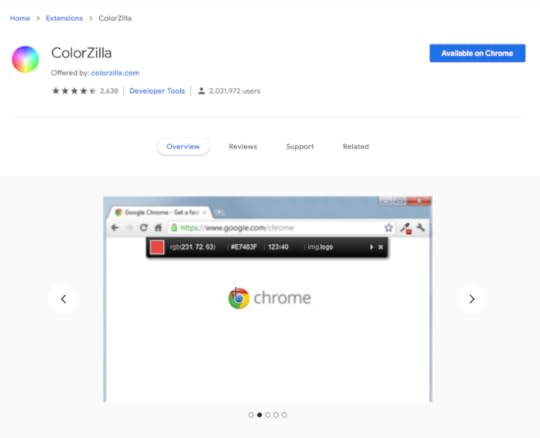
This eyedropper tool has come in handy many times while selecting a color scheme for a new website.
It lets you pick colors on any website and provides the hex and RGB codes to use with your preferred design software.
No need to reinvent the wheel, find a color combo that you like on an existing website, and make something unique with it!
Web Design Example
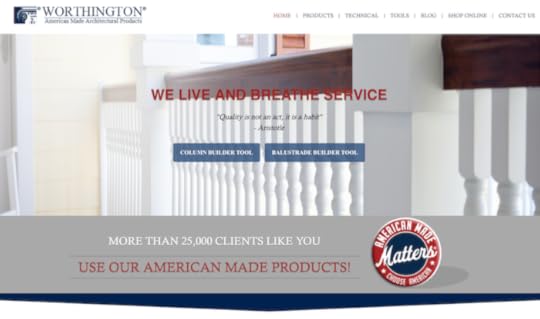
This Florida based company makes architectural columns and balustrades (I had to look this up).
They have a great setup, including:
WordPress website design
Full-width layout promoting builder tools
Trust with 25,000 clients and American made
Pop-ups to download their catalog (& get your email)
Chatbot (bottom-right)
The only quick negative I see is the website is labeled “Not Secure” in the browser bar. That’s because they still have links within the navigation menu that are HTTP instead of HTTPS. Once that’s cleaned up, they will get the padlock icon.
You can fix that quickly with a past tool recommendation, the WordPress plugin Really Simple SSL.
I also was able to uncover who built their website. It’s a company from Austin, TX. It’s not at the bottom of the site, but it’s in the code.
Can you figure it out?
How to Find Clients

Today’s recommendation comes from Jeremy, a subscriber who I mentioned in a recent email that’s taking action. He’s building his web design freelancing business.
Look for local businesses that have Facebook pages with a bad (or no) website listed. There’s a better chance you’ll reach them on Facebook Messenger if they run an active page.
From there, you can set up an in-person meeting to discuss the details – and potentially get paid!
Become a WordPress expert, watch this FREE 3-part video series now!
The post Web Design Bulletin: ColorZilla, Worthington Millwork, Facebook Messanger appeared first on Website Profit Course.
January 31, 2020
Web Design Bulletin: HostGator, PandaDoc, Targeting Authors
Cool Tool, Service or Resource
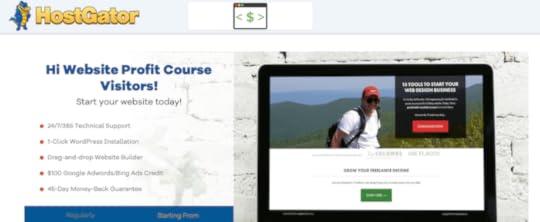
HostGator Web Hosting – Get Your Domain Name for FREE*
HostGator is the first reliable company that I picked for website hosting when I began my web design journey back in 2010. To this day, they still host the majority of my local client websites.
Even if you have a portfolio website, create a new blog to share your hobby or passion with people around the world.
Please use coupon code WPC4 (45% OFF 1-Year of Hosting) to support future tutorials and bulletins like this, and check out the tutorial below to start immediately!
WATCH: How to Install WordPress on HostGator (Step-by-Step Tutorial)
 HostGator Web Hosting
Launch your WordPress website or blog today for 45% OFF using code WPC1
Buy NowWe earn a commission if you purchase using the link above which helps support this website.
* Offer valid at the time of publishing, please visit HostGator’s website for current promotion details!
Web Design Example
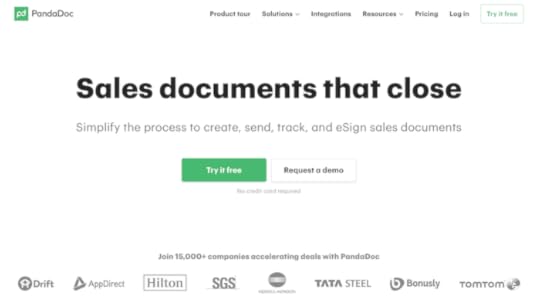
This homepage is a beautiful example of a simple design. It’s dark text on white background with one accent color – green.
The immediate focus is not a design element, but the headline and description. That means they spent a lot of time on copywriting.
They have easy to understand video clips throughout to see how their service works.
They’re also using a chatbot (bottom right), which is proving to be a widespread trend in online marketing.
How to Find Clients
Do you love reading books? Maybe you should target authors who want to build their personal brand!
It’s a simple process:
Browse Amazon categories and get author names Search each author to see if they have a website Find their contact info either online or through the book
All authors benefit from having a blog where they can test writing ideas and collect emails to promote new books to an interested audience.
You can create a WordPress design and use that as a template with almost any future author client.
This is a strategy to make more money with less creative effort!
Join the premium membership and learn how I made $20,000 from one website client!
The post Web Design Bulletin: HostGator, PandaDoc, Targeting Authors appeared first on Website Profit Course.
January 23, 2020
How to Install WordPress on Bluehost (Step-by-Step Tutorial)
 Bluehost Web Hosting
Launch your website or blog today on Bluehost, the hosting company recommended by WordPress!
Buy NowWe earn a commission if you purchase using the link above which helps support this website.
Step #1: Choose Your Hosting Package

Let’s click the Get Started button because we want to set up one domain and one website.
They do have options for unlimited websites, but in this case, we just need one website. So we’ll stick with the Basic package and click the Select button.
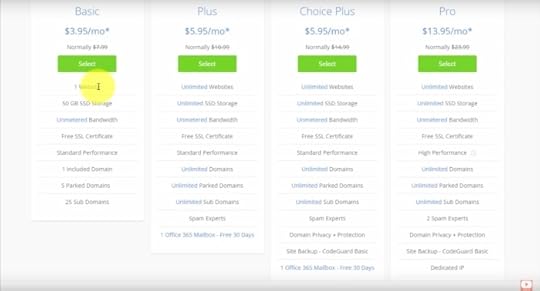
That’ll take us to a page where we get to select our domain. Either Create a new domain (they offer free domain registration) or if you already have a domain registered you can Use a domain you own to get set up with Bluehost.
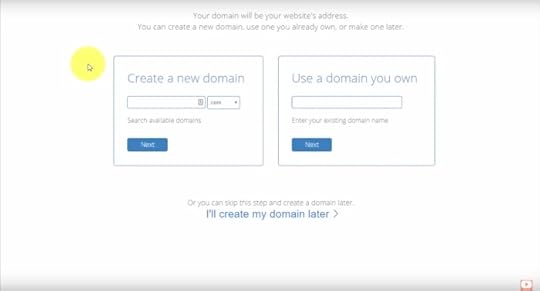
If you’re not sure what domain to pick up, I highly recommend that you grab your full name – first & last – with a COM extension.
At the very least, you’ll have that registered and you can always change it or buy another one down the road to transfer.
Enter your new domain and the system will check if it is available. You’ll receive a message and continue to the next screen if it is successful.
Next, let’s go through the checkout page.
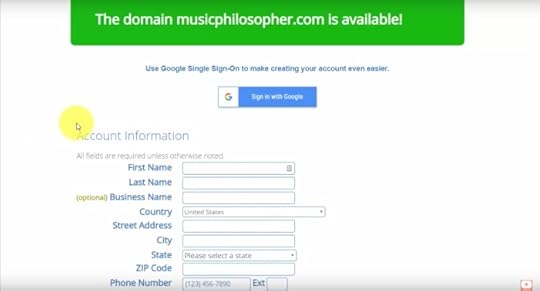
They give you the option to use your Google account which makes creating an account even easier. I highly recommend you do that if you have a Google account to link up.
Let’s start filling out the form.
Continuing down, you’ll find the Package Information section. Choose between a one, two, or three-year term (which is going to give you the best monthly price overall).
This is completely up to you based on what you can afford right now, but I highly recommend going for the longest term to lock-in the lowest cost for an extended period.
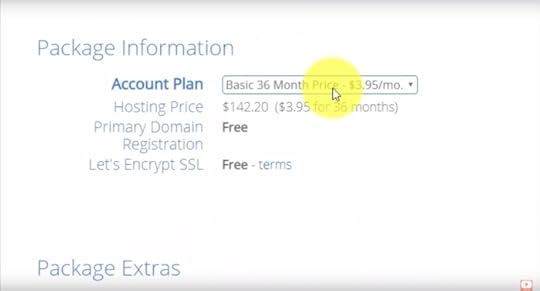
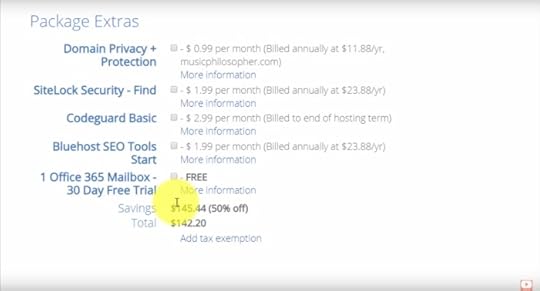
Further down, they have Package Extras that we can add-on. We’re just going to disable all of these because they’re not needed. You can find WordPress plugins that do similar things as these extras, many of them for free.
The one to consider is Domain Privacy + Protection. Without it, people can easily look up your contact information through your domain name. Sometimes that information is out there anyway on other sites for various reasons, but that is completely up to you if you want to add on the privacy or save the $12/year.
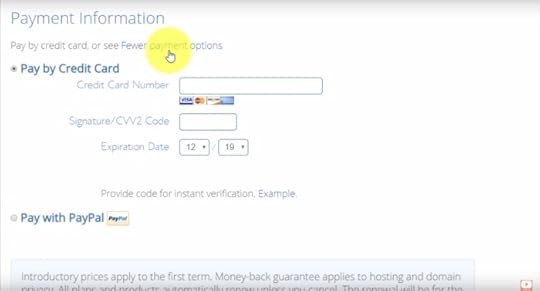
Heading down to the Payment Information section, you can pay by credit card or they give you the option to complete the purchase with PayPal.
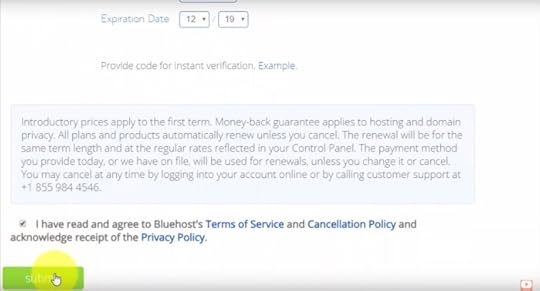
Double-check all of your information is correct and once you’re done all you need to do is click the checkbox to accept Bluehost’s terms and hit the Submit button.
Once the order is complete, you’ll reach a landing page where it tells you that your purchase was a success. They give you the email address that the confirmation email was sent to and you have a receipt that you can download.
Step #2: Create Your Hosting Account
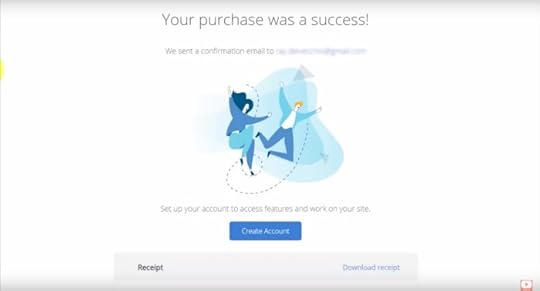
Click the blue Create Account button to get your Bluehost account set up.
That brings us to a page to set the password, and our domain name is used as the Bluehost user login. It will fill the Domain Name field for you, so go ahead and create a password and click Create Account.
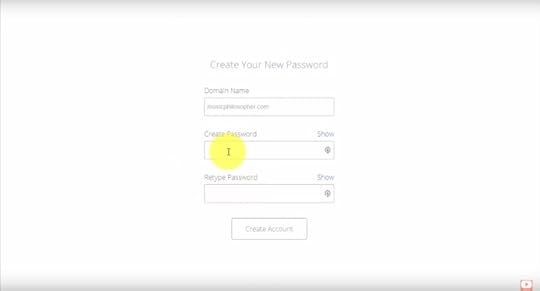
When this process is complete, you’ll get the message, Your account is ready to go. Click the Go To Login button.

Here’s our login page which you’ll use to access your Bluehost account. If you used your Google account, you can sign in with that as well.
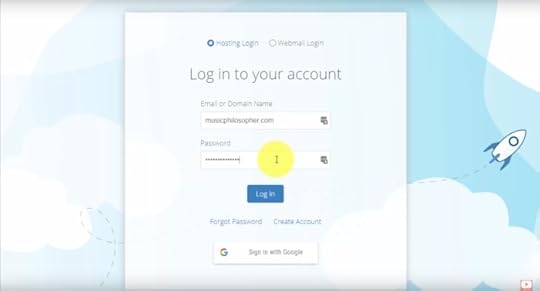
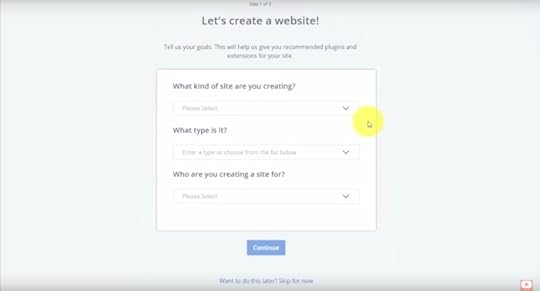
There’s a little account wizard you can go through if you like. For this tutorial, I’m just going to skip it to get to WordPress.
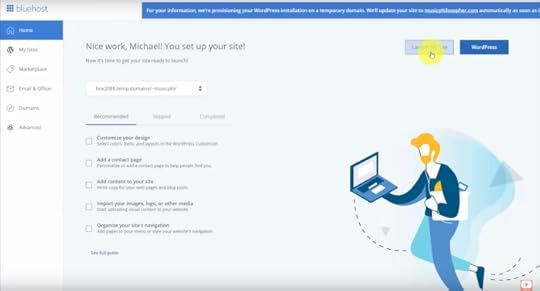
Here we have our account dashboard. They have a little guide on how to start where they recommend that you customize your design, add a contact page, add content to your site, and all that kind of good stuff that you’re going to be doing once you’re launched.
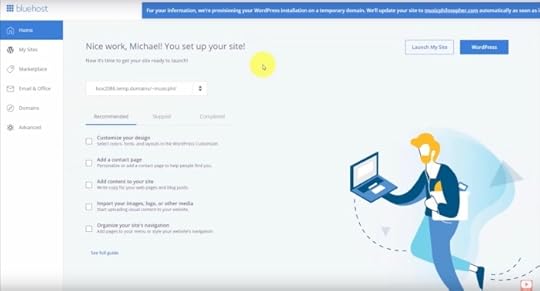
They also give you a pop-up notification at the top of the screen alerting that they’re provisioning our WordPress installation on a temporary domain. It’s going to automatically update to our domain that we just registered as soon as it’s ready. This is a common thing – it takes up to 24 hours for that to work properly, though it’s often much quicker.
On the left-hand panel, this is where you can view extra details about your Bluehost account and access things like your sites and domain management.
For now, we’re going to focus on the two big buttons up on the top right-hand side – Launch My Site and WordPress.
Let’s start by clicking the WordPress button.
Step #3: Create Your WordPress Website
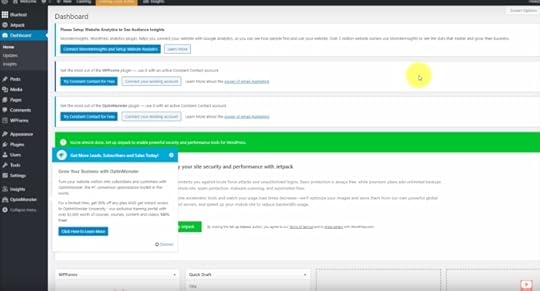
This takes us right to our WordPress admin screen. They automatically install WordPress for you, which is an advantage to other web hosting companies where that requires an extra step!
The first thing that you’re going to see here are a bunch of pop-ups and messages. One thing all of these hosting companies do is preload WordPress with plugins. Personally, I prefer to delete them all and only add back the plugins that are essential for the website or blog that I’m creating.
Let’s head back to the Bluehost portal and click Launch My Site so we can take a look at the design that we get when we pre-install WordPress.
It’s a very basic layout, but you can start blogging immediately, and that’s the most important thing.
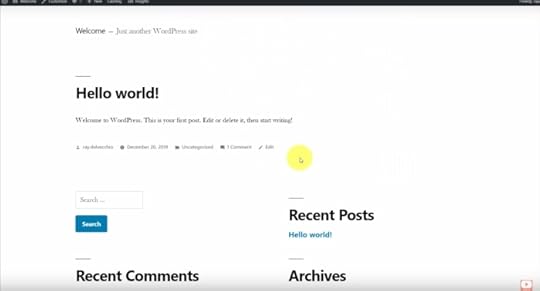
Over time, you’re going to become more comfortable with how to edit your WordPress website and that’s when you can slowly craft a design that really fits you and your goals.
Next Steps
If that seemed easy enough for you, don’t wait any longer. Take action on your website idea and launch now with Bluehost!
Bluehost Web HostingLaunch your website or blog today on Bluehost, the hosting company recommended by WordPress!
Buy NowWe earn a commission if you purchase using the link above which helps support this website.
The post How to Install WordPress on Bluehost (Step-by-Step Tutorial) appeared first on Website Profit Course.
January 17, 2020
How to Install WordPress on SiteGround (Step-by-Step Tutorial)
Are you ready to install WordPress on SiteGround to launch your blog or website?
In this tutorial, we will go through the step-by-step process of buying SiteGround web hosting and installing WordPress to help you create the best online platform for success.
 SiteGround Web Hosting
Launch your website or blog today on SiteGround, the hosting company recommended by WordPress!
Buy NowWe earn a commission if you purchase using the link above which helps support this website.
Step #1: Select Hosting Package
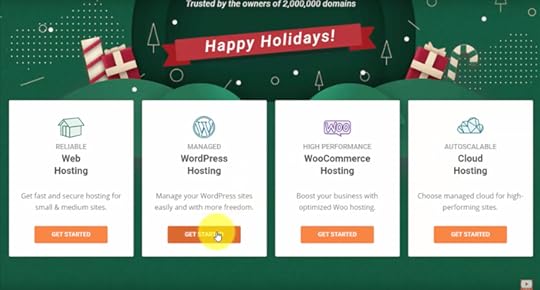
SiteGround offers four main options when you land on the homepage. The first three all have the same underlying technology and price. Whether you are starting with HTML, WordPress, or WooCommerce (an eCommerce plugin for WordPress), SiteGround is a great web hosting solution for your project.
We’re going to set up a WordPress blog with SiteGround’s managed WordPress Hosting.
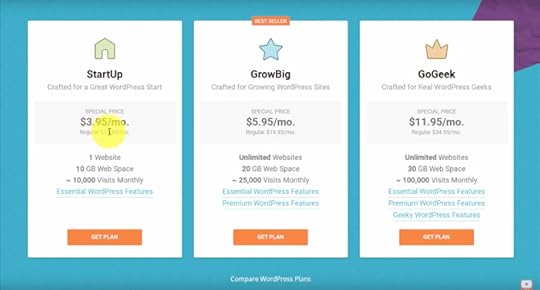
Here, they show you their three hosting packages. They give you the special introductory price you’ll lock-in for your first term, along with the regular renewal price.
The main difference here is that the StartUp package is for one website, whereas the next two are for unlimited sites, and you also get more webspace and bandwidth.
The essential WordPress features are a free WordPress install, free migration (if you already have a WordPress website on another host), free SSL, email, a CDN (Content Delivery Network), daily backups, auto-updates for WordPress, and 24/7 support.
We’re going to launch one blog today with one domain, so we’ll select the StartUp plan.
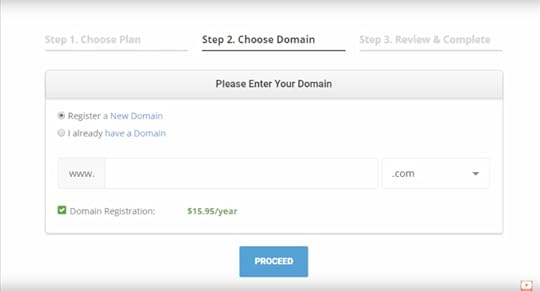
We need to either import a domain that we’ve already registered or we can register our domain name here.
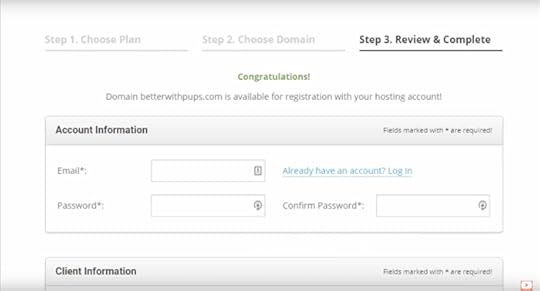
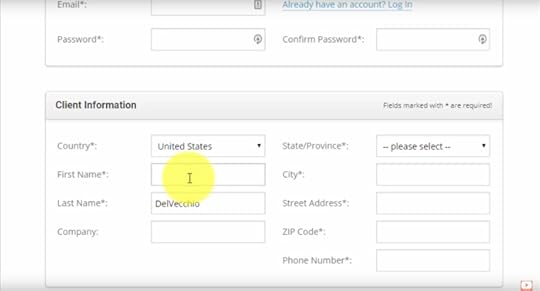
Next, is the account information. You want to set your email and password.
Here is where you enter your billing information. You want to put in your name, your address, your zip, your phone number, and your payment information.
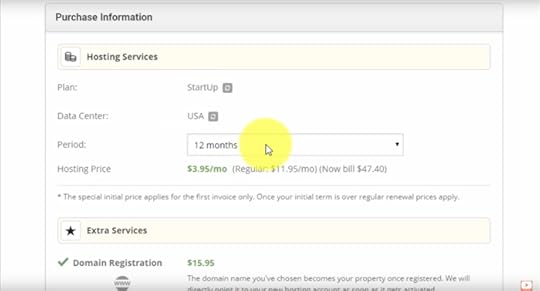
Now, this is where we can alter our packages. Right now we have the StartUp Plan. The billing period is set to 12 months and it’s going to renew at $11.95/month.
Choose the longest term you can afford to get the promotional price (currently $3.95/month) on your first invoice – that’s comparable with the most affordable web hosting deals on the market!
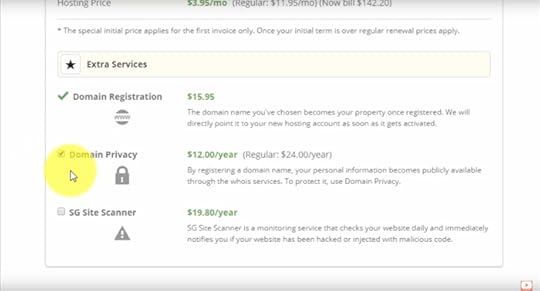
Under Extra Services, we have our domain registration and can add on domain privacy. When you register a domain, your contact information is going to be publicly available. That might include your address, your phone number, and your email address unless you add this domain privacy.
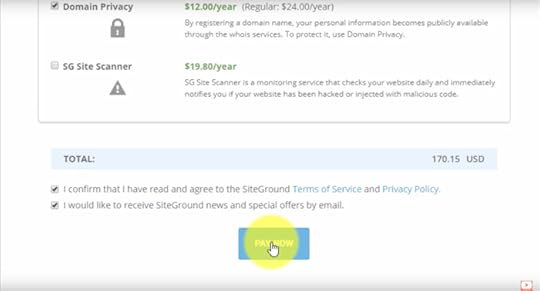
Now we can scroll to the bottom of the checkout page to see our total cost. After double-checking your information, check off the agreement checkboxes and click the Pay Now button to reserve your online home!
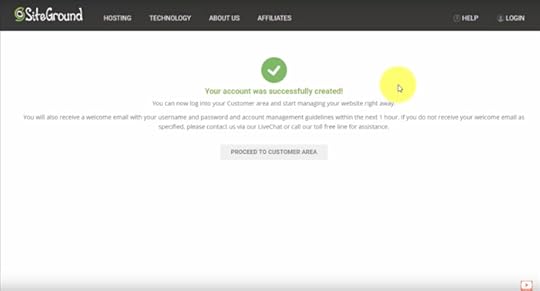
After checkout, we can see that our account was successfully created and there’s a button below to Proceed to Customer Area. You’ll also receive welcome emails with information on how to log in and your receipt.
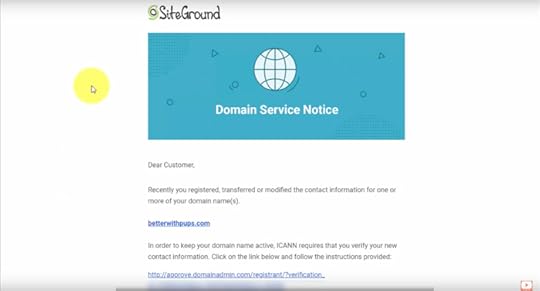
If you registered a domain with SiteGround, you’ll also receive this email notifying you to verify the domain name and they give you a link with instructions to follow.
Step #2: Install WordPress on Your SiteGround Account
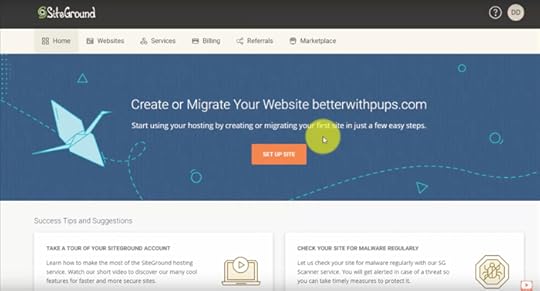
Now we’re in the customer area. They’re giving us the option to either create our website or migrate a website to our new domain name. Click the Set Up Site button to start a new website.
We want to Start New Website to launch a WordPress blog.
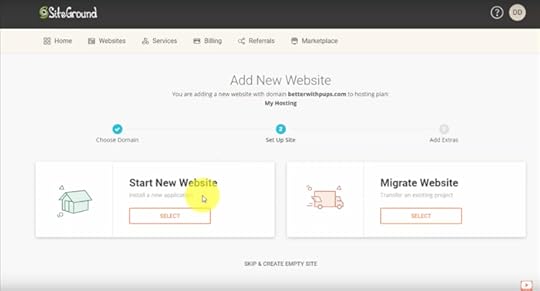
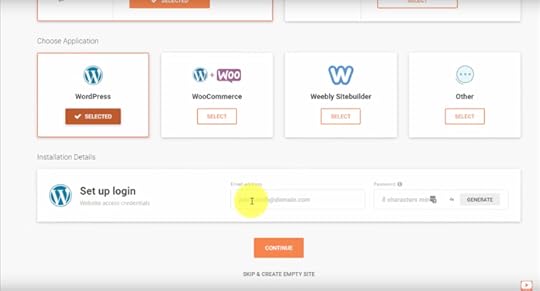
They give you the option to use WordPress, WooCommerce or even Weebly. We’re going to select WordPress, my favorite website building software!
You’re able to set your WordPress email address and password here – make sure to save it securely with a password manager. When you’re ready, click continue.
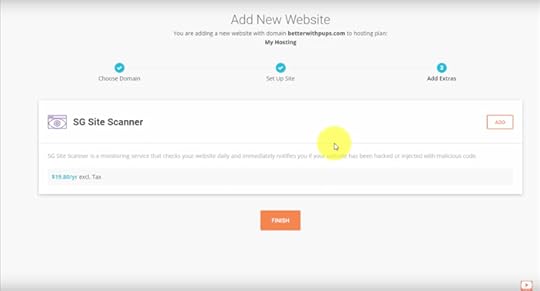
They have a little upsell for their SG Site Scanner, but we can just click Finish.
After a few moments, your WordPress website will be created!
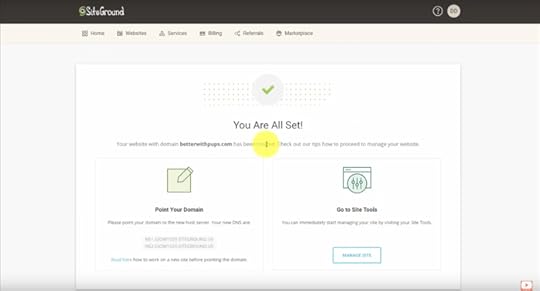
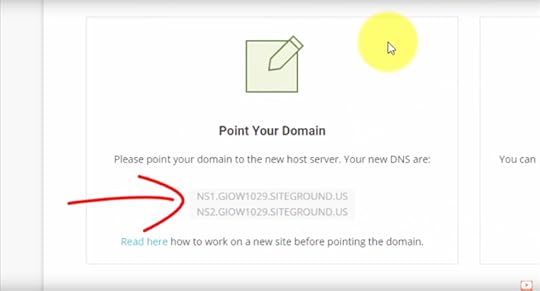
Under this Point Your Domain section, you’ll see the Domain Name Servers (DNS). The name servers link your domain name to SiteGround hosting. This is how you would link up a domain that was registered somewhere else to SiteGround.
When you register your domain at the time of purchasing hosting, they’ll be linked up automatically!
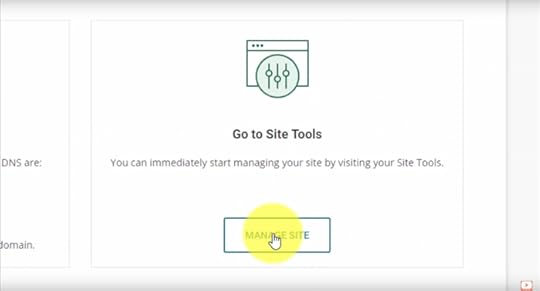
We can immediately start on our SiteGround account by clicking on this Manage Site button.
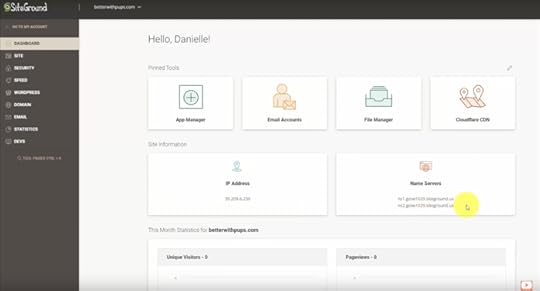
Here’s the dashboard. We can see the name servers that we just got on that previous page, there are pinned tools that you can edit by clicking the little pencil icon, and you can see you can add apps, manage your email accounts, manage your files, or set up the CDN.
They also include website stats on this screen.
To see if our WordPress website got set up correctly, open the new domain in a new tab. This is a very plain, basic WordPress installation.
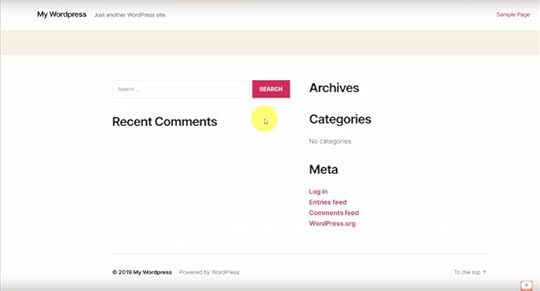
You can start blogging immediately or if you want to work on the design a little bit, you’re going to try out new WordPress themes. You can install free or paid WordPress themes to give you a nice template that you can start with for customization.
For a business style layout, the most popular visual builder on WordPress is called Divi, which allows you to design anything with drag-and-drop. Check it out below!
 Divi Visual Builder
The #1 WordPress theme on the entire internet to design your website with drag-and-drop!
Buy NowWe earn a commission if you purchase using the link above which helps support this website.
Step #3: Login to Your WordPress Dashboard
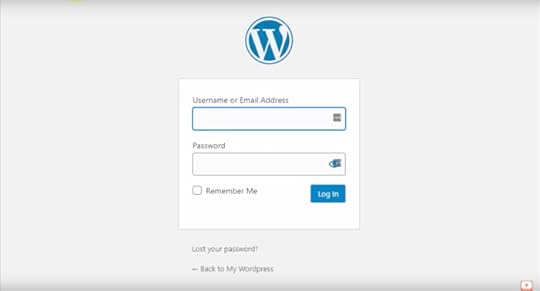
You don’t need to go through SiteGround to manage your WordPress website. Instead, go to yourdomain.com/wp-admin and that will automatically take you to your WordPress login page.
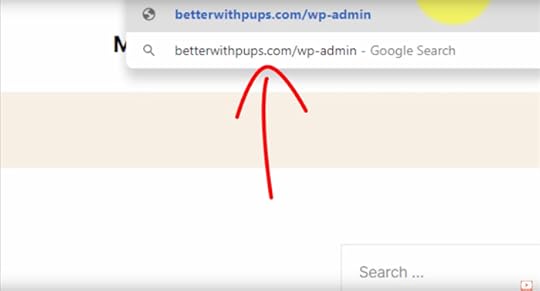
Below is how the WordPress login page looks across any web hosting company. Go ahead and fill your username and password to reach the WordPress admin dashboard.
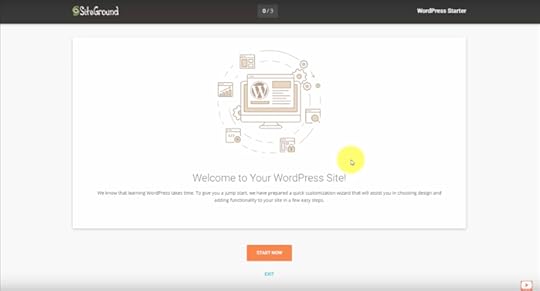
SiteGround is going to show you this little wizard to help you get set up. You can go through this if you like, or click Exit to get to the WordPress dashboard.
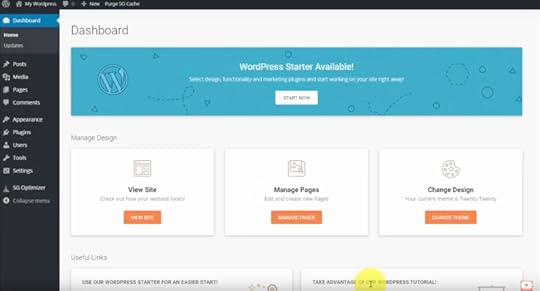
Finally, we’ve reached the WordPress dashboard and that’s it. We’ve got WordPress launched and we’re ready to start building!
If that seemed easy enough for you, don’t wait any longer. Take action right now on your website or blog!
Click Here to Start Your WordPress Website
Learn WordPress Fast
If you need help once you have WordPress installed, join the free training below to get more tutorials on how to use WordPress to design a website!
FREE Training: WordPress 101 For Beginners
Your information will not be shared or sold, period.
The post How to Install WordPress on SiteGround (Step-by-Step Tutorial) appeared first on Website Profit Course.
Web Design Bulletin: Improve Your Communication, Helix Sleep, Google Search Ads
Cool Tool, Service or Resource
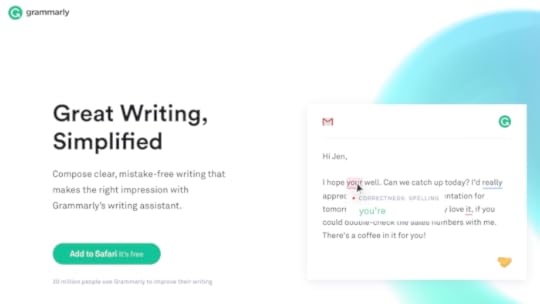
Grammarly Writing Assistant – https://grammarly.com/
Grammarly is the perfect example of a tech tool that uses cutting edge technology like artificial intelligence while remaining super simple to use.
It’s on my “Top 10” list of software I use most frequently.
It is crucial because it clarifies everything I write, such as emails, articles, tutorials, documents, etc.
Watch My Grammarly Review: #1 Way to Improve Your Writing [VIDEO]
Web Design Example
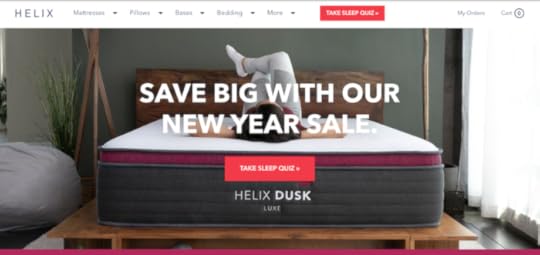
Helix Sleep – https://helixsleep.com
Mattresses are one industry that you would never think about until it’s time for an upgrade.
I haven’t reached that point, but after seeing ads for several companies, I began to browse their websites out of pure curiosity.
There are many modern alternatives to driving to a local store, and Helix struck me as a company that has so much of their online marketing plan put together.
My first impressions:
Built on Shopify, which is a WordPress-like platform only for e-commerceImmediate splash overlay with limited time coupon codesChatbot button (bottom-right)Social proof Shopify app popups (top-left) showing when someone purchases item“Sleep Quiz” call-to-action button that’s red to contrastThe quiz acts as an upfront lead qualifier to recommend the right productThe quiz is their primary email opt-in methodDead simple product pagesAn education center with helpful articlesIncluded financing options to boost sales (a contractor client of mine set this up last year)
How to Find Clients
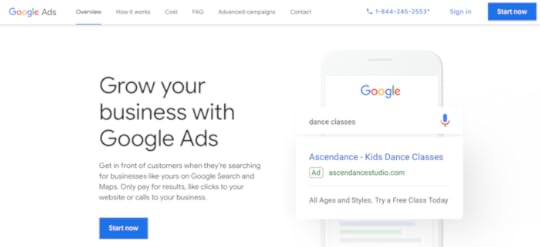
Google Ads – https://ads.google.com/home/
If you are serious about finding new web design clients, and have money to test, consider using Google search ads.
In my experience, they give you the most knowledge about the person on the other end, because you know what they are searching.
For instance, you can set up a campaign to target your local state only, and people who search for keywords like “contractor websites.”
If you want more reach, the Google Ad platform also includes video and display advertising on YouTube or 3rd-party websites.
Watch this FREE presentation to learn more about advertising:
How Do Google Ads Work? [VIDEO]
Want to see me create a REAL Google Ad campaign for a client? Join the Business Plan membership today and make more money freelancing with ad management!
The post Web Design Bulletin: Improve Your Communication, Helix Sleep, Google Search Ads appeared first on Website Profit Course.
January 3, 2020
Web Design Bulletin: Creative Content Marketing, Industry Partners, Increase Your Vocab
Cool Tool, Service or Resource
Writing is such an essential skill for making money. As a math and numbers kind of guy, I steered away early from the subjective world of words.
I got out of this rut by creating my blog years ago, which forced me to clarify my thoughts on business and life.
Every day as I browse the web, I come across words I don’t know.
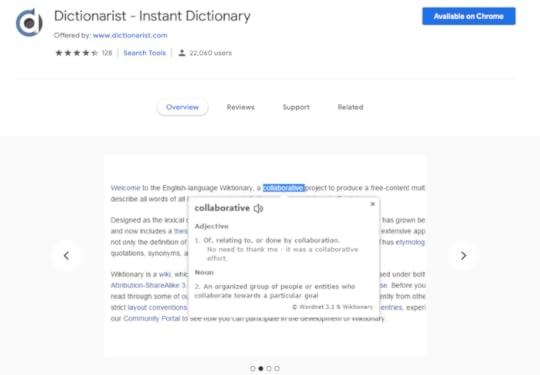
Here’s a lesson in usability – I’m too lazy to copy/paste, open a new tab, and search Google. With this Google Chrome extension, you’ll get the definition instantly by double-clicking.
Now build your vocabulary!
Web Design Example
Bromwell Construction Kitchen Remodeling Guide
Content marketing is an overlooked method to get more traffic for small business websites, mainly because it’s a long-term process.
You don’t publish a blog post and have it ranked on Google within days. That can take months or even years.
The key is answering real questions customers have about your core service. How do you figure this out? Get ideas by asking WHO, WHAT, WHEN, WHERE, WHY, HOW.
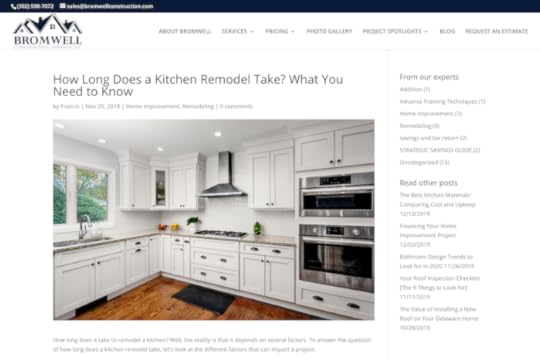
For a kitchen remodeling project, you know a homeowner is thinking, “how long will my kitchen be under construction?”
The linked article from a Delaware remodeler goes into detail on that simple question, and what I love even more is they encourage the visitor to download a “Kitchen Remodeling Cost Guide” by providing their email.
Does it sound familiar? I implement this exact strategy – it’s why you’ve subscribed to my list!
A free guide giveaway is a perfect example of what I’ve pitched to upsell my current clients. Unfortunately, many are too non-technical to have an interest in creating an email or content strategy.
That doesn’t mean I’ll stop trying to sell them.
How to Find Clients

One of my clients is getting his new fleet of trucks “wrapped” with their logo. I sent over graphics to the owner of the truck wrap company.
Think about what a perfect opportunity it is to develop a relationship with this guy…
He works mostly with local contractors, my preferred nicheHe deals with print marketing, not online marketingWe can find common ground on the graphic design connection
In every industry, there are plenty of similar but non-competing businesses where it makes sense for both parties to work together.
In the future, I can see us referring leads to each other. It all depends on the trust, and that comes from playing the long game, not the immediate cash grab.
Get step-by-step training and 1-on-1 help to start freelancing today!
The post Web Design Bulletin: Creative Content Marketing, Industry Partners, Increase Your Vocab appeared first on Website Profit Course.
December 23, 2019
How to Install WordPress on HostGator (Step-by-Step Tutorial)
Are you ready to install WordPress on HostGator to launch your blog or website?
In this tutorial, we will go through the step-by-step process of signing up for HostGator web hosting and installing WordPress to help you create your online platform the right way.
HostGator Web HostingLaunch your WordPress website or blog today for 45% OFF using code WPC1
Buy NowWe earn a commission if you purchase using the link above which helps support this website.
Step #1: Select Hosting Package
HostGator provides many types of web hosting packages, but beginners can start with shared web hosting, which is the most affordable option. If you are creating one website, the Hatchling plan is perfect for you.
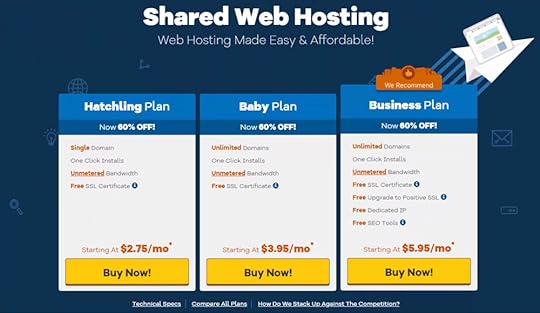
I partner with HostGator to give you the best offer for 1-year of hosting at 45% OFF. Click the link to use my special coupon code and get set up with the Hatchling plan automatically.
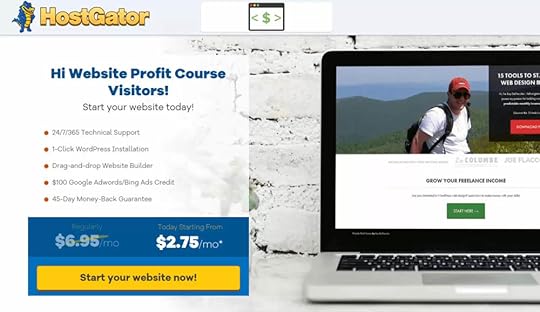
The first thing you want to do is pick your domain name, or you can use a domain registered with another company (like GoDaddy) by selecting the “I Already Own This Domain” tab. When you choose the domain extension, they will instantly check to see if it’s available.
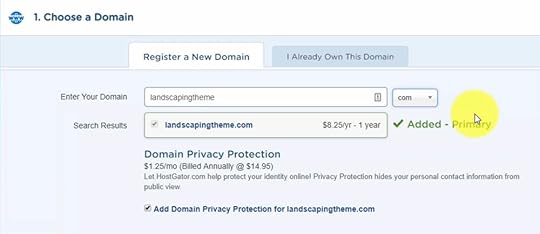
You can choose whether to add domain privacy protection. If not, your registration details will be public information.
Choose the hosting package type and pick your preferred billing cycle. You’ll get the biggest discount if you go for the most extended term of 36-months. With my coupon code WPC1, you’ll get the best deal for a 12-month term!
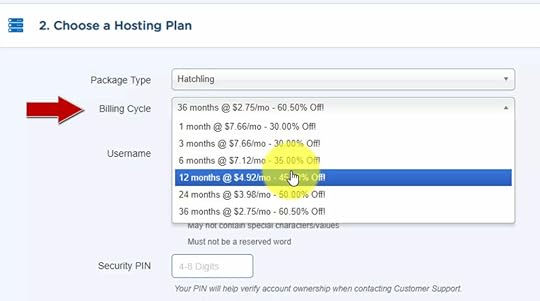
Fill out your billing info and choose whether you want to pay with a credit card or PayPal account.
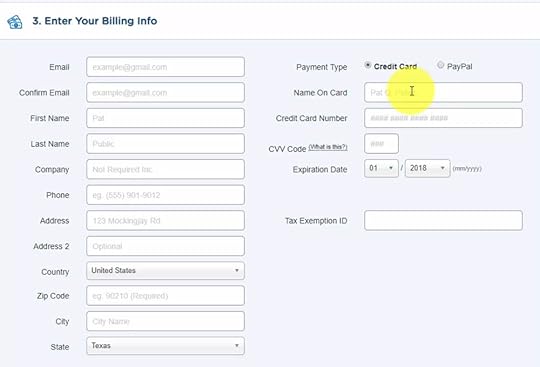
You can add-on several services. I prefer to uncheck all of these to give you the lowest price. There are free WordPress plugins that allow you to implement similar features like security and backups.
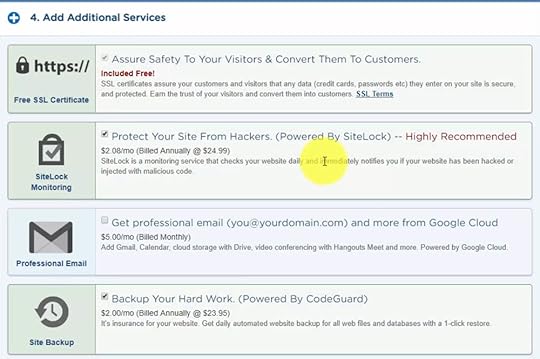
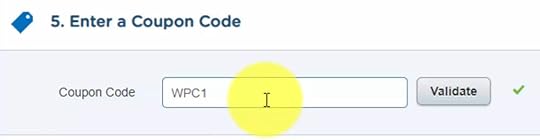
If the coupon code isn’t already loaded in, you can add and validate it here.
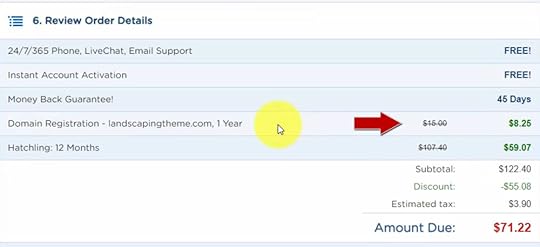
Review your order details and check out to complete your web hosting purchase.
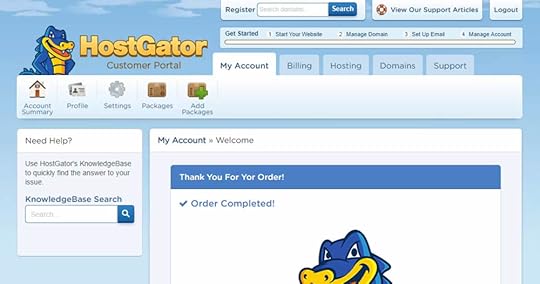
You’ll get redirected to the HostGator customer portal where you can handle billing, check your renewals, and access customer support.
Click Here to Start Your WordPress Website
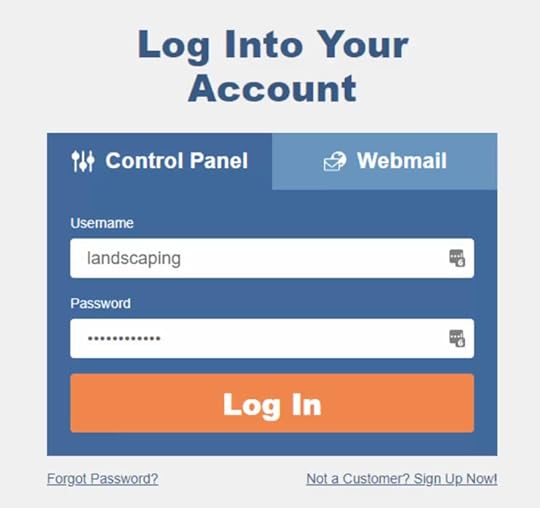
Step #2: Login to Your Control Panel
HostGator will follow up with confirmation emails, and you’ll want to find the one with your Control Panel account info as shown below.
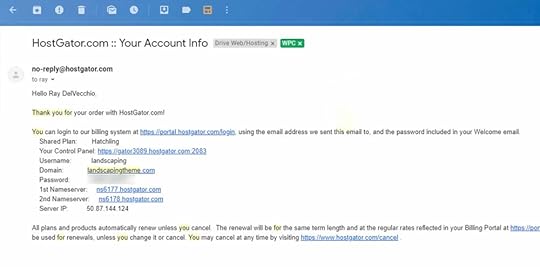
Click the link in that email and login to your HostGator Control Panel.
NOTE: It may take up to 24 hours for this to work!
Here is a look at the Control Panel dashboard where you can manage things like email accounts, files on your web server, databases, and much more.
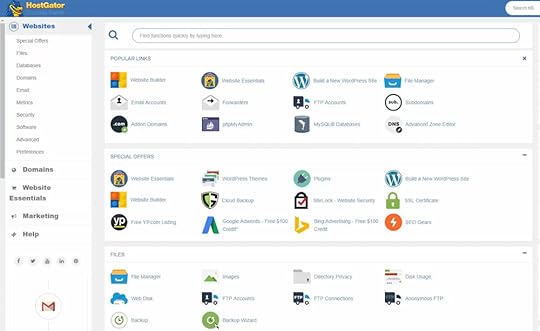
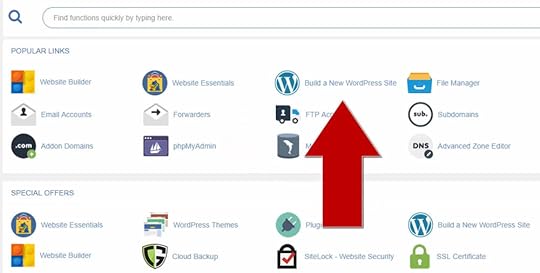
Step #3: Install WordPress on HostGator Account
Click the “Build a New WordPress Site” link which will launch the installation wizard.
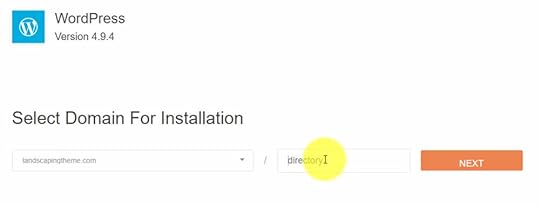
Pick the domain you want to install WordPress on from the dropdown menu and optionally choose a subdirectory. I leave this blank and install on the top-level domain 99% of the time.
Fill in your WordPress website details and create an administrator account, then click the install button.
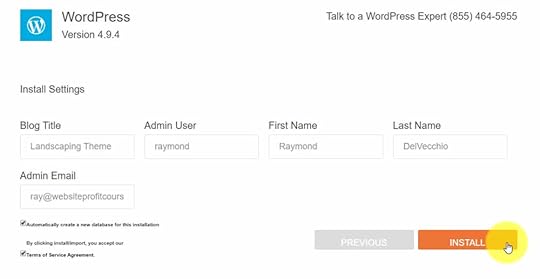
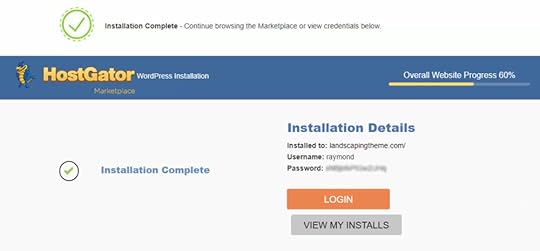
When the installation is complete, you’ll get a username and password to manage your WordPress website.
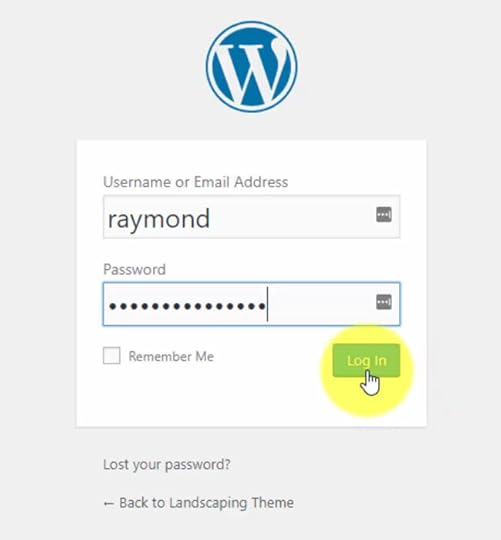
Step #4: Login to WordPress & Visit Website
Go to yourdomain.com/wp-admin to reach the WordPress login page, and test your new account.
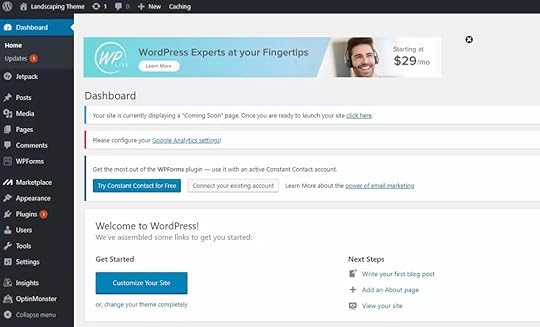
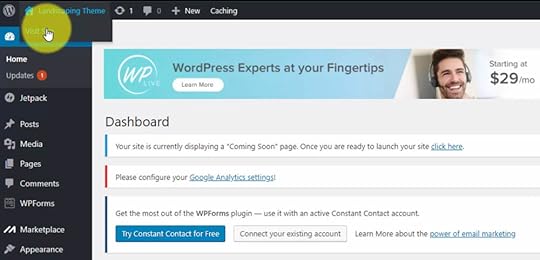
Below is a look at your WordPress dashboard, and you can review each section from the left panel menu to see how it is all put together.
If you hover over your website name in the top navigation bar, you’ll see a link to Visit Site.
Here’s a look at our website using the default WordPress theme, Twenty Seventeen. You may have the newer version installed, Twenty Nineteen.
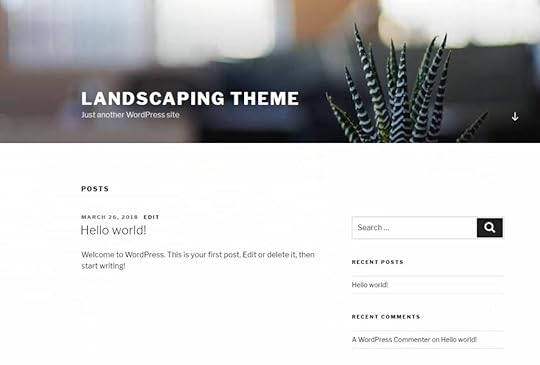
It’s time to build your WordPress website with great content and design. That is how you’ll reach a wider audience and make a more considerable impact.
Now that you know how to install WordPress on HostGator, you can learn basic web design and use your skills to make money freelancing by managing other people’s WordPress sites!
Click Here to Start Your WordPress Website
Learn WordPress Fast
If you need help once you have WordPress installed, join the free training below to get more tutorials on how to use WordPress to design a website!
FREE Training: WordPress 101 for Beginners
Your information will not be shared or sold, period.
The post How to Install WordPress on HostGator (Step-by-Step Tutorial) appeared first on Website Profit Course.
December 14, 2019
How to Start a Web Design Business: 5-Step Plan to Sustainable Income
2) Competitor Analysis
3) Your Web Design Solution
4) Your Goals
5) Your Sales Strategy
15 Tools to Start Your Web Design Business!
Do you have experience with web design? Have you made your first dollar with your skills?
If you answered yes to both, the entrepreneurial bug has hit you. That’s how I felt when I got my first paid job.
The client was a local contractor who did work for my parents, and my dad told him that I built websites. It was a basic 5-page HTML website, took one night to create, and I made $100/hour on the project.
At that point, you realize how much control you have over your income when you work for yourself, compared to relying on a web designer fixed salary.
FREE Download: 15 Tools to Start Your Web Design Business
Your information will not be shared or sold, period.
Even if you haven’t made money yet with web design, when you have an above-average skill, you deserve to put cash in your pocket when you offer your services.
That task is daunting to every website beginner, especially those who want to take it to the next level into sustainable monthly income.
That’s why I want to talk about what to consider when you develop a web design business plan.
1) Target Your Business Niche

The biggest mistake I see is people who want to work with ALL types of businesses.
When it comes to sales messaging, your offer will be too general to stand out from competitors in a fierce market. All the clients that I work with complain about sales calls all day from web designers, marketing people, advertising salespeople.
That’s why you need to pick a “business niche” that interests you and become an expert.
EXAMPLE: If I only build websites for Italian restaurants, I can talk with potential clients about a reservation system, how we can grow an email list to get more customers in the door and show them examples of what their website and menu will look like online.
Target People, Too
You’ll also want to look for people with shared values or interests. Doing so can make a cold email or call easier when you have something in common.
Anything you can break the ice with is useful. For instance, I chat about health regularly with my website clients, and that has built a lot of trust in each other as we work on projects together.
It’s not possible to know about someone for real until you get to work. After building 3-5 websites with various personalities, you’ll begin to identify traits of good clients & bad ones, so you become better at selecting them in the future.
The most powerful way to capture the attention of a potential client is by showing them results you’ve got for a similar business. That’s why you can gain traction faster by working within one industry.
Business Industry Examples:
Kitchen Remodeling
Dance Studios
Restaurants
Tree Service
Auto Maintenance & Repair
Get results for one business, measured using Google Analytics. You then have evidence of the results that are possible with a great online web presence for a local business.
There are plenty of bad business people out there, so you can set yourself apart by going the extra mile and being ultra-responsive, especially during the pre-launch phase.
2) Competitor Analysis

There are so many ways to get a website today. However, you’re likely to find certain trends when you search for web design businesses that have clients near you.
The main categories of web design solutions include:
DIY Builders – Squarespace, Wix or templates available with your hosting company (COST: < $50 / month)Small Business – Company that has less than three people, often just one, and have several clients either within one industry or local. (COST: Setup fee then $100 – $200 / month)High-End Freelancer – Someone that has years of experience and a specialty in a specific area like success within a business niche or e-commerce development. (COST: $1,000 – $10,000)Digital Agency – Local companies that offer multiple high-end services and have 10+ employees (COST: $10,000 – $50,000 and contracts)
The main takeaway is that you don’t want to align yourself with the lowest prices in the market because you become a commodity and can’t offer the personalized service that is often necessary to gain traction at the beginning.
You have to go for volume if you’re slashing prices, and that doesn’t suit most people, especially introverted creative entrepreneurs!
Don’t Compare Your Success
The other thing that can happen is you begin to feel “imposter syndrome” when you start comparing yourself to others that are seemingly successful online. That’s why you must have an abundance mindset because there is enough to go around between you and your competitors!
You have unique skills to offer, and if you stay confident and aggressive over a long period, good things will happen.
I used local competitor services as evidence that I had what it took to offer the same thing to my clients. You can even use competitor examples of website templates as inspiration when you develop your preferred WordPress theme to use on client websites.
3) Your Web Design Solution
While you can go the manual route of hand-coding a website, I’m partial to WordPress, a platform that powers a large portion of the web and makes it easy to customize.
Starting a web design business is a low startup cost venture because all you need are domain registration ($20/year), web hosting ($300-$500/year for unlimited websites), and premium WordPress themes & plugins ($50-$300/year for unlimited websites).
Get started today with HostGator to register your domain and create your web hosting account!
HostGator Web HostingLaunch your WordPress website or blog today for 45% OFF using code WPC1
Buy NowWe earn a commission if you purchase using the link above which helps support this website.
Then your workflow can become more efficient when you stack on productivity apps like Google Drive (free), Dropbox ($100/year), and Adobe Creative Cloud ($600/year).
My favorite WordPress theme for both beginners and experienced designers is Divi by Elegant Themes.
I selected a different theme years ago and have stuck with it on many clients and personal websites. Unfortunately, in that time it’s become obsolete and there are much better options to build more easily.
That’s when I found Divi from my subscribers!
I recommend that you become familiar with Divi, the best drag-and-drop page builder for WordPress. Here’s a full tutorial on how to make a WordPress website with Divi step-by-step!
Divi Visual BuilderThe #1 WordPress theme on the entire internet to design your website with drag-and-drop!
Buy NowWe earn a commission if you purchase using the link above which helps support this website.
Contracts vs. Hourly vs. Packages
My only two clients who didn’t follow through on projects were those who signed a contract. We never finalized the websites largely due to a lack of communication on their end. They started to dodge me. These contracts were for approximately $2,000 combined.
Do you think it was worth it to get a lawyer involved?
Did I even know what to do?
No and no.
Ultimately, I moved away from contract work for this reason. There is no doubt a place for contracts with more detailed projects and high-cost, high-risk jobs. It just isn’t the business model I prefer.
Instead, I was able to upsell the clients that I did hourly work for at the beginning into a monthly website maintenance package – and some of these clients have been with me for eight years.
How Much Should I Charge for Web Design?
When you charge on a monthly basis, the recurring revenue starts to add up with only a handful of clients. It proved to be a much more sustainable business plan for freelance web design.
Your goal is to increase your monthly charge and build more value into that cost, so you don’t have to rely on constantly bringing in new clients for one-time project work.
One way to create loyalty is by tracking all leads on your client’s website using Google Analytics (emails, consultations, or phone number clicks) and providing them detailed reports along with ideas for improvement.
Your clients will begin to view you as a member of their team instead of an outsourced freelancer.
Upsell Your Service
As you gain new skills, you can increase your income by offering services such as business reputation management, SEO improvement, link building campaigns, email marketing, e-commerce, video, content strategy, advertising management.
You must invest in education to learn and keep up with the latest trends on the web.
Last but not least, make sure to over-deliver when it comes to communication. In my experience, it’s common for clients to have bad past experiences with unreliable web designers.
The most common complaint is NOT a lack of technical ability, but seemingly simple tasks that did not get taken care of promptly.
The bottom line is to tell your clients what you’re going to do, how long it will take to complete, and give it to them early to earn extra trust points.
4) Your Short & Long-Term Goals

Many people have dreams when it comes to quitting their job, making money freelancing and starting their own web design business.
However, it’s easy to get stuck in the big-picture phase and lose focus on the daily steps it’ll take to achieve your goal.
Ultimately, your goal is going to be unique to your circumstances.
Maybe you’re 35, have a good job, just starting a family, and you want to make an extra $5,000 from your hobby to help ease the new mortgage payment.
Or you could be a college student who doesn’t feel a passion for their major, and you want to use any free time you have to build the skills to run your full-time web design business after you graduate.
With a monthly service structure, work backward from your financial goal to estimate how many people you’ll need to contact.
Sales is a numbers game.
You must reach out to a large number of people to generate a little interest. Depending on your method of attack, you will be lucky to hear back from 2% of them. That can be a discouraging feeling.
You must trust and refine your process instead of worrying about short-term results.
Make sales prospecting and networking a habit, and think of it as planting seeds that may blossom down the road.
Accounting
Use software to make things easy when tax season rolls around. A few popular online solutions include Wave and FreshBooks.
Right now, I’m using an older version of QuickBooks which does a great job but is not the easiest to learn. They also have a newer online option which might work well for you.
Even if you rely on a simple spreadsheet, tracking your costs somewhere in an organized fashion is essential to managing your money better with each new client.
You’ll also want the ability to send clients a professional invoice.
5) Your Sales Strategy

Now we come to the hardest aspect of freelancing – getting new web design clients!
You must realize that building a website is relatively easy compared to the art of selling. With web design, you are working towards a result that you have total control over. With sales, you’re dealing with people who have different objections, questions, and expectations of your work.
Proactive Sales Process
Let’s not overcomplicate things. To make money, you need more clients. That means connecting with decision-makers must be a primary component on your schedule.
Keep it simple and select a channel that suits you, whether it’s cold emails or cold calling. Then track essential metrics like the number of contacts compared to the number of responses to be objective with what’s working and what isn’t.
Create a simple script to guide you but don’t become a slave to it during a genuine conversation. Allow your curiosity to lead the discussion and ask questions that pop into your mind about their business.
Your goal should be to set up a meeting. Start with your local community, because when you can meet in person, it’s an enormous added value to your potential client. It builds trust faster than any other method, you can bring a computer to walk them through examples, and you’re more likely to close a sale when they can hand you a check!
Local Networking
Join a local networking group like the Chamber of Commerce and attend their meetings. Or you can find one online on a website like Meetup. They are designed for members to share tips and to find trustworthy referral work.
Most importantly, you have to follow-up on all non-responders and be exceptionally aggressive (in a diplomatic way) with “warm leads” that show immediate interest in your service.
When you exceed a small transaction, let’s say anything over $50, you’re going to encounter resistance before a person pulls out their wallet. Put another way, you’re not getting an impulse buy! They crave re-assurance in many ways.
If the business owner is still deciding but you never check-in, they are likely to forget about you and move on. On the flip side, if they are interested but indecisive, you are helping by pushing them to say yes or no definitively.
Stay top of mind, continue to follow up with advice that shows you are the right person for the job and reach out through all possible channels – email, text, phone, direct mail, in-person.
I tried to outsource sales several times, mainly because I’m introverted and don’t like constant social interactions. It was a total failure.
It wasn’t because the people I recruited were incompetent. It was because they didn’t have a passion for web design and were NOT motivated by sales commission with no salary.
Ultimately, when you are starting a web design business, success is all on your shoulders. It’s your baby, and you’re the only one who is going to push through the inevitable struggles onto the path of success.
Only when you’ve got a process that works for sales should you consider outsourcing.
Final Tips & Takeaways
Standardize your website creation process for one business industryUse a web design questionnaire for onboarding and to get project detailsFollow a quantifiable sales strategy to find new clientsDiversify your skills to upsell current clientsAlways ask lots of questions to show your interest and uncover pain pointsSolve your client’s most significant problemsTakes notes when you talk with clients over the phoneIt’s rare (if not impossible) to be good at everything so be kind to yourself if progress is slow!
The post How to Start a Web Design Business: 5-Step Plan to Sustainable Income appeared first on Website Profit Course.