Ray DelVecchio's Blog, page 7
May 4, 2020
A Recent Example of a Web Design Client Request

Most of my clients are local and work within a 10-20 mile radius.
However, one is licensed in 2 states and travels around the country.
Statewide SEO is a bit more complicated than local. One thing we’ve noticed is that his Google Business map listing doesn’t show as often as his website-only.
Because of this, I suggested that we create a “Where We Work” page that provides a map graphic highlighting his most popular areas along with explicitly listing each county/city.
He asked if we could make it interactive, i.e., if someone clicks on a county, they redirect to a separate page that lists the top cities.
I know there are two ways to implement an interactive map:
Use a custom map API
Manually define the borders using SVG or coordinates
Considering I’ve never done either of these things in a client project, a bit of wisdom and negotiating come in handy here! The real question – is it worth the extra effort and money for him?
I explained my thought process and found a few examples of interactive maps like this one – SimpleMaps
We agreed to launch using images (vs. interactive) to get it out there faster. Down the road, we may give interactivity a shot because I would like to learn how it’s done.
FREE Web Design Client Questionnaire
Your information will not be shared or sold, period.
The post A Recent Example of a Web Design Client Request appeared first on Website Profit Course.


April 29, 2020
How to Increase Your Value as a Freelancer & Charge More

People across every industry underestimate what it takes to complete a project outside of their expertise.
It happens as a freelancer as you deal with cheap clients who would instead build a free website themselves or go without one than outsource to a professional like you.
Bad clients also want to know how much time you spend working, because if it’s an hour or two, why should they pay you $500 – $1,000?
I heard a great quote recently, and to paraphrase, tell those clients, “I spent five years learning, and that’s why the project takes me 1 hour.“
On top of that, many projects require “thought investment,” aka the time you spend making critical decisions.
I find this quite often when I’m dealing with web design leads in the home service industry. Their business is one with project costs in a fixed range.
EXAMPLE: If you get three roofing quotes and one is 50% more than the other two, you’re probably getting ripped off. However, if you get three web design prices, it might be $100, $1,000 and $5,000. That’s not uncommon with idea work.
Often, it’s hard to articulate the value of an idea because it’s potential.

More ideas = more creativity = differentiation from competitors.
One good idea I had recently was painfully apparent in retrospect. I bought screencast software years ago to launch my YouTube channel. Why not use that software to give my best clients private monthly analytics updates vs. sending a boring PDF?
This process takes about 30-45 minutes, and across the board, they have all provided positive feedback on how helpful it was to understand the work I do on the back-end of their websites.
As you can tell, it’s an excellent method to justify your value and show your effort.
It’s hard to be successful if you’re providing a “commodity” service like web design or hosting without ever advancing to content creation, analytics, and driving traffic AFTER launching.
Join a community of freelancers & increase what you charge with this 100% proven blueprint!
The post How to Increase Your Value as a Freelancer & Charge More appeared first on Website Profit Course.
April 27, 2020
Web Design Prediction from 2015 – Right or Wrong?

When I wrote my web design book in 2015, a company kept appearing in my Facebook feed.
Their goal was to eliminate manual web design using AI.
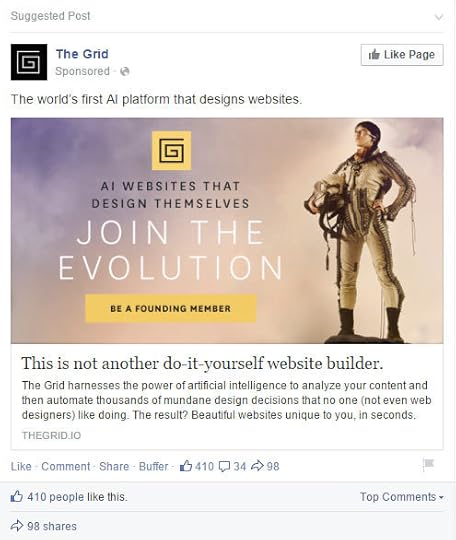
Here’s what I wrote about them within the book:
“I’ve seen ads for a startup which claims your web design will be completely automated with artificial intelligence. Just provide your content, and they will do the rest. They have a loose launch date of Spring/Summer 2015.
I doubt it’s going to catch on quickly considering the massive existing footprint of the internet. I also doubt it’s going to run smoothly in those first months because what they are trying to do is an enormous undertaking.”
What’s their current status in 2019?
They’ve killed v2 and are working on yet another launch of v3 which is TBD. They also mention they’ve been working at this for ten years, long before I published my book.
My prediction of a slow launch was correct!
The fact they’re still struggling shows you how difficult it will be to surpass a professional website platform like WordPress anytime soon.
Check out my book: Create Your Freedom: Become a Local Web Design Guru & Make Money from Home
The post Web Design Prediction from 2015 – Right or Wrong? appeared first on Website Profit Course.
April 22, 2020
Web Design Bulletin: Sell Digital Products, Plant the Future, Go Deep on Google
Cool Tool, Service or Resource
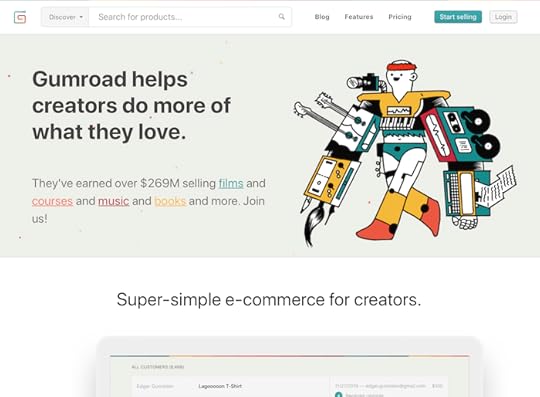
Gumroad
Gumroad is the platform that I used to sell the first version of my web design business plan, which at the time was a one-time delivery of files (PDF & MP4). I’m still in contact with many of those initial customers and gave them lifetime access when that product transitioned into a monthly membership!
If you need an easy solution to sell your digital products, Gumroad does an excellent job.
Web Design Example
Plant the Future
I use GoDaddy for many of my domains, but I DO NOT recommend them for hosting. I had a couple of bad experiences with clients whose WordPress websites were on their servers.
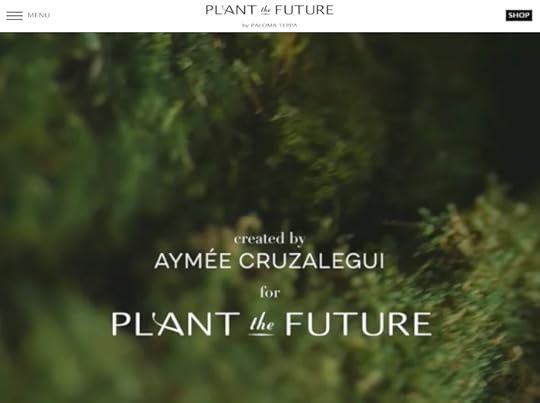
With that said, GoDaddy has plenty of satisfied customers. Last month when I logged in to manage domains, they were promoting a small business website called Plant the Future.
As a gardener, I had to check it out. Here are the highlights:
Based in Miami, FloridaThey have multiple arms – design, art gallery, gift shop, online salesThey have great content – plant care guides, product examplesVideo banner (very cool)The homepage and blog are WordPressThey use a different platform for selling (BigCommerce)Their store is on a subdomain (that’s how two platforms are separated)
Ultimately, I’m agnostic when it comes to which web host to choose. They are all good enough to start as a beginner. What’s more important is creating a unique message, and brand like this company is doing.
Click here to see my favorite WordPress web hosting companies
How to Find Clients

Do you want an easy strategy that is in plain sight? It’s perhaps the most obvious strategy, but I cannot tell you how many bad websites it will unearth.
Businesses that succeed on Google rank high for the best terms. If you’re going after a specific niche, it’s not hard to figure out what those searches might look like, for instance – landscaper miami fl.
You have almost 0% chance if you reach out to a company ranking #1 for a competitive term like this. But what about those who are just a little deeper in the search results?
Look for businesses near you that are around pages 3-10+, browse their websites, and see if you can improve what they currently have.
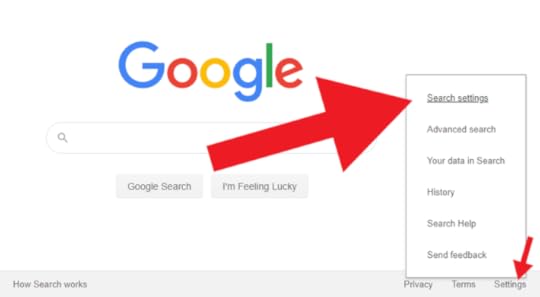
Here’s something you may not know, you can expand your Google search pages to show 100 results!
Go to Google’s homepage and navigate to the Search settings. Then drag the slider to your desired number.

The good news is people who already have a website at least get the value better than those who must be convinced. There’s a good chance they’ve received a few leads or customers, and want more. They don’t know how because Google’s changing so rapidly.
You can guide them to better success online!
15 Tools to Start Your Web Design Business
Your information will not be shared or sold, period.
The post Web Design Bulletin: Sell Digital Products, Plant the Future, Go Deep on Google appeared first on Website Profit Course.
April 20, 2020
The Biggest Obstacle to Building Your Website Business

Right now, I’m working on my #1 weakness – proactive scheduling.
I take a yearly approach to improvement. Pick one big thing and focus on it exclusively over a long period.
Choosing what to do with your time will be your most significant obstacle to create a profitable online or freelancing business.
The difficulty of building a business alone became so apparent to me this week.
A friend of mine creates content for a client’s website. The due date is the last day of each month. On top of this, I always urge him to share his ideas on a personal blog. That would be a better version of his current 1-page resume.
Without fail, he tells me mid-month that he wants to finish a blog post for my client ahead of schedule. However, every single month, he waits until the final day of the month to begin work.
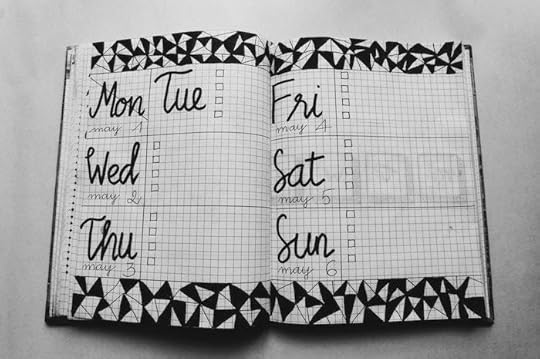
Three things stick out to me within this short story which applies to ALL humans, you and I, too:
1) Stick to What You Say
This guy rarely misses a deadline anymore. He used to occasionally, and I notice a substantial improvement there.
Still, it irks me that he becomes overly ambitious and tells me regularly that he wants to finish early, yet he never does. First, it shows me that he’s not operating off a schedule. Second, I believe this affects his overall mindset.
I don’t care as long as things get done on time. But if you put something out there and don’t follow through, it creates a negative feedback loop where you question your ability to take the next step.
From my observation, he gets stuck at this point frequently where he’s thinking vs. acting.
2) Create Your Own Goals
Despite my encouragement, he has not written one blog post on his website since launching it years ago. He gets so caught up with working on other people’s stuff, that good ideas wither inside his head.
Do you notice a thread when I talk about people in my personal life? All of my friends and family show interest in making money online, and none of them have dedicated any time to learn how to do it.
That’s why I enjoy connecting with motivated people like YOU!
3) Accountability Speeds Up Progress
Think about this for a second – if you have an external deadline, there’s a 99.9% chance you won’t miss it.
But when your deadline is self-imposed, you take it less seriously. It’s easier to push back because no one knows.
The problem is, you know the truth. You’re letting yourself down, even if you don’t acknowledge it.
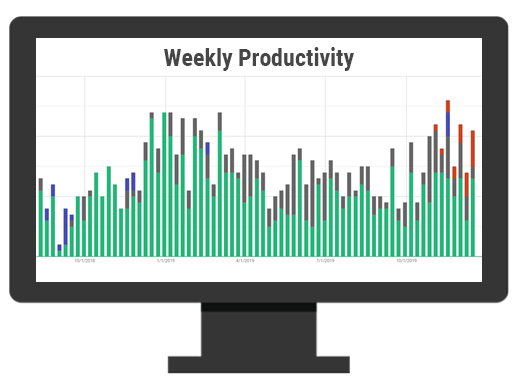
Want a handy tool to keep track of your time during projects, increase productivity, or simply find where your time is actually spent?
The post The Biggest Obstacle to Building Your Website Business appeared first on Website Profit Course.
April 17, 2020
How to Use WordPress 101 Tutorial for Beginners
This is a high-level WordPress 101 tutorial for beginners or people looking to learn how to build websites on the foundation of WordPress as a content management system.
Let’s touch on all of the essentials, including:
 An explanation of WordPress
A tour of the WordPress “admin” dashboard
How it works to make your site
By the end, you’ll understand how to use WordPress to manage your website!
Don’t have a website yet?
I recommend you sign-up for my website beginner’s training below where you’ll get this video and many more to take you through each step at your own pace.
It’ll give you a much better understanding of the entire web ecosystem, whether it’s how web hosting works or setting up WordPress from scratch.
FREE Training: Launch a Website in 24 Hours!
Your information will not be shared or sold, period.
5 Types of People Who Learn WordPress

There are five profiles who are using WordPress more frequently than the average person.
Bloggers
WordPress started as a blogging platform and so it has and will be the number one blogging tool for years to come. It has since grown to be a great framework for any type of website, not just blogs.
Web Developers
A lot of web developers who are good with code or maybe they have a job at a bigger company are learning WordPress. It is a pretty adjacent skill to what they’re doing and it’s a good way to get into freelancing if they want to branch out and do their own thing.
Computer and Tech Geeks
Another big group of people that I find that become interested in websites are just computer geeks and I would classify myself as this!
I have a coding background from college, but I wouldn’t consider myself a web developer – though I can get up to speed with how a piece of code works quickly.
The next level are the computer geeks who love gadgets and games, but their not into development. They can gravitate towards building websites to scratch that technology itch without needing to know code.
Business Owners (DIY)
This next group of people are those that absolutely need a website to advertise their goods or services. Maybe to save some money, they decided to go the DIY route and started using WordPress to build their site. WordPress is that easy to learn and scalable enough for entrepreneurs to build on.
Job-Escapers (Work From Home)
Probably the biggest group of people, these are simply those that are in jobs they don’t like and want to find a way to escape. Maybe they want to freelance, maybe they want to create their own website and make money through affiliate marketing. It really has less to do about what type of job they’re in right now and more that they want to find some type of work online that’s fulfilling
Why Use WordPress vs. Other Options
Let’s break down why you would use WordPress over other options out there. This is broken down into experience levels.
Zero Experience
People who have zero experience, are probably not going to jump right into WordPress. It is a step above the most basic web builders out there that all the hosting companies offer, or even the big ones like Wix, Squarespace, or Weebly. They’re the big services that allow you to create free websites or low cost websites and they have their own drag and drop builders. Their settings are kept to a minimum so it’s really easy for the user.
The main downside to those services is that you’re going to be locked into whatever service you select. You can’t migrate a Squarespace website to new hosting because it’s using their framework and their design.
Some Experience
If you have some experience, you’re probably going to select some type of framework. The key here is that you want to select an open source framework, which means that the company that creates that framework releases all the code and most of these are free.
WordPress is actually free software. It is known as a content management system and used for websites that have a lot of content because if you were doing that manually with code, it would probably be a lot to handle.
There are other frameworks out there that use HTML or JavaScript. If you want to get into the code side of it and not use a system like WordPress, you can still do that but not have to start from scratch.
Expert Users
If you are an expert, you have plenty of experience with code and development. However, you still might want to use WordPress and take it to the next level with some custom design or code. It is possible to create your own themes and frameworks within WordPress using code. The possibilities are endless!
WordPress is my number one choice for control and flexibility. You can build your WordPress website, learn WordPress, and have a Swiss army knife at your disposal to do so many things that you couldn’t do with lower end services. If you ever need to transfer a domain or go to a different web host, you can take your website, move it from host to host, and not get locked into one company.
WordPress.COM vs. WordPress.ORG
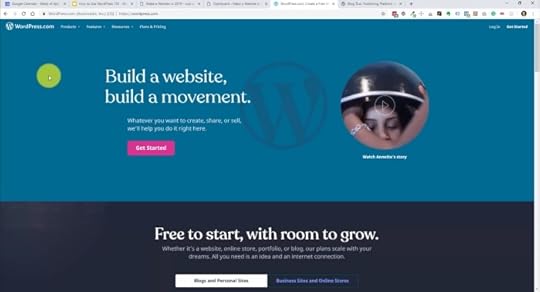
There is one really big point of confusion for beginners and that is the difference between WordPress.COM and WordPress.ORG.
The image above shows the homepage for the .COM version of WordPress. This is where they offer to host your website on their servers. If you want WordPress to host your website, you want to go to WordPress.COM.
The thing is, they don’t give you the full version of WordPress unless you’re on one of the higher-level packages. You will be limited in what you can and cannot do.
That’s when you need WordPress.ORG!
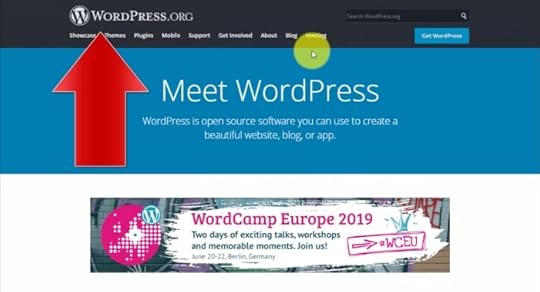
WordPress is open-source software, and you can download the full WordPress framework for free, you simply need to install it on your own hosting account.
Check out this video on the best WordPress hosting companies:
Many hosts give you the option to have WordPress installed at the click of a button.
Using WordPress on your own hosting account gives you the ultimate freedom in how you can build your website. You’re only limited by your imagination and knowledge.
I always use WordPress in this way, and the hosting company I’ve been a customer of the longest is HostGator, click the link below to start now!
 HostGator Web Hosting
Launch your WordPress website or blog today for 45% OFF using code WPC1
Buy NowWe earn a commission if you purchase using the link above which helps support this website.
WordPress Admin Overview
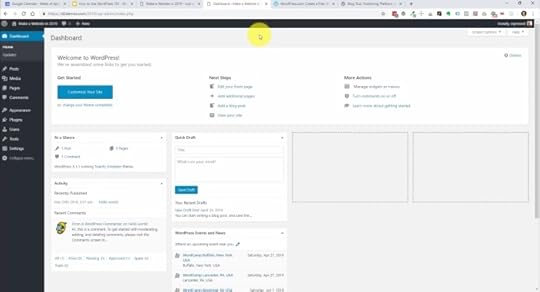
Here is the backend of a WordPress website also known as the admin area or dashboard.
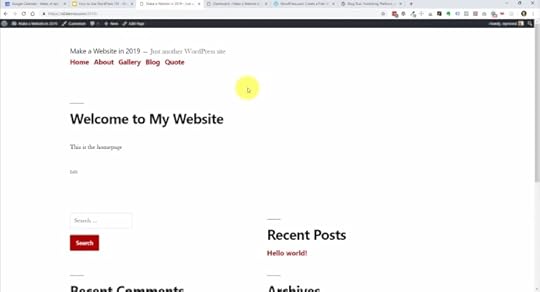
Before diving into the admin dashboard further, here is a look at the frontend of the website. This is a very, very basic design and it’s geared toward blogging. You could see here we have comments, categories, posts, and archives. If you were going to start blogging, this will be a great way to do it and just get started. Over time, you can refine the design. You don’t have to start with a great design, in fact the content is probably more important to get traffic. You can get an idea of how to design it around the content instead of the other way around.
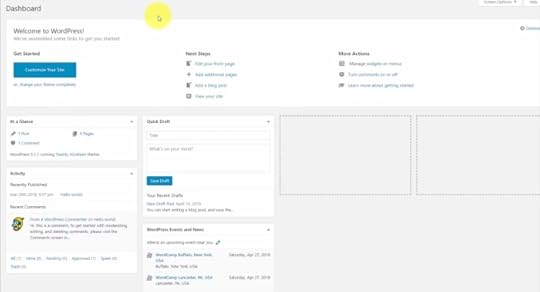
Returning to the admin backend, when you first log in, you’re going to see the dashboard and this is really just a one page overview of your entire site. You can see how many posts and pages you have, how many comments there are, what version of WordPress you’re running, and what theme you have. If you want to quickly type out a blog post, you can do that right from the dashboard. They also show you local events that you could potentially go to to learn more and meet other people that are involved with WordPress.
Let’s do a quick overview of the Admin Menu.
Dashboard and Updates
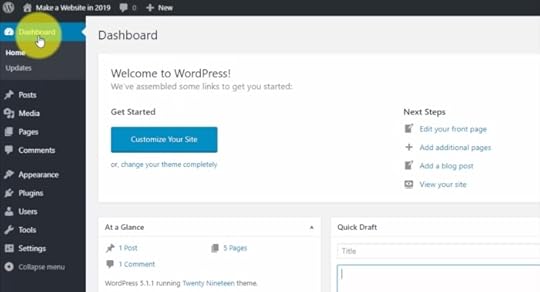
On the left hand side, you’re going to navigate the admin area using this menu. The dashboard, which is the first page you see when you sign in, is the top link. Just below that is the updates section which is going to show us our updates of the WordPress core software and other software that we have installed with WordPress, otherwise known as plugins.
Posts
Next, we have Posts. These are typically used for creating blog content. This is where you go to view existing posts, create new ones, and organize them by categories.
Media
Following, the media section organizes the media that you upload, such as, images, audio files, or PDFs that you add to a blog post or page. The media section let’s you review all the attachments that you have with your WordPress website.
Pages
Next, we have pages which are similar to blog posts, but instead of them being dated, they’re really static and evergreen. Pages are basically the web pages of a website like an about page, a services page, a testimonials page, or a contact page. Content might change on the page, but the page itself won’t change and it’s not based on a specific date or event.
Comments
Moving down, the comments section is where you can control the comments you might receive on blog posts. If you allow comments, they can be approved and monitored. Sometimes you can get someone spamming some product or not contributing to the conversation and this is where you can allow or delete them.
Appearance
The appearance section is the big one because this is where you’re going to get your design. With WordPress, your website design can be changed by installing themes. There are thousands of themes out there that you can choose from, plenty of free ones and paid options. You’ll also find niche specific themes and you might find a theme for a particular business industry or even geared towards e-commerce. The main difference between free and paid is that when you buy a paid theme, you’re getting probably a better design and consistent updates. If they update the code in the future for the theme, you’ll get access to that. Of course you’ll get better support if you run into any problems when you’re using a paid theme and with free themes, you’ve got to do all the support yourself.
Plugins
Then we have the plugins section and where we add functionality. Similar to themes where anybody can develop a theme, you also have software developers that make WordPress plugins. Plugins add a specific function, whether it’s for social media, SEO, or contact forms. There are backup plugins, optimization plugins, calendar and booking solutions, membership framework plugins, and really just about anything. You know the saying, there’s an app for that? With WordPress, there’s a plugin for that. Themes and plugins are what make WordPress so awesome because you can grab other people’s designs, other people’s code, other people’s work and build off of that without having to start from scratch.
Users
Next, we have the user section. This is where your admin account will be listed and if you want to create new users and give them access to your site, you can do that with various levels of access. You can create another administrator, or you can create an editor and they’ll have access to all your blog posts and pages. You can also create an author, who can write new blog posts, but not have access to older posts or other areas of your website. That way you can protect your website from somebody making a change and breaking the website.
Tools
Further down, we find the tools section. I don’t use this that often, but you can see they have import and export along with erasing your personal data. Import and export come in handy if you want to move your WordPress website to another WordPress install. You’ll be able to export you posts and pages and then import them into the new install.
Settings
Finally, we have our WordPress settings. Here, you can control the time zone, how dates and times are displayed, or edit your website’s title. You can also control how the page and post links appear in the URL bar or edit whether people are even allowed to comment on your posts.
Next, we’ll dive in deeper and go over the important aspects of pages and posts.
Posts vs. Pages with Content Blocks
Posts
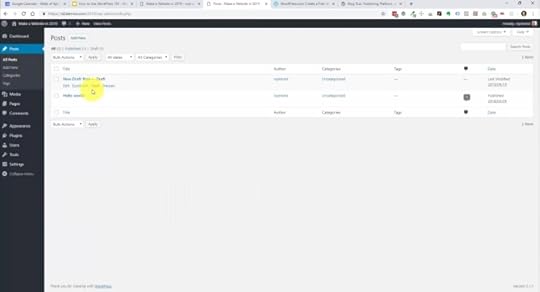
The Posts area is where you create new posts or edit existing ones. I have one published post and then I have one post which is in draft mode. You’ll notice up above the list of posts, they show that you can filter out every post published posts or only draft posts. You can search for specific posts or filter specific dates or categories. If you trash one of these, then you’ll also see a trash link. You can also see specific tags if you use those or even the number of comments there are on a post.
Let’s jump into one of these posts and take a deeper look.
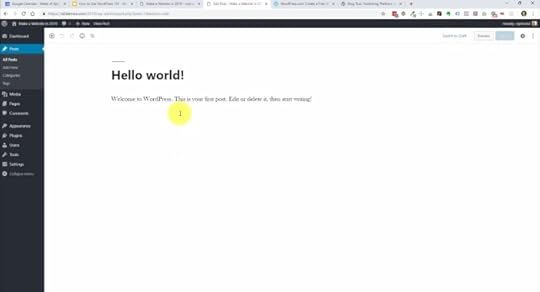
When you install WordPress, it automatically comes with this Hello World post. It is an example blog post created just to show you what a post looks like. With the new version of WordPress, they made a really big change to how you edit your posts and pages with the Gutenberg block system. It allows you to essentially build your content using editable blocks. Right now, you’re looking at the title of the post and this is a paragraph block.
They have blocks for various types of content for your posts and pages. We can add paragraphs, short codes, HTML buttons, and we can embed links. We can even add images from our media library or upload them here in the post. They even have blocks for YouTube and other services to allow you to quickly share content from those sources.
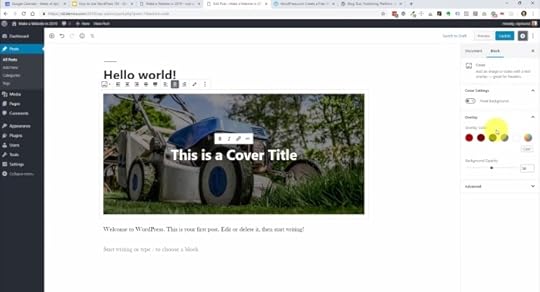
Here, you can see the post now has an image block with a title overlay. On the right hand side, we have document settings. If we click on a block, you’ll get the settings for the individual block you’re clicking on. We also have paragraph settings and they give you ways to customize and style these various blocks. I think it’s important for you to just play around with this within your own website and get a feel for how you’re going to use it.
Pages
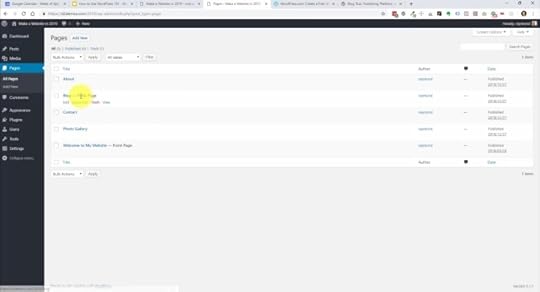
The pages editing experience is pretty much the same as posts. There are just a couple of differences:
You don’t have categories and tags. Pages are where the content, like posts, live.
In our example, the blog page is assigned as our posts page. When a post is created and published, it will automatically go on the blog page In chronological order. The Welcome To My Website page is set as our Front Page, or homepage and can be edited to include the content we would like displayed front and center.
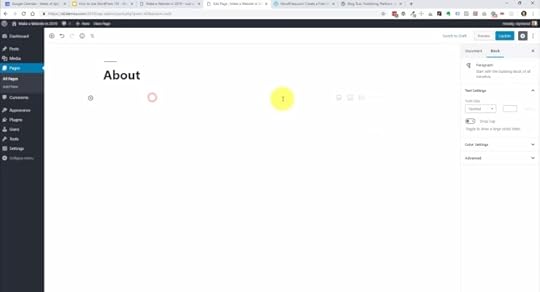
If we go into one of the pages, you can see the editing environment is virtually the same as the posts. We can build out the page using blocks just like on the posts.
If we click the plus to add a block, you can view all of the different kinds of blocks you can add. It’ll start with the Most Used blocks that will change with the blocks you most use over time. If you scroll through the menu, you can see all of the different blocks you can add with the different drop downs. Let’s go over that menu and cover the blocks you’ll use most as it is pretty extensive:
Common Blocks
Paragraph – This is what you’re going to use for most of your content. It includes formatting options just like in a word processor.ImageHeadingListGallery
Formatting
Most of the blocks here you most likely won’t use like custom HTML code. However, you’ll probably use Table at some point to portray data or information in an organized table.
Layout Elements
This one might also be rarely used, however there are a few here to mention:
Button – This adds a clickable button that can have a link to another page or website.Columns – This will allow you to organize areas of your page into two, or three columns.Media & Text – This is a cool one which will allow you to add an image or video with supporting text next to it.
Widgets
These are handy bits that can control information and create functionality on the page. Widgets allow you to add a calendar, show a list of your latest posts, show the latest comments, or even add a search bar to your page.
Embeds
There are a lot of options here, but essentially these allow you to include content from other websites or social media sources. For instance, you can add a YouTube video, your Facebook page link, your Twitter profile, or your Instagram images.
The Gutenberg system has made building posts and pages a lot more fun and efficient. There are a lot of blocks and I encourage you to explore as you build your pages.
Media
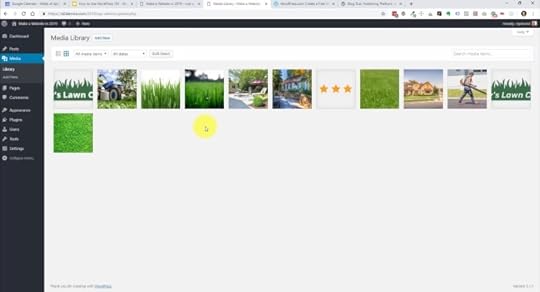
Jumping into the media section, let’s take a quick look at how the images and graphics are organized. WordPress puts all your uploads in this grid format which can be keyword searched or filtered to find specific media.
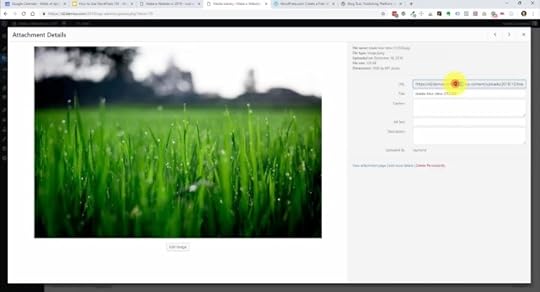
You can click into them and they’ll give you the URL if you need to copy and paste that. You can also edit the image’s information like it’s title and you can give it a caption if needed here, but you can also do that later within the block editor.
One thing to mention here in your website planning is that WordPress will take any size of image dimension and resize it to fit the content. This is great, however, images with large dimensions tend to be very large in megabytes and will take up a lot of server space. They can also take a long time to load in the browser. If you have an image heavy website, take the time to resize and optimize before uploading.
Themes
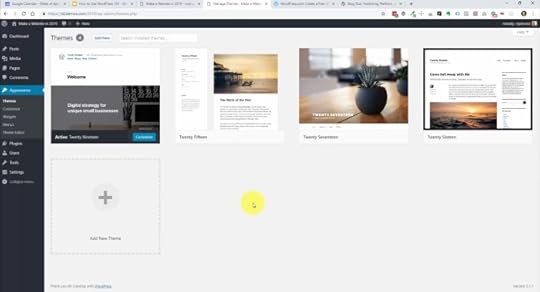
This is going to be arguably the biggest decision that you’ll make with your WordPress website. What theme will you use? Themes set the stage for your content, brand, or personality and there are plenty to choose from. You want to pick your theme based on the type of website you’re building. Is it a portfolio website, is it a blog website, is it a business website, is it eCommerce? The choice is yours.
On the themes page, you’ll see in our example there are four themes installed. All of these are created by WordPress and a great default themes to get started with. Over time, you can test new themes and make a switch by clicking the add new button. This will take you to the WordPress themes repository. Most of these are going to be free and some have paid upgrades.
Another option that is great for beginners is to use a theme and framework that offers a drag and drop builder. One that has set the standard for page builders is Divi by Elegant Themes, who I am an affiliate of. It essentially let’s you create your own design all the way, instead of letting the theme fo it for you. I have a full tutorial and if you signed up for my beginner sequence, you’ll get that in a future email as well.
 Divi Visual Builder
The #1 WordPress theme on the entire internet to design your website with drag-and-drop!
Buy NowWe earn a commission if you purchase using the link above which helps support this website.
Customize
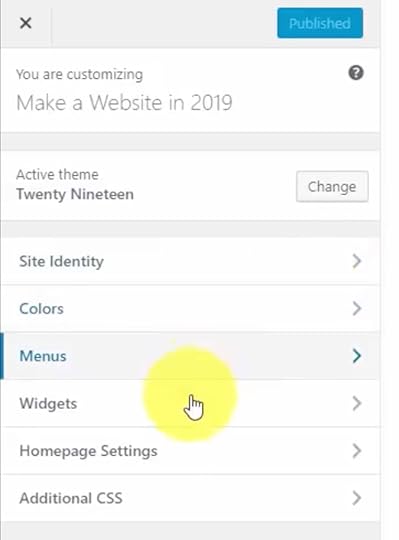
Next, we’re going to take a look at Customize which is a submenu item under Appearance. These settings are going to be dependent on whatever theme you have installed. There are a few overarching settings that are on every WordPress website, but theme developers choose what parts of the theme that you can customize and every theme does it differently.
I recommend that you go through the settings and figure out the various things that you can customize on here. Typically, you can change font colors, font styles, and control the menu items for your navigation. You can even edit your website name in Site Identity and control which pages show as your homepage and blog pages in the Homepage Settings.
Menus
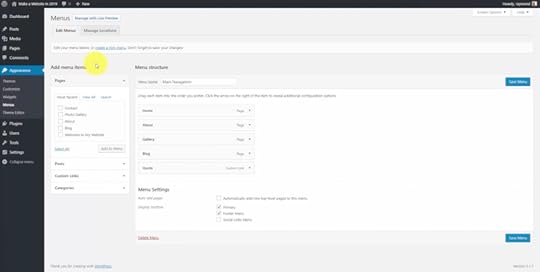
In Menu, this is where we create the navigation for our site. Usually one of the first things I do when I create a website is create a main navigation menu. You can create a new menu by clicking the create a new menu button. When created, you can give it a name to help you organize your menus should you have more than one. You add links to the menu by adding your published pages or your posts from the left side of the screen. Then once they’re on the menu section, you can drag and drop them to change the order. You can drag them inward if you want to do a sub menu or sub item for a nested, expandable menu.
Widgets
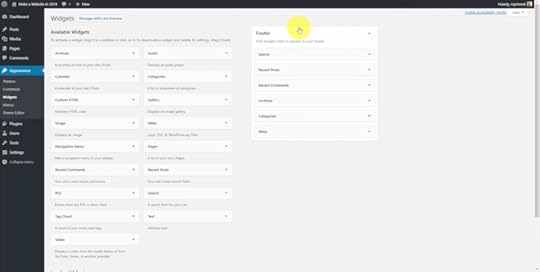
Widgets are like little bits of reusable content that can be placed in different areas of the website. This is another thing that’s theme dependent. Developers are going to create areas of your website where you can use these. Some of these widgets allow you to display a search bar, navigation in the footer, show recent posts, comments, archives, and a list of categories. I you want to add in this type of content, the widget system allows you to drag and drop them where you need them on the them. Typically, you’ll find you can add widgets to your theme’s footer and/or a sidebar area.
Plugins
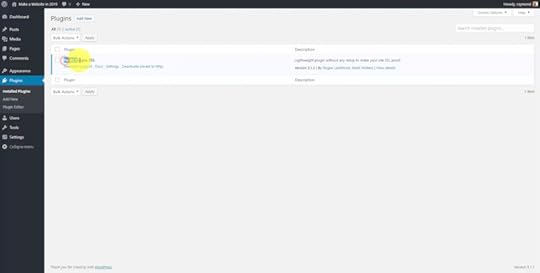
These are really the meat and potatoes of a WordPress website. Plugins add functionality to WordPress and can do anything from displaying an interactive calendar to full fledged membership systems. The first screen is going to list your currently installed plugins. It is going to list them in order and show whether they are active or deactivated and will give you extra information like version number and the developer. If you need to remove a plugin, this is where you go to delete them.
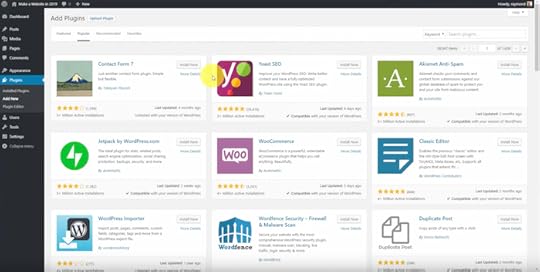
Browsing and adding new plugins is a lot like looking for a theme. You can search for plugins in the WordPress repository and filter them by popular or recommended. When looking for a new plugin, it’s important to note the ratings as well as how often the plugin is being updated and maintained by the developer. You don’t really want a plugin that has a poor rating or hasn’t been updated in 3 years because it could actually put your website at risk. Just make sure to click on the plugin you’re interested in and and look at it’s details to make sure it is something you really need. Try to limit the amount of plugins you have installed by 10 or less. Too many plugins can cause conflicts and slow down your website.
Users
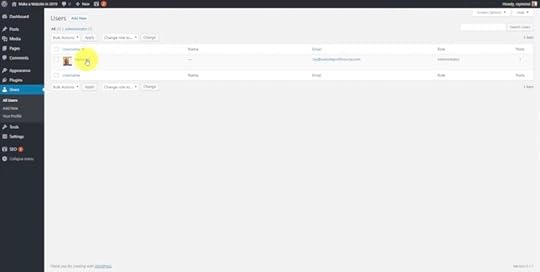
This is where you can find a list of user accounts. Unless you plan on inviting others to collaborate on your website, this will really only list your own account. You can see that your account role is an Administrator. This is the top level user role and gives complete access to the website. The other user roles change the access level and what each user can and cannot do on your website. The other possible user roles are:
EditorAuthorContributorSubscriber
If you click Add New, you can see where the user information is added as well as where a role is given. That’s the way that you can divide up access to your site to make sure that somebody that doesn’t know that much about WordPress can’t break your website or access areas that they shouldn’t have access to.
Settings
General
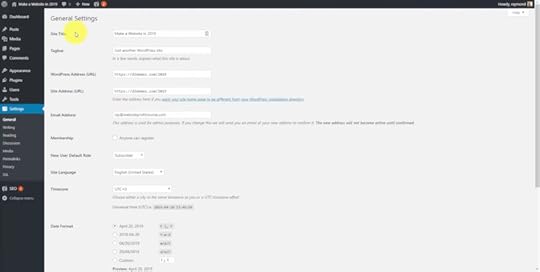
This is where our site title and tagline are listed as well as:
URLWordPress addressThe admin email addressDate and time formatTime zoneWriting settingsDefault blog settings, default post category and post format
Most of these default settings will be just fine for your needs, however you might want to change the time zone and your date and time settings to match what you use locally.
Reading
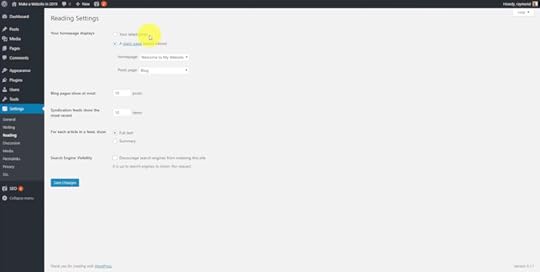
By default when you install WordPress, it’s going to show your latest blog posts on the homepage. Now that’s okay for a blog, but if you have a business type website, you probably want to build out a homepage separate from a blog page. Normally when I’m dealing with business websites, I always create a homepage and a blog page as my first two pages in the pages section. I’ll then go into the reading settings here and assign them to make sure that my website is showing a static page for the homepage and all the blog posts go to a predefined blog page that we set and name whatever you want.
Another setting to take note here is the Search Engine Visibility option. If you check the box, it will discourage search engines from indexing your site. In other words, you won’t be visible on Google. Unless this is a personal website that you don’t really care about anyone finding, it’s important to leave this box unchecked especially if you have a business website or blog that you want people to find through search.
Permalinks
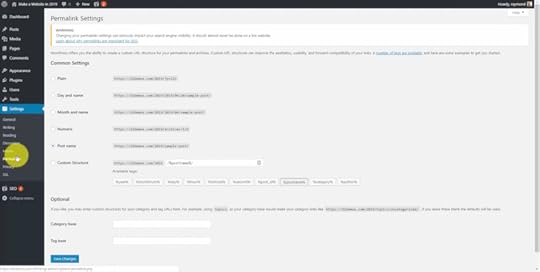
When you first setup your website, you’ll want to come here and setup your link structure. WordPress can set up these elaborate URL structures to put the month or the name of the post or page. I always pick the post name permalink setting so that the actual name of the post or page is included in the URL instead of a number. This can really help with the user experience on your website. When I first install WordPress, I go in here and set that from day one before I create any posts or pages.
In Closing
I hope this has helped you out and I know I could’ve went on a lot longer. However, I wanted to keep this as short and useful as possible so that you can get your WordPress website up and running as quickly as possible.
The post How to Use WordPress 101 Tutorial for Beginners appeared first on Website Profit Course.
April 15, 2020
The “Marketing Tree” of a Successful Business

In the web design bulletin from April, I mention how there are analogies between gardening and business.
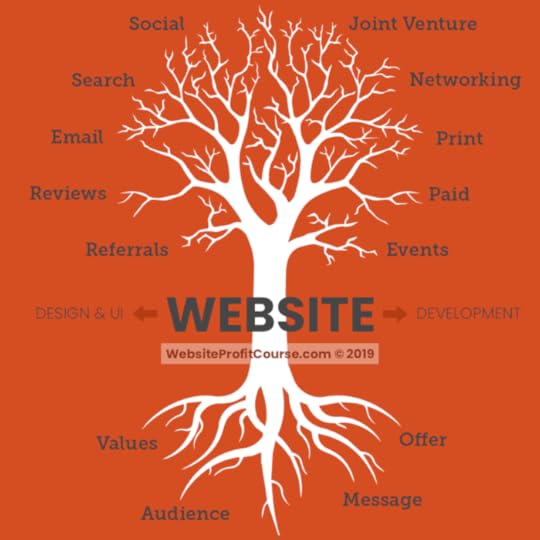
Let’s dig into this further because trees are a perfect representation of what a successful business should be – check out the infographic below:
Seeds germinate quickly, just like business ideas. But that’s just the beginning.
A young plant is at risk of dying if it’s not looked after strictly from the time the first leaves appear until it grows 1-2 feet tall.
A funny thing happens at some point, though.
When the roots have a strong foundation, you can chop off the main stem down to the soil level, and it will regrow!
Still, trees can take 5-10 years to bear fruit. You must have long-term goals and patience.

The core elements of your business are:
Values (what separates you)Offer (your product or service)Message (how you sell it)Audience (who you sell it to)
Your website is the medium where you want your audience to arrive. It will scale your message to more people.
The primary methods for getting customers that turn into sales includes:
Referrals – The hottest lead directly from a happy customerReviews – Let your best customers influence othersEmail – Directly communicate with your customer and lead listSearch – Create content that drives search traffic (Google, YouTube, Pinterest)Social – Create content that leads people to share with friendsJoint Venture – Partnering with a similar business, promote each other, & split salesNetworking – Utilizing and expanding your network (online and offline)Print – Mail offers directly to targeted households or existing customersPaid – Advertising campaigns on Google, YouTube, Facebook or InstagramEvents – Coordinate/sponsor an event or book speaking engagements
You might think you need all of these methods to achieve a high income.
From my experience, business owners thrive if they connect ONE marketing channel above to their best offer, with a well-crafted sales pitch.
FREE Web Design Client Questionnaire
Your information will not be shared or sold, period.
The post The “Marketing Tree” of a Successful Business appeared first on Website Profit Course.
April 13, 2020
People Tell Stories to Limit Their Freelancing Potential (Including Me)

As an introvert, one thing I don’t particularly enjoy doing is talking about myself.
My emphasis on the analytical side of life kept me in the dark about the importance of stories in our lives.
One “virtual mentor” I often mention is James Altucher, and reading his book (Choose Yourself) changed the way I thought about writing.
Instead of feeling the need to overdo research and make a grand point, I could discuss a past experience with a client or with websites, and let you synthesize the lesson wrapped in a short story.
But then a weird thing started to happen…
I now notice in myself, people close to me, and in total strangers how they tell themselves stories that limit their potential.
I thought for years that “I am better with computers than most, and people will want to work with me.” In truth, that arrogance kept me from building an actual strategy to connect the dots!
READ MORE: 5 Things I Wish I Knew About Freelancing

Three other clear examples:
1) Placing Too Much Importance on One Opportunity
A guy I know freelances for one website and in my opinion gets used by the editor.
He makes a fixed monthly amount after doing free work for years. I know for a fact he puts in extra hours weekly and ultimately makes less than $10/hour.
Sadly, he views this gig as a full-time job. This is the story he tells himself and others. He sometimes references his editor as the “boss”. Multiple times a year, the editor goes on vacation and places all the work on his shoulders. He is a “YES” man, and his editor knows it.
Now, I think his initial course of action was excellent. He loves the industry. However, push back has been long overdue.
2) Staying Busy = Progress
The same guy who struggles to say “NO” to his freelance editor uses those extra uncompensated hours as the excuse to not seek better opportunities.
It is so pervasive, where people feel like if they are busy, they are getting closer to their goal of freedom.
In reality, they are building thicker walls keeping them trapped.
3) I Work Hard, and I Need to Relax
Two people close to me have the perfect financial situation with their jobs. Each makes in the range of $80,000 – $120,000 per year.
One enjoys his job as an accountant and has no free time from January to April every year (works 70+ hours a week). The other doesn’t envision staying in their industry long-term.
Both have expressed a desire to make money in other ways to eventually have time freedom.
Both have made zero progress in years. Why?
Because they work hard, and they dedicate all of their free time to relax. One travels continuously, and the other watches TV religiously. They don’t invest ANY of it into future endeavors that will provide a positive return.
Ultimately, I don’t care what road they choose. I just notice a disconnect between the story they tell me and their actions.
It’s a lot easier to notice the inconsistencies in others.
It’s much harder to identify and address them in yourself. When you do, you’ll surely break through your current plateau.
15 Tools to Start Your Web Design Business
Your information will not be shared or sold, period.
The post People Tell Stories to Limit Their Freelancing Potential (Including Me) appeared first on Website Profit Course.
April 8, 2020
Web Design Bulletin: Google Calendar, Internet Marketing with Local Storefront, Facebook Groups
Cool Tool, Service or Resource
Google Calendar
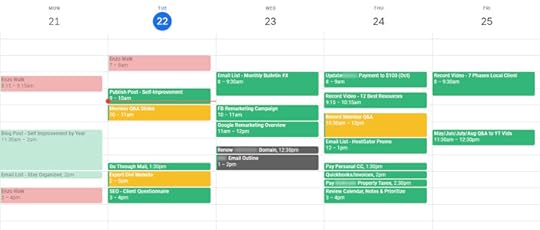
My primary focus all of 2019 was to operate each day with a goal-oriented schedule. I went far too long doing work whenever I pleased. That often leads to unnecessary procrastination and a lack of clarity.
An undeniable truth is you will be more productive if you organize your most valuable asset – your time.
I will write a longer blog post on how I approach creating a schedule because I’ve learned a ton throughout the year. One of the coolest things I’m now tracking is how many productive hours I work each week & year towards each goal.
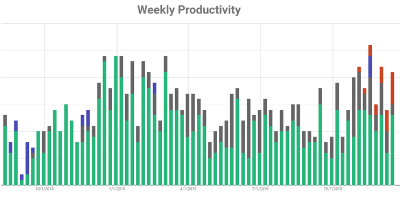
Now at the end of each year, I’ll be able to calculate precisely how much I’m earning per hour!
Web Design Example
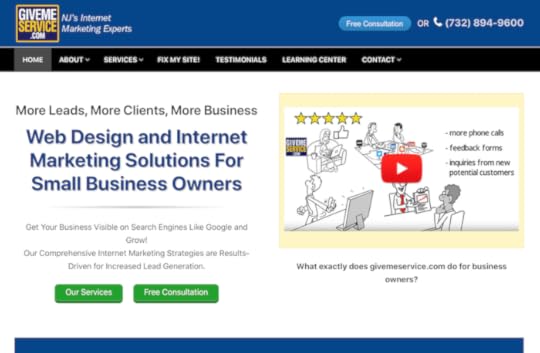
GiveMeService.com
This internet marketing company is based reasonably close to me in central New Jersey.
What I found most interesting is they have a physical storefront located in a beach town that gets high-end visitors during the summer months. I don’t recommend that you rent a location on day one. However, it’s a phenomenal way to build trust with local business owners.
This guy doesn’t stop there. If you scroll down, he created a business networking membership directory and host events throughout the year to connect people. I wish I could operate like this, but as an introvert, I have no desire to go to social events as often as him!
In terms of the website design, you can tell he knows what he’s doing. There’s nothing fancy. It’s merely a strong message communicated on the homepage with an easy to find call-to-action.
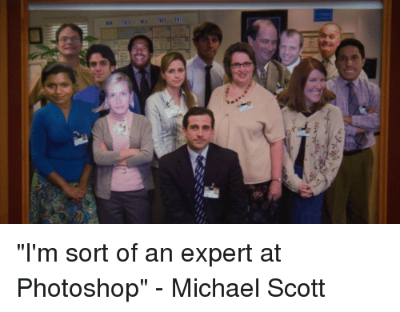
One thing I found funny is if you look at the picture of their team, they’ve edited a few people into the photo kind of like Michael Scott.
How to Find Clients

Facebook pages are hard to use for marketing unless you have a loyal audience. Have you considered using Facebook Groups as an alternative?
Usually, every town in America has a group specifically for yard sales, local events, and small business promotion.
You can utilize this group in two ways:
1) Drop a link to your portfolio or resume website
2) Find business owners promoting their business and contact them directly
Be sure to read the group description carefully since each one has different rules.
15 Tools to Start Your Web Design Business
Your information will not be shared or sold, period.
The post Web Design Bulletin: Google Calendar, Internet Marketing with Local Storefront, Facebook Groups appeared first on Website Profit Course.
April 6, 2020
Do You Prioritize Learning Over Making Money?

After college, I thought it took genius-level knowledge to run a profitable business.
Here’s something you may not know…
The LLC I run today started as a promotional products business by my dad. For years, he pushed me to focus on that side of things. I always resisted, and it became a huge dilemma in my life.
Do I focus purely on money or learning what I want? Are they mutually exclusive?

The entire reason I said “NO” to getting a job was to create a life where I work on exciting projects.
The promo industry is the exact opposite of this. You’re discussing apparel colors and sizes, logo placement, quantity pricing, etc. As a distributor, you are simply a middle man between customers and wholesalers.
The BIG catch – you can make a lot of money with corporate clients. The time you spend working is the same between an order for 50 shirts vs. 2000 shirts. It is highly scalable.
The largest order I received was almost $25,000. It was for a “company store” and consisted mostly of expensive embroidered polo shirts. It took many months of back-and-forth to finalize, and it pushed my credit limit to the brink to fulfill.
In the end, though, I opted to go with a more mentally fulfilling route.
My freelancing path looked something like:
Tinker with HTML in college (planted the seed)Learn HTML / CSS / jQueryLearn SEOLearn WordPressLearn PHPCreate blogs for passive income (About 8, 100% failed)Focus on finding local clients to pay me monthly
The only regret is not doing the last step immediately after step #1. Today, I’d replace step #1 with WordPress, and learn the other tech stuff through the scope of working with clients.
I’d also create a WordPress blog on a real passion as a side-project instead of starting with the goal of passive income.
I didn’t do either because of a fear of not being good enough and going for the quick buck online.
Don’t fall into the same trap. Go after your curiosity AND get paid while doing it.
15 Tools to Start Your Web Design Business
Your information will not be shared or sold, period.
The post Do You Prioritize Learning Over Making Money? appeared first on Website Profit Course.