
Kourosh Dini's Blog, page 37
June 15, 2014
Creating Flow with OmniFocus: Mastering Productivity Price Drop
Creating Flow with OmniFocus was written for Omnifocus 1. As OmniFocus has reached version 2, Creating Flow with OmniFocus (1) has clearly become dated.
I can say that many of the principles of V1 are still relevant, but I have made some workflow refinements that I plan to develop and write about in V2. Also, a reader of V1 will need to adapt its ideas to OmniFocus 2′s new layout and key commands.
All this is to say:
Creating Flow with OmniFocus version 1 has dropped to $19.95.
After the price drop was first announced via the mailing list, several readers had asked about the possibility of upgrade pricing or free updates for owners of version 1. I do not plan for either at this time, though if that changes, I’ll probably list it in the FAQ. Let’s see if I can even finish CFWO2 first.


May 22, 2014
OmniFocus 2 released and new/upcoming resources
OmniFocus 2 has been released! I’ve very much enjoyed beta testing OmniFocus 2. Even as a beta, it quickly became my go to program over the first version.
Check out reviews that are already out:
Shawn Blanc
Stephen Hackett
Federico Viticci
Resources
I am presently working on Creating Flow with OmniFocus 2. I have no idea how long it will take. I may do a simple brush-up; I may make in-depth changes; likely, it’ll be somewhere in-between.
In the meantime, if you are interested in pursuing other materials, check out the Omni Group’s new “Insider” series:
Inside OmniFocus
There are several articles up now including one by yours truly, where I describe some highlights of my own workflow. In particular, take a look at how I use tabs to create a sequence of perspectives.
Dom McAllister has also created a new Screencast online video
The Omni Group have also put out a free manual, now available in the iBooks book store.
I also know that:
Tim Stringer,
Sven Fechner, and
Asian Efficiency
are all developing their own related OmniFocus products. Tim plans to release his shortly, and the others may have their work done well before my own.
May 12, 2014
Suggestions requested for Creating Flow with OmniFocus 2
What did you like about Creating Flow with OmniFocus 1?What did you dislike about Creating Flow with OmniFocus 1?What would you like to see in Creating Flow with OmniFocus 2?Any other comment?NamePermissions*I give permission to post this feedback on The Dini Group newsletters or websites.Please keep this private.
April 16, 2014
Show Folders in Outline – Review Mode
There are lots of little additions that I’m liking about OmniFocus 2. As an example, from the change log:

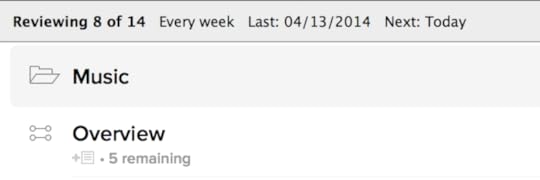
Here’s an example of how this can be helpful: I have a number of projects titled “Overview” which are essentially administration type projects that oversee the rest of the projects sitting in a folder. Something like:
Big Project
Overview
Folder A
Project 1
Project 2
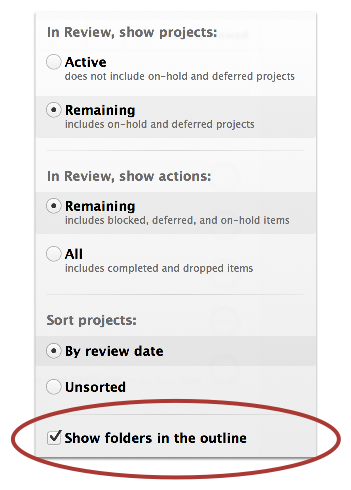
One of the issues has been that in Review mode, I would have to guess which “Overview” folder I was reviewing. It wasn’t a big deal, but it was something. In any case, this feature totally helps out. To turn it on,
Go to review mode (Command-6) by default.
Select the view icon (or type Shift-Command-v)
Select the option “Show Folders in the Outline”:
 Now we can have a better view of the hierarchy:
April 15, 2014
Major Update to Workflow
For nearly the last year, I’ve been hard at work updating Workflow: Beyond Productivity. I thought there were some small adjustments to make, but each change had a rippling effect. More things became apparent and the text needed greater changes that I originally thought. In any case, it is now a whole new text:
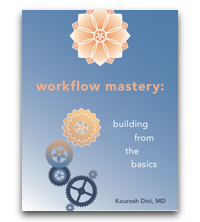
I’m really excited about it and am happy to finally be releasing it.
Grab a preview by signing up to the mailing list. If you’re already on the list, you should be getting an email with a link. If you already own Workflow: Beyond Productivity, you’re getting Workflow Mastery: Building from the Basics free of charge.
Here’s the blurb:
Workflow Mastery is designed to help you build calm, decisive workflows. Starting with the most basic building blocks, the text guides you into developing them towards paths of mastery.
If you find yourself:
Constantly fiddling with your systems,
Not getting the right things done, or
On edge throughout your work, whether you have a system or not,
Workflow Mastery is designed to address it.
April 4, 2014
Add Projects Directly into a Perspective’s Focus
I just realized that you can add a project or folder directly into the focus of a perspective from within the perspective settings window:
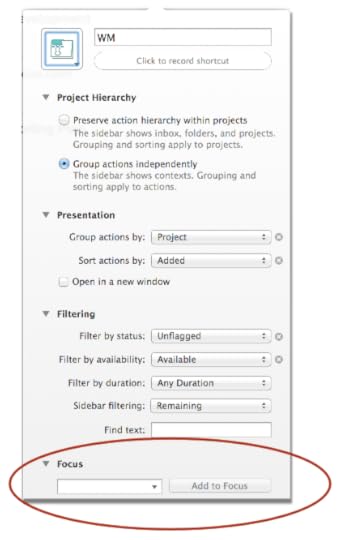
Just type the project or folder you want to add, and it goes through its autocomplete decision process.
March 26, 2014
OmniFocus 2 – First Impressions
OmniFocus 2 is a very anticipated update to the excellent OmniFocus suite. In these last few weeks, I’ve been hard at work helping The Omni Group push OF2 to its limits to make sure it’s working well for its ultimate release.
I thought I’d take a moment to mention some immediate impressions …
Overall, its a very nice upgrade. There are several changes and improvements to the workflow that I am gradually learning and developing workflows around.
In particular, perspectives are a huge part of what make OmniFocus work for me. So, I’ve been keeping a close eye on their use in OF 2. So far so good, and there are indeed improvements.
As an example, the perspective selections we’ve come to know in the iOS versions of OmniFocus have made their way over:
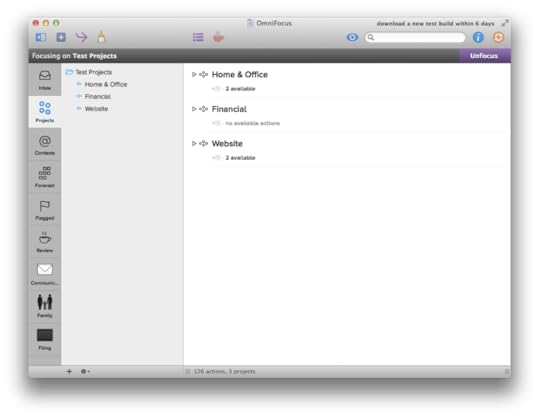
Forecast mode is there along with Review and the other familiar options. The professional edition allows you to also create custom perspectives, much as we’ve had with OF1. Here you can see I’ve added Family, Communications, and Filing to the side bar.
I’ll find that I set up a series of perspectives to work through depending on where I am. For example, if I’m at the office, I’ll set up my “office only” then “office” perspectives. That way I get through things that can only be done at the office first, followed by things I can do at the office as well as at home.
You can also see that there have been changes to how perspectives can be designed:
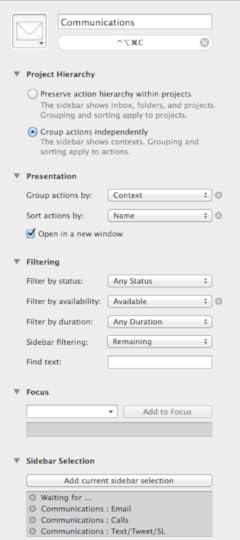
Also, very neat is that you can get to a perspective’s settings quickly using the tool bar:
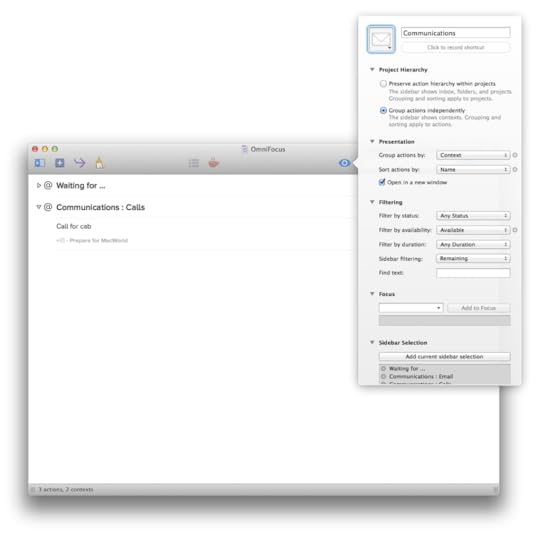
As much as I enjoy fiddling with the details of perspective settings, I prefer to work from a state of simplicity. I had worried that the simple lists I could create with OF1 would be gone. However, this is not true:

More can certainly be said, but for now I’m back to testing …
January 10, 2014
The “Considered” Task
An issue of task management appears when we do not wish to do a repeating task on a particular day. Without modification, we can either:
Check off the task, without actually completing it
Change its start date
Delete the task
In fact, several months ago, Chris at pxldot.com1 wrote a post called “What’s Eating OmniFocus?” in which he raised this very point, noting that without a “muffle” option, we would introduce a dishonesty into the system by any of these above solutions.
I believe he is correct in that, with the exception of deleting the task, these solutions would introduce a dishonesty to the system. As trust is the central pillar upon which we build our systems, this would be not only unacceptable, but likely damaging.
However, there is a solution that has little to do with OmniFocus, so much as our own agency:
Agency is the degree to which we may create and decide upon intentions non-reactively.
The Considered Task
We can introduce agency with a simultaneously very simple and advanced technique. It is simple in that it is easy to implement. It is advanced in that there is caution to its use.
To create a considered task:
Place the word “Consider” before a qualified task
Change the starting verb to end with an “…ing”
An Example in Filing
As an example, we could have a daily repeating task such as:
“File”
The task would be used to visit a context which holds a series of filing tasks.
In my own use, the task links to a perspective that consolidates several filing contexts as an adaptation of Sven Fechner’s “Brain Dead” context. It’s great for gathering those short organizational tasks that would otherwise derail me in the middle of a session of work.
However, I do not wish to file everyday. Therefore, I convert it to a “considered” task:
“Consider filing”
Here it is in action:

That’s it. That’s all there is.
But as simple as it is, it can be more powerful than first appears. That it bears caution, may even indicate its potential as a powerful tool.
Before addressing its advantages, let’s consider important cautions.
Cautions
The caution required should be apparent. To highlight the concern, take the example:
“Exercise” (repeating daily)
vs
“Consider exercising” (repeating daily)
Writing “Consider” before a task is very easy to do. It almost seems to be a gimmick or “cheat” potentially fraught with thorns of procrastination. The word can be abused, allowing a rapid and easy path into doing nothing. We could simply add the word “Consider” to every task and eventually find ourselves in some form of Youtube-silly-cat-video-watching-induced] stupor.
Example – Caution in Filing
For example, returning to the filing example, a fear may be that I will continually check off the task and not visit it. The tasks within would then pile up with many Filing tasks, effectively clogging it. My trust in that part of the system would then be lost.
However, this has not happened. I know when I have and have not visited the list. I can look at it and decide in the moment as to whether I should do the tasks resting within it now or not. If I sense that the list of undone tasks is growing large, I also sense that I will lose my trust in that list unless I do the work.
Therefore, the test of its use is continual. If ever the context becomes stagnant or fills faster than it empties, then I know it will no longer work. I would know that I could not trust it and therefore would need to do something to change it, whether it is doing the work itself or changing the system. The same is true for any aspect of the systems we design.
The guide is our trust:
Trust is a belief, developed over time, that something will continue behaving as it has in the past, such that it may be relied upon.
Example – A Non-Considered Task
Just to show a contrast, if something is important to do daily—for example,
Play piano
I leave it as “Play piano”. Such a task would not receive the “Consider” term. I mean to play the piano daily, honoring the habit to the greatest degree that I reasonably can.
Work tasks, agenda items, etc., also would not receive the “Consider” phrase. In other words, we can and need to use the phrase quite deliberately.
Advantages
There are at least several advantages that a “considered” task has to offer. It can:
Function as placeholder and reminder of decision
Help assess a task’s necessity
Apply a buffer to a task system
Reduce the necessity of completing a task, while maintaining our awareness of it and its accessibility
Reduce an overall “compulsive” sense to a task system
Help us maintain honesty with, and therefore trust of, our systems.
Improve general integrity of system via our enhanced trust
A Placeholder and Reminder of Decision
In the case of the filing task, I do not need to file daily. But, the task functions as a placeholder and a reminder of the decision I can make to file. It is easy to get to the filing perspective by selecting the link should I wish to do so. In addition, I can think about whether I want to file today or not, rather than be forced to compromise myself in order to maintain the system.
A Means to Assess Necessity
We can use “consider” to assess how necessary a task is. For example, if we have a task of checking a certain site daily, but that information is rarely if ever useful, adding a “Consider …” phrase allows the task’s review. After a period of simply checking off the task without actually doing the work, we can realize that the task is redundant or would otherwise drain better spent resources of time and attention. The task can then be deleted.
Meanwhile, the task is not cluttering the system. It appears, is considered, is checked off and ultimately deleted without compromising the system’s integrity.
A Buffer for the System
We may have time to complete some tasks and not others. The “consider” clause adds a mild prioritization component. In this way, we can do tasks that do not have the “consider” clause first, and return to the ones we do wish to consider later.
By moving the task’s action from its content to our decision of doing it, the compulsion to do the action in order to maintain the system’s integrity is removed.
Agency, Trust, & Habits
In this way, the “Consider” technique is both very simple and advanced not because of some technology or our finesse in its direct use, but from our ability to be attuned to our own sense of experience and our habits.
It is important to note that our habits themselves are a part of our systems of trust. The more we trust ourselves, the greater is our confidence to impose the demand of agency at a point that it would be useful to do so:
Confidence is a trust in our ability. It is a developed sense of our own capacity to meaningfully decide and act, such that it may be relied upon.
We may desire our programs and environments to do the thinking for us, but this is not their role. They only hold onto, more or less, our stored intentions. We, then, process them at their points of relevance.
The attempt to front-load a system with as much decision as possible is certainly helpful, but it can only be relied upon to the degree that we trust it. As we do not know the future, the process of developing the system is continual.
who also created a fantastic template script for use with OmniFocus ↩
December 8, 2013
Learn OmniFocus – A New OmniFocus Resource
Tim Stringer of TechnicallySimple.com has been hard at work creating a learning series called Learn OmniFocus:

Nothing’s up yet, but you can sign up for announcements there. I know he’s done a lot of work on Daylight, too, so he has experience creating learning series like this. I’m excited to see what he’s come up with.
November 22, 2013
OmniFocus Case Study – Someday/Maybe Tasks
Occasionally, I’ll receive an email about how to improve or polish a workflow. Instead of just replying with a quick something, I thought I’d instead put it onto the blog. With the reader’s permission, I’ve posted his question and my response below.
If you are interested in a possible blogging of your own question, do let me know.
Question
"I’ve been using OmniFocus for over a year now, and there’s a snag in my workflow, which I thought you might be able to help me.
"I’ve created, and I use, David Sparks’ Perspectives that he shows us in his OmniFocus videos. (See also reference below.) Likewise, I use your Communications Perspective (which I love and use most often!).
“In an effort to be productive, I strive to input all ideas/tasks into OmniFocus. This includes long term tasks that I want to do down the road some day. This might be something like, ”Explore Google+," or identifying books that I eventually want to read.
“These tasks don’t necessarily have start dates, because I just want it in OmniFocus and then get to it eventually. And, certainly, these tasks don’t have a due date. I frequently enter these tasks into a project called ”Some Day."
"Here’s the friction.
"If I don’t input a Start Date, these tasks appear in David’s Today Perspective. Likewise, if I enter a Start Date, it will, of course, only appear when that date rolls around, but, more often than not, I’m not prepared to do that task. So, I change the date, which merely kicks the can down the road, as I inevitably get to that date again, not being prepared to do the task.
"Ideally, I would like these tasks to not display in my Today Perspective or David’s Clear Perspective. I’d prefer to only see these tasks when I do my reviews or when I visit this project to evaluate these sort of tasks.
“Any idea on what changes I need to make in my perspectives to make this possible?”
Alan Fowler, CulinaryLawyer.com
Response
Building a system that can handle every thought or intention is an important part of GTD. Much of being productive begins with the act of clearing the mind. This works whether we are building an entire task management system or in just getting ready for an individual session of work.
The process is one of acknowledgement. GTD suggests a “brain dump” when starting to build a productivity system. As Allen describes, the difference between having 95% and 100% of what is on the mind placed into a trusted system is much more significant than that 5% would otherwise suggest.
In fact, I prefer to do this several times a day, at least. Acknowledging what is on the mind creates the best type of silence that can frame any sort of work.
Sparks’ system has at least two strengths going for it:
1. It is relatively low maintenance
2. It calls upon the user to regularly practice saying “no” and prune the system
The latter occurs by way of looking at all active tasks every day. As older tasks begin to feel distant, perhaps by some can-kicking sense, one may decide to remove the tasks or at least put them on hold. In some form or another, we exercise the ability to say “no.” Without doing so, the morning ritual of examining tasks would extend beyond a reasonable attention span, and we would begin to lose the vital trust that the system needs to function at all.
There are at least 2 solutions I believe may work.
Solution 1:
1. Place the “Some Day” project On Hold
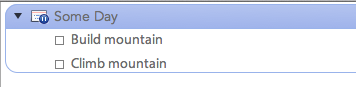
2. Select the Some Day project and copy it’s link (Command-C)
3. Create a “Review Some Day project” task. Consider placing it in an Administrative type project
4. Open the task’s note field (Command-’)
5. Paste (Command-V) the link into the note field of the task

6. Set the task to repeat at some interval that works for those tasks’ review
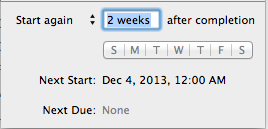
Some adjustment to the repeat frequency will likely be useful as the days go. (1 week is too short? 1 month is too long? Try 2 weeks, etc.)
The repeating task should then appear in either the Today or Clear views with some regularity. The single task will be a much more consolidated consideration of those tasks in the Some Day project and should provide significant relief to the morning scheduling process.
Solution 2:
If you prefer not to place those tasks on hold, consider instead focusing on the Clear and Today perspectives to not include the Some Day project.
In other words,
1. Make sure that the Clear or Today perspective has Focus checked.
2. Then go to Project View (Command–1)
3. Select all projects and folders except for those you do not wish to appear in your Clear or Today perspectives.
4. Focus the projects (Control-Command-F).
5. Go back to Context View (Command–2)
6. Save the perspective.
Then, run through the process of solution 1 to create a means of reviewing the project.
The problem with this approach, however, is that new projects added to the system will need to be re-incorporated by un-focusing and re-focusing to update the new perspectives.
Solution 3:
As I tend to use a different system, namely a Flagged Core perspective, I have a slightly alternative solution. The Flagged Core perspective is essentially a perspective that focuses on flagged or due soon items and holds approximately what I feel like I can do today.
Similar to the above solutions, I can have a repeating flagged task that links to a project without flagged tasks. For example,

The tasks in the Productivity Research project each link to a specific article. None are flagged. But, upon reviewing the project, I can flag one or more of them to read that day.
I’m certain other solutions exist. Feel free to add your own to the comments.
Reference
Today Perspective:
Content Filter: Remaining
Grouping: Project
Sorting: Project
Availability Filter: Available
Status Filter: Any Status
Estimated Time Filter: Any Duration
Clear Perspective:
Content Filter: Remaining
Grouping: Ungrouped
Sorting: Project
Availability Filter: Available
Status Filter: Any Status
Estimated Time Filter: Any Duration


