Mike Vardy's Blog, page 82
September 28, 2015
How I Use Yosemite On My Mac to Get Work Done

This guest post was written by Heidi Pungartnik, founder of the productivity website On The Grind. She would love for you to stop by and grab her free list of 20 little known productivity tools here!
Apple’s Yosemite operating system offers many new features to help users be more productive. For example, now you can push iOS call and text notifications to your Mac’s screen. With the newly-introduced Handoff feature, you can view content on your Mac, iPhone, or iPad. But if not very intentional about it, technology can actually get in the way and hinder your best work. The following post explores how I made my OS X workspace as productive as possible by using built-in features and independent apps.
Install Unclutter App
If buying a Mac was the best purchase ever, picking up the Unclutter app is a close second. This app lets you swipe down from your toolbar to access your clipboard history, a file-drop space, and notes.

Let’s imagine you’re writing a blog post. Suddenly a brilliant idea pops into your head for your next book. Instead of breaking your flow to get a notebook or to open up another app, simply swipe down on your trackpad, type in a note, and then click to hide it. Then you can go back and continue to focus on the task at hand. This notes feature of Unclutter is also great for compiling links or quotes, or even today’s to do list tasks.
Turn off All Notifications
I know it may feel radical to turn off all notifications on your computer, phone, or your Apple Watch. What if I get a Facebook message? What if I need to reply to an urgent email? I know all of these internal questions well. But if you really think about it, the notifications you receive are rarely important. Urgent, yes, but life-or-death? Many of those attention-sucking apps don’t need to be turned on at all. Instead, I just check those apps every few hours and never miss anything super-important.

If you absolutely need to see notifications on a normal basis, that’s fine. You can simply switch the notifications off at certain times such as when you are working on a task that requires your complete attention. Just use the Do Not Disturb feature in the right-side Notification Center.
Set Dock to Auto-Hide
I own a Macbook Air, so I have a small screen. I don’t need to see my icons at all times, so why have them in my face all day long? I set the dock to auto-hide and then reappears only when I need it. Hiding the dock also allows me to use apps in maximized mode, as opposed to full-screen mode which significantly impairs the ability to switch back and forth between two apps (for example browser for research and the writing app).
Use Spaces Contextually
Spaces is the feature that lets you use a number of different workspaces and assign apps to those workspaces. It originally seemed like a bad idea to me—do I really need to do more multitasking? But once I experimented with the feature and found a way to make it work well. Here’s how I do it:
My laptop is split into three Desktops. The first desktop is where my calendar and time tracking app resides. The second desktop is where work gets done. The third desktop is where I have Spotify opened.
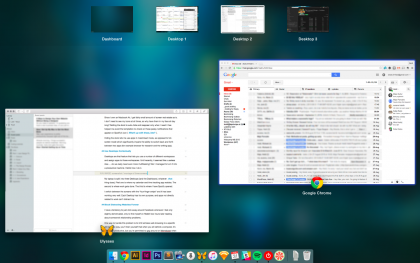
I then switch between the screens with the four finger swipe. It works really well for me. Each Desktop has its own purpose, and the apps not directly related to the work at hand does not distract me.
Block Distracting Websites Forever
Confession time: I have a tendency to just click around Facebook whenever I am lacking motivation. Other days, I find myself on Reddit reading about someone’s relationship problems when I should be working.
One way to handle this problem is to limit aimless web browsing to a specific device. This way, you’ll train yourself that when you sit behind a certain device. When it’s time to be productive you have a specific work device. When you want to lounge on the couch using your browsing device, that’s fine.
You can block specific websites with a browser extension like Stayfocusd. I sometimes temporarily disable the blocker when I’m on a lunch break or simply use a different browser.
When I want an even more serious approach that really limits distractions, I block the hosts file. The reason this works is because it is system-wide and takes a few steps to reverse; this creates just enough resistance to remind me to just keep working.
You may not need to rigorously block all the distracting sites forever. I need Reddit to source information and submit content, so I only blocked out Imgur, the site that hosts the majority of the visual content on Reddit. On Facebook, I simply blocked the News Feed since I didn’t want to increase the temptation and still access messages and notifications.
Track Your Time
I like to track my time to get a better idea of how much time certain tasks take. Tracking time has proven to be very useful in staying on task and allows me to boost my levels of focus. It’s like an inner voice whispers you can’t check email because you’re tracking how long designing this logo takes. For time tracking, I use Toggle’s Mac App, and if you’re more into pomodoro technique you should try Pomello. It’s a Chrome app that feeds your tasks into the time tracker from Trello. Since I’m an avid Trello user, I love this tiny extension!
Conclusion
Each person likely needs a different work setup to do their most productive work. For some who do a lot of work in social media, having some notifications appear may work well or could be required to get stuff done. Others may create workflows in Automator to open up the apps they need for a specific task. Some may find that clicking on the app icons as a way of easing into the task at hand.
What apps or tips do you have that work well for you on your Mac? Please share in the comments.
The post How I Use Yosemite On My Mac to Get Work Done appeared first on Productivityist.


September 25, 2015
Productivity Advice: Break Your iPhone

I recently did something I should not have. I opened up my iPhone and tried to clean off the dust on the camera lens. Well, I got the dust out, but managed to break my iPhone.
That happened a few days ago. While I’ve had time to cool my heels – and activate an old phone – I’ve realized that this snafu indeed has a silver lining. I am much more productive now.
My productivity has increased as my options have decreased. My new old phone – an iPhone 5 – doesn’t work that well. It’s choppy, slow, and has limited storage space. At first, I installed all the old apps, but few of them work well enough to keep. So I just deleted them.
Goodbye Twitter. Adios Facebook and Feedly. It was great seeing filtered pictures everyone, but my Instagram account has been muted until my contract allows for a new phone. To lose these things stinks, but thankfully there is a positive effect that offsets that. A broken phone brings constraints which lead to more focus.
Sure, I could login from the browser or wait for a slow app to load, but I’ve been trained not to. My last phone was snappy and went quickly from app to app. That became my expected speed. I’ve applied The Cookie Method of Productivity toward my phone. If you want the same effect—but don’t want to destroy your phone—here’s what to do:
Delete (or move) the apps to the very back page. Take off any app that distracts you. Just try this for a week. If you decide want them back, you can put them back. My guess is that you won’t feel the need for them once they’re gone. It’s sort of like the vacation effect; you didn’t login for a while and then you realize you don’t need to.
Use a deferred email program. There are DIY options like Inbox Snooze for Gmail or 3rd party ones like Inbox Pause from Baydin. Choose one of those options. You could even take email off your phone too. I’ve kept it on my phone, because it’s about the only thing that will still work.
Start a paper habit. I’ve found that paper is perfect for a book outline and for my task lists. Paper means you have to make active choices on what you’re going to do. It’s one less screen to look at. It’s just as convenient as your smart phone.
Make a device dedicated to just work. My iPhone – accidentally remember – is just for text, photos, e-books, and email now. Jim Woods (and George R.R. Martin) have computers just for writing.
Often we think if it’s the newest, it’s the best. There is no doubt the new iPhones are great, but they also open up avenues for more distractions.
In many cases, our phones get upgraded faster than our productivity.
Right now I feel fortunate to have a phone that works. I find I don’t use it nearly as much. It’s more of a podcast and email tool than anything else. In the downgrade, I even lost a cool a emoji feature so I can’t even send silly emoji to people anymore—but even that makes me more productive.
This tradeoff has made my writing explode. Like a rocket that sheds excess weight to increase speed, I dropped distractions and began writing more. The first week after I wrote 15,000 words in 5 days. These are very good numbers for me. It’s not entirely because my phone broke, but it certainly helped.
If your phone broken what would you miss the most? Miss the least?
The post Productivity Advice: Break Your iPhone appeared first on Productivityist.


September 24, 2015
The Productivityist Podcast 58: Building Better Teams with Jared Brown
This episode features a discussion with Jared Brown of Hubstaff. Jared and I talk about what you need to do in order to make bringing people on to work with you a more beneficial experience for everyone involved. As someone who is growing a team (slowly, but surely) I wanted to get some solid advice from an expert, and Jared certainly fits the bill.
Besides offering his own insights, he also discusses some ideas that come from other sources that you can use to build a better team.
Relevant Links
The Productivityist Podcast 53 | Making Teamwork Work with Sebastian Klein of Blinkist
Jing by TechSmith
Asian Efficiency
Zoom.us
ChrisDucker.com
Best Advice I Ever Got: Run Like It’s a Sprint But Pace Yourself for a Marathon | Inc.com
The Right Way to Fire Someone | Entrepreneur
Eventual Millionaire | Jaime Masters
The Hubstaff Blog
Remote.co
Journey to $500k a Month | Groove Blog
How to organize the daily chaos of running a startup | Baremetrics
Due | iOS
Hubstaff
Jared Brown (@jaredbrown) | Twitter
Note: This episode was published out of order, so some references mentioned during the podcast aren’t as recent as I’d usually want. I apologize for any confusion this may cause.
Become a patron The Productivityist Podcast through our Patreon campaign and help make the show even better! Check out The Productivityist Podcast’s Patreon page and take a look at the perks being offered – including Productivityist Packs that get delivered to you every four months – available only to Patreon supporters!
The post The Productivityist Podcast 58: Building Better Teams with Jared Brown appeared first on Productivityist.


September 23, 2015
Why You Need A Clarity Day (And How To Make It Happen)
Over the summer, my to do list grew exponentially. I expected a break but never really got one. I felt frazzled part of the time and completely wiped out the rest of the time. As a result, I was cranky and short with people, which is really out of character for me. My sleep patterns were all over the place and I wasn’t able to move forward with as much drive and focus as I was accustomed to.
And it all came to a head going into the Labour Day weekend.
I sat down in my office Reading Zone but didn’t read. I just started to think. I looked at my office wall and the framed quote by Herb Kelleher once again.
”We have a strategic plan. It’s called doing things.”
Then I remembered what I wrote about that quote not too long ago.
Then I laughed to myself and thought, ”You know what I need? I need a Clarity Day.”
What is A Clarity Day?
A Clarity Day is a day to revisit where you’ve been over the last several months and then begin to map out what you want to do from that day forward.
I take at least two per year, but it was clear (no pun intended) that I needed to take another. Luckily I’d already decided that I was starting my new year on Labour Day from now on, so why not take Labour Day as my next Clarity Day? We hadn’t made any plans as a family since both kids were gearing up for school and I’d made a concerted effort to get ahead in some of the areas of Productivityist that I knew I wanted to be more proactive with.
Even though I knew that taking one day might take up some of the proactive work I’d done the week prior, I also knew that an opportunity to take a Clarity Day anytime soon after Labour Day wasn’t likely.
So I took it. And I’m glad I did.
The best way to move forward is with purpose and – fittingly – clarity. Taking a Clarity Day will give you a better chance to achieving that.
Setting Yourself Up For A Clarity Day
If you want to take a Clarity Day, here are some things to keep in mind:
Schedule it well in advance. I like using my birthday because it is a milestone day and I’m generally not expected to work that day. I also use Groundhog Day to do this at it falls right at the midway point of my year. That means I’m getting at least two Clarity Days every 12 months and they line up perfectly with how I structure my calendar year.
Block off all outside appointments. Make sure you are not available to be booked for anything on that day at all. That’s doesn’t mean you can’t initiate having a lunch with someone or an early morning coffee, but don’t give that power to anyone else but you.
Ensure the tasks you have lined up for that day are aligned with what a Clarity Day is meant for. Essentially, this will be anything that can act as a distraction and keep you from focusing on the mission of the day…which is clarity. (Actually, making your Clarity Day a “no tech day” or a “Disconnected Day” is a good idea.)
Book (or find) a place where your ability to have clear focus isn’t going to be a challenge. That may mean booking a small meeting space for the day or asking your partner to take the kids out. It may even mean taking a day off when people won’t be home so you’re free to roam and make the most of the time and space you’ll have.
Once you’ve set everything up for your Clarity Day, when the day arrives you’ll need to make sure you have your tasks lined up to knock them out as the hours pass by. Essentially, a Clarity Day is one big time chunk. So use your time as wisely as possible because you will rarely get a time chunk all to yourself that is this long.
No matter what time of year it is, it’s important for us all to improve our relationship with time because it has the potential to be our greatest ally or a terrible enemy. I find that having at least one Clarity Day a year is key to ensuring time is your ally far more often than your enemy. A Clarity Day really creates a safe haven for uninterrupted decision-making and planning at the same time.
So every time a milestone day like my birthday or Groundhog Day draws near, I look forward to them because the gift they give me is so rare to come by in this day and age. Being able to take a day just to reflect, recharge, and then restart by deciding what things I need, ought, and want to do and then deciding when to do them (or not to do them) is not only worth taking time to do, it’s worth setting aside time in advance to do.
It’s not even that those “things” are worth it. It’s that I’m worth it.
And so are you.
The post Why You Need A Clarity Day (And How To Make It Happen) appeared first on Productivityist.


September 21, 2015
Review – Critical Tactics In OmniFocus

Evernote Essentials, by Brett Kelly is without doubt one of the finest software guides I have ever read. I was able to read it as an Evernote ‘newbie’ and found myself taken on a voyage of organizational discovery with a remarkably balanced mix of expert guidance and child-like humor. It remains one of the easiest books I’ve consumed because it was so much fun.
So when I found out that Brett was releasing a free e-book about my single, most-used productivity application, OmniFocus, I applied for a copy of Critical Tactics for OmniFocus straight away.
No less than sixty seconds later, I’d submitted my request and after verifying my email address, I was sat down on the couch with a cup of my favorite coffee, about to indulge in a session of tips, tricks and fun analogies about OmniFocus.
Fifteen minutes later, I was done.
Let’s lay that out there straight away: this is not a book that is going to take a chunk out of your day. In fact, I read it during a well-deserved Pomodoro break. It’s only 29 pages long and you don’t start reading any full tips until the fourth page.
However, what it does is present some very concise, very critical tactics for the entry-level OmniFocus user.
Brett alludes to this straight away in the Introduction. “as powerful an application as OmniFocus is, it’d be a touch inaccurate to describe it as ”approachable” gets straight to the nub of exactly what can deter many new users switching from their task management system across to OmniFocus. It’s a beast that can be tamed. As Brett says, it’s the Cadillac of task management applications.
For the seasoned OmniFocus user, a lot of the tactics that Brett defines will probably be defined in your workflow. I did feel, however, a great sense of validation when the first few tactics were in fact ones I employ myself. To that end, they were not ones that were immediately obvious to me when I started out. For example, using Defer dates was a mystery to me until I followed David Sparks excellent video guide. Brett offers his own introductory insight as to why Defer dates can be great and how to utilize them with keyboard shortcuts.
Brett covers topics such as capturing on the go, defer tactics and location-aware contexts in his own inimitable ‘this stuff is fun’ style. Both Mac OS X and iOS are covered equally and the author gives cases for each of his OmniFocus devices. Naturally, there is so much more that can be covered, but I think Brett has done a very good job of identifying a handful of tactics that will have the most significant impact on the new OmniFocus user trying to find their way around the application.
There is even a Daily Maintenance checklist, outlining how to formulate your task list for the day. I wish I’d had this book when I started rather scour forums to find tricks to guide me along.
I couldn’t help but feel a twinge of sorrow when I finished. It has been over a year since I finished Evernote Essentials and I want to read more. I almost feel as though this book is teasing me! It’s clear that there is a lot of OmniFocus knowledge within the brain of Brett and I want to tap into more. Hopefully this book is a pre-cursor to more material that will appeal to OmniFocus veterans out there as well as first-time users.
You can’t complain as a free guide, whoever you are and whatever level you are at. It’s always good to refresh your tactics and workflows when it comes to applications like this as both they and us evolve over time. However if you are put off of OmniFocus by the steep learning curve, there is no excuse for you to not download this guide and just dip your toe in the OmniGroup waters.
The post Review – Critical Tactics In OmniFocus appeared first on Productivityist.


September 18, 2015
The Key To Staying Productive When Working From Home

Fall is quickly approaching and summer is coming to a close. Recently, my kids returned to school. As a work-from-home dad, I try my best to be as productive as possible and this shift in schedules can be challenging.
Before my daughters were in school, I would proof a blog post while they watched Frozen (again for the umpteenth time). I would go through email while they took a nap. But now I have big chunks of time and want to use it well. So far, one thing has really worked well for me: time tracking.
When I track my time, I am the most productive.
I knew this was essential from having read books like 168 Hours: You Have More Time Than You Think and How to Invest Your Time Like Money. Both of these books nurtured the way I thought about time. I knew that little things would eat away at the hours if I didn’t limit the internal distractions and external demands. I did not want to have eight hours to work and nothing to show for it.
If you want to use your time better at home as well, here’s what worked well for me:
Print out a time log. Any Google search will do. I strongly suggest a physical copy. Not just because I like paper, but because it eliminates one additional distraction, your screen. How often do you log on only to find yourself on infinite scroll? I do all the time.
Write down your goals for each day. I have three big goals each day. Sometimes it’s one big project, sometimes a few small ones. Decide before you even start work – ideally the night before – about what you want to get done.
Record what you have done. If you write, write it down. Read, write it down. Clean the kitchen, write it down. When you note what you do, it does two things. First, it makes you accountable to for what you chose to do. When you write it down it’s a signature of accountability. Second, it makes you pay close attention to what you do. No longer will little time sucks go unnoticed.
Look for patterns. My biggest discovery was that I like to snack and randomly browse the web. I stopped my snack problem when I limited my trips to the kitchen. The web surfing has been harder to rein in, but I know it’s something to work on and that alone has improved my response.
To have the ability to work from home has been great. It makes my personal life easier and opens up professional opportunities that I wouldn’t have elsewhere. That said, it isn’t easy. But it is definitely worth it.
If you work from home, what are some tips you have for a good work day?
The post The Key To Staying Productive When Working From Home appeared first on Productivityist.


September 17, 2015
The Productivityist Podcast 57: Crafting Coaches with Tony Stubblebine
On this episode of the podcast, I talk with Tony Stubblebine of Coach.me. We talk about the power of coaching, what it takes to be a coach, and several areas that people could really use coaching in so that they can take their work (and their lives) to the next level.
Relevant Links
Coach.me | Instant Coaching for Any Goal
Workflowing #129: Get A Lift with Tony Stubblebine
Balance Schmalance | Productivityist
The Priority |Productivityist
Crucial Conversations Tools for Talking When Stakes Are High | Amazon
Coach.me for Business
Tony Stubblebine (@tonystubblebine) | Twitter
Enjoy the podcast and want to help make it even better? Then become a patron The Productivityist Podcast through our Patreon campaign! Check out The Productivityist Podcast’s Patreon page and take a look at the perks being offered – including a limited number of 20 minute Productivityist Coaching calls every month with yours truly – available only to Patreon supporters!
The post The Productivityist Podcast 57: Crafting Coaches with Tony Stubblebine appeared first on Productivityist.


September 16, 2015
The Time We Have
I am fascinated by time.
I’m constantly aware of it – or so it seems. I notice things like movies that mention the word “time” in the title and then take a closer look to see if it’s something I might want to watch. I focus on task management over time management, but in order to create that segmentation I need to recognize time where it can be found as much as possible.
So I “see” time almost everywhere.
That means I can tell you how time can be leveraged. I can suggest what systems will help you handle your tasks (and time) in a productive manner. I can even recognize when time takes precedence over all other things – including the tasks on your to do list.
Yet I can’t tell, suggest, or recognize you how much time you have. Not in this moment…and not in this lifetime.
Time is a non-renewable resource, and it’s for this reason that we need to value it more than anything else. Why? Because when invested properly, time can foster relationships, nurture skills, and give you a better life.
But not everyone has the same amount of time. Some people live in places where they have less of a choice where they can invest their time. Others are in a place where they have an idea of how much time they have; they choose to spend it with intentionality and focus as opposed to those who have no clue as to how much time they have. Some people think they have all the time in the world, and then in one moment they have none left at all.
And yet others choose to live and act as if they want every moment to matter. They want to truly live fully with the time they have even though they have no idea how much they have…and they do.
I want to be one of those people. I struggle with being one of those people more than I’d like, but another thing I “see” is that I must work to overcome that struggle.
I’m sure I’m not alone in that struggle.
Someone I knew ran out the time they had over the weekend. His name is Scott Dinsmore and I wish I’d spent more time with him over the years because he had a gift: The gift of knowing to live fully every single day.
I met Scott via Leo Babauta in late 2010. I’d seen what Scott was up to through Leo’s site and thought he’d be a good fit for a website I was the editor for at the time, WorkAwesome. By early 2011 Scott had written a couple of pieces for the site because he liked where the site was going. He even remarked with the following in an email exchange back when I’d asked him to contribute to the site:
“The topic of spending your time on things you are best at is a huge area of focus for my work–as you probably noticed.”
I did then and I do now – along with countless others.
I got to meet him in person at the first World Domination Summit later that year. We chatted quite a bit during that first year and I’m sure we had a drink or two together at various social activities at all of the WDS years we attended.
In between the times when we crossed paths – including a chance meeting in San Francisco during an event at the Samovar Tea Lounge (where I first met Chase Reeves in person) – Scott founded Live Your Legend and inspired many to do just that: live their legend.
Scott embarked on a round-the-world trip with his wife Chelsea this year and while I wish I’d had a chance to have another beverage with him at the most recent WDS, I was very excited that he was going on this journey. I had the pleasure of also having him on the podcast I co-hosted with Michael Schechter, Mikes on Mics, back in 2013 and had another conversation with him for the podcast a year later while at WDS 2014. I enjoyed the brief periods of time we got to talk about our interests, and I’m still floored we won’t be able to have those conversations any longer.
Even though Scott is gone, his impact will remain well beyond many of those who are still here. He created a lasting legacy – and one that is nothing short of what his mission was. Not many of us can say that. No many can say this, either: Scott got to live his legend with the time he had.
We have no idea how much time we have, but you do have an idea of how you should live with the time you have. It’s important that you do that – embrace that idea and make it a reality.
Remember that the time we have is limited…but what we can do with that time is limitless.
I’ll miss you, Scott. Thank you for spending some time with me while you were here. I’ll do what I can to make sure that time was well spent.
The post The Time We Have appeared first on Productivityist.


September 14, 2015
Why Google Calendar Eats All Other To Do List Apps For Breakfast

This is a guest post by Tor Refsland. Tor decided to leave his six-figure job in order to follow his passion – to help online entrepreneurs SAVE TIME and INCREASE RESULTS. Want to become more productive? Download his free eBook and learn how to DOUBLE your productivity in 7 days.
You’re frustrated.
No matter what you do, you can’t keep up with your never-ending growing to do list.
You’ve spent WAY too much time searching for the ultimate to do list app…
And have nothing to show for it.
And now your to do list has turned into a giant monster.
You know if you don’t do something, your to do list will eat you alive.
If you can relate, no worries. We’ve all been there.
I’d like to show you why Google Calendar is the best to do list app around.
But first, let me explain…
Why You Must Use A To Do List App
When I worked as a SAP system administrator for one of the biggest companies in Norway, I observed the employees that the company perceived as the most valuable employees.
When I started to study them, I found that they all had a few things in common:
90% of their work time were spent on meetings.
They were all working insane amount of hours, and there was no real line between work and private life.
They had multiple to do lists.
I asked them if they had full control of ALL their to do list tasks divided among a gazillion different to do lists.
They all gave me the same answer.
Can you guess their answer?
If you answered that they said “no,” then a high five to you. SLAP
What’s the takeaway from this experience?
You need to use ONE master to do list.
If you don’t, you will basically never stop working because the tasks on your multiple to-do lists simply won’t get done.
If you don’t keep track of ALL your tasks, then what’s the point in having a to-do list?
You might as well go around with a crystal ball chanting some weird old wizard spell from The Lord of the Rings.
It will just be a matter of time before your to do list tasks will drive you CRAZY.
Before we dive into Google Calendar, let’s look at the problem at hand.
What Other Apps Are Missing
I have tested most of the to-do list apps under the sun, including Wunderlist, Remember The Milk, etc.
However, I found that each lacks one or more of the features below:
Deadline with alert
You must be able to know the date and time your task is due, and you need to be able to set an alert in advance.
What is the point in getting an alert when the deadline is over?
You might as well get a notification of a laughing leprechaun saying: “Ha ha, you just missed the deadline, sucker!”
Subtasks
A good to do list app must include subtasks. Many of the tasks on my to do list have dependent subtasks.
For example, let’s say the main task is to create sales for your business, and it consists of the following subtasks.
Subtask 1: Find leads that are within your target market.
Subtask 2: Research your leads.
Subtask 3: Create pitch.
Subtask 4: Call leads and book meeting.
If meeting is booked, then:
Subtask 5: Prepare for meeting.
Subtask 6: Attend meeting and close sale.
All the subtasks must be completed in the order from subtask 1-6 in order to complete the main task.
History log
You want to be able to keep a history log of the tasks you have completed.
Why?
If you want to be successful with time management, you need to track how your time is spent.
When you practice and improve this skill, you can be able to estimate planned tasks very accurate (+/- 10 minutes).
Imagine how much better your planning skills would be if you set realistic deadlines for your tasks.
And if had a rough week where you did not accomplish much work, you now how the ability to review which tasks were the problem and adjust accordingly.
Calendar
You want your tasks to appear on a calendar so you can easily see when a task should be started and completed.
A calendar allows you to plan several days, even weeks in advance, where you can immediately find free blocks of time in your calendar.
Looks alright
You’ll be spending some time with this app, so why not choose an app that is pleasing to look at? It doesn’t have to be perfect: just alright will do.
Easy to use
If the app is not easy to use, you will not use it, right? It should have an intuitive feel, meaning there is no need to read a manual or go through a tutorial.
In addition, since this is a work tool, you need the app to be efficient. You want to be able to create tasks with deadlines and get an overview of your to do tasks FAST.
Synchronization
You want the app to be able to synchronize to other devices like Macs, PCs, tablets, mobile phones, etc.
This means that you are not depending on any specific device, and if you lose one of your devices, you still have your to do list.
Are you still there?
Awesome.
The time has finally come to reveal…
Why Google Calendar Is The Boss
Google Calendar is a part of the Gmail bundle, which is free. If you don`t have a Gmail account, you can register here.
Once you have created your Gmail account, you can access the Google Calendar in the top right corner of the screen.
Click on this icon 
A dropdown menu will appear.
Click on the “Calendar” logo.

Congratulations! You have now accessed your Google Calendar.
Note: When you use Google Calendar as your to do list, DON’T delete the tasks you have completed.
If you scheduled a task for 30 minutes and it actually takes you 1 hour to complete, change the duration of the task to 1 hour. You will let the tasks in the past REFLECT the actual time spent.
Let`s cut to the chase and take a look at the features of Google Calendar.
Deadline with alert
First, I will show you how to create a new task with alert.
Click on a free spot in your calendar.


Enter name on the task in the “What” field, choose the calendar you want to add the task to, and click “Edit event”.
Note: For more information about how you can use the calendar function to categorize tasks, look for the extra tip at the end of the post.
The most important parameters are:
– Name of the task
– Start time and end time
– Notification

Note that you can get notification X amount of minutes, hours, days or weeks before the deadline is reached.

Email sends a reminder to your email.
Popup makes a popup appear on your screen if you are logged on Gmail or if you have a calendar that is synchronized with your Google Calendar.
Subtasks
Check.

History log
Check.
Want to see past history?
See the top left corner.

Click the “Previous Period” button

Voila! You can see the exact tasks you have completed last week, and how long it took for you to complete every single one of them.

Calendar
Check.

Looks okay
Check.
Easy to use
Check.
Synchronization
Absolutely–you can access your Google Calendar through Gmail.com via any device with an internet connection.
Regardless of your phone using Android, iOS (Apple) or Windows operating system, you can download a calendar app for your mobile phone that will synchronize with Google Calendar.
Extra tip: Categorize your tasks to different calendars
You can have different calendars, where each calendar will have it`s own color and represent a category.
Take a look at my categories:
Your calendars will be represented on the left side.

Do you want me to show you something REALLY cool?
Great.
You can click on the calendars and choose to only display a few or one calendar, giving you a great overview over the tasks connected to a certain category (calendar).
Example – displaying only one calendar / category.
I have now only selected the “Promotering” (this is the Norwegian word for promoting) calendar, which displays all the tasks connected to this category/calendar.

It looks like this on my calendar:

What to do next…
Now you have the recipe for how Google Calendar can help you save your sanity and take control of your to do list.
Regardless, it doesn’t matter how good the recipe is, if you don’t implement it.
So start APPLYING it now and get control of your to do list!
How do you keep track of your to do list?
The post Why Google Calendar Eats All Other To Do List Apps For Breakfast appeared first on Productivityist.


September 11, 2015
The Most Important Trait To Boost Your Productivity

Bruce Harpham writes about productivity, leadership and career advancement at ProjectManagementHacks.com. You can find Bruce on Twitter at @PMPhacks. To receive a free copy of the Career Advancement Toolkit, join the Project Management Hacks email newsletter.
Productivity often focuses on tools such as Evernote and methodologies like Getting Things Done. Now I use Evernote and GTD; they are great tools that have improved my life considerably. But once these disciplines and tools are in place, what’s the next level?
The key to advanced productivity lies in the power of learning.
New ideas and techniques have the power to boost your results dramatically. Back in 2011, I took the time to learn new techniques in Microsoft Excel through a course. The methods I learned there have gave me greater confidence and speed (i.e. tasks completed in seconds rather than minutes) in using Excel, a workhorse tool in the corporate world. Over the past year, I have learned how to present and deliver engaging webinars and it has made a tremendous difference in growing my audience. This skill has expedited the growth of my audience from under a hundred to over two thousand email subscribers in eight months.
The value of learning is very clear. But where can you start? Not many have the resources to jump into a demanding MBA degree, so a flexible learning approach is essential. Here is the five step formula to help you accelerate your growth.
1. Deciding What To Learn: Goals and Problems
There is a world of knowledge out there. Deciding what exactly you want to learn is the first step. While exploring the world and everything in it is worthwhile, this is not your focus. To achieve advanced productivity, our learning has to be connected to a goal or a problem.
In deciding what you need to learn, I advocate choosing one of the following paths:
Goal-based Learning. We all need to have goals for our lives. To reach those goals faster, learning is the answer.
Example: I am currently working to launch my first online course. With it, I want to achieve a specific revenue goal. I have sought out learning in various forms to learn how to accomplish this goal. For example, I have learned how to structure a course (e.g. videos, worksheets and how many lessons to include). I have also learned how to survey my readers and understand their specific career challenges.
Problem-based Learning. If you are frustrated by a situation in your life, do something about it! Look for answers by asking people who have done what you want to do. For example, want a book contract with a major publisher? Contact five published authors who have published with that author and ask about their process. To make the most of those conversations, first prepare yourself by learning the basics and the right questions to ask.
Example: I was new to the financial services industry in 2009 and found some of the terminology unfamiliar. I decided to start reading books and newspaper articles about the industry. After that, I enrolled in some courses with the Canadian Securities Institute.
2. Start With Low Cost Learning
As you start to explore a subject, you may feel unsure about whether it will be worth your time. This is why I recommend starting with low cost learning options.
Here are three suggestions that provide low cost learning:
Books. Books remain one of the best ways to learn a skill. For example, I learned many technical skills in the 1990s by reading “For Dummies” books.
YouTube Videos. With some patience, you can find useful instructional videos on YouTube that teach specific skills. You can learn how to tie a tie or make a healthy breakfast in 3 minutes.
Read a how-to article on the internet. Learning the Getting Things Done system may be a difficult hill to climb for some. Fortunately, you can learn some of the techniques from article such as How To Do A Weekly Review.
Use your library for the amazing tool it is. In many cases you may not even have to get up from your chair with instantly downloadable ebooks and audiobooks.
Podcasts are another great way to learn. Listen to the Productivityist podcast to get more done in your work. Tune in to EconTalk to learn about economics.
3. Seek The Minimum Effective Dose In Learning
We live in a world blessed with an abundance of information, knowledge and other learning resources. To maintain a productive focus, seek the minimum effective dose (i.e the smallest dose that will produce a desired outcome). This is a concept or technique that you can use to achieve immediate results. Putting this technique into action will motivate you to continue learning.
As Tim Ferriss explains in his book The Four Hour Body (and his presentation at the NEXT Conference), the minimum effective dose comes to us from the health field. A specific drug may yield excellent benefits with a 1 gram dose while a higher dose could have terrible side effects.
Let’s say you have collected data in your work. It could be customer satisfaction surveys, customer order data or social media data. Making sense of that data is much easier if you use a tool like Microsoft Excel. I like to use Excel to analyze purchases, plan expenses and analyze different investments. I sometimes even daydream in Excel about different scenarios (e.g. how would investment A compare to investment B?).
Yet, Excel can be daunting to many because it is versatile and has evolved greatly since it was launched decades ago. What’s my minimum effective dose to become better with Excel? Start by learning a few Excel keyboard shortcuts to navigate in Excel faster. That was a technique that I could put to use immediately.
4. Go For Mastery To Double Your Productivity
Once you find a topic or skill set that fits your interests and goals, it is time to go deeper. If the minimum effective dose is the appetizer, going deep is the entrée. A few tips and techniques have the potential to increase your productivity 5-10%, which will save you minutes here or there. In contrast, mastery opens up new possibilities to dramatically improve your productivity by 100% or more. For example, when I learned how to use the Macro Recorder in Excel—a way to automate tasks instead of clicking around and doing 15 keystrokes—I became much more productive in using the application.
The opportunity to achieve mastery with this application is truly significant. You could learn Visual Basic for Applications to automate the production of reports. Or you could focus on mastering PivotCharts and other tools to organize data. Tinkering with code and Excel functions is helpful but usually not enough. You will need to invest in a resource.
Don’t be afraid to dig deeper in whatever it is you are learning. The benefits can be fantastic.
Here are a few options you can use to advance your learning:
Online Courses. There are a number of great Excel courses you can take from various providers including free course from Microsoft and affordable Udemy courses. Another great online education is the free iTunesU which offers courses from Stanford, Harvard, and many other institutions.
Traditional Courses. Taking an in person course remains a valuable way to learn, especially if you like to ask questions and obtain direct feedback. A few years ago, I took the Super Excel course in Toronto.
Going through the above steps will transform you into the Excel expert at your organization. If you add a helpful attitude and look for problems to solve, your new skills can even improve the productivity of everyone around you.
Another way to achieve mastery is to improve your management skills. If you can work with a team to accomplish tasks and finish projects, do not overlook this opportunity. Making the leap from individual contributor to manager represents a major jump in your productivity. This applies whether you are an entrepreneur hiring an assistant or just received a promotion inside a large organization.
Here are two specific management skills guaranteed to improve your productivity results:
Effective Delegation. There is an art (and some science) to giving a work assignment to another person. Until you become confident with delegation, you are unlikely to make the most of your staff. An entry level management skills course is a good starting point to learn delegation.
Negotiation Skills. Whether you are driven to make deals or simply reach your own goals faster, negotiation skills make a difference. You can start by reading Getting to Yes by Roger Fisher and William Ury. The best way to learn negotiation skills to learn in person, so look for a course or seminar in your area.
5. Teach Your New Skills To Confirm Your Mastery
Teaching your new skills to another person demonstrates that you thoroughly understand the material and also know how to communicate it. The ability to teach your new skills makes you more productive because you will also gain confidence in the new skill. A new skill that is never applied does nothing for your productivity.
The best way to get started in teaching a skill is to find a willing student. For example, if your co-worker and you both spend time each week grinding through Excel, then it makes sense to offer to teach a few Excel techniques. Be as helpful and encouraging as possible. Over time, you will be able to look back and see how much you’ve grown. Remember, to keep growing you have to keep learning.
This week, decide to learn something new! In the comments section, let’s start with step 1 – share a problem or goal and what you are doing about it.
The post The Most Important Trait To Boost Your Productivity appeared first on Productivityist.


CommentsSeveral years ago, I benefited a great deal by listening to ... by Bruce HarphamBump for podcasts. Bruce, are there econtalk returners you like ... by Mike DarianoRe-reading the article has inspired me to get learning again. by Bruce HarphamI love the incremental approach to this article. Number 5 ... by Steven