Ava Fails's Blog, page 4
November 19, 2015


















July 30, 2015
An Awesome Alternative to Buffer Suggestions
So Buffer has been warning us that they are going to turn off the Suggestions functionality beginning on August 1, 2015. I’ve gotten warnings from both their online app as well as the Android app on my phone that link to this article. If you’re not familiar with Suggestions, it was a feature in Buffer that suggested content you could add to your Buffer to be posted to your Social Media profiles automatically over a few days.

Suggestions is/was a great feature because the format was friendly and the content was actually interesting.
14 Collaboration Tools for Social Media Teams http://t.co/NMJnIDTVuM pic.twitter.com/YUx4x50nRA
— ProWebWriter (@pr0webwriter) July 28, 2015
Video: Your Brain on Coffee http://t.co/qO7ASGIzW3
— ProWebWriter (@pr0webwriter) July 27, 2015
“We don’t see things as they are, we see them as we are.” – Anais Nin
— ProWebWriter (@pr0webwriter) July 24, 2015
Previously, I used Klout to help me find content to share quickly, but I never got the engagement I’ve been able to accomplish with Buffer Suggestions. So when they announced they were turning off the feature, I was disappointed. Not to mention the suggestions they make in the article I linked above do not hold a candle to Buffer’s functionality. They really were doing this better than anyone else.
What’s their solution? Using Feeds in their apps which is a paid feature only. Well, y’all know I don’t pay for stuff…especially when I got it for free and now you’re trying to upsell me. Bump that. I really think this is a huge mistake for Buffer and I’m not the only one. You can see that in the comments on that article. So, what am I going to do? With the August 1 looming in a couple days, it was time to find an alternative. I did…I found something better.
I did a write-up about this tool on my other site. This is the best tool I’ve come across maybe ever. I can’t believe there’s not more buzz out there about it. It makes me think I’m missing something, but in the meantime, I’m going to use it! I’m talking about If This Then That. Buffer who?
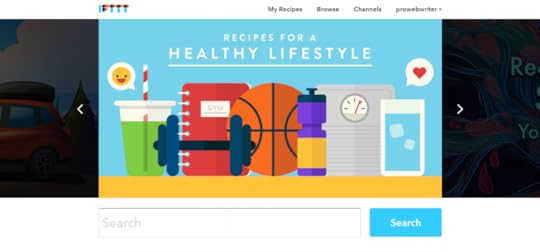
IFTTT is so much more than a solution to this one small issue. To really understand everything you can do with this service, you have to spend a little time exploring their website. If This Then That is a common concept used in programming, but you’ll never see it more simple than this. So what can you do with it?
Automatically change your Twitter Profile image when you change your Facebook Profile picture
Send out a Happy New Year tweet automatically
Automatically add content to your Blogger or WordPress.com blog
Mute your phone ringer when you arrive at the office automatically
Post a tweet when you update your Facebook status
These are only a few things. The possibilities are endless! As of this writing, there are 214 Channels that you can connect to IFTTT. The magic happens when you connect these Channels to each other.
Getting Started With If This Then That (IFTTT)
Well, of course you have to create an account first. Once you’re all set up, I suggest going to the Channels tab and connecting any channels you think you’ll use. In my case, I connected all of my Social Media accounts like Twitter, Facebook, Pinterest, and Instagram.
Just click on the Channel you want to connect. As long as you are logged into that network in the browser you are using, it will connect automatically. Otherwise, you will be prompted to log in. Easy peasy.
Next, browse the recipes that have already been created by IFTTT and others. Recipes? Yes, recipes. I can’t cook…er, make this stuff up. See what’s out there. You WILL be surprised. Here’s a taste.

See anything useful? There’s even stuff on there that’s just for fun like the Space Channel. You will also notice there’s a lot of support for the Internet of Things with the GE appliances and Nest thermostat Channels. I’m pretty excited about this service, and I’m probably not even scratching the surface.
How I’m Using IFTTT to Replace Buffer Suggestions
Not only am I using it for this purpose, but I think it’s BETTER than Buffer!
First off, if you don’t have a Reddit account, create one.
Disclaimer: There is a little bit of everything on Reddit, and I do mean EVERYTHING including stuff I hate and don’t want to see like naked people, gore, and some of the worst content you can find online. It is easy enough to avoid this content without ever seeing it. Also, Reddit comes with a bit of a learning curve, but if you can use a search box, you should be good.
Reddit is sort of a forum on steroids. It is broken up into topics called “subreddits”. Each subreddit covers a specific topic. Search Reddit for topics that interest you and either subscribe or bookmark the subreddits that pique your interest.
For example, given the niche of this website, I subscribe to the following subreddits:
https://www.reddit.com/r/SimplePrompts/
https://www.reddit.com/r/selfpublish/
https://www.reddit.com/r/WritingPrompts/
https://www.reddit.com/r/writing/
https://www.reddit.com/r/Wordpress/
https://www.reddit.com/r/Poetry/
https://www.reddit.com/r/HireaWriter/
https://www.reddit.com/r/freelanceWriters/
The Reddit Channel on IFTTT allows you to create a Trigger, or the This part of If This Then That from all of these options:

So, I created a few Recipes to help me out with my Twitter posts now that Buffer Suggestions is a no-go. First, I made a general one that posts the topics that I Upvote on Reddit to my Twitter stream. This Recipe happens in real-time. As you know it’s nice to have a variety of Tweets that come out at all different times to the tune of up to 14 Tweets per day. So, to take care of the the drip-feed, 24-hour part of my Twitter stream, I created a Recipe that posts all the new posts to both Simple Prompts and HireaWriter to my stream using relevant hashtags like #WritingPrompts or #WritingJobs. This provides both my followers and me with valuable content automatically.
In between all of my automated Tweets, I can still add in posts from Facebook, spontaneous Tweets, promotions, and whatever else I feel like. I’m producing a Twitter stream that brings on new followers and builds my audience. I find that very easy to do with Twitter and that’s why I like it. If Twitter is not your bag, you can do this with Facebook, Instagram, Pinterest, or whatever it is that suits your fancy. Heck, you can do it with them ALL.
The Best Part
How much do you have to pay for this fantastic service? IT IS FREE!!! I know! I can’t believe it either. I don’t know if they will charge in the future or really what the background of IFTTT even is, but I’m gonna rock it like it’s hot until……..
They add new Channels all the time, and I recommend and encourage you to take some time and explore it. You will not be sorry. I have begun implementing the service for my clients and it saves me and them a BLUE TON of time. Happy IFTTT-ing! I would love to hear from you if this post helped you and tell me how you’re using IFTTT.
The post An Awesome Alternative to Buffer Suggestions appeared first on ProWebWriter.com.
June 9, 2015
Writing Kindle Books Using Google Docs
All these shiny objects drive me nuts!!! It’s not that I care if people are creating and selling things that they think will help others. The problem is that those people (us) think they NEED this stuff or they can’t accomplish ___________.
Allow me to apply this to our current situation. In the Facebook group, someone asked about LeadPages versus WordPress for list building. First, I don’t know anything about LeadPages except what I’ve seen in their advertisements and that they cost money. The general premise is that you use this service or whatever to build squeeze and landing pages. It’s an endless cycle. What do you use squeeze and landing pages for? Selling.
In the two weeks that I’ve been participating in a community environment, I’ve had people ask me about:
List building
Formatting software
Images
YouTube
I’ve been asked about almost every aspect of Kindle publishing. Here’s my best advice regarding it all:
Don’t Buy Things You Don’t Need
Here’s the thing…I started doing this in 2010 with NOTHING but my brain and a computer. When I set out to publish my first book, I Googled it. Seriously, I have Googled nearly everything I know about computers, the Internet, and so many other things. Nobody I knew cared about my first book. They’re all fiction readers. It was a non-fiction title called WordPress Websites for Writers. I Googled my way through mastering WordPress, and I wanted to help other writers do the same. Marketing and all other such things that go with the self-publishing territory never occurred to me. Yes, it sold. It sold pretty well.
The caveat to publishing that book? It was chock full of pictures. There were screen shots galore. Once the book was written, I ended up formatting the entire thing in HTML so the images would display correctly. I also ended up using a laborious process to create a clickable Table of Contents that I found on Kindle Boards. The only thing that justified the effort was that the only cost to me was time. All the software I used was FREE.
I’ve probably said it a hundred times here on PWW…I love me some FREE!
I love free because I’ve yet to strike gold. In the decade-long journey I’ve taken to learn Internet Marketing, I hope I’ve learned to still love free after I strike gold. I refuse to build my fortune selling people things they don’t need. I’m sorry for the long diatribe. I’m sure you wish I’d get to the Google Docs part.
This Isn’t a Google Docs How-To or a Promotion
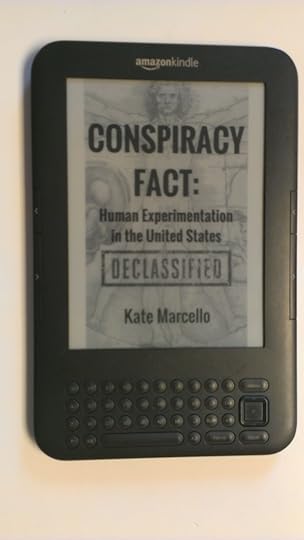
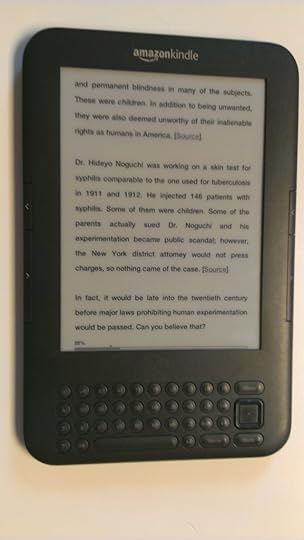
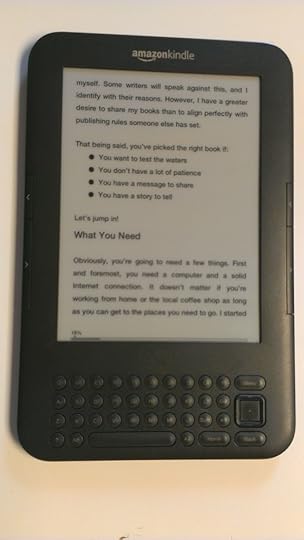
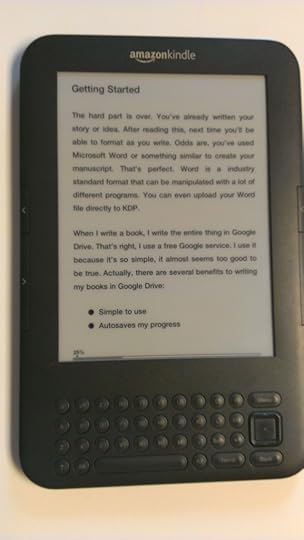
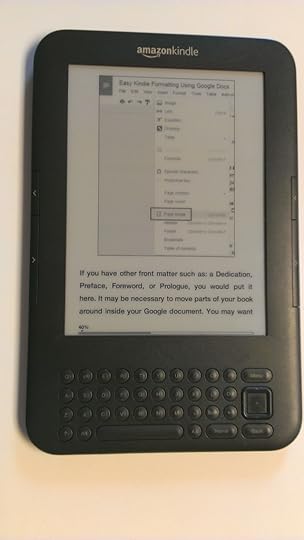
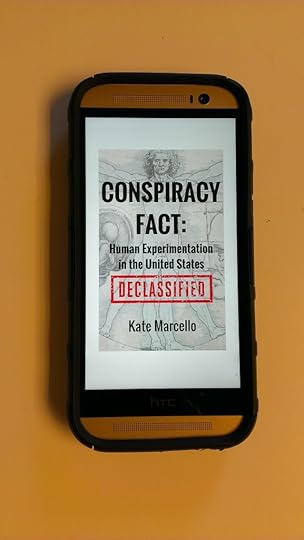
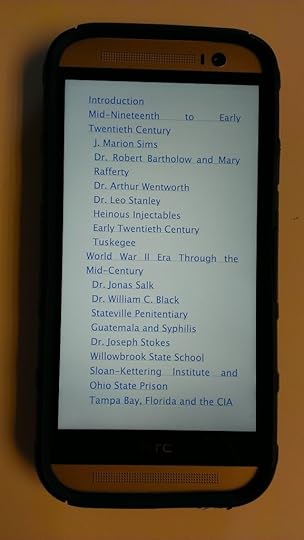
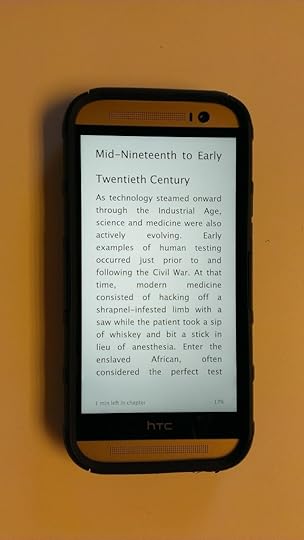
I wrote a book about that. You can find it here. This is not a promotion for that book either. That will actually be going free soon as part of a new marketing plan I’m working on. I want to show you how books I’ve written and formatted with Google Docs look across multiple Kindle devices. Cool? Cool. The devices I have to show are:
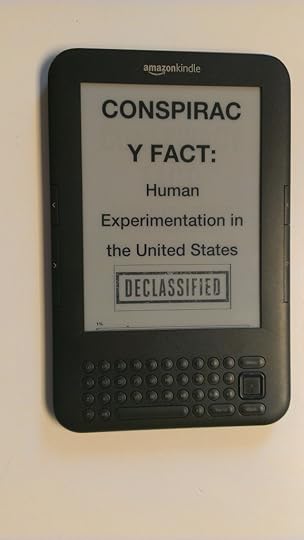
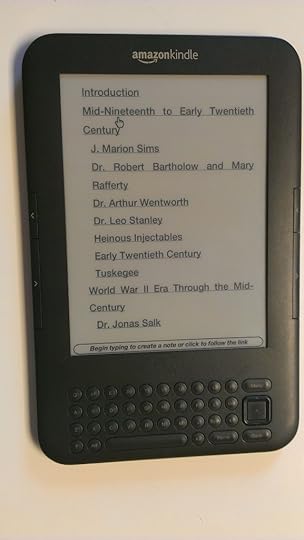
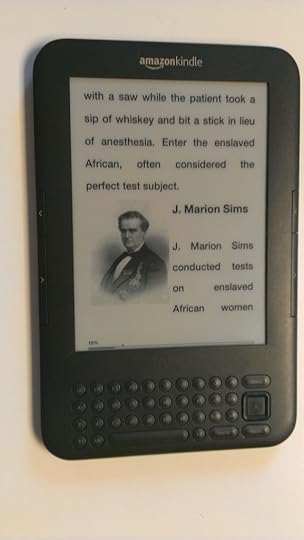
3rd Generation Kindle Keyboard
Android phone
Android tablet
Kindle Cloud Reader
Kindle for PC
Sure, I could pick one device…whichever looks the best, and say, “See? Google Docs does an awesome job”, but multiple devices drives the point I want to make further. That point is that you don’t need to buy ANYTHING AT ALL to get started publishing books for Kindle. Remember, the less you buy, the more you profit. It sure feels good to say I spent $0 on this book and have made a $$$$ profit.
Writing Kindle Books Using Google Docs
It was by accident really that I ended up using Google Docs to write my Kindle books. Since you’re able to export documents in Word format, I think I just uploaded it to KDP one day with the intent on fixing any problems using my Office software. It turns out the book converted well, and that was that. I’ve been using Google Docs ever since. One of the main benefits besides the simplicity is that my books are automatically backed up to my Google Drive.
Of course the most important thing is that my books look great on Kindle. I think they look exceptionally good considering:
They got there free of charge
They converted from a document in Word format
I uploaded images willy nilly
I used Google Docs features to create the Table of Contents
I did no correction to formatting aside from inserting a missed Page Break or fixing typos
So…enough of this fluff and me yapping on about spending money. Let’s see how a couple examples look!
So, How Do Your Books Look?
See for yourself.
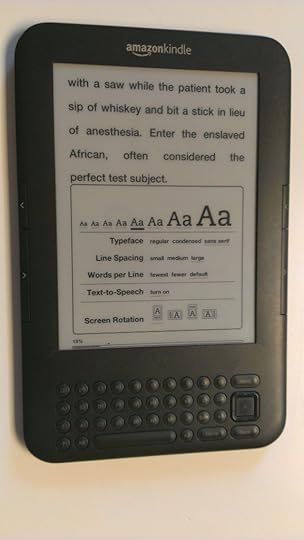
PLEASE NOTE: All of my devices are set at larger font sizes because I have some vision loss. You will notice that in some screen shots, I have adjusted the font size smaller which clears up some of the formatting glitches you see in previous images.
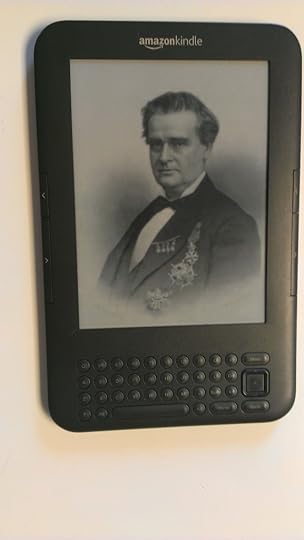
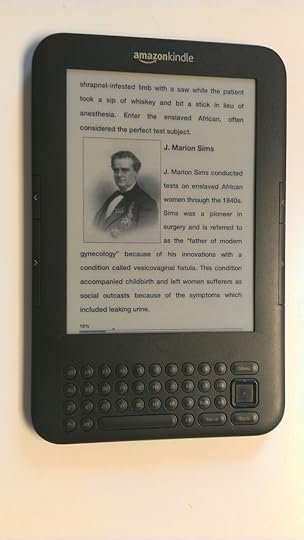
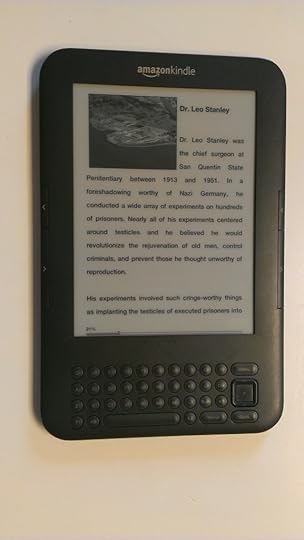
Kindle Keyboard Gen. 3
I got this device for Christmas in 2010.
Click the first image below to open the slideshow. Make sure to read the captions!

Android Phone
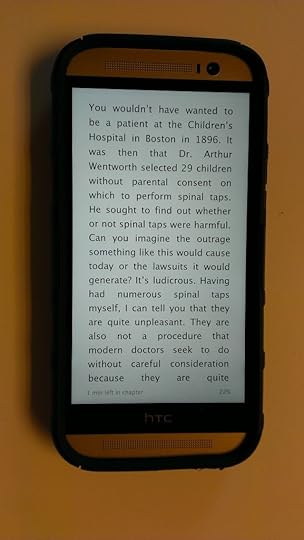
As viewed on an HTC One M8.
Click the first image below to open the slideshow. Make sure to read the captions!

Android Tablet
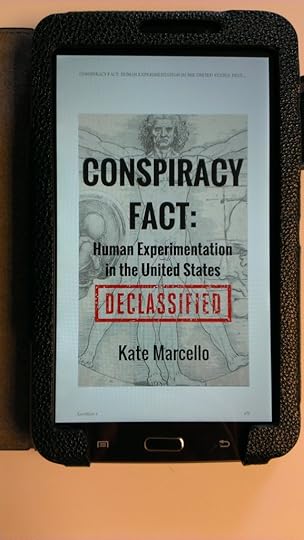
As viewed on a Samsung Galaxy Tab 3.
Click the first image below to open the slideshow. Make sure to read the captions!
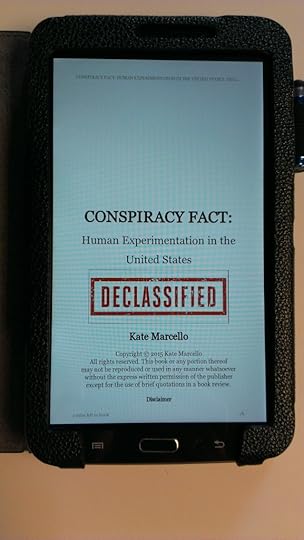
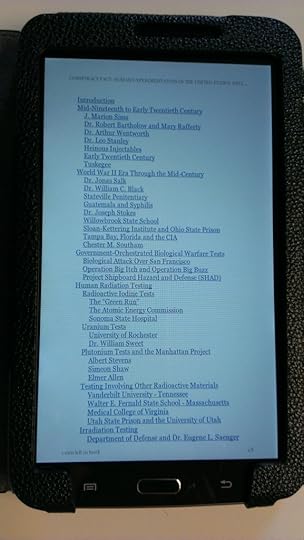

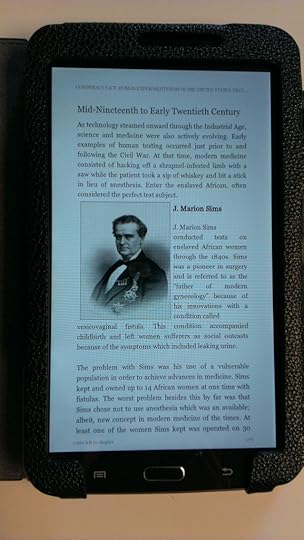
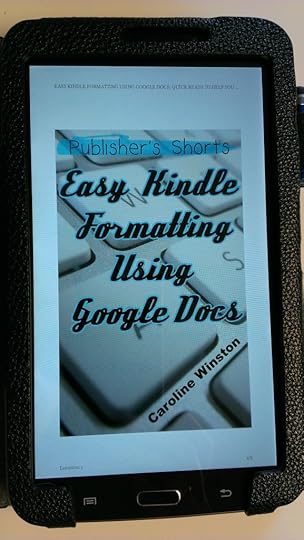
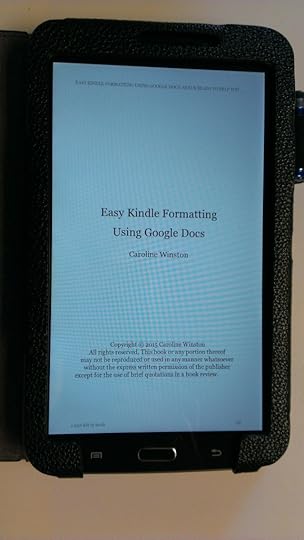
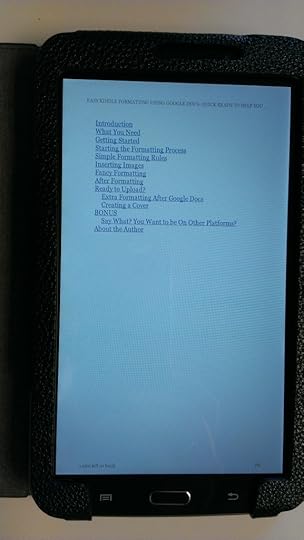
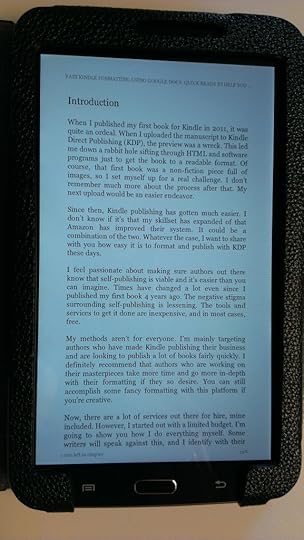
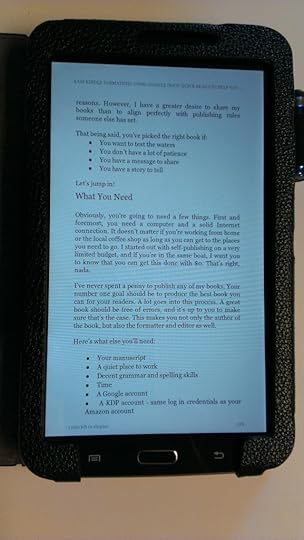
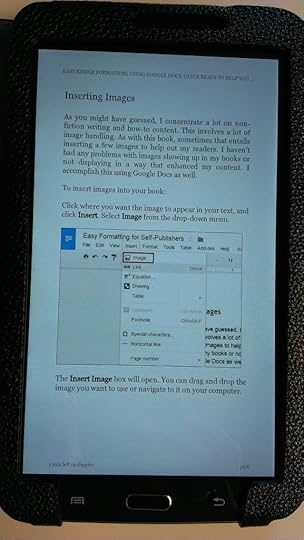
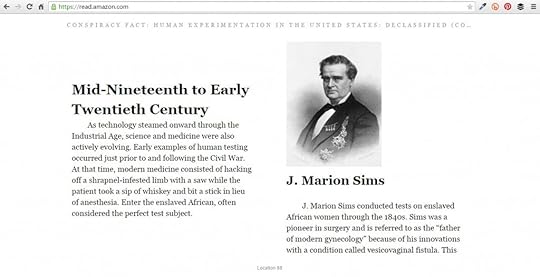
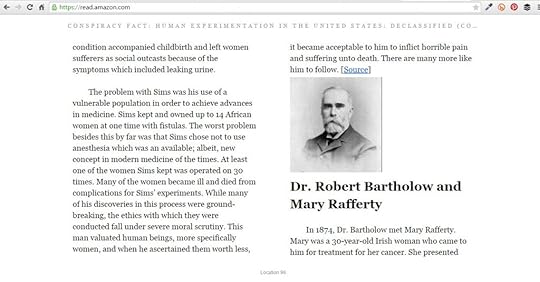
Kindle Cloud Reader
As viewed in Google Chrome browser – https://read.amazon.com
Click the first image below to open the slideshow. Make sure to read the captions!
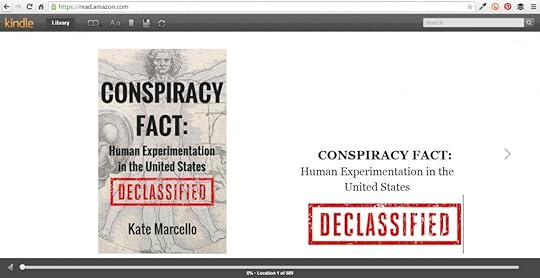
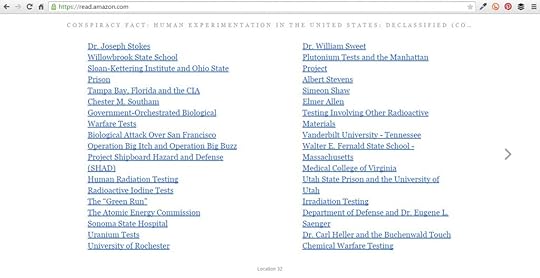
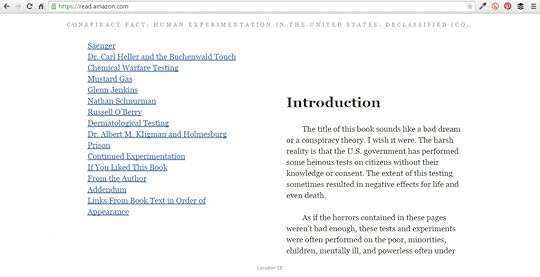
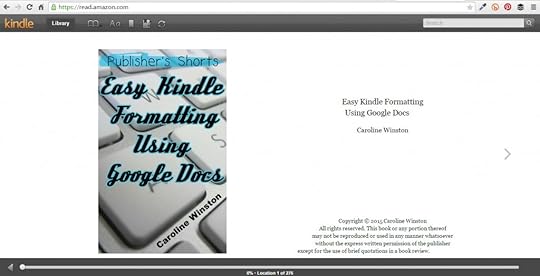
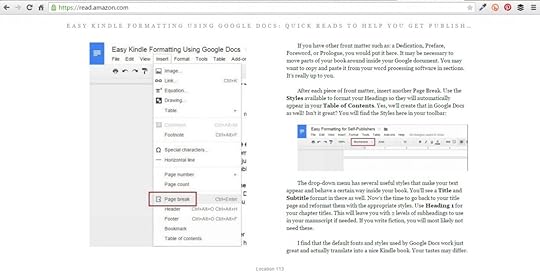
Kindle for PC
As viewed on my Dell whatever model it is. I’m not flipping it upside down. It’s just your average laptop.
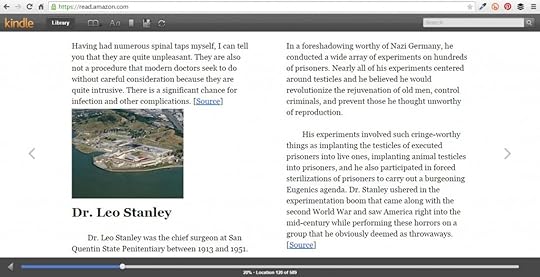
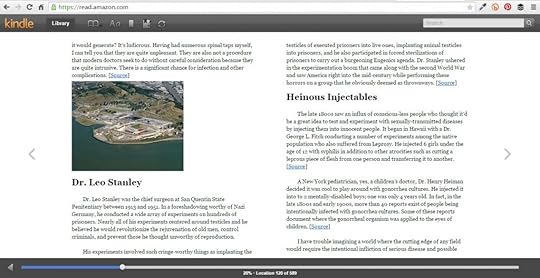
Kindle for PC looks just like the Cloud Reader. Here are the first couple images shot in Kindle for PC. There’s no need to upload more.
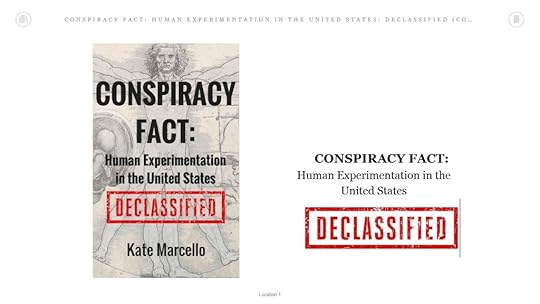
Book cover and title page.
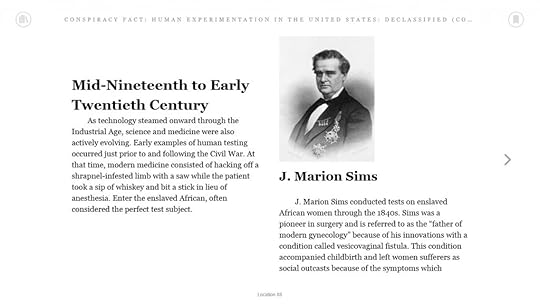
Some text with an image. Identical to shot above from the Cloud Reader.
Conclusion
There you have it. You don’t have to take my word for it. I think these look pretty awesome for approximately ZERO time spent on formatting. The fact that I used free software make them look even better in my opinion. I just want to drive home the point, Writers, that you don’t need fancy stuff to reach your goals and accomplish your dreams. This formatting is achieved by adhering to about 6 rules which you can find in my book:
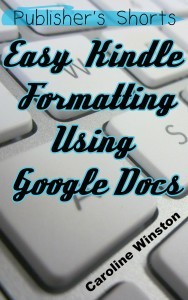 Click the image to check it out on Amazon. I’m simply putting this here for those of you that are interested. I’m not getting rich off this 99-cent book. This is just to help you, and to let you know that every cent you don’t spend on formatting, dumb software you don’t need, landing page software, and other shiny objects, the more money in your pocket. Don’t let someone else make their fortune selling you your own dream.
If you want some free stuff, sign up for my email list in the right sidebar of this page or from ANY page on this entire website. LeadPages, schmeadpages.
Want to see some of this stuff live and in living color? Check this video.
The post Writing Kindle Books Using Google Docs appeared first on ProWebWriter.com.
June 7, 2015
Kindle Mastermind Groups and Internet Marketing
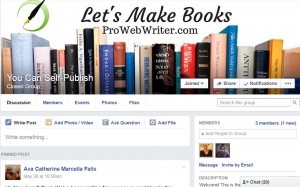 I recently joined my first Kindle publishing mastermind group. *slight eye roll* It has been the best, worst thing to happen in all of my years of playing Internet Marketer online. Allow me to clarify…
Pro’s
I was able to establish almost immediate authority as a Kindle publishing expert. Part of this had to do with the fact that it was a brand new group
In a short week and a half, we’ve covered most aspects of Kindle publishing and any newbie paying attention could get started from the information in the group alone
There’s a lot of idea-bouncing going on
Questions are getting asked and answered
I’ve made new friends
I’ve tripled my email list (not just from this, but it didn’t hurt)
Con’s
Every group has one – the narcissistic windbag trying to sell everyone one of everything
Other people in general trying to sell stuff
The owner of the group trying to sell stuff
You may have gathered that I’m not into being sold stuff! You’re correct!
Marketing 101 and List Building
There isn’t an Internet Marketer around that won’t tell you to start building your email list. This is Marketing 101. Why? So you can…SELL them stuff. *sigh*
Now, I don’t know how many lists you subscribe to, but I only subscribe to 2 or 3. Why? Because I get so sick of constantly being sold to. If your list has NO value to your subscribers or to yourself other than as a means to sell, that is a problem! It might not be a problem for you, but if I’m your subscriber, it’s a HUGE problem for me and I won’t stay subscribed long, I can promise you that.
I’ve never seen anyone talking about this. I feel there should be some effort in retaining subscribers as well, right? I get that your list is comprised of people who have opted in to have you sell them stuff, but ALL the time!?! Really? That is just not how I want to run my business. I want to get paid like anyone else, but I want to do it with integrity and dignity. I don’t want to be the person in the Kindle group posting affiliate links. I’m not that desperate. Maybe that’s why I’m broke, but I don’t care.
If I am a true authority in my niche, I should haven’t to sell you stuff. You should seek me out and ask about my services. As a true authority, I should sell myself without the push. This is how I want to run my business.
Kindle Publishing Circles
So, after a week in this group, I’ve figured out what I don’t want to be for sure and still managed to retain my “authority” status. I don’t know it all, and I’m certainly not the end-all, be-all of Kindle publishing…or even this particular group. I just LOVE helping people.
The thing I’m figuring out is that in Kindle publishing circles, everyone is trying to take advantage of the coaching, course, and guru status to sell, sell, sell. I’ve seen people I never thought would even need to go this route with their own courses and crap. Yes, I offer coaching, but it is deeply discounted compared to the $197 per hour going rate I’ve seen around this group and other places. Which, brings me to another point…
You Must Charge an Arm and a Leg…
…or your “product” is obviously a fluke and doesn’t have near the value of someone else’s $197 product. Where does this mentality come from!?! I’m certain it’s old-school, but it’s also pretty stupid if you ask me. For the majority of my time online, people have outright ignored my offerings because I’m not charging out the wazoo to sell you some pixels. For real. I guess this is along the same reasons that a Mercedes is a status symbol while a Kia is not. Even though I can buy 4 Kias for the price of 1 Mercedes, for some reason, the Kia is perceived as possessing less value…or less status. Maybe I’m getting somewhere.
Sure you could buy my coaching 10 times over as compared to Mr./Mrs. $197, but would you rather refer people to [Super Awesomely Branded High-Dollar Coaching] or my generic coaching at a steep discount? So many of these age-old business practices make me throw up in my own mouth.
Cutting a New Path
I’m not a “crowd” sort of person. Just because Plan A worked for one person doesn’t mean it will work for me. In fact, most of the time, I’ve found that it almost never works for me. I’ve run around in circles for years cutting my own path and trying to get some butts in the seats of my latest endeavor until I’m blue in the face. What I’ve learned is that you just have to keep trying new things and not give up even though only about .0001% of the things you try are viable. Eventually, you will build an audience and more and more of your own methods will take off. You will also learn a TON in the process. You’ll build a following and brand and BOOM, things will happen!
I think the key to this BOOM might be through groups like the one I joined on Facebook. If you want to be a part of the action, join up – https://www.facebook.com/groups/YouCanSelfPublish/
The post Kindle Mastermind Groups and Internet Marketing appeared first on ProWebWriter.com.
May 28, 2015
Marketing Your Kindle Book: Ideas Less-Traveled

Hey y’all. This post is the written companion to this video: https://youtu.be/D5uqLsOA1pg
What red-blooded, independent publisher doesn’t want to know how to properly market their Kindle books? Why are we only focusing on Kindle? Well, because Amazon is 75% of the market share on ebooks. If you master it, you master the self-publishing world. Right? Right!
I put out the video linked above. When I planned the video, this is Part 2 mind you, I had no idea it would turn into such an epic saga! I churned out Part 1 without doing much study, and I decided it just wasn’t good enough. So, I promised my subscribers that I’d do some research and release Part 2 this week. Little did I know, this would turn into a whirlwind of posts, videos, and other stuff. Mercy me! This post is just as epic!
Can You Review My Book?
I received an email a couple weeks ago from a lady who wanted me to review her Kindle book that was about to be released. She invited me to opt into her mailing list, and she would send me a free copy of the book. I found this intriguing, so I decided to do it. This girl had it all figured out. She was also doing a giveaway on top of everything else. I didn’t want/need any of the items in her giveaway, but her approach was multi-faceted. She had put a lot of work into this campaign just to get book reviews.
She found me via a review I wrote on Amazon back in 2011 about John Locke’s book. I’ve written about John Locke before. I got her book…she didn’t send it, but linked to it during a free promo period on Amazon. This made my review a Verified Purchase. Smart thinking!
Oddly enough, her book (which will be linked below) was about marketing your Kindle books. I read it and took notes with the intention of sharing what I learned on my YouTube channel. When I was done, I thought that I should read some more material as well just to:
Corroborate what she was saying
Have some extra tidbits to share
I ended up reading a total of 6 books…most of which I got like this several weeks ago.
7 Basic Marketing Techniques for Inside Your Book
The 6 authors of those 6 books agreed on several things. Luckily, I got some great information from all of them even though they rehashed some things. This tells me that these things are the things that are known to work, and I covered some of these myself in Part 1 of the videos. Without further ado:
An error-free manuscript – I’m not saying you need to hire an editor, but do your best to make sure your book is free of errors
A professional cover – Make sure you cover looks professional. You can get a professional cover design for a reasonable price at Fivver.com or UpWork.com. Make one yourself with Canva.com
An attention-grabbing title – Use Ian Stable’s feature/benefit formula as outlined in his book listed below. Present a feature of your book, state the benefit
A link to subscribe to your list – Don’t neglect building your list!
A request for reviews – Write a short note asking the buyer to leave an honest review if they liked your book
Links to other books – Link to other books in the series or other books relevant to the title. You might even swap a link with another author and have them link to your book inside theirs
Links to your website and Social Media Pages – Red Rover, Red Rover, send those readers right over! To your website and other places where they can connect with you online
These are the basics for inside your book. Authors also agreed that you should consider making your book a series as these sell well (I can attest), and that your book sales page on Amazon should be well-optimized. I’ll be covering this in next week’s video, so please consider subscribing to my channel.
The 6 Books I Read (And I Recommend Them All)
HOW I SOLD 80,000 BOOKS: Book Marketing for Authors – Alinka Rutkowska – http://amzn.to/1Bp1TXn
THE BOOK MARKETING SECRET: How to sell books on amazon the right way – The methods proven to work best (How to Write a Book and Sell It Series 3) – Ian Stables – http://amzn.to/1evzOJ4
Self Publishing: For Beginners – A Step-By-Step Guide To Book Creation, Book Marketing, and Book Promotion For ANYONE! (Self Publishing, Book Creation, Book Promotion 1) – Abraham Falls – http://amzn.to/1ExkPDm
Goodreads Marketing For Authors: How to Market and Promote Books on Goodreads – Mayowa Ajisafe – http://amzn.to/1Exl6Gx
Step-by-Step Stupidly Easy Course on How to Make Six Figures Through Amazon Kindle Publishing Exposed – Muhammad Sikandar – http://amzn.to/1Exlftx
Stampede (A Free Twitter Marketing Guide for eBooks that Generates Masses of Traffic to your Kindle page) – Gary Taaffe – http://amzn.to/1evB4w1
Marketing Your Kindle Book: Ideas Less-Traveled
I learned a lot. What you’ll get here is what I learned mixed with some of my stuff, it’s an exclusive compilation of marketing techniques for Kindle and beyond. Fasten your seatbelt. Here we go!
KDP Select – Launch your book on Amazon first. Enroll in KDP Select and reap the 90 days of benefits including 5 free promo days. Amazon will also send emails out about your book and more! After 90 days, opt out. KDP Select runs in 90-day increments, so if you want to go an additional 90, that’s cool. Just remember, that before you can put your book anywhere else, you have to opt out for that title
CreateSpace.com – Upload your book to CreateSpace. You may need a modified cover. I have heard successful authors on CreateSpace say they just put their Kindle over in a PDF and upload that, but I haven’t tried it. I modified my cover. CreateSpace has a number of channels including bookstores and more than I can name here. It’s worth it!
Draft2Digital – Publish your book to Barnes & Noble, iBooks, Kobo, Scribd, Page Foundry, Tolina and more with ONE upload!
Universities and Libraries – Explore these two links to find out more about your options – http://ingramcontent.com and http://baker-taylor.com
Gift Shops – Contact gift shops to carry your paperbacks. For example, if you book is about animals, contact zoos to include your books in their gift shop
Goodreads – Don’t ignore Goodreads even though it’s not user-friendly. It’s worth your time. It’s where readers hang out!
Blogging – If you’re into it. If not, that’s okay too, but it’s a great way to connect with people
AuthorCentral – Make sure you Author Central page is completely set up with a picture, a bio, and whatever else you want to hook to it
Bookbub – I’ve been hearing a lot about this service. 2 of the 6 authors mentioned it in their books, and I also have a personal friend who recommended it. It will cost you an investment, but it’s worth it from what I understand
HARO – Sign up to become a source for hundreds and thousands of reporters around the globe. Talk about boosting you credibility…
Press Releases – http://prlog.org is free, or you can find a paid distributor
Make Videos – You don’t have to be good at it. Look at me! Videos add credibility to you and your projects. I’m living proof
Get Reviews – Most publishers agree that you shouldn’t even begin promoting your book until you have some reviews – 3 to 5 seems to be the general starting point. However, Alinka Rutkowska, outlines a plan for a 100-review book launch in her book listed above. Get reviews from: https://readersfavorite.com/reviews/ and https://amazon.com/review/top-reviewers/ . Goodreads is a good source as well
Free Promotion – KDP Select allows you to run two types of promotion. Nearly all publishers recommend the free promotion. You get 5 days of free promotion every 90 days. Some say run all 5 days at once while others say run 1 day at a time about 2 weeks apart.
Universal book links – These links take users to Amazon in their own country. The significance of this is that even though someone clicks your link, if it’s not universal, they are taken to Amazon in your country. If they choose to buy, they are redirected to Amazon in their country and have to click the buy button again. This allows too much time to rethink the purchase and is just too much clicking. To create universal links: http://booklinker.com or http://georiot.com
What Do You Think?
I learned a lot this week about book marketing. Some of it I already knew, and some of it was completely new! I REALLY liked some of the ideas that I hadn’t heard before like the universal book links. I also confirmed this in one of my Facebook groups. A fella in the UK confirmed that my US Amazon link takes him to Amazon.com rather than Amazon.co.uk. I thought that was an automatic Internet thing…that you would automatically be taken to sites in your native country. No wonder everyone hates the US. NOTHING they have is designed for or geared to them!
Join my private, but FREE Facebook Group on Self-Publishing here!
If this post helped you out, let me know in the comments. I definitely plan to read more books! There’s gold in them there pages. Grab my freebie in the right sidebar! It’s an entire folder on my Google Drive that I’ll be filling full of stuff for your Kindle Marketing Toolkit!
Here’s the video in case you wanted to check it out, but it’s looooong.
The post Marketing Your Kindle Book: Ideas Less-Traveled appeared first on ProWebWriter.com.
May 22, 2015
Building Your List with WordPress and MailChimp
This blog post is in response to a question from a Facebook Group I belong to, and I’m answering that question here. Thanks for the opportunity. Check out my other ProWebWriter Answers here.
List building is Internet Marketing 101. You won’t find a marketer that will tell you, “Hey, you don’t need to worry about building a list.” They all know the money’s in the list. If you’re on a tight budget (or not), MailChimp is a great place to start because:
It has a robust free plan
It’s super easy to use
You can easily export your lists to use with other services if you decide to switch in the future
With that being said, how the heck do you set it up on your WordPress site? Let’s get started.
Creating Your First List in MailChimp
Once you are logged into your accounts, it’s time to start creating. We’ll start in MailChimp.
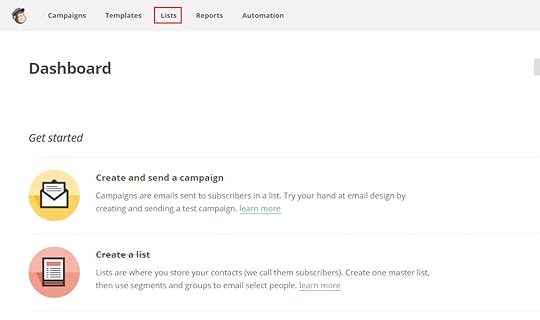
From your Dashboard, click Lists in the top navigation.
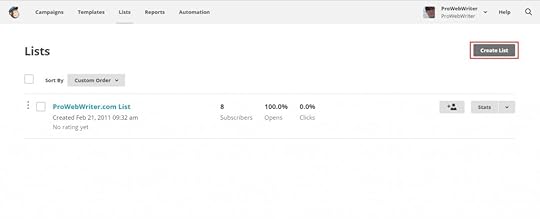
Click the Create List button in the top right of the Lists page.
MailChimp will then present you with a basic form where you will fill in information about your list. Below is an explanation of the fields on that form:
List name – Type the name of your list. You can create multiple lists, so be specific. You can see in the screen shot above, that I have named my list after the website it appears on
Default “from” email – Type the email you want your newsletter, email blasts, etc. created in Mailchimp to be sent from
Default “from” name – Type your name, the name of your website, or whatever you want to appear to your readers in the “from” area of their email
Remind people how they got on your list – Type a short reminder; something like this:
You’re receiving this email because you subscribed to my newsletter via my website at mywebsite.com.
Your contact information will be included. You can edit it if necessary. After that, you can check one of the three boxes to indicate how you would like to receive notification of new sign-ups.
Don’t forget to click Save!
You just set up your list! Nice work, but we’re nowhere near done yet. Now it’s time to create the sign-up form.
Setting Up Your Sign-Up Form
From the Lists page in MailChimp, click on the name of the list you just created.
The list page will open with a lot of stuff to do! Don’t be intimidated. We’re on a mission. Click Signup Forms.
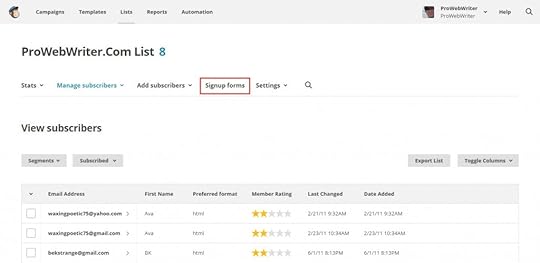
Don’t laugh at my tiny list! I’m trying here!
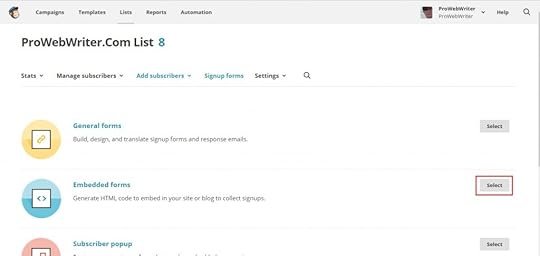
Click Select next to Embedded forms.
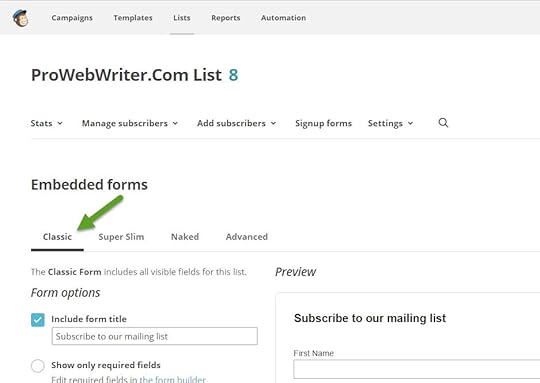
Listen, I’m not a MailChimp expert because who has time? I’m just going to go with Classic. It’s defaulted to this tab, and we’ll build our form here. If you want to know what the other tabs do, that’s another tutorial for a different day. We are trying to build a list here!
This also looks a bit intimidating. I’ll walk you through. We are concentrating on the Form Options to the left
Include form title – Check this box if you want a title included with your form. You may have to play around with this a bit once you see the form on your site. The cool thing is when you change the form here, it should change on your WordPress site via the MailChimp plugin widget
Show only required fields – Your form will only display the required fields when this radio button is clicked. I think the email field is the only one required by default
Show all fields – Your form will display all of the available fields. You get the basics here like Name and Email. You can change these as well as the required fields in the Form Builder. I won’t be covering all of that here
Show interest group fields – Click this check box to show your interest groups on your form. Disregard this for this simple tutorial. Uncheck this box
Show required field indicators – Check this box to show the red asterisk to indicated required fields
Show format options – This allows readers to choose HTML or plain text format
Ignore everything else.
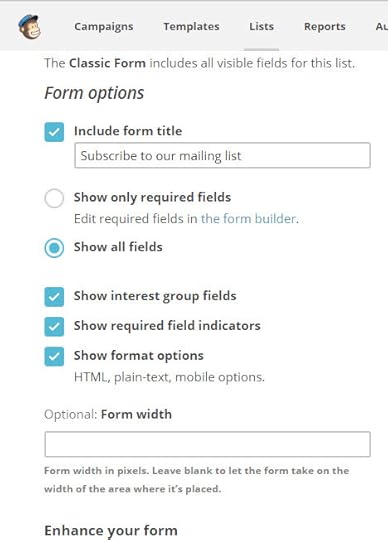
Below are the settings I prefer for a simple form that will capture the name and email address of those looking to opt into your list. You can see the entire form in the Preview.
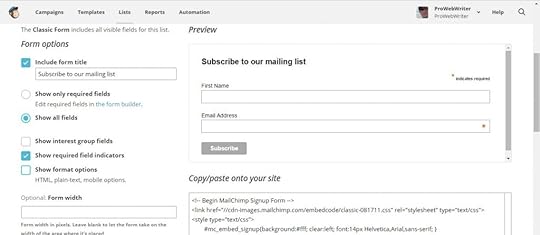
You are done in MailChimp. Good job! Time to head over to your WordPress website. See you there.
Installing the MailChimp for WP Plugin for WordPress
Alrighty, we need to install that plugin. Let’s get to it.
From your WordPress Dashboard, hover your cursor over Plugins, and select Add New from the fly-out menu.
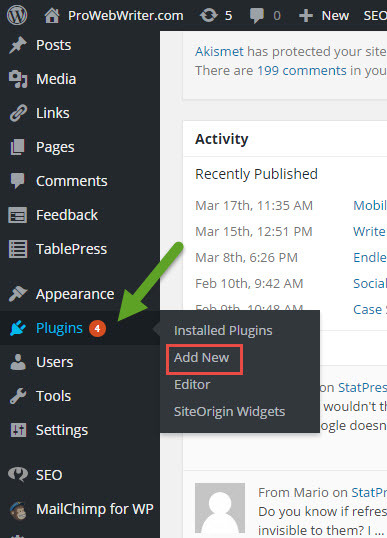
I know I need to run updates! How tacky!
The Add Plugins page will open. Type “mailchimp for wp” in the search box in the upper right corner and press Enter.
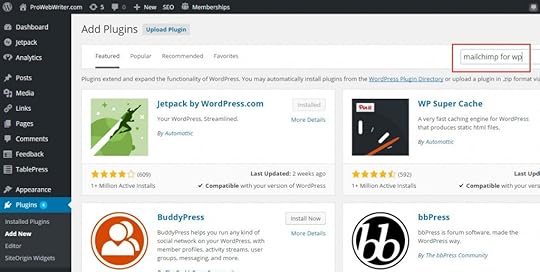
You’ll get a ton of results, but it appeared front and center for me. I use the one by Ibericode. I’m going to switch to my test site, so I can show you the entire process. You’ll see a different site in the screen shots. Click the Install Now button.
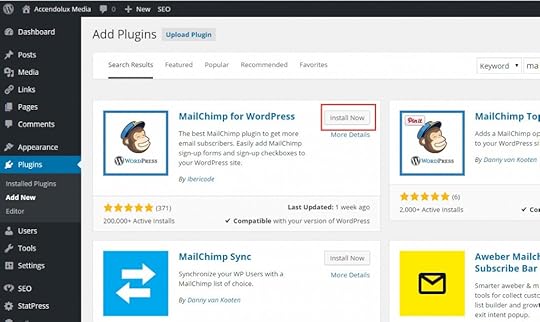
WordPress will install the plugin. Click Activate Plugin.
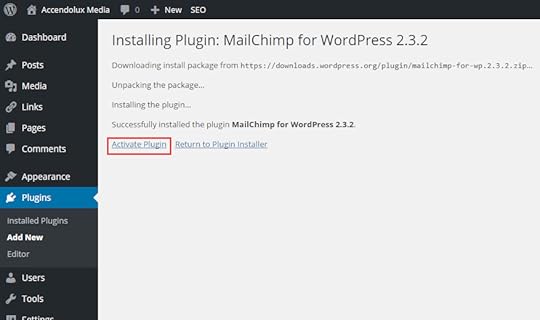
WordPress will activate the plugin. Now you can connect your MailChimp account. We’re getting there.
Configuring the MailChimp for WordPress Plugin
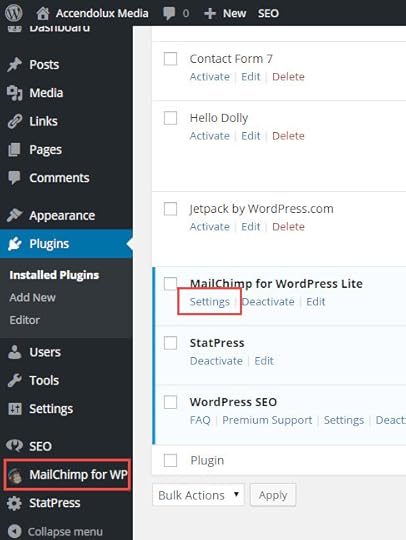
Access the plugin settings either by clicking MailChimp for WP in the left sidebar or by clicking the Settings link beneath the plugin name in your Installed Plugins list.
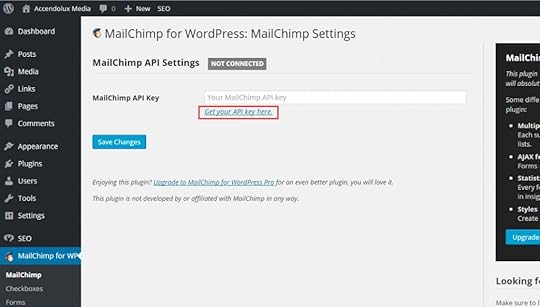
You can see we are not connected to MailChimp yet. Click the Get your API key here link.
MailChimp will open up in your browser. Click the Create A Key button.
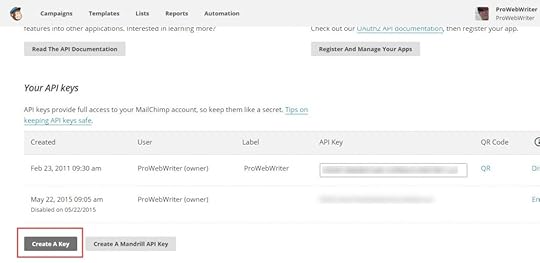
MailChimp will generate an API key for you. It will look like a long string of letters and numbers. Copy and paste this key into the MailChimp API Key field in the plugin settings in WordPress. Click Save Changes.
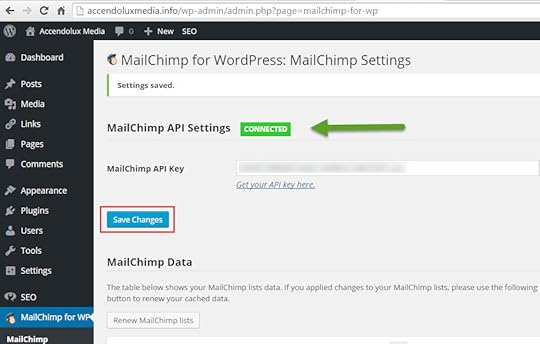
Now you’re connected as indicated by the green CONNECTED banner.
Almost done.
Inserting the MailChimp Sign-Up Form Into Your Posts and Pages
Putting your form on your website is as simple as placing a widget in your Pages, your Sidebar, or other widget area of your WordPress site. Check it out.
Hover your cursor over Appearance in the left navigation and select Widgets from the fly-out menu.
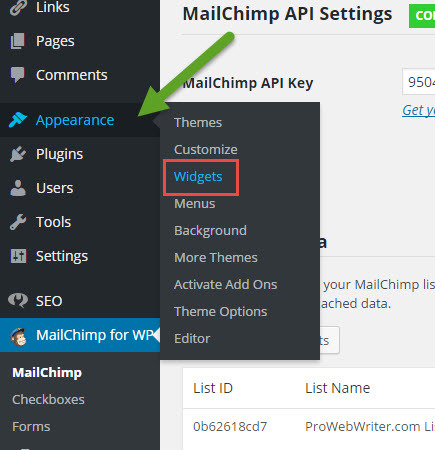
Drag and drop the MailChimp Sign-Up Form widget to one of your available widget areas.
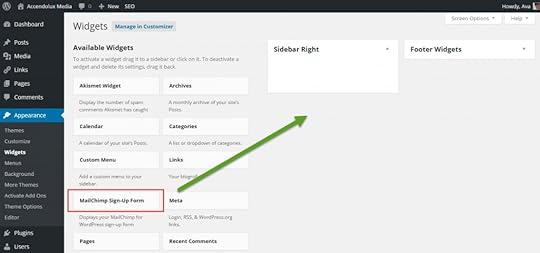
I dropped mine into the Right Sidebar which just happens to be kind of far down the page in this particular theme, but you can see the form on the front end of my test site below:
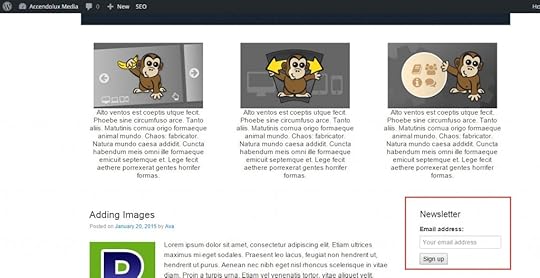
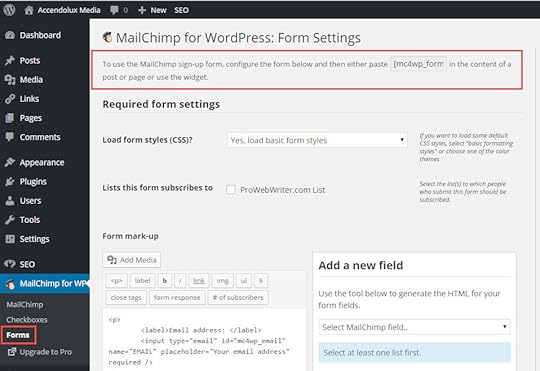
That’s it! You’re a genius! If you want to include your form in your Posts and/or Pages, you can do so with a shortcode provided by the plugin. To get the code, click Forms under MailChimp for WP. At the top of the page you will see the code. Copy and paste this code into your Post or Page where you want your form to appear.
 You’re an old pro now. I hope you get a million subscribers! If you liked this tutorial, there are a lot more WordPress tutorials inside the members area, and it’s FREE to join right now for life.
The post Building Your List with WordPress and MailChimp appeared first on ProWebWriter.com.
March 15, 2015
Write On by Kindle: New Writers’ Community by Amazon
I received an invite to Write On by Kindle last week, and I jumped over there to take a look. To my surprise, I saw a new community from Amazon for writers that looks a lot like Wattpad. I am a fairly new user of Wattpad, and honestly haven’t put a lot of time into that platform because it’s overwrought with teenagers. You can read more about my experiences on that in this post.
I haven’t spent much time at all checking everything out, so I’ll do that now. I hope to find that it’s everything Wattpad is not.

A Quick Exploration of Write On by Kindle
A quick comparison of the categories between the two shows Write On to have a cleaner set. One of the main problems I’ve had over at Wattpad is the way they have catered to the teenage audience that has flocked there to write about 1 Direction among other things I can fathom no interest in. It was quite difficult to find adult authors there and to find a part of the community not overwrought with teeny boppers was nearly impossible.
That being said, perhaps this is what they set out to do in the first place at Wattpad, but I found it touted on numerous blogs as a great way to market your books. The only way this is a feasible option is if you write for young adults. The community was very tightly moderated as well. This is good in most aspects, but there was no option to create your own Club or find a way to connect with people with whom you might have one shred of something in common. Let’s see if Write On does this better!
Write On does have an area for Fanfiction, and I had scroll well below to fold before running into the first 1 Direction example. Conclusion: Infiltrated, but not yet overrun. A perusal of the Non-Fiction category is promising as well. Since this is my preferred genre, I see that it’s a much more viable place to share excerpts of my books. However, I’m seeing much of this going on.
Creating with Write On
Like Wattpad, Write On also has a section where you can create books right on the platform. You can upload a cover and everything. What I really want to know though is if there is an option to download your book once you’ve created it. Also, since this is “by Kindle”, does it integrate with the Kindle app? Let’s find out!

Alright, so I uploaded a story…actually a poetry book I had up at Wattpad, and it’s almost the exact same process. Also, there is no way to export the book as of yet. To me, the ultimate feature would be to integrate this somehow with Kindle Direct Publishing (KDP), so users could move the book into the pay market as an end result. Also, no Write On functionality has yet been added to the Kindle app or as standalone app yet either. These would be two features I’m waiting to see.
Discussion
Write On chose the more traditional form of community discussion with forums which appear to have a decent start. Personally, I prefer this interface for interaction to Wattpad’s Clubs. Here’s a look:

Discussion also happens by following other users and commenting on their work. It seems at this time this communication is limited to public comments in various locations like on their profile or on the different sections of their stories. I’m sure Write On will understand soon enough how important a private messaging interface is for nearly anything you do online.
The My Stuff Tab
This tab is where you can check out what’s going on with the stories you have uploaded. Write On tracks:
Comments
Follows
Likes
Reads
You can follow a writer’s particular story without following their profile. There is currently no social media integration.
Upon viewing the status of my newly added story, I can see it is showing first under the default Recent filter.

Cool. I might have a fighting chance to build an audience here. At Wattpad, this story, in addition to another one, have been available for months and still have under 100 reads each. This, even after I was active in the Clubs and shared them on Social Media. So, I look forward to finding out if this is a more viable option.
Terms and Conditions
There’s doesn’t appear to be anything hokey in the TOS. You retain the rights to your content, but Amazon reserves the right to display it how they please while it appears on Write On. They provide the appropriate means to address infringements or other disputes.
Is Write On Viable for Book Marketing
This remains to be seen. The idea behind using a platform like Write On for marketing stems from using Wattpad. The way it worked is that you could post portions of a story such as a few chapters and then link to the sales pages of the entire book on Amazon. I have not seen anyone else doing this on Write On, but I also don’t see anything in the TOS against doing it. Even so, when in Rome…
At this point, I don’t know what the benefits to Write On could be for authors aside from its most obvious intended purpose which is to get feedback on what you’re currently working on. I would certainly encourage new and aspiring authors in fiction or any creative genre to seek this type of feedback. Don’t be afraid of it like I was/am. it will only make you better at your craft. For non-fiction authors, this may not be as viable a community.
Conclusion
I will abandon Wattpad for this community and put some effort into using it simply because Amazon. Since it’s in Beta, this is the ground floor and there appears to be room to become an authoritative member. Even though I am concentrating heavily on non-fiction right now, when I come back to my more creative pieces, I may consider starting them off here and getting feedback like the poetry book I’ve used in my testing here. I am really looking forward to seeing what features they add to this in the future.
Here’s the link to my book there – http://amzn.to/18sQQEr I go by QuietDeluxe. If you join, comment and let’s be friends!
The post Write On by Kindle: New Writers’ Community by Amazon appeared first on ProWebWriter.com.
March 8, 2015
Endless Mounds of Free Kindle Books and How to Find Them
 So they say that one of the ways to be a great writer is to read a lot. It’s more possible now than ever. Did you know that most of the the classics are available completely free in Kindle format? The classics aren’t everyone’s thing though, so in case you didn’t know, you can get ALL kinds of book completely free. You know I LOVE free.
Set Up
First, you need a Kindle. If you don’t have one, you can get an app for any device from computers to iPhones. Grab it by either visiting the app store on your device or go here.
Your device or app should register with your existing Amazon account or when you create one. This is important if you plan to find books and send them to your device from your computer.
Amazon keeps all your books for you “in the cloud”. This is nice in multiple ways. If a title doesn’t send over to your device for some reason, you can resend it from your account. You can also send a title to other devices too.
Managing Your Kindle Content
I prefer to shop for books and manage my Kindle from my computer. You can see more about the books more quickly on the computer in my humble opinion.
From the Amazon.com homepage, click Shop by Department.

A page of links will appear. It’s crazy! Locate the Kindle E-readers & Books heading. Click Manage Your Content and Devices. Amazon will ask you for your password again.

From this screen you can manage your content and devices.

Please ignore my Eugenics titles…research for a new conspiracy book.  If you click the Actions buttons beside your titles, you can perform a number of…you guessed it…actions!

Finding Free Kindle Books
Hover your cursor over the Shop by Department button. Select from the drop-down and fly-out menus as follows.

The Kindle Store opens. Let’s check out some Best Sellers! Click Kindle Best Sellers in the left navigation.

The Kindle Best Sellers will open. There will be a large list of categories in the left navigation. You’ll also notice that you can view the Top 100 in Paid and Free. Boom! There’s what we’re looking for. Click Top 100 Free. Anything you see here of interest, you can download absolutely FREE!

When you click a category to the left, a whole new list will open. You’ll be presented with the Top 100 Paid and Free for that category. Again, there will be a list of subcategories in the left navigation, and you can explore these as well. TONS of books just free for the downloadin’!
You can also just search for free books. I typed “free kindle books” in the search bar and got a category list!

What About On My Phone or Kindle?
You can search for free books on your device, but you can’t drill it down like you can on the web. You can search through both the Kindle app itself or the Amazon shopping app. In order to find free book, type in your search for “free kindle books” and tap go. You then have the option to filter the results.

Other Ways to Find Free Kindle Books
Bookmark this page at Amazon. A lot of third party services have also made it their business to sniff out free books for you. Here’s a list:
http://freebooksy.com/
http://www.gutenberg.org/wiki/Free_Kindle_Books
http://www.pixelofink.com/
https://www.bookbub.com/home
The post Endless Mounds of Free Kindle Books and How to Find Them appeared first on ProWebWriter.com.
February 10, 2015
Social Media Marketing for Authors
 Are You Confused by Social Media?
Maybe not so much confused, but just don’t understand how to use it to promote yourself? I understand…especially if you didn’t grow up with computers, new innovations online like Social Media can get overwhelming quickly. I’ve seen some pretty computer illiterate people navigate Facebook like a boss, haven’t you? Odds are, if you are reading this, you have a Facebook account and know how to use Google at the very least. Congrats! You are more savvy than 85% of average Internet users.
The Reason for This Post
The reason for this post is to let you know that I’m putting my exhaustive course on Social Media Marketing in the members area. This course sells online for $47. It is packed with information that I learned over a 9-month period as the Social Media Manager for an established SEO firm. At one time, I had 17 clients on my own that together required more than 100 posts per day. I developed written and video training. I hired a staff of 6, trained them, and assigned them to their own clients. I originally wrote the course from a business standpoint, but if you know anything about being an author, then you know it IS a business.
What’s in the Course?
This course will teach you how to WOW your readers with a few simple tactics that most people do not take the time to implement on their profiles. Essentially, there are 4 networks covered:
Google+
These are the 4 main ones, but in the course materials, I also take it a step further and include Pinterest and Instagram as well. There are some things included in the course that won’t benefit you as an author like information about how to manage the accounts of others as a business model. However, the core information is still relevant to Social Media Marketing for authors. I will adapt the course eventually as training like I have the WordPress tutorials set up in the members area, but will still offer it as a download as well.
Here’s a list of what is included in the ZIP file:
Main Course Document – 67 Pages of insider tips
SIX Network drill-downs that show you how to WOW your readers on each network
Quick Start Guide – A brief guide that will give you a few quick tips and improve your Social Media campaigns TODAY
2 Industry Documents pertaining to Social Media Marketing as a business – These won’t matter as much to you as an author unless you do freelance work
You don’t want to miss this! This alone is well worth the cost of membership.
Why Social Media Marketing for Authors is Important
The #1 reason is because it helps you gain readers and sell more books if you do it right…and sometimes even if you do it wrong! I struggled for a few years trying to figure out how to get my friends interested in what I was doing with my writing. I had a breakthrough one day when I had my Facebook friends comment with a word that I would in turn write a poem about. It exploded. The next time, I wrote stories instead of poems. It’s about time to do it again!
In addition to doing things like this, you can also conduct giveaways, run promotions, and even have contests using Social Media. It really is HUGE. It’s a big part of your platform as an author…almost more important than your website. More than that, it’s a perfect companion for your website.
If you have any questions or need advice on tools or tricks for your Social Media campaigns, please contact me! I can and want to help!
The post Social Media Marketing for Authors appeared first on ProWebWriter.com.
February 9, 2015
Case Study: The Great Cookbook Publishing Experiment
 I’ve been kicking around for nearly a decade in the Internet Marketing circles on the web trying to find a way to “make it”. I’ve had at least one active website since 2006 in pursuit of that endeavor. ProWebWriter was never really about “making money online”, it was more about having a place to showcase my writing as I sought employment. Then it evolved to my crude attempt at creating a community for writers to just sitting here for a year or so while I worked and had very little time to dedicate to what it is now. Okay, so it’s still in the infancy stage of being the community that I envisioned, but I am actively working toward that end.
What a lot of blathering just to tell you that in my Internet Marketing travels, I recently came across a blueprint for making it big on Amazon publishing ebooks for Kindle. I’m no stranger to self-publishing on Amazon. I published my first book in 2010. It’s only gotten easier since then. So, when I came across this and it was something I could do fairly easily, I decided to give it a try.
The Blueprint
So this blueprint was published by a kid on the Warrior Forum and shared in The War Room, a private forum. It was free, so I grabbed it and went through it. The information was from 2012, so I wasn’t sure if it was still relevant, but figured I would give it a try anyway. If you are interested in the blueprint, I’ll be creating my own version outlining my experience with a few extra things added in. Get your premium membership today, so you don’t miss it! I’m doing a HUGE giveaway on the forums right now where you can get a FREE lifetime membership!
The General Idea
The general idea of the blueprint is to create a cookbook. There are a number of ways to approach this. You can do a themed book or one pertaining to a certain diet plan like vegan or paleo. You can pick a certain dish, and create a collection of recipes for chili or lasagna. It’s really up to you. You can perform some decent research about what is selling by using Amazon itself and perusing the best sellers for different categories. You can take note of what kind of covers attract buyers, what the top sellers are focused on, and more. Then, the rest goes like this:
Publish your book to KDP (Kindle Direct Publishing)
Price it strategically
Run a free promotion for 24-48 hours
Watch sales come in
Rinse, repeat, link all books together inside and in Sales Page description
The Result
I published my first cookbook about a week and a half ago. I ran the promo over last weekend. It was downloaded free 1,544 times. So far, I’ve sold 109 copies in the last week. Of the 5 other books I’ve published to Amazon, I’ve never had a result like this with ALL of them combined. Now, I realize the numbers are not of viral proportions. It’s not like I’m J.K. Rowling all of a sudden, but it was enough to land my book in the #1 spot as a Kindle Best Seller for a brief moment. Long enough that I could grab a screen shot!

Now, I realize this proves nothing, but that IS my book in the #1 PAID slot. I don’t want to reveal too much here. You can already see the niche I chose if you look closely.
Halfway through this week, I published my second cookbook. Again, the free promo has run over this weekend, and it has been downloaded 923 times so far while sales of the first book have remained steady. This is going exactly how the blueprint said it would and that’s a first for me!
Why Cookbook Publishing?
For sure, I wish I could have accomplished this with my novel or one of my non-fiction titles, but hey, I did it! I got some cash coming in. Being able to produce a book in less than a week means an ever-increasing monthly paycheck. I am down with that! There’s always time to accomplish this with my other writing endeavors as long as regular money is coming in and if it takes cookbook publishing to do that, I’m game!
It was so crazy-easy to do and required very little promotion. With the marketing question already answered, there was nothing left to do but publish and watch the numbers go up everyday. ANYONE can do this. I plan to explore and find other niches as well. I suppose there will be many more case studies to come.
Where Can I Find Out More?
Google it! I’m sure the guy who wrote that blueprint didn’t pioneer the concept
Join my forums, member site (a free or $15 initial investmet), or both. My full report on my experience is there
Join the Warrior Forum, pay to join The War Room ($97 per year), and find it
Stay tuned! Get on board and help me build this from the ground up. It’s going to be HUGE.
The post Case Study: The Great Cookbook Publishing Experiment appeared first on ProWebWriter.com.