
David Allen Wizardgold's Blog: Good and Geeky, page 12
July 6, 2017
iPad vs iMac – Document translation Spanish to English
I had a rather long document in Spanish I needed to translate into English. I decided I would start by doing this task on my iPad. The document was a PDF, so I needed to use something which would allow me to select text copied to the clipboard ready to be translated. My PDF app of choice is PDF Expert from Readdle. It’s an easy task to select the text and you get a pop-up menu which includes a button to copy whatever you have selected into the clipboard. You can also make a note, highlight, underline or even have the iPad read the text out to you. Once I had the text on the clipboard, my next destination is to go to a browser and use the Google translate page. The Google translator does a surprisingly good job of converting the Spanish into English. As soon as the text appears in the blue section with your translation you can hit the button to copy to the clipboard. All it is necessary to do then is to paste the text into the text editor of choice. I did this with the Drafts application to start with, but then I decided I would put it straight into Ulysses. I like the way that Ulysses works with the markdown syntax and how I can export out to PDF, plain text, HTML, or to a word document. There is also the option to export out to a publishing format on the Medium platform or to a WordPress blog. I didn’t need these extra option in this iPad vs iMac face off.
[image error]
In order to make sure I could format the text in a similar way in a PDF document I decided it would be better to do a section from the Spanish PDF at a time. This allowed me to set headlines, bold text and lists and have it looking like the original – except in English.
Working on the iPad in split view
I’m really looking forward to the day when we have iOS 11 on the iPad Pro. The way the split screen setup works at the moment is annoying. Pulling the second app chooser out from the right side of the iPad screen gives us a list of all the applications you can do split screen with. I have a lot of applications which do this and so it takes forever to scroll through them to find the one I want to use. There’s not even a search area allowing me to find to one I want with a search. I spent so long looking for the app I wanted I started to get annoyed. The other little problem throwing a spanner in the works was the fact I wanted to use three applications to do this job. This meant I had to swap out the application on the left side of the split screen each time I went to get the next batch of text from the PDF to put into the translator. it started to get tedious rapidly. Initially not looking so good for the iPad in this iPad vs iMac test.
[image error]
Getting the job done with automation
I kept thinking, there had to be a better way. So I decided to give it a go with the Workflow app. Workflow is the best automation application for iOS. It used to be third party application but was recently bought out by Apple. I started by creating a new workflow and added the action of Get Clipboard then I was delighted to find there is a Translate Text action available. I dropped that into the workflow followed by an action called Add to Ulysses sheet. I then had to find out how to get the Sheet Identifier from Ulysses. It turned out to be quite easy in Ulysses with a slide to the left of the document to reveal the more button. I tapped on the share icon and then the button for Copy Callback Identifier. I then went back to the Workflow application and pasted the identifier in the correct place in the action.
[image error]
Making the automation work
With the PDF Expert application in the left side of the screen I could select the text I wanted to work with. In the right-hand side of the screen I had Workflow ready and waiting. Just needed to do a double tap on the icon for my workflow to set it in motion. It takes just a couple of seconds for the text to be sent off to Microsoft, of all places, for it to return translated to English. The left side of the screen changes from PDF Expert to Ulysses and I can see my text at the bottom of the document. It’s very handy that in the top left corner of the screen I have a small button allowing me to quickly get back to PDF Expert. This allows me to the PDF document to select the next portion of text to keep the process going.
iPad automation with workflow is marvellous
As yet I haven’t checked the quality of the translation from Microsoft compared to the translation from Google Translate. At first glance it seems to be just as good. The process I created on the iPad is fool proof and works a treat. Looking like I can see a winner in this test of iPad vs iMac.
Using the Mac to translate a PDF document – iPad vs iMac
[image error]
The destination application was Ulysses as on the iPad. My starting point initially was with PDF Pen but it didn’t play very nicely with using a split screen on the Mac. So I changed to using the Apple Preview application and it worked much better. So I put Preview on the left-hand side and the Safari web browser on the right-hand side of my screen. It was then an easy job to select the text in the PDF document and put into the clipboard. I then switched to Safari and pasted the text into Google Translate. I then did a quick jump into the Ulysses application and got to the bottom of the document with a quick keyboard shortcut Command – Down Arrow to paste in the converted text. After that it was just a case of rinse and repeat.
So which was the best procedure? – Translation with iOS or with MacOS
Looking at iPad vs iMac. On my first run with the task I ended up doing most of it with my Mac. This was because it was easy using the keyboard shortcuts to get the text from the PDF and into Safari for the translation. Same with moving the translated text into its final destination, Ulysses. With my second attempt at the process on the iPad I found by using automation it worked so much better to use iOS to do this job. There is still the possibility I could see if I could involve automation, perhaps using Keyboard Maestro or Automator to shorten the process and make it just as good as using iOS. Get Keyboard Maestro here. For the moment I’ll say that converting Spanish text in a PDF document into English the best way to do it is on your iPad. Which method would you prefer with iPad vs iMac and getting a similar job done?
The post iPad vs iMac – Document translation Spanish to English appeared first on Good and Geeky Books.


July 1, 2017
Last Apple iMac I Will Ever Buy
The thing with having a new iMac to replace one you been using for six years is that it doesn’t too long at all before it doesn’t seem that fantastic and different. You soon get used to the extra speed, the extra space available on an internal SSD. You soon get used to the retina quality screen. You could almost say that by the time you set everything up and had all the hassle of converting all your old data to work perfectly on the new computer, everything is a little bit old hat. However, I have the secondary screen connected to the new iMac as before and I can see there is a huge difference. With the new iMac retina screen I can’t see the pixels at all. When I move an application that looks absolutely beautiful on the iMac built in screen it looks kind of terrible on the old-fashioned non-retina. The old iMac screen definitely looks a little bit fuzzy. I could run another 5K screen or two 4K screens alongside. It would be like computing on the bridge of the Starship Enterprise.
[image error]
How well does the DragonDictate now?
The text is appearing on screen quicker before. It may even work better after I add the extra RAM memory to the computer. For the moment though, I’m extremely pleased with how DragonDictate is working on my new iMac. The faster processor along with a built-in SSD drive seems to be making a massive difference. That’s with the 8GB of RAM in the machine I have in the iMac as it arrived here from Apple. Could be even better when I get 40GB of RAM to play with.
Topaz Impression is now working
The Topaz Impression application was updated in the middle of last year to version 2. Ever since then I haven’t been able to use it to manipulate my photos and turned them into artistic renditions. There are all sorts of filters which will try to replicate paint strokes and colours as used by various artists. You have a large variety of settings available to create your artistic pieces. There are sliders to twiddle with, left, right and centre. It’s an amazing piece of software to use and abuse. I can also export out to iCloud Drive or to Dropbox so I can access them and work more in my favourite artistic iPad applications. Applications such as Affinity Photo for iPad, Pixelmator for iPad, Procreate or iColorama.
[image error]
It wasn’t all smooth sailing migrating to the new iMac
I needed to upgrade iTunes as part of the movement of data from the old iMac to the new one. After the computer had been running, for some reason rather it didn’t want to quit iTunes. I had to do a force quit. It must have been a glitch somewhere because using iTunes today I had no problems either using it or quitting. Still makes me wonder if I should have done a completely clean install.
The Magic Keyboard is taking a bit of getting used to. I like that it is thinner and much tidier on the desk. There is a slightly different arrangement of the arrow keys which seems odd right now. The top row – The function keys are all full size now, no difference in usability though. The keys are quite different in the way they feel as you are typing. I suppose I will get used to that in time also. Besides, I do like to dictate as much as possible, so the keyboard difference is not that important to me.
Then there is the new Magic Trackpad with four sensors under the surface to detect how much pressure, as well as where you’re tapping or clicking. This doesn’t have any movement for giving a click, but has the same sort of mechanism as we find in the iPhone. There is a small motor inside the device which gives the illusion of a click. I had to set up the Magic Trackpad so it responded to the taps in the same way as I had the old one setup. I was having some trouble in getting it to select and move items. So I’ve been fiddling with a couple of the settings to make it work for me. It doesn’t help that I pinched a nerve in my hand and I can’t feel the end of my pointing finger. In the Finder with a normal press it selects the file so you can move it or do whatever you want with it. Force press on the file name and you get to change the name of the file. In list view I have found that to select multiple contiguous files it is best to select the first and then use the shift key and the arrow keys to grow the number of files selected. Or change to the icon view and then draw a marquee selection around the files.
Overall view of the 2017 iMac after a few days
The first point to make is I don’t have any buyers remorse. It’s an expensive computer, but I expect to get a huge amount of use out of it over the next 10 years or so. I also work with the iPad Pro 12.9 inch model and it’s amazing how much serious work I get done with an iPad! I’m full believer in using the right tool for the job and a combination of Apple Watch, iPhone, iPad and a desktop computer is unbeatable. I can put data into my Apple based computer system and it’s there to use in whichever device in all sorts of combinations of applications. In the past, an iMac due to its power compared to the mobile devices would have been the hub of such a system. I look upon it as just one part of the whole. It’s there to provide me with a large screen experience and access to the best dictation software. It’s a shame that DragonDictate is not properly available to use on iOS.
[image error]
The iMac is stunningly beautiful and looks completely gorgeous on my desk. I love it. After using desktop computers for several years it’s only natural to feel a certain affinity to sitting at a desk with an iMac. It’s easy to work with multiple applications all open at the same time spread across multiple screens. However, I am getting used to the single screen experience you have with an iPhone or iPad. There is the possibility of working with pairs of applications in the split screen mode on the iPad. Improvements to the operating system in iOS 11 will give us drag-and-drop between applications and make it even more useful. The iMac 2017 model with the i7 processor, 1 TB SSD and soon to have 40 GB of RAM is a more or less do everything computer (32 GB RAM on its way now) . Working on video editing, photo editing and writing using DragonDictate will be the mainstay of the work it does. Having the large amount of RAM will mean I can also run other applications at the same time for a complete computing experience.
Will this be the last Mac I ever buy?
The last iMac gave me six years of service and has been passed on to my wife and I expect for it to continue another four or five years. This iMac I expect to last just as long. The improvements to iOS and the touchscreen personal computing you get with iPhones and iPads could mean this will be the last Mac I ever buy. I am nearly 60 years old now and my computing requirements will certainly be different in 10 years time. I’m a Techno Grandad and I’m proud to be good and geeky. It’s important to me to make the best use of technology to have a technologically enhanced lifestyle. It’s great to be able to do stuff with computers that make you feel like you’re living in the future already. Who knows what’s coming in the future of computing over the next 10 years. What I do know is that this top of the range 2017 iMac will keep me ahead of the curve for quite some time. The iMac Pro which is coming soon is specifically engineered for computing professionals of a certain type. I will not be lusting after one of these magnificent machines when they become available. Nor will I be interested in whatever Apple comes up with to replace the waste can style Mac Pro. The only thing which could tempt me to a more powerful computer would be if there is a specialised software available requiring such a machine. I think it is safe to say this will probably be the last Mac desktop computer I’ll be buying.
The post Last Apple iMac I Will Ever Buy appeared first on Good and Geeky Books.
June 30, 2017
End-to-End Encryption in Day One Journal App
End-to-end encryption is necessary because government agencies and criminals are able to intercept your data as it travels through the Internet. It does require a certain level of sophistication technically, but it is possible. This is why we use software such as GPG encryption with our emails. This is why we use messaging services which offer end-to-end encryption. The data at each end of the data transfer process is encrypted and protected by whatever security methods you have on your mobile or desktop computers. Unwanted guests have to get past passwords and fingerprint scanners. It isn’t just data in emails or text files of various types which we need to protect. We also have to protect the data within applications if that data is worthy of protection. One example of this would be with an application used to keep a journal. None of us would be very happy with anybody else reading our journal or diary. We like to keep our innermost thoughts private. My journalling application of choice is Day One. It has just offered the capabilities and facilities of end-to-end. Read about Day One in Digital Journaling Book.
Should I encrypt all my data I send out?
I maintain it is important to encrypt all of your data sent from one place to another on the Internet. This is the case whether the data is sensitive or not. If you only encrypt the sensitive and personally important data you are adding a flag to that encrypted data. The flag is saying ‘Hey look at me, I’m worthy of your attention.’ If there comes a time when the decryption software is improved then the criminals would easily find encrypted data to take a look at to see what’s in there. If you’ve encrypted everything then there is a chance that if an encrypted message is singled out for attention, the bad guys have more of a chance finding your cooking recipe or something else equally unimportant. The good stuff would be hidden within a huge amount of worthless information. This is also why from time to time we increase the encryption to a harder level making it more difficult to decrypt. Over time computers get better and software improves. We have to keep a good ratio between the level of encryption and how easy to break that encryption. So for example with the level of encryption we use now it would take a really good computer a really long time to decrypt any messages. It wouldn’t be worth the effort or the time because so much time would have passed, possibly even many years and the information would be worthless by that time.
Encrypting personal data in Day One
Encryption is now built into the system of Day One and you’re only going to need it if you use the application on more than one device. So if you use Day One on your Mac and also on your iPhone and synchronise between the two then you should enable end-to-end encryption. As your data goes from your Mac journalling application to the server and back out again to your mobile device it is made unreadable by encryption. The developer of the Day One application has made it easy to set up encryption. You only have to go into the settings for the application to the section for Journals. In there you’ll find an option to create a secret key. You’ll see this key created as a series of letters and numbers and also as a QR code.
End-to-end encryption set up
[image error]
After you’ve created this secret key you can choose which of your journals you want to encrypt. You can start this process either on your mobile devices or on the Mac version of Day One. The synchronisation process will be interrupted to your other devices until you input the secret key. Typing or doing a copy and paste of the secret key is one way of doing it, but the easiest way is to scan the QR code. This is the way I did it and it was no problem at all. All I had to do was to show the QR code on my Mac screen and point the camera from my iPhone and iPad at the image.
I fully recommend before you begin the process of encryption it would be a good idea to make a backup of your data.
After you start the process on one of your devices the encryption of the data begins. During this encryption process some of your data may be unavailable. Until the end-to-end encryption process is finished you may see a discrepancy between the data you have on your desktop computer in the dAy One application and what you have in the mobile app. The time it’ll take to complete the process will depend upon the amount data. With my Day One journal it’s going to take some time due to the large number of entries. You might also consider doing one journal at a time starting with the smallest journals you have. This advice is only gonna be any use to you if you’ve broken up your daily journalling into separate journals. I have a basic journal which does most of my stuff, a journal to keep track of coding and another journal for keeping track of my writing. I also have a few other ones for specific sets of information.
It is well worth doing this encryption and keeping your personal information safe and secure. Don’t just do the end-to-end encryption with the data in Day One though. Use GPG Pretty Good Privacy on your email communications to keep your emails private. Don’t forget to use a good quality messenger app which also does end-to-end encryption. I get that with the Apple Messages app. What’s App also does end-to-end encryption. All you need to do then is to set a good password for getting to your computers to protect the data when it is at home.
The post End-to-End Encryption in Day One Journal App appeared first on Good and Geeky Books.
June 18, 2017
2017 things to look forward to with Mac and Apple
There’s a few things I’m looking forward to with having the new 2017 iMac. There have been good improvements to the hardware since the 2011 version of the iMac I've been using. I'm looking forward to having the retina screen and also the updated Bluetooth. With this new version of Bluetooth I'll be able to use my Apple Watch to unlock my iMac. It's only a small thing but when you do it often it's a big time saver. Instead of having to type in the password to the iMac every time I want to use it, I'll only need to be in close proximity with my Apple watch and hey presto.
[image error]
Faster processor and faster hard drive
The upgrades in the speeds of the processors have not been as huge as they used to be. Even so, there's still going to be a big difference between a 2011 iMac compared to this new 2017 iMac. I've gone for the top of the range on the iMac line. I went for the option to get the i7 processor which has four cores working at 4.2 GHz and a turbo boost to 4.5 GHz. It'll be great To have the SSD internally. With the iMac I'm running at the moment I have an SSD drive hanging off the back through Thunderbolt. It was the best way to get the benefits of an SSD without having to pull apart the computer. By using it with Thunderbolt it worked out just as fast as having an internal drive. That was with Thunderbolt 2 and this new computer will be working with an updated version which is probably faster. I expect to also benefit from having 8 GB of video RAM which is available in this top of the range computer.
[image error]
Improvements coming in the OS – High Sierra
The demonstration made at 2017 WWDC showed that using the new Apple file system it would be much faster when moving files from from one place to another. There are plenty of other technical advantages to using the new file system which we already use in the iOS devices.
Going on Safari
It can be really annoying when you visit a website and you are suddenly blasted with music you don't like from adverts you have no interest in. In macOS High Sierra we are getting smarter browsing in Safari. Safari will automatically mute audio and video on every site visited unless you tell it otherwise. There was one Mac based website I visited occasionally but vowed to never return due to this problem with auto playing of audio and video. Maybe I'll be able to start looking at that site again.
You know how sometimes when you’ve just bought item from Amazon you see a whole lot of adverts showing you the same item and others like it. The new version of Safari will be introducing privacy protection to stop that sort of cross site tracking behaviour. The other useful addition to Safari is the ability to put it into the reader mode for all webpages on which it is available. It'll be great to have that as the default behaviour. This will be another way to protect your eyes and brain from looking at unnecessary garbage.
A new thing called Metal 2 will give us a boost in graphical power. It's this that will make virtual reality on the iMac possible. It might even be possible to use the Oculus Rift headset. The headset that was shown off at the Apple keynote was the HTC Vive. I know I was quite impressed with the virtual reality demonstration given during the keynote. Whether I'll be able to use it or not is another thing.
Improvements to the photos app
I love using the Photos app which has gradually increased its usability since it took over from the Aperture application. I particularly like the way I can use it to send photos out to other applications for editing. There are improvements in the basic editing you can do including the use of curves. This will provide hours of endless fun tweaking photos so they look just perfect. I will probably still send many photos out to Affinity Photo or Intensify Pro for tweaking.
[image error]
We will now be allowed to edit live photos to do such things such as changing the index image. This is the image which shows up as the still image before it starts playing. It'll be quite interesting to set photographs up with repeating loops and bounces. It's also going to be a fairly handy trick to take a long exposure shot from the live photo.
Improved compression for photos and videos
The high efficiency video coding HEVC which will also be known as H.265 can compress video up to 40% more than the H.264. Obviously this will be useful because it will stream better and take up less space on the Mac and on our iPads and iPhones. There will also be the new photo standard to take over from JPEG. HEIF is hugely more efficient than JPEG photos will look better and will also be smaller. with the fact we are moving over to SSD storage and having to make do with smaller space for our data this is going to be very useful. There are other advantages with this new photo compression standard. It's going to be good for the live photos and I think it also will be storing depth information.
Improvements to the mail app
It's always problematic when they make changes to the mail app because he often breaks the connection to the encryption software I use. It's for that reason I changed to using Airmail 3 as my preferred email client. The changes to the mail app will not make too much difference to me. I’m unlikely to start using Apple Mail app with macOS High Sierra.
Looking forward to improvements with the Notes app
On the Mac will be able to pin important notes so they'll stay at the top of the list. This will give us quick access to those notes. The other useful change to notes will be the support for tables which seems to be a basic requirement for a notes application. Many iPad users will make more use of Notes because of the feature in iOS 11 where you can go right into a new note by touching the Apple Pencil on the Lock Screen.
The post 2017 things to look forward to with Mac and Apple appeared first on Good and Geeky Books.
June 16, 2017
iMac 2017 Coming to Good and Geeky
Usually when buying a new computer I tend to go for the middle of the range as it seems a good compromise between the price and the capability of the computer. This time with my purchase of a new iMac I went for the top of the range. Not only that, I also added a 1 TB SSD and the i7 processor which added another couple of hundred to the price. The standard machine came with the Apple mouse, but I haven’t used a mouse with my iMac for the last six years. So it was a given, with this new computer I would also get the new Magic Trackpad which is a little bit bigger than the one I presently use. So I have lots of things to look forward to with my new iMac.
[image error]
Follow the money – Follow the iMac
I put my order in on Monday. The next day the order was ratified by the removal of a large sum of money from my bank account. It is now Friday and I’m expecting the notification that the computer will be sent off to the shipping company. It’s always nice to do that thing where you follow the progress of your new purchase using one of the applications available. It will probably be moving by UPS and I have the UPS application on my iPad and iPhone. It does tend to work a little bit better with an application called Deliveries which also shows progress on maps. With the order of the Apple AirPods I was able to follow from Shanghai, to a place in Korea, then to a distribution centre in Köln Germany before it made its way to Barcelona. A friend in England who ordered a very similar iMac on 8th of June got delivery on the 15th. She said hers came from Cork in Ireland, but I’m still expecting mine to come from China.
Should I have bought a MacBook Pro?
[image error]
I had thought about getting a more mobile notebook computer. The reasoning being that I wouldn’t necessarily be chained to my office desk for writing by dictation. I could always run upstairs to a quiet room and continue working without distraction. I decided against this because the upgrade to the iMac, as given to us at the WWDC event was more compelling. Even though the MacBook was also given some love, I still think it is limited to a maximum of 16 GB. With the top of the range processor and a 1 TB SSD storage in the iMac, space is going to be super. I’ll complete the iMac purchase by having at least 32 GB of RAM. I could even go completely mad and get 64 GB of RAM. The other advantage of having the top of range iMac is that there is 8 GB of video RAM. This will give me a fantastic visual experience with the retina quality iMac screen. This will be my first Mac retina screen, something I already take for granted on iOS by having a iPad Pro 12.9 inch.
Is it kind of over the top?
The answer to that question is that it is possibly over the top for what I want to do with the computer. The iMac I’ve ordered is for longevity, for the applications and abilities of future software. The iMac I have at present has been a fantastic computer and still performs sterling service. The time for making a change came with the updates to the iMac in WWDC 2017. The previous big change to the computer was in 2015 and there was nothing compelling for me to upgrade at that time. With this latest set of changes to hardware announced by Apple I’ll be glad of the latest Bluetooth technology. This will allow me to unlock my computer by the mere proximity of my Apple Watch and AirDrop will also work better than it does presently. I have some photo editing software from Topaz which does not work properly with my current iMac. I’ll be looking forward to getting more use out of that new version which has been unavailable to me for the past year.
[image error]
The iMac I’m running now I was able to extend the useful life of it by having it boot from an SSD drive. Rather than opening the computer up and changing the spinning drive to an SSD inside I was able to do the same with a Thunderbolt connected drive. So it’s going to be cool having an internal drive as my boot drive once more. I’ll still be hanging a couple of drives off the back of the computer. I have a Thunderbolt drive containing a 2 TB spinning drive and also a USB drive of the same size. The Thunderbolt has been my main storage and the USB drive is a backup of that. Superduper which is my backup software creates a clone of the Thunderbolt drive every other day. I’ll be using the same setup with this new computer.
What’s to be done with the 2011 iMac
This 2011 iMac will be going to my wife because it’s still going to be good for many years to come. It will be a super machine for her video editing. I’ll give her the opportunity to do some video editing on my new iMac. If the difference in performance is huge and I suspect it will be, she may be allowed to do all her video editing on the new iMac. The other iMac will still be sitting there and I can get work done while the new machine has been taken over. I will of course also have my iPhone and iPad which I use for quite a lot of my computing these days too. She won’t have to try and do this video editing on her current MacBook which gets hot and bothered as it is creating the video files. Our office is going to look quite impressive with my Mac and its connected extra monitor. The old iMac will also have an extra monitor. There will be screens all around the room! I might have to consider also buying a new uninterruptible power supply so that both iMacs are protected from power outages.
It’s Just a Waiting Game
There’s nothing I can do now to hurry the procedure. Hopefully today I’ll get a message to say the iMac is on the move. It’s slated for delivery between the 22nd and the 26th of June and of course I hope it comes the soonest possible. It’ll be nice if it arrives on my day off next Wednesday so I’ll have time to set it up and play with it.
UPDATE: As I am posting this I just got the notification to say it was on its way. Delivery day set for 23rd of June. Have to be the day before or after as 23rd is a holiday here in Spain.
Start Fresh or Use the Migration Assistant
I’m thinking I’ll start fresh with this computer and so it will be just ready for the operating system upgrade coming in autumn, High Sierra. This will mean extra work for me to set up all the applications from scratch. On the other hand, I am a little bit tempted to use the migration system because it is much quicker to get up and running. I’m tempted to use that method and decide on the nuke and pave in autumn. That will give me more time to make sure everything is ready for a completely fresh start. The new Mac operating system, when it comes, is going to be using a new Apple filesystem. This is another good reason for starting fresh. The main thing, whichever way I go is to have good backups to make sure I don’t lose any data during the move.
The post iMac 2017 Coming to Good and Geeky appeared first on Good and Geeky Books.
June 10, 2017
Good and Geeky Thoughts on WWDC Keynote
So I sat myself down with a cup of tea and a biscuit, as you do when you are a good and geeky bloke. My Apple TV is new since the previous WWDC event last year and so I had to go searching for the Apple events application. It didn’t take too long to have that installed and I was ready to go. The event was late starting so we were treated to pictures of attendees moving around the hall and getting into their seats ready for the start. Apple usually starts on time so I can only assume there were last-minute hiccups. It was a long keynote speech and it started slowly, gradually building up to a really good set of announcements from Apple. To save us all from guessing, Tim Cook told us there were going to be six announcements. With such a long keynote it saved us all from getting fidgety and wondering when the “One more thing!” Was going to come. All in all, a good and geeky way to spend my evening.

Operating systems and hardware upgrades
All of the operating systems got some sort of upgrade. Some more than others. Not so much for the Mac, not a lot for the Apple TV, some changes for Watch OS, a fair old bit for the iPhone iOS and all the best changes which are coming to the iPad version of iOS. It was the iOS for iPad I was most interested in. I had to endure quite a wait before seeing all the goodies in store. Was worth the wait though.
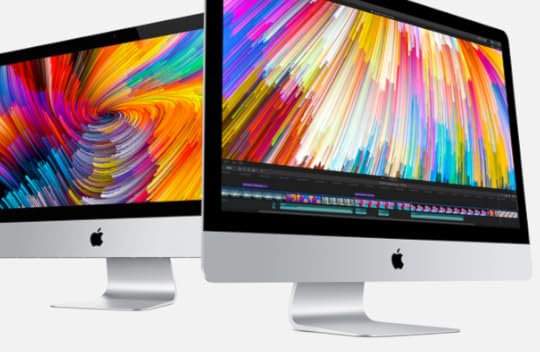
This year I’m in the market for a new iMac and I didn’t really expect an update in this keynote. So I was delighted to see that the iMac range has been updated. I can definitely see a new iMac in my near future. The iMac I have now is still performing extremely well. I had the hard disk replaced at the end of last year and it still does most of what I want it to do. Mostly I need a graphics card with more memory to run a couple of apps for working with photos. I’d really like to have the latest version of Bluetooth so I could enjoy the larger Magic Trackpad. It’s always good to have extra speed with a faster processor and the 5K display would be very nice indeed.
The other big news at the keynote was the introduction of the 10.5 inch iPad Pro. I’m still happy with my large 12 inch iPad Pro and I’m not tempted by the faster processor in the new version. I’m really looking forward to seeing iOS 11 on the devices I have now.
Augmented Reality and Virtual Reality
I will have to admit to a couple of wow moments watching the augmented reality and virtual reality. It looked really cool seeing all those bits and pieces that were not really there appear as if they were on the table. You can see all of this stuff looking through your iOS device, but wouldn’t it be great if we had augmented reality glasses. Maybe we’ll get that one day.
The virtual reality demonstration also looked impressive. I have yet to try out one of those VR Headsets. I have been tempted a couple of times when seeing them at less than €20 on Amazon. The amazing part of the virtual reality demonstration was where the person within the virtual reality was creating the world which she saw in front of her. It was like using laser pointers to position where objects were going to start, move and finish up in the world design. To really get into this sort of work you would need to have the iMac Pro. This was the iMac of the Keynote which starts in price at $5000. It is a complete beast of a machine and if money was no object then I would most certainly buy one. I don’t really have a need for one, but just to say I have one would be kind of sweet.
The Home Pod
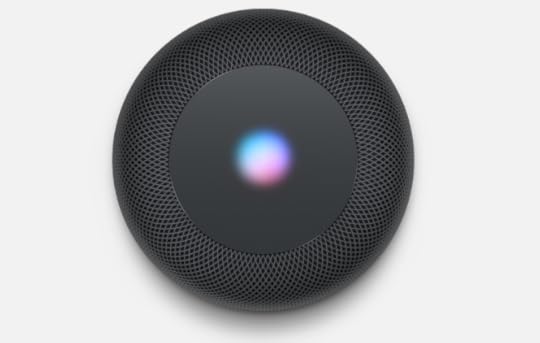
This is a competitor to Bluetooth, Wi-Fi speakers such as Sonos more than to challenge Google Home or the Amazon Echo. There are Siri capabilities within the device so I’d be able to control my home automation devices using the Home Pod. There isn’t the diversity of ability in the device because there isn’t a developer kit for creating extra applications as you can so do with Amazon Skills. This is probably why Apple positioned this as a music device rather than as a home assistant. I could only be tempted to get one of these if I was more interested in listening to music. The price of it is more in the realm of a high-end speaker system like Sonos and that’s another reason why I would have to think long and hard about whether I was going to get one. After some thinking about it I can say I will not be getting one because I’m happy with what the Amazon Echo can do for me.
IOS operating system improvements for iPad
For me this was the best part of the WWDC Keynote. Fantastic changes to the way the system works. There’s a dock available at the bottom of the screen, drag-and-drop between applications and saveable spaces with pairs of applications are going to be huge productivity boosts for iPad users. Another huge advance will be the Files application, something we’ve been looking for, for a long time. It has already been possible with applications like Documents by Readdle. This company also just recently gave its users drag-and-drop between their set of apps. They must have seen the writing on the wall. There are new ways to use the Apple pencil better. They’ve made it easy to take a screenshot and to use instant markup with the Apple Pencil. It seems we’ll be able to tap the Apple Pencil on the lock screen and start taking notes immediately. Another addition to the notes application is the scan & sign ability. The document scanner can automatically sense and scan the document. It will crop the edges and to remove any tilt, parallax view or glare. All you have to do then, is to fill in the blanks with the Apple Pencil and share it wherever it needs to go to.
A quick drag down on a key on the keyboard gives access to the secondary character on that key. That will save time having to swap from one keyboard to another for getting numbers and other characters. That won’t make much difference to us iPad Pro 12.9 inch users. We have an extended keyboard already in most apps. There seems to be a lot of sweet little extras that will all come together to give us a much more productive working experience on the iPad. It’s quite likely I’ll be tempted by the beta version of iOS before it is fully prepared for public use. I’ve already wondered if I could get away with it.
How good and geeky was the WWDC event 2017
Even though it was a little bit slow to get started, the overall impact of the keynote from this year was top notch. The best parts were the advances with the iOS operating system for the iPad. iPad owners around the world will be happy with all the new stuff we can do with iOS 11. The new iPad 10.5 and the updated 12.9 iPad also being an extra dollop of icing on the cake. Mac users will be happy enough, due to the hardware improvements on the MacBook Pro, the iMac. Then there is the iMac Pro for the rich few. It’s a shame we’re going to have to wait for so many of the new good things until the autumn or even until December for some items. The HomePod is a welcome addition to the line-up even though it’s got a high price tag. The HomePod will still be useful along with the improvements slated for the Siri interface, even though in some areas it might not be as capable as Google Home or the Amazon Echo in terms of home assistant. Siri is getting a more human sounding voice too. Not sure if that is in all languages though.
For me personally, the improvement to the iMac was something I’d been waiting for. As soon as I have the money ready I’ll be buying one. The other areas of the keynote I found particularly pleasing were the changes to the way iOS works on the iPad. It’ll be cool to create notes on the iPad simply by touching the Apple Pencil onto the lock screen. That’s a great way of jumping quickly to create a new note. It goes without saying that drag-and-drop and the better multitasking are fantastic features I can’t wait to get using.
The best one more thing for artists
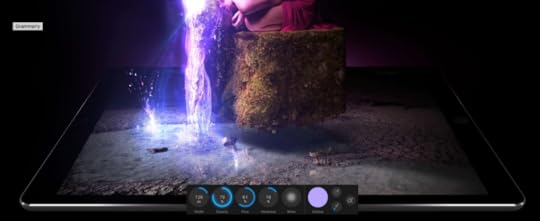
It was application I’d been waiting for for some time anyway. I’m a user of Affinity Photo on my Mac and loving it. I knew there was an iPad version coming at some point in time. As soon as the keynote presentation was finished I was in the App Store buying the Affinity Photo for iPad. The demonstration by the employee from Serif, the company who make the Affinity products was probably the best demo of the day. I can’t wait to create more photo art using Affinity Photo on my iPad Pro using my Apple Pencil.
What is your favourite part of the massive WWDC 2017 the keynote?
May 15, 2017
Keep your computer safe and secure
With the announcements from WikiLeaks with information they somehow got from the CIA regards how they hack your devices, should we be worried? Can governments, whether our own or foreign, see what we are saying in supposedly private messaging apps? Is our data safe when we’re using apps like WhatsApp and Signal? Do we need to do anything to make ourselves more secure? If these applications are insecure in the way the CIA are able to use them what does that mean for our data privacy in general? If software has a back door put in there for governments to use is that also a vulnerability which thieves and criminals could make use of? NSA prove they can’t be trusted with backdoors into secure systems, they created the Wanacrypt ransom problem. What can you do to keep your computer safe and secure
The security of data in messaging apps
We should be safe when using messaging apps like Apple’s Messages, WhatsApp, Signal, Keybase or Telegram which say they have end to end encryption. We certainly are safe using these applications in terms of the man in the middle attack. It’s not possible for a nefarious person of whatever flavour to read the messages as they travel down the Internet tubes from one user to another. Unfortunately, there are still vectors of attack which work along the same lines as someone looking over your shoulder while you are using your computer. If for example you are sitting in front of your computer using Messages to send delicate information to a friend, somebody standing behind you could see what os on the screen. Same as if when the message arrives at the destination and the computer at the other end is insecure there’s a vulnerability there too. How do we protect ourselves from people looking over our shoulders, how do we secure our computers and keep their data safe?
Keep your computer safe and secure
The first thing to do is to make sure you use a good password to access your computer. The quality of the password you use, the unbreakability and security of it depends upon a number of variables. If your computer is in a securely locked room in a secure building containing data not particularly sought-after by anyone then you might only need a short, quick password. If you use your computer in a school or within an office and there are plenty of people wandering around it’s a different matter altogether. You’ll want to make sure that your computer goes to sleep in a secure mode when you move away from the computer. If you think you’re not going to remember to do this every time you walk away then change the settings. Make your computer go to sleep automatically inside of one minute if it’s not being used. It’s all part of what you do to keep your computer safe and secure.Have a password which has enough entropy to be secure. This means you want our password which is long. It is possible to make passwords which even though they’re long they are still easy to remember.
Good computer security
The good thing about our iPhone and the new MacBook Pro is that they are protected by biometric security in the form of fingerprints. It’s not possible for a bad person to access your computer without your thumb or finger print. In time all computers will be protected in this way and to gain access we will have to use a fingerprint or an eye scan. It’s possible to set up a system where a computer will go in to secure mode whenever you move more than a certain distance away from it. This can be set up with your Apple Watch or phone and using Bluetooth it will know if you have gone more than one or two metres away from your computer. You can also set things up so that when you return it will unlock as soon as you are within the right distance from machine again. If somebody takes the watch off your wrist and goes to your computer then it shouldn’t unlock your computer. You will also have a password on your watch to prevent it from unlocking your computer.
Use two factor authentication wherever possible
Use two factor authentication on your main accounts. So for accounts like email, Apple ID iCloud, Facebook, Twitter and those sorts of places you enter a time sensitive code to get in. I can get the code from another device such as from my Apple Watch, my iPhone, or my iPad. The way it works is that you still use your normal password (something you know) and then you’ll be required to enter another code which only lasts for 30 seconds from the other device. (Something you have). So even if somebody had your password to get into one of your protected accounts such as your Gmail account, they still wouldn’t be able to get in. An advantage of 2FA is that you can use public computers to access these accounts. Even if those public computers are compromised no one else will be able to access your data within those accounts. Still might not be a good idea to enter a load of sensitive data in case of a keylogger. More and more services are offering two factor authentication to help beef up your data security.
It is still possible to stay safe
Secure messaging apps with end-to-end encryption are a good idea and still safe to use. Just make sure your device is as secure as it can be.
Despite some of the sensationalism around the reporting of WikiLeaks revelations you’ll still be safe if you take basic precautions.
Use two factor authentication and an application like Authy or Google two Factor Authenticator.
Change the passwords on your most important accounts regularly, every six months is good. If you’ve used a public computer you should change your passwords at the earliest opportunity. Even if you have been using two factor authentication; Just to be safe!
Encryption of data on the computer
There are possibilities to encrypt the whole of your disk on your desktop computers. It’s more necessary to do something like this when you are using a laptop computer you travel with. Or if the computer is in a public area such as an office where it could be tampered with or stolen. With this protection in place if the computer is stolen the thief wouldn’t be able to take out the hard disk and have any way of accessing the data.
Use Pretty Good Privacy encryption
If you don’t want to encrypt the whole of the disk then you could just encrypt specific files. Using PGP or GPG you can encrypt files and folders. Make sure you have good passwords and keep them safe in a password manager such as 1Password and have a good password to protect your passwords vault.
Keep your OS up to date
Wanacry problems that have plagued the computers in businesses and hospitals are the last few days shows you have to keep your software up-to-date. The blame is being put on the NSA for creating the software to do this in the first place. Obviously there is a lot of blame to put on the people who decide to use this software and ransom computer users around the world. Not much has been said so far about idiots who are running outdated software when they should be keeping their systems safe and secure. It’s not as if we are aware of a threat out there. It is vital to keep your computer safe and secure.
I always run the latest version of the operating system on my computers. Last night I updated my Mac, my iPad and my iPhone. I would have also updated the Apple Watch but I ran out of time. That will be done as soon as I get home from work today. It’s also likely you’re in charge of other peoples devices too. I will be reminding my mother to update her software also. It is my job to keep the software up-to-date on my wife’s computers. I know it can seem tedious sometimes to continually patch on our computers, but it is worth it in the long run. People in the UK have had medical procedures postponed, businesses have not been able to do what they do, all because they were ignorant of the need to run the latest operating system software.
Proper Back up procedures
In the latest cyber attack, anything connected to the network will have been encrypted by the ransom attackers. I do hope the hospitals and businesses have all used good backup procedures. They should have had three backups of the data. Two copies on physical media and one copy in the cloud. One of those back up copies should be on a hard drive not connected to the network. It would still be annoying to have to clean everything off the compromised computer and restore from the backup. At least work could continue after a short break and no payments to criminals would have to be made to get the data back. Can you keep your computer safe and secure
The post Keep your computer safe and secure appeared first on Good and Geeky Books.
April 29, 2017
Airpods Order and Other Stuff
This morning I’ve put in an order for the Air Pods. It’s hard to understand why after this amount of time they are still hard to come by. The delivery date proposed is 9th of June. I’d like to think that they’re going to under promise and over deliver. I do have some Bluetooth earbuds already, but they have a wire going between the two. I find this wire particularly annoying when it’s rests upon the back of my neck. Also I’m not getting the best use out of Siri by having non-Apple earbuds. I do have the wired Apple earphones, but having that wire dangling down to the phone is also pretty annoying.

Cheaper Car Play
I’d really like to complete the circle, as it were, by having a Apple Car Play device in the car. Since I was last looking at the price of one of the devices, a Panasonic, the radio has reduced in price slightly. Before when I was looking, it seemed like I was going to have to spend around about €500 and now I can see it priced at €384. Plus what ever it costs for an extra cable needed. I’m not keen on the idea of having to add special connections to make it work with the car. There’s something you have to do to make it work with the steering wheel controls. It seems it is also necessary to add a GPS antenna which will look slightly out of place if I put into the front dash of the car. It is also necessary to add a microphone and I’d need to route wiring cables for the microphone. I could put the microphone up near the sun visor. It can also be possible to put the microphone just behind the steering wheel and maybe that would look slightly less intrusive. In any case, I really don’t fancy the idea of going to pull apart parts of the car. These things, when you pull them off they never seem to go back just the same way as before. The advantage of having car play would be proper integration with the car radio which you don’t get with the manufacturer version. At the moment when I connect up with Bluetooth using the iPhone I can’t do the hey Siri trick. For some reason or other when I do that it seems to want to make a phone call. It got so annoying with the way it worked that I stopped using Bluetooth and always connected using the cable. It would be nice also if when I reconnect the phone to the car if it would remember what it was I was playing last. Even though I’m nearly always listening to podcasts rather than music, the connected iPhone jumps to the music on the phone. I then have to go through the whole rigmarole of going to the podcast listening app I use, Pocket Casts to get back to playing the podcast. That is kind of annoying.
Sorting out applications on the iPad
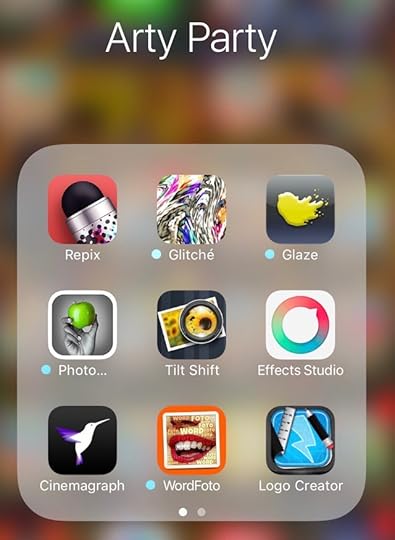
I love trying out new applications and seeing if there is an app which will do something for me that other applications I already have can’t quite manage. I have a lot of interesting art applications for digital drawing and painting. As well as the digital art applications which you can use for manually drawing things I also have a number of art applications which will take a photo and do some automatic work to turn it into an artistic piece. Even though on many occasions the art application does most of the work there is still room for creative choices. It annoys me on the digital art forums within Facebook and I see “artists” who have just taken somebody else’s photo and slapped a filter or effect on top of it. For a start off I think the true artist would use their own photograph in the first place. There’s nothing wrong in using these iOS artistic tools if you use them in a creative way and combine them with other artistic choices. It’s easy to grab what you’ve created in one art application to put into another in order to continue working with the image. So why not mix and match.

Arrangement of Apps
There was some sorting out required because I keep adding these applications, playing with them for a little while and then forgetting what it is I can do with them. I like to have my application sorted out into groups or sections. It makes them easier to find though sometimes you could just as easily say it hides them away. Sometimes a good idea just to scroll past the first set of 16 applications in a group to see what else you’ve added and to dive back into one more time. It can be a good idea to put the new ones at the front for a while.
The post Airpods Order and Other Stuff appeared first on Good and Geeky Books.
April 23, 2017
Capturing and Renaming for Free
You don’t have to spend money to get some automation with screenshots happening on your Mac. Use the built-in commands to create the captures and then you can use an application called Tiny App to do the renaming. Tiny app lives in the menu bar and just looks out for whenever you use the standard hotkeys to do a capture of the screen or a selection to a file. Wake up all the application does is to rename the file from the capture to something that will make sense. It blames the file after the application at the forefront when you captured, followed by the name of the file being worked on, the words Screen Shot are added followed by the date and time.
There are some options in the preferences to set up the file naming in different ways. It only gives you the options of long medium and short for the date and time formats. It’s not as good as using Hazel to do the renaming. Hazel allows you to have the order of the year, month, day whichever way you want it. Hazel is also worth having because it will move files placed on to the desktop or whatever folder you have it watching to your special place for screen captures. One handy option is to have quick look launched for the screen capture. You’ll be able to check that your screen capture is just right and you’ll see a button to open up the screen capture in Preview where you can make further adjustments with cropping, text and other markup if you wish. Preview is an underused and underestimated stock application from Apple you’ll find on your Mac. It’s well worth having a look at what you can do with it so you can make better use of it.
The post Capturing and Renaming for Free appeared first on Good and Geeky Books.
Collecting Data with Editorial
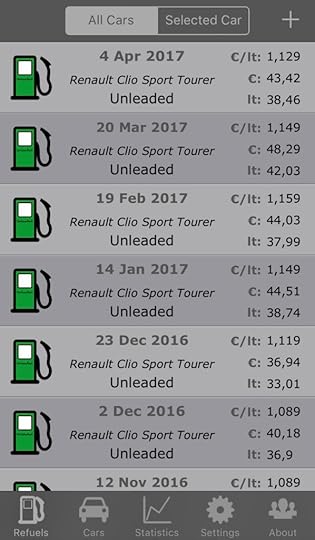 One of the applications I use on my iPhone is to keep a record of the fuel used by my car. It looks like the app might go the way of the dodo in the next version of the operating system. The next version of the operating system is going to be 64-bit only and this 32-bit application probably won’t get updated in time.
Bringing in Launch Center Pro
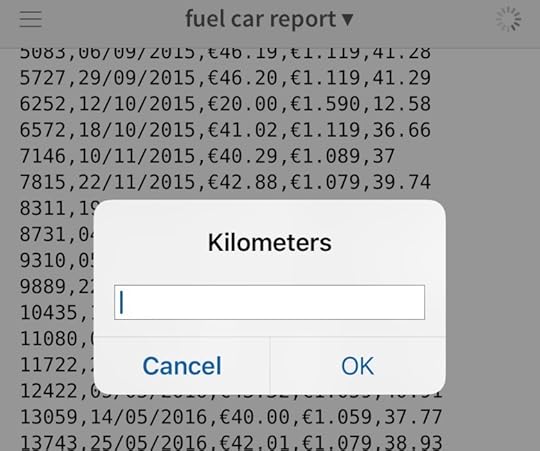
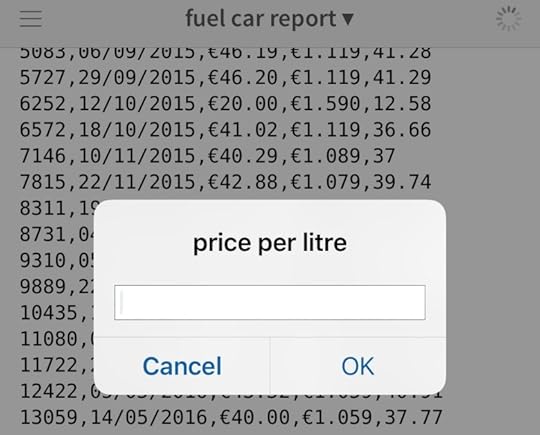
What I’ve done is to create some programming in the Editorial application. I have made it so that from Launch Centre Pro I’ll be able to go into a customised automation. It will ask me for the kilometres on the odometer. Then it will ask me for the price per litre, I’ll get a notification to put in the amount paid. The automation works out how many litres I bought. Also have it set so that the date of the event is put in automatically. All of the information I was having from the application I was using before. There is a benefit that I don’t need an specialist application. I just need to work out is how to connect graphs in Numbers to show the same information as in graphs in the old application.
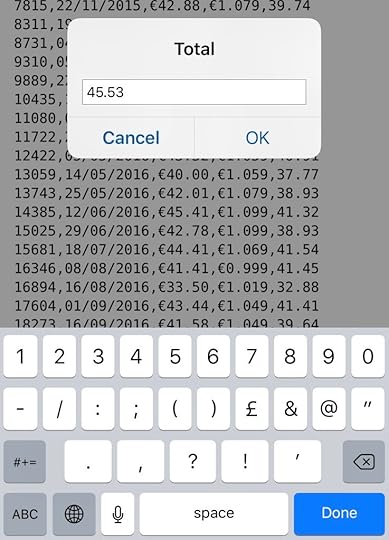

Converting the Data
I was having some difficulty in getting this information out of the old application. It was coming out in a comma separated value format. I’m able to import this file into Numbers on the Mac version of the application. This worked out really good and no problems at all, but when I try to do the same thing on the iOS side of things it came in at all as one lump per row. For some reason or other it wasn’t seeing the commas in between. I don’t know where the problem was, although I did find it later it was possible to make this work if I changed the commas to semi colons or tabs. It’s a good job I don’t have to do that operation too many times or I would find an automated way to get the file ready. I did want to get my hands on the raw data from the application which came out in a JSON format. The information was a complete mess, but I was able to use applications on the iPad to set it up just right. I was quite pleased with myself for finding ways to delete whole rows of text and then to do find and replace to clean up further.
Keep moving Forward
I could continue using the fuel tracker application, but I don’t hold out much hope for it to be updated to work in iOS 11. But in any case now I have this new way of doing it I think I prefer this new way.
The post Collecting Data with Editorial appeared first on Good and Geeky Books.
Good and Geeky

- David Allen Wizardgold's profile
- 3 followers

