How to use StandBy mode on iPhone in iOS 17
StandBy is a highlight feature of iOS 17, essentially allowing your iPhone to double up as a smart display when not in use – but how do you set it up?
StandBy was revealed as one of the key new features of iOS 17 at WWDC 2023 back in June. It’s essentially a new mode the iPhone can go into when it’s charging in a horizontal position, displaying handy information like the time, weather, appointments and more.
With iOS 17 now available to download worldwide, here’s how to use StandBy Mode on your iPhone in iOS 17.
Black Friday-level iPhone 14 deal
Now you’re chance to get the iPhone 14 with 100GB of data for just £36.99 a month and absolutely nothing to pay upfront.
Mobiles.co.ukNo upfront costOnly £36.99/monthWhat you’ll need:The Short Version Unlock the iPhoneOpen SettingsSelect StandByMake sure it’s toggled onPlace the iPhone horizontally on a charging standThe StandBy screen will appearStep1Unlock the iPhone
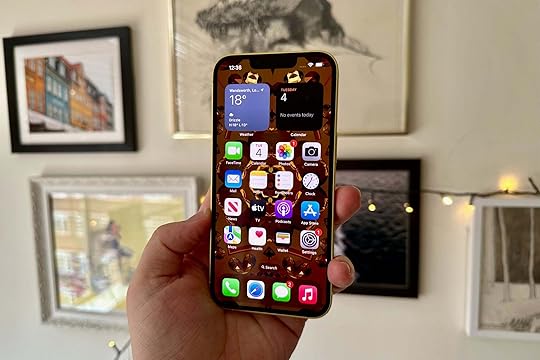
First off, unlock your iPhone. It’s also worth verifying that you’re running iOS 17.
2Open Settings

Next up, open the Settings app. This is the app represented by the cog icon.
3
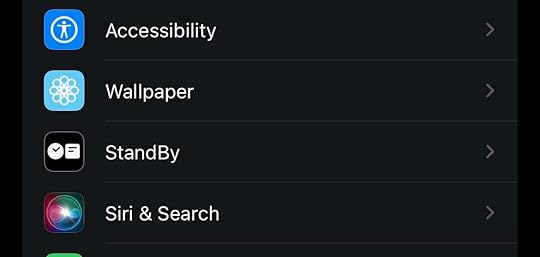
Once you’re in Settings, scroll down to the menu labelled StandBy. Tap it.
4Make sure StandBy is toggled on
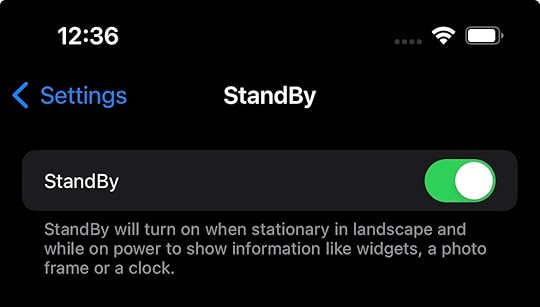
Make sure the toggle for StandBy is green. If it’s not, tap it to turn it on.
5Place the iPhone in landscape on a charging stand
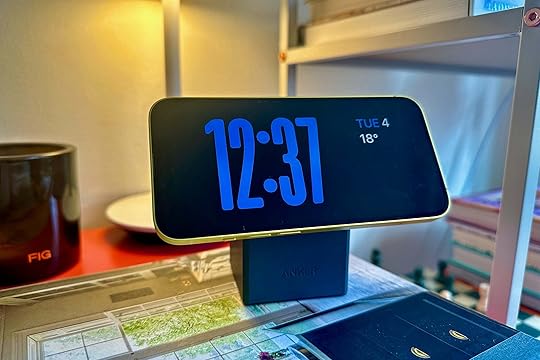
For StandBy to spring to life, you need to place your iPhone in landscape on a standing wireless or Magsafe charger. We used this Anker 3-in-1 Cube and it worked very well. You can then swipe up, down, left and right to change the display configuration, and you can tap and hold to customise the look too.
StandBy is a new mode introduced with iOS 17 that adds new functionality to an iPhone when it’s charging. The mode can show the time in various forms, photo albums, calendar appointments and Live Activities from within apps.
Does it work differently on phones with an always-on display?Yes, if you’re using this on the iPhone 14 Pro or Pro Max, this StandBy screen will stay visible in the same way the current AOD does.
Does this work on the iPad?Sadly not. For now, this is an iPhone feature – however, there’s every chance it could come to the iPad in the future.
You might like…
Source link
The post How to use StandBy mode on iPhone in iOS 17 appeared first on Harmony Evans.