
Barb Drozdowich's Blog, page 32
March 16, 2017
10 Tips for a Smooth Running WordPress Site
In today’s busy world, we often try to find the fastest way to get things accomplished – find shortcuts where ever we can.
Today’s post is an infographic – I know, I haven’t posted many of these recently – that provides a checklist of activities that can help you organize your WordPress website. I found it while doing some of my regular reading, and thought it would be perfect to share.
Feel free to read the original post here.
[image error]
The post 10 Tips for a Smooth Running WordPress Site appeared first on Bakerview Consulting.


March 7, 2017
Be aware of the fine print – learn from my $900.00 mistake!
[image error]
Welcome back!
Today’s topic is painful. It involves a $900.00 lesson.
Yes, you read that correctly – a $900.00 charge for one mistake.
[image error]
Today’s post is about a mistake that I made on GoDaddy.
I first started using GoDaddy many years ago – I liked the price point and the 24/7 technical support.
Here’s the part of the story that is relevant to today’s lesson.
5 years ago I did a favor for a friend and set up a hosting account with GoDaddy. I created two sites for her. At the time there was a significant cost savings to purchase multiple years of hosting and so we did. Five years worth were purchased on my credit card.
Life went on.
Eventually both sites that I created were redesigned and moved away from GoDaddy – to be hosted by the designer in both cases. It’s not unusual for website designers to offer hosting as part of the development package.
As this was happening, I said to my friend, “Don’t forget to cancel the hosting package with GoDaddy.” She assured me she would.
I didn’t go in and check to make sure she did. I treated her like an adult and assumed she would do as she said. And in fact, everyone involved with these sites thought the hosting package was cancelled. But we had no proof.
When the VISA bill arrived on my doorstep on Friday (March 3rd) with the charge for $899.04 I was shocked, to say the least. I had long since stopped using that VISA for hosting charges. All my website charges go through a different VISA. My husband handed me the bill and asked me to look into it.
I went searching for who’s GoDaddy account produced such a massive bill. I’m used to bills for $20.00 or $40.00 but $899.04 was a new high for me! After a few hours of searching through my records, I discovered the answer. I sent a note to my friend and asked her to to call GoDaddy and enquire. She replied a bit later to say that since it was more than 30 days since the renewal, nothing could be done according to GoDaddy’s policy.
I checked my records – sure enough, the charge was applied to my VISA on Jan 25th and it was now March 6th. Clearly more than 30 days.
But in fact, the 30 days passed before I even received my bill – so in fact, I didn’t have a hope in hell of meeting that 30 day criteria.
Apparently the notifications from GoDaddy had gone to my friend’s spam folder where they sat unnoticed until searched for.
I decided to phone myself and see what I could arrange. An honest mistake. The hosting was thought to have been cancelled and hadn’t been used in quite some time. Surely to goodness they could look at the facts and come to some compromise.
I politely explained the mistake and asked for some help. There was no way that I could have met the 30 day time frame because I used my VISA card rather than putting the charge through Paypal.
I asked what the policy was.
I was told that a cash refund was never available.
Within the first 30 days after the renewal/purchase, an in-house credit could be applied but no credit back to the VISA.
I politely asked if the in-house credit could be applied to one of my many other GoDaddy accounts? The answer was NO.
I politely asked if I could reduce the bill by paying the 5 years of renewal at the current posted rate of $6.99/month instead of the billed amount of $10.99/month? The answer was NO.
I politely asked if I could learn my lesson my paying something less than $900.00? The answer was NO.
I politely asked if I could do anything at all to reduce the bill of $900.00? The answer was NO.
Feeling like I was at a dead end, I thanked the customer service agent at GoDaddy and hung up.
I decided to phone my credit card company to find out if anything could be done. The short answer was no. When I opened the hosting account at GoDaddy, I agreed to their Terms and Conditions. (Did I read them thoroughly? Probably not, but I usually scan these types of things.) Without proof of cancellation CIBC VISA couldn’t do anything. And since no one took a screenshot there was no proof.
Again, human error.
There was nothing that CIBC VISA could do but remind me that I had agreed to the Terms & Conditions.
I had.
Lesson learned – but did it have to be such an expensive lesson?
I’m not a rich person – $900.00 is a huge amount of money to me. Like many of you, I’m sure, a bill for $900.00 is be difficult to handle with no notice. It’s something that we save up for.
I decided to take one more crack at GoDaddy. I thought, surely there was someone at GoDaddy that would understand that a $900.00 lesson was a bit harsh by anyone’s standards. Customer Service was polite, but reinforced their policy. Several times pointing out the fact that 30 days had elapsed and there was absolutely nothing that could be done.
So…I have learned a $900.00 lesson. I’ve done a quick search of other hosting companies and can’t find one that has quite so draconian a refund policy as GoDaddy – but I didn’t look at them all.
Please learn from me. Read the fine print – be aware of what refund policies are available (or not available as in this case). Make intelligent decisions – be aware of what your rights are and what you are agreeing to.
And for God’s sake – don’t make a mistake.
(ed note: Thanks to a Twitter campaign, a partial refund has been reached with GoDaddy. A refund should be arriving on my VISA statement by the end of March)
The post Be aware of the fine print – learn from my $900.00 mistake! appeared first on Bakerview Consulting.
February 21, 2017
Win up to 12 Non-Fiction eBooks
(2) Grand Prize “Gift Baskets” of ALL eBooks!
(11) Winners of Individual eBooks (randomly selected titles)
The books being given away are listed below – I’ve included a copy of my book Blogging for Authors.
[image error]
The post Win up to 12 Non-Fiction eBooks appeared first on Bakerview Consulting.
February 13, 2017
Happy Family Day
[image error]
Here in British Columbia, it’s Family Day today!
[image error]
Regardless of whether your family is big…
[image error]
Or smaller and furrier, I hope you enjoy your day where ever you are!
*****
If you missed last week’s post, you can still get in on snapping up a free book that is focused on the needs of authors.
Click on the graphic below to look at the selection of books available
The post Happy Family Day appeared first on Bakerview Consulting.
February 6, 2017
#Instafreebie Non-fiction Books just for Authors and Writers AND Learn about Amazon Marketplace
[image error]
Exciting News – Two pieces of exciting news!
First of all – I’m guest posting on the Alliance of Independent Authors blog today!
[image error]
The “Third-Party Seller” system – or what Amazon calls “Amazon Marketplace” seems to be poorly understood. I’m going to use this opportunity to clear up some of this misunderstanding, and describe what is a major money maker for Amazon.
Many authors are unaware that “third party sellers” are selling used and new copies of paperbacks along side CreateSpace versions of the books. Unaware buyers may be purchasing new books from other than the author/Createspace.
[image error]
As you can see in the graphic above for one of my books, there are several listings for new and used copies of my books. The used and new listings below the “Paperback” box are third party seller listings. For a full explanation of this significant part of Amazon’s business, drop by my post on ALLi’s blog
Next piece of big news!
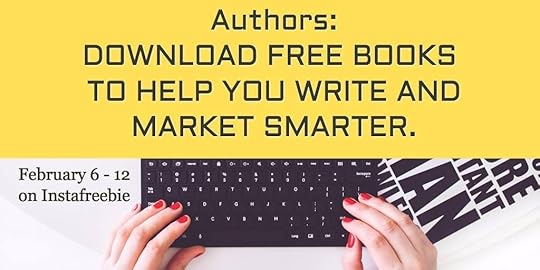
Looking for help focused directly on your author needs?
Want books to help you write and market smarter, but not break the bank?
I’m participating in a group promo of free books! 18 free books all focused at the needs of authors. Have a look at the books available here.
*****
That’s about it for this week. Still editing my newsletter/mailing list book and since Mailchimp rolled out a major change this weekend, I’ll be doing some re-writing…
Be sure to share this post with anyone who may be interested in getting some free author-focused books or subscribe to the blog posts to get regular technical hints in your inbox.
In the meantime, if you haven’t already, add your email address to pick up two free books!
The post #Instafreebie Non-fiction Books just for Authors and Writers AND Learn about Amazon Marketplace appeared first on Bakerview Consulting.
January 23, 2017
How to create an ebook using Vellum

Today’s post is going to be short and sweet!
I’ve been doing a lot of formatting lately – for myself as well as other people through my new service – Book Formatting for Authors. I’m tired of hearing of people contorting themselves, using two or three different programs to try to format their book. I’m also tired of people who are being taken advantage – paying huge sums of money for something that generally speaking isn’t all that time consuming.
So, I created a video showing how I can create a 3 chapter ebook with Vellum in under 10 minutes. Watch and see how non-technical this is – anyone can do this!
Although I make this look really simple – and it can be. I had the bio and blurbs about my other books already prepared, the cover graphic was already prepared and I was confident in my content and didn’t go through and proof it – which can be time consuming.
*****
In other news, I’ve sent my manuscript on Newsletters, Mailchimp and Mailing Lists to my editor so you can anticipate a new book in a little while! Lots to share in that one!
Secondly, if you are interested in taking my free Goodreads course, the link is here.
The post How to create an ebook using Vellum appeared first on Bakerview Consulting.
January 16, 2017
How to use Canva to create Social Media Posts
Today we are going to talk about interacting on social media. I’ve been busy lately creating graphics for my social media streams. I like sharing the wisdom of people much smarter than I am with my friends and followers on social media.
I feel if I run across something that I find really interesting, they will also. I’m always looking for ways to help people – to teach people so sharing quotes from experts, sharing quotes from peers are always a good way to help.
Canva
As I was creating some graphics on Canva – and we’ll get to Canva in a sec – and I ran across a quote from Pat Flynn. His quote “Selling to people through social media is like going to a party, meeting someone for the first time, and then saying, ‘Hey, do you want to buy this Tupperware?'” had me virtually hopping up and down with excitement! So I created a graphic to share on Facebook out of that quote.
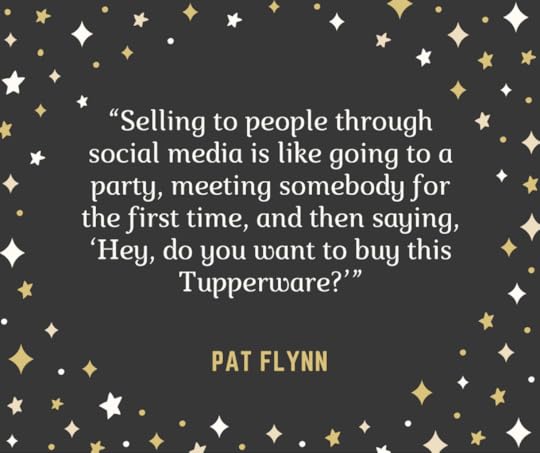
I think this quote really resonates with me, as I’ve been trying to collect some thoughts on networking lately. I truly believe that when you are first starting out, networking is the key to finding your pool of readers. Posting “Buy my book” tweets and FB posts don’t attract friends – and people just tune this type of post out.
Back to Pat Flynn for a sec – I’ve been listening to his podcast for quite some time now. In fact I have a collection of podcasts that I like to listen to while I walk the princess puppy each day. (Mocha isn’t much of a conversationalist). Although I’m not always interested in the topic, I find the whole tone of the podcast to be motivating and uplifting!
Back to Canva…there is a lot of research that tells us that the human brain assimilates pictures much, much faster than it does words. I often try to post pictures on my social media streams and in many cases I use Canva to create those graphics.
I’ve also created a video to walk you all through how to use it, but one of the main reasons I like Canva, aside from it being rather intuitive, is that it comes with preset sizes for graphics. You don’t have to go look up what size is required for a FB graphic or a Twitter card – it is filled with all sorts of presets.
Have a watch of the video and see how easy it can be to create attractive graphics yourself.
*****
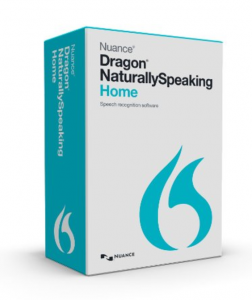 On other news, I used a Christmas gift card to get a copy of Dragon. This is a piece of software that allows for dictation to documents. I’ve found that it doesn’t play nice in the sandbox with Word but I love using it with Scrivener and with my Gmail.
At the beginning, the program takes the user through a training process to help Dragon recognize your speech differences and then you are off and talking.
I’ve heard quite a few fiction authors say that they couldn’t ‘write’ this way, but since my books are a lot like my teaching, I can talk my way through content faster than I can type it. And with my carpal tunnel flaring up, this software is a great help. I’ve been working on a Newsletter/Mailing List book and it’s flying together thanks to this software.
Let me know if you use or have used Dragon and what your thoughts were.
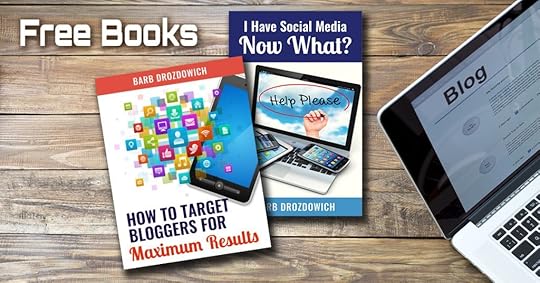
And as always, I’m giving away free books. See below:
The post How to use Canva to create Social Media Posts appeared first on Bakerview Consulting.
December 30, 2016
How to add an Image to a WordPress post and Optimize it
Another video post today. With the post coming out on Rachel Thompson’s blog Bad Redhead Media site about how to optimize a blog post, I’ve been getting questions about how to do some of the things that she suggests.
It was time to update my video about putting pictures in place on a post, so I added instructions on how to optimize a picture. Optimizing an image is a fairly straightforward process, but so powerful to do.
If you have any questions about this latest video, don’t hesitate to ask! If you have a suggestion for my next video, send them my way.
*****
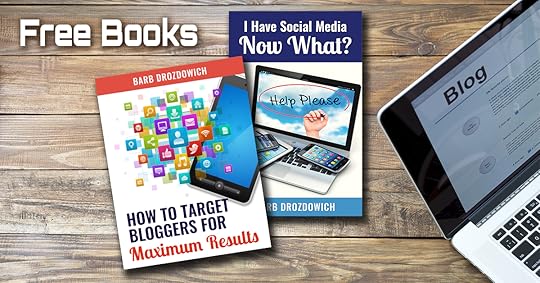
If you have found this post helpful, don’t hesitate to share this post with your friends using the little share buttons below. If you are interested in getting some free books, click on the graphic below!
The post How to add an Image to a WordPress post and Optimize it appeared first on Bakerview Consulting.
December 19, 2016
What’s the difference between WordPress.com and WordPress.org
I’ve been getting a lot of questions lately on the topic of WordPress.com vs WordPress.org. I’ve had people tell me they pay for their blog so it must be WordPress.org (in fact they have only purchased a custom domain). I’ve had people tell me that they have trouble logging into their blog (because they find their blog via a Google search.) I’ve had people tell me that they can’t remember their password and can I please give them a new one (they can do this themselves.)
Since today looks like this outside:

I decided to stay inside and create a new video. Why type when I can talk and show pictures live?
~*~
I hope this post was helpful to you. Feel free to use the buttons below to share with your friends. Don’t hesitate to subscribe to get the posts directly to your inbox using the subscribe widget on the sidebar –>
If you are a new visitor and are struggling with the tech issues that many authors and bloggers face, download 2 free books here
I have over 30 helpful videos on YouTube – feel free to subscribe to my channel here.
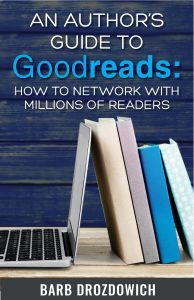 In book news…An Author’s Guide to Goodreads: How to Network with Millions of Readers is available on Amazon Kindle.
It is also available on other platforms via this link
To help people understand Goodreads, I’ve created a companion video course to go with. The book is currently $2.99 and the course is free for a few more days.
I encourage you to buy yourself a Christmas present and start learning today!
The post What’s the difference between WordPress.com and WordPress.org appeared first on Bakerview Consulting.
December 12, 2016
How to load a Kindle book onto a Kindle Reading App
There have been a flurry of questions lately about how to get a Kindle book – a .mobi file – onto a Kindle or a Kindle reading app on your tablet, phone or desktop computer.
Although I can write the instructions out in steps, it was just easier to screencast it. Enjoy the latest video and let me know if you have any questions.
Just for clarification:
Kindle book = Kindle ebook = Mobi file = .mobi file (the last is more technically correct)
Please don’t hesitate to send any questions you might have my way. I did my best to be as clear as possible on the video – but always admit to being human 


