Writing Kindle Books Using Google Docs
All these shiny objects drive me nuts!!! It’s not that I care if people are creating and selling things that they think will help others. The problem is that those people (us) think they NEED this stuff or they can’t accomplish ___________.
Allow me to apply this to our current situation. In the Facebook group, someone asked about LeadPages versus WordPress for list building. First, I don’t know anything about LeadPages except what I’ve seen in their advertisements and that they cost money. The general premise is that you use this service or whatever to build squeeze and landing pages. It’s an endless cycle. What do you use squeeze and landing pages for? Selling.
In the two weeks that I’ve been participating in a community environment, I’ve had people ask me about:
List building
Formatting software
Images
YouTube
I’ve been asked about almost every aspect of Kindle publishing. Here’s my best advice regarding it all:
Don’t Buy Things You Don’t Need
Here’s the thing…I started doing this in 2010 with NOTHING but my brain and a computer. When I set out to publish my first book, I Googled it. Seriously, I have Googled nearly everything I know about computers, the Internet, and so many other things. Nobody I knew cared about my first book. They’re all fiction readers. It was a non-fiction title called WordPress Websites for Writers. I Googled my way through mastering WordPress, and I wanted to help other writers do the same. Marketing and all other such things that go with the self-publishing territory never occurred to me. Yes, it sold. It sold pretty well.
The caveat to publishing that book? It was chock full of pictures. There were screen shots galore. Once the book was written, I ended up formatting the entire thing in HTML so the images would display correctly. I also ended up using a laborious process to create a clickable Table of Contents that I found on Kindle Boards. The only thing that justified the effort was that the only cost to me was time. All the software I used was FREE.
I’ve probably said it a hundred times here on PWW…I love me some FREE!
I love free because I’ve yet to strike gold. In the decade-long journey I’ve taken to learn Internet Marketing, I hope I’ve learned to still love free after I strike gold. I refuse to build my fortune selling people things they don’t need. I’m sorry for the long diatribe. I’m sure you wish I’d get to the Google Docs part.
This Isn’t a Google Docs How-To or a Promotion
I wrote a book about that. You can find it here. This is not a promotion for that book either. That will actually be going free soon as part of a new marketing plan I’m working on. I want to show you how books I’ve written and formatted with Google Docs look across multiple Kindle devices. Cool? Cool. The devices I have to show are:
3rd Generation Kindle Keyboard
Android phone
Android tablet
Kindle Cloud Reader
Kindle for PC
Sure, I could pick one device…whichever looks the best, and say, “See? Google Docs does an awesome job”, but multiple devices drives the point I want to make further. That point is that you don’t need to buy ANYTHING AT ALL to get started publishing books for Kindle. Remember, the less you buy, the more you profit. It sure feels good to say I spent $0 on this book and have made a $$$$ profit.
Writing Kindle Books Using Google Docs
It was by accident really that I ended up using Google Docs to write my Kindle books. Since you’re able to export documents in Word format, I think I just uploaded it to KDP one day with the intent on fixing any problems using my Office software. It turns out the book converted well, and that was that. I’ve been using Google Docs ever since. One of the main benefits besides the simplicity is that my books are automatically backed up to my Google Drive.
Of course the most important thing is that my books look great on Kindle. I think they look exceptionally good considering:
They got there free of charge
They converted from a document in Word format
I uploaded images willy nilly
I used Google Docs features to create the Table of Contents
I did no correction to formatting aside from inserting a missed Page Break or fixing typos
So…enough of this fluff and me yapping on about spending money. Let’s see how a couple examples look!
So, How Do Your Books Look?
See for yourself.
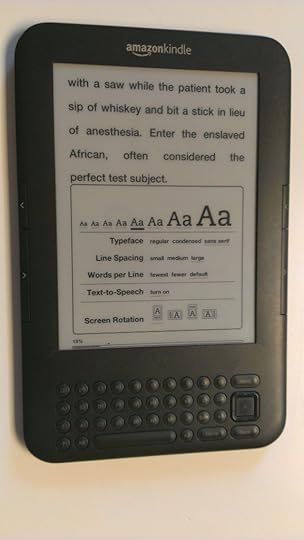
PLEASE NOTE: All of my devices are set at larger font sizes because I have some vision loss. You will notice that in some screen shots, I have adjusted the font size smaller which clears up some of the formatting glitches you see in previous images.
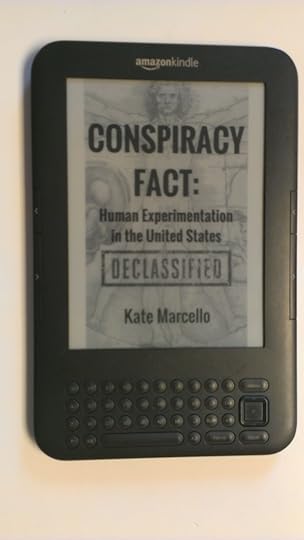
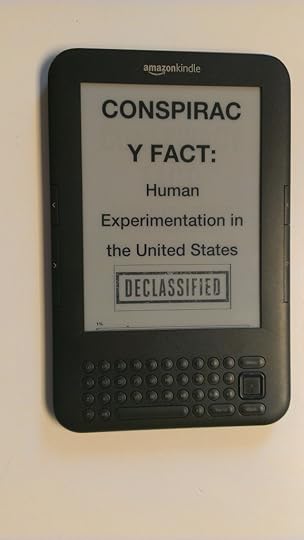
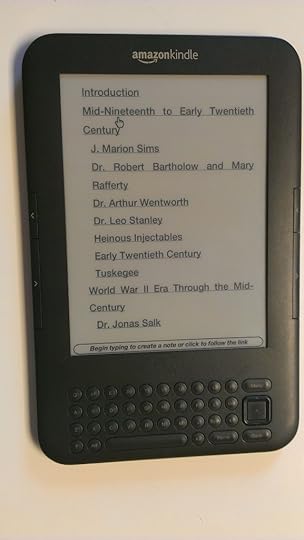
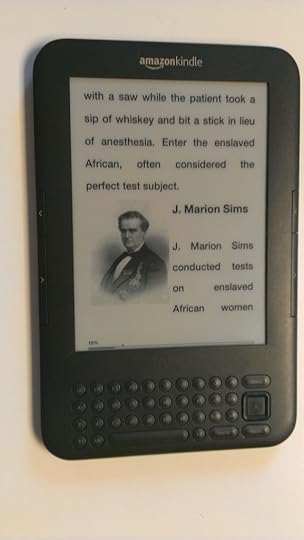
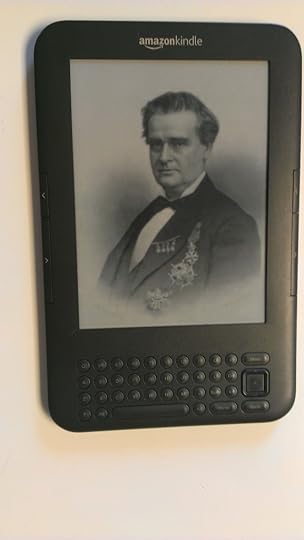
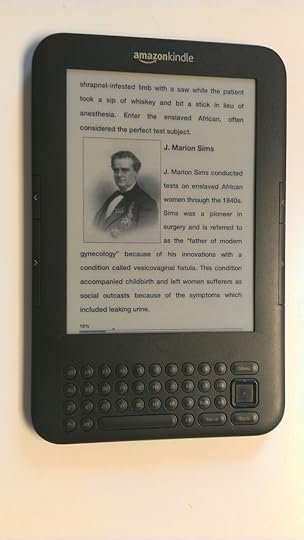
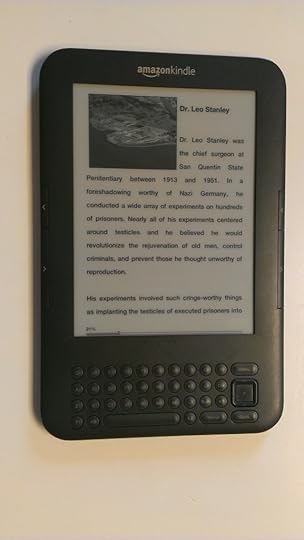
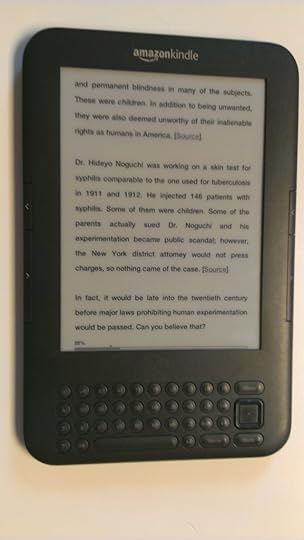
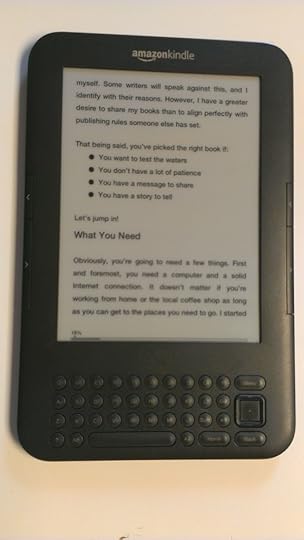
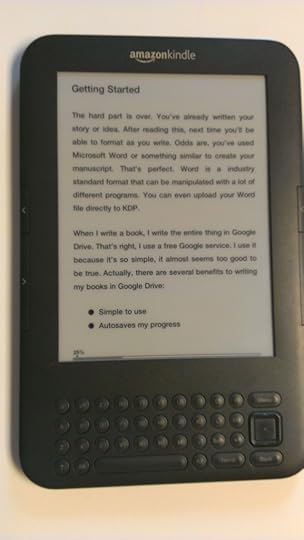
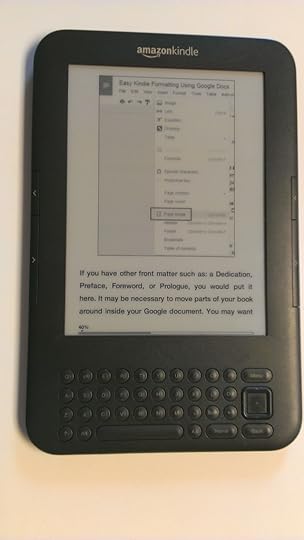
Kindle Keyboard Gen. 3
I got this device for Christmas in 2010.
Click the first image below to open the slideshow. Make sure to read the captions!

Android Phone
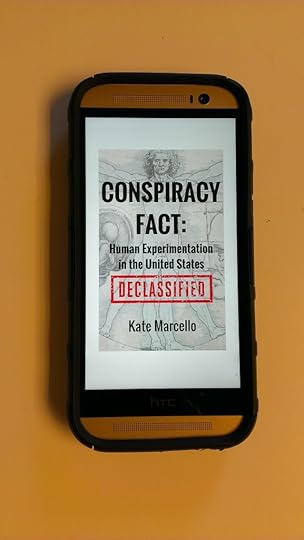
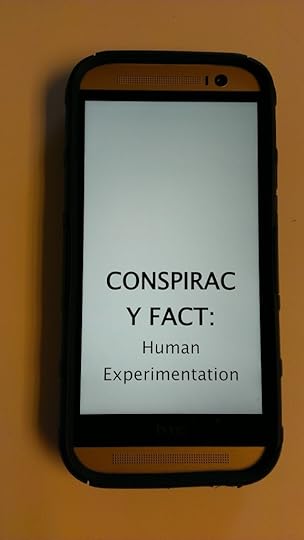
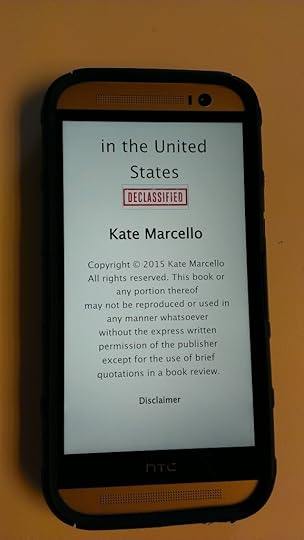
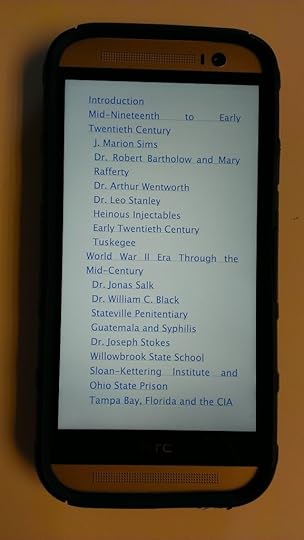
As viewed on an HTC One M8.
Click the first image below to open the slideshow. Make sure to read the captions!
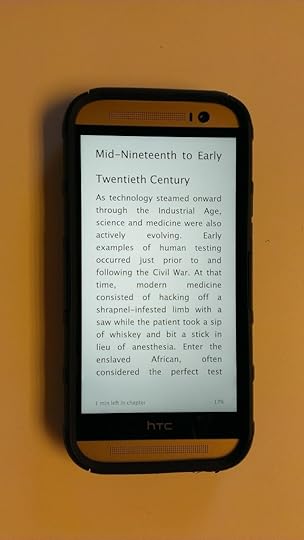

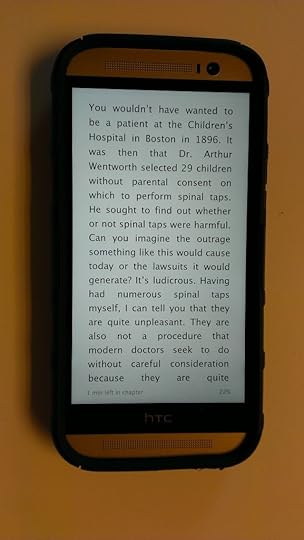
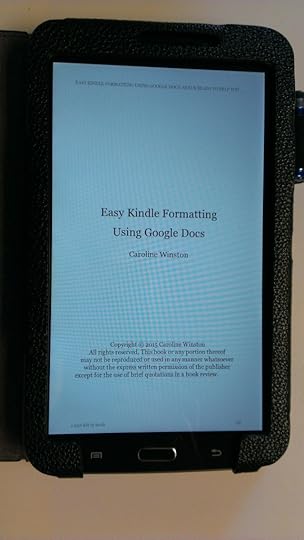
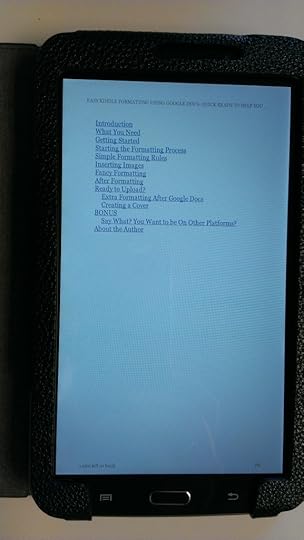
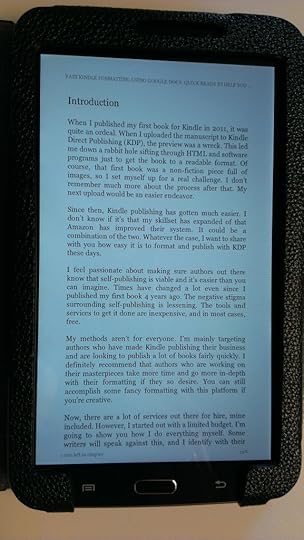
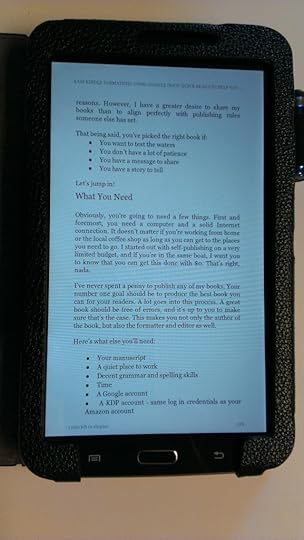
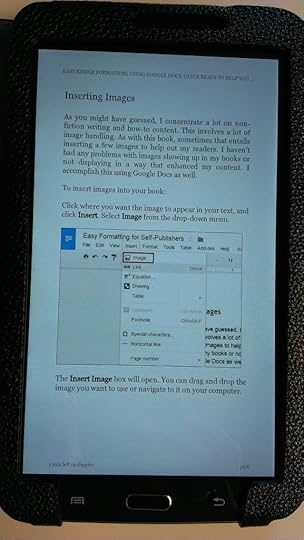
Android Tablet
As viewed on a Samsung Galaxy Tab 3.
Click the first image below to open the slideshow. Make sure to read the captions!
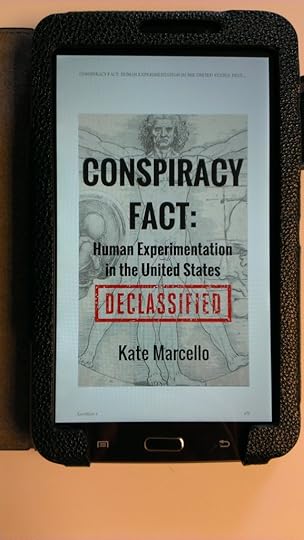
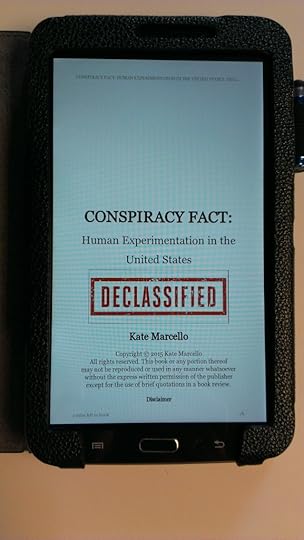
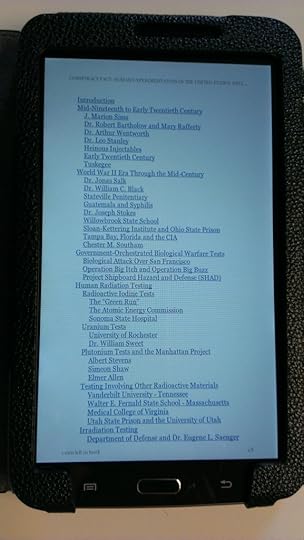

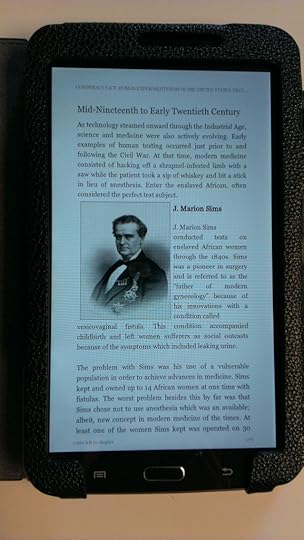
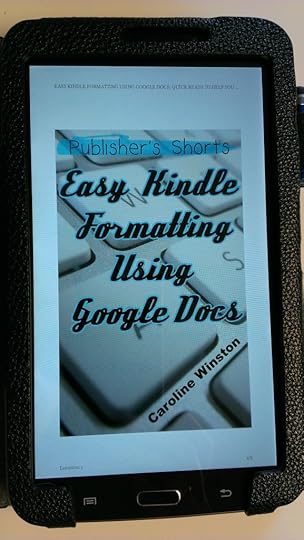
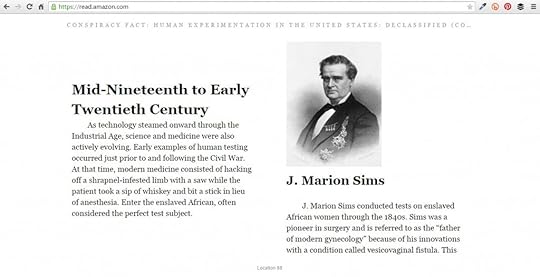
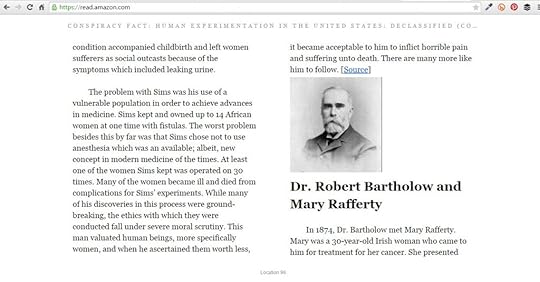
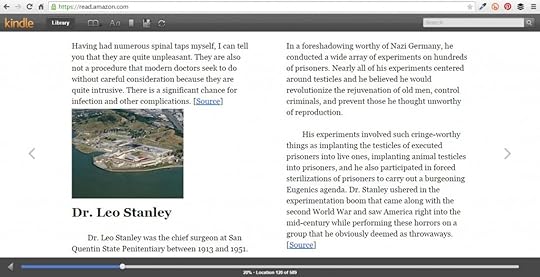
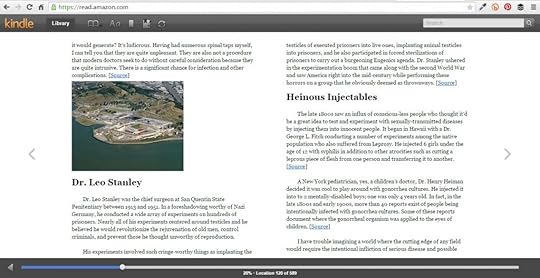
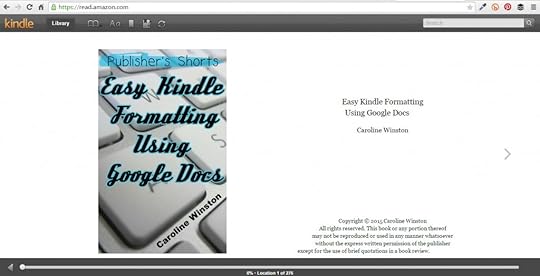
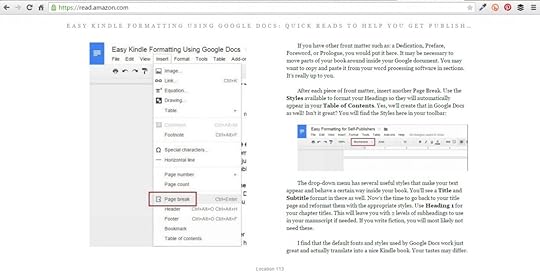
Kindle Cloud Reader
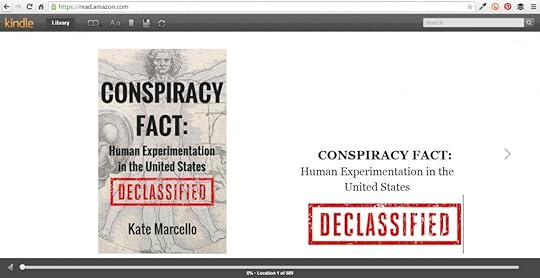
As viewed in Google Chrome browser – https://read.amazon.com
Click the first image below to open the slideshow. Make sure to read the captions!
Kindle for PC
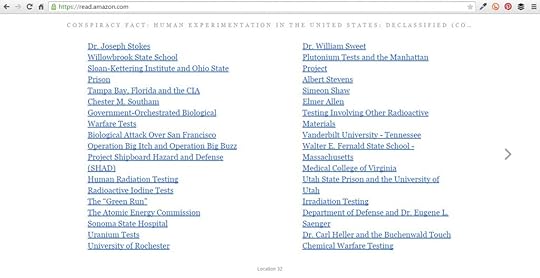
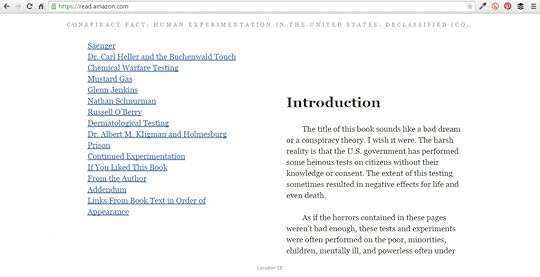
As viewed on my Dell whatever model it is. I’m not flipping it upside down. It’s just your average laptop.
Kindle for PC looks just like the Cloud Reader. Here are the first couple images shot in Kindle for PC. There’s no need to upload more.
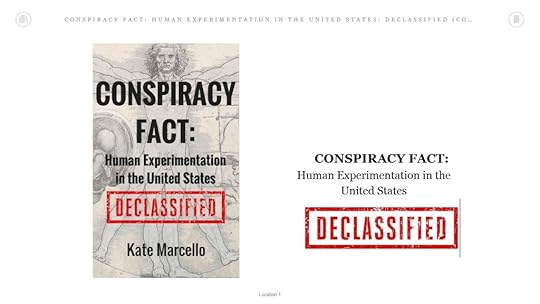
Book cover and title page.
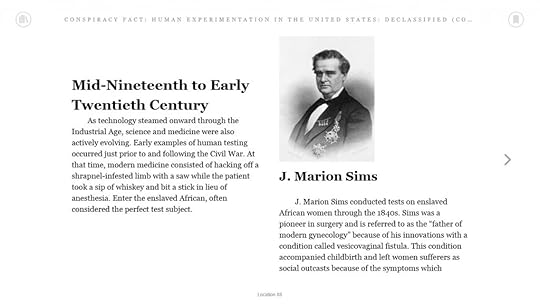
Some text with an image. Identical to shot above from the Cloud Reader.
Conclusion
There you have it. You don’t have to take my word for it. I think these look pretty awesome for approximately ZERO time spent on formatting. The fact that I used free software make them look even better in my opinion. I just want to drive home the point, Writers, that you don’t need fancy stuff to reach your goals and accomplish your dreams. This formatting is achieved by adhering to about 6 rules which you can find in my book:
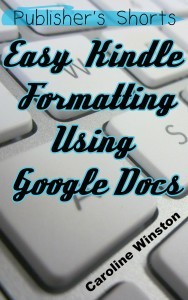 Click the image to check it out on Amazon. I’m simply putting this here for those of you that are interested. I’m not getting rich off this 99-cent book. This is just to help you, and to let you know that every cent you don’t spend on formatting, dumb software you don’t need, landing page software, and other shiny objects, the more money in your pocket. Don’t let someone else make their fortune selling you your own dream.
If you want some free stuff, sign up for my email list in the right sidebar of this page or from ANY page on this entire website. LeadPages, schmeadpages.
Want to see some of this stuff live and in living color? Check this video.
The post Writing Kindle Books Using Google Docs appeared first on ProWebWriter.com.