Planning Your Novel with Google Maps
I love Google Maps, that's no secret... well, perhaps it is because I haven't told anyone this fact before. I spend hours (when I should be writing) travelling the world. You can even visit Africa on a whim without having to suffer through security screening.
Now, Google Maps can help you plan your book.
How?
Follow these simple 116 steps (nah, only 7):
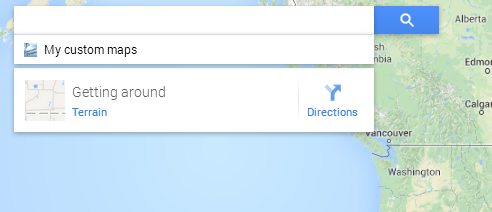
(1) First, go to maps.google.com and you should see something like the photo below. Click on "My custom maps".
 Click on the photo to enlarge.
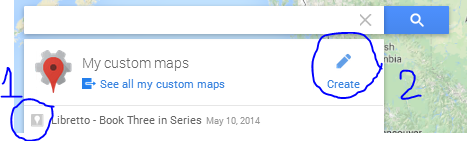
(2) Then, you have two choices. One, you can choose a custom map you've already created or two, you can create a new one. In this post, we'll create a new one.
 Click on the photo to enlarge.
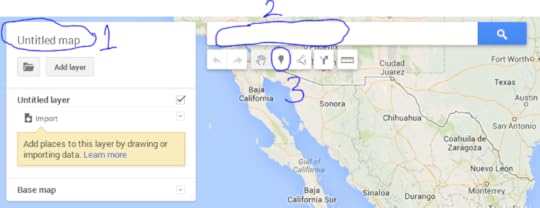
(3) When you click "Create" you should get a screen like the one below. First, name your map by clicking on the "Untitled map", put in a name and click "Save". Second, type in the location where your story takes place. Then, start putting locations on your map by using the upside-down drop symbol (see 3).
 Click on the photo to enlarge.
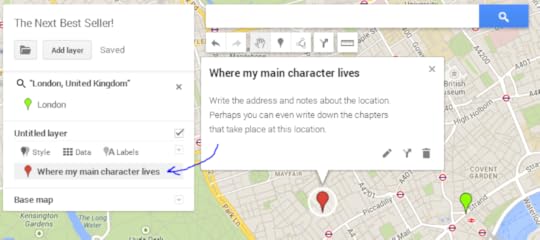
(4) When you place the red marker on the page by clicking on the map, a box will appear where you can type a title and description. I'll let you decide what to write. You can use my box as an example. ****Make sure you press "Save" or you will lose the info!
 Click on the photo to enlarge.
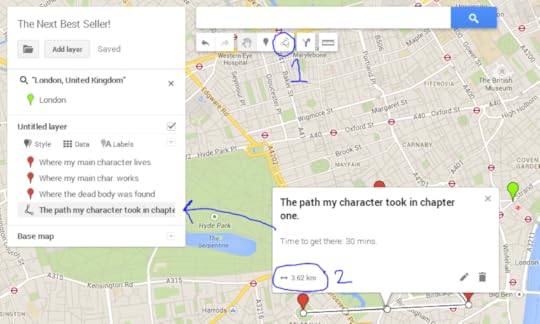
(5) Put as many places on your map as you like. Another cool feature of google maps is the line/path tool (see 1). You can mark the paths your characters take. Name the path and write notes about it. Maps will even tell you how long the path is so you can write that information in your book.
(6) There is also the "Directions" tool. Click on the tool (see 1) and then pick any two red place-markers and a line will appear. Information about the direction will appear on the left.
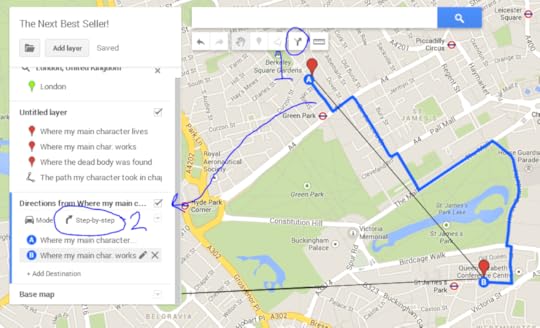
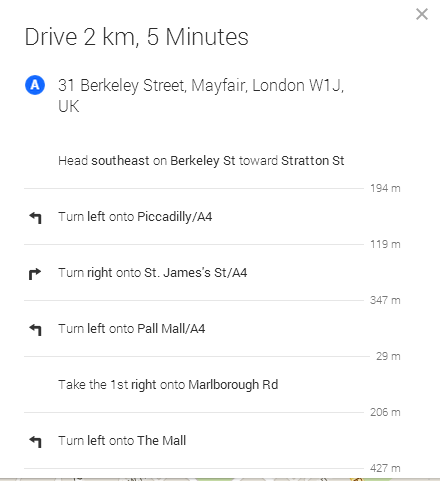
(7) For step-by-step instructions on how to get from one point to another is there. (see 2 in the photo above) This is amazing because you can write these instructions in your book. Look at the instructions below as an example. Great instructions for action scenes.
Have you used Google Maps to help you plan your book? What other tips do you have?
Source: Um, google maps?

Now, Google Maps can help you plan your book.
How?
Follow these simple 116 steps (nah, only 7):
(1) First, go to maps.google.com and you should see something like the photo below. Click on "My custom maps".
 Click on the photo to enlarge.
(2) Then, you have two choices. One, you can choose a custom map you've already created or two, you can create a new one. In this post, we'll create a new one.
 Click on the photo to enlarge.
(3) When you click "Create" you should get a screen like the one below. First, name your map by clicking on the "Untitled map", put in a name and click "Save". Second, type in the location where your story takes place. Then, start putting locations on your map by using the upside-down drop symbol (see 3).
 Click on the photo to enlarge.
(4) When you place the red marker on the page by clicking on the map, a box will appear where you can type a title and description. I'll let you decide what to write. You can use my box as an example. ****Make sure you press "Save" or you will lose the info!
 Click on the photo to enlarge.
(5) Put as many places on your map as you like. Another cool feature of google maps is the line/path tool (see 1). You can mark the paths your characters take. Name the path and write notes about it. Maps will even tell you how long the path is so you can write that information in your book.

(6) There is also the "Directions" tool. Click on the tool (see 1) and then pick any two red place-markers and a line will appear. Information about the direction will appear on the left.

(7) For step-by-step instructions on how to get from one point to another is there. (see 2 in the photo above) This is amazing because you can write these instructions in your book. Look at the instructions below as an example. Great instructions for action scenes.

Have you used Google Maps to help you plan your book? What other tips do you have?
Source: Um, google maps?


No comments have been added yet.