
Scrivener - How I use it, part 1
To the aspiring authors out there:
Before reading this, there's one thing you absolutely need to know. When it comes to writing, "there's no rules, only tools." Take all writing advice with a grain of salt. If you have time, or know you need a change, give things a try and keep what works for you. If things are working for you, keep doing what you're doing and file this stuff for future reference.
Now then, ready?
Scrivener. You've probably heard about it by now. If not, you should give it serious consideration for your next project. I say next because I think Scrivener works best when you use it from Day 1. And, generally speaking, it's a bad idea to switch software tools in the middle of a project. With November approaching, that's a pretty good opportunity for all you Nanites out there to give Scrivener a shot, especially since they usually offer a free trial version in November (and a discount if you finish Nano).
Why Scrivener?
If you've ever developed any software, you should get what I'm about to explain instantly. For the rest of you, I'll try to make this as clear as possible.
Scrivener treats your manuscript like source code. You've got a project (the book, or even books in my case), and all the material involved is contained in that project. Not just the manuscript, like you'd have in Word, but everything. Chapters, scenes, research, character bios, you name it... each is within the project and each is treated as a separate thing.
Whereas in Word your manuscript is the file, just one big stream of text, in Scrivener you can keep everything in nice tidy chunks. Why's that important? Well, first and foremost is speed.
You can zip from one chapter to another in seconds, and since each is titled with a name you provide, making a quick jump to review what happened in a previous chapter is just a single click away, rather than minutes of scrolling around in Word trying to find the right spot. If you've never dealt with a long document in Word you might not realize this is even an issue, but once you've got a big novel going, it's incredibly useful.
Let me highlight a few things I can do in Scrivener that are impossible, or so cumbersome they might as well be, in Word:
I have a single Scrivener project that contains all three manuscripts (multiple versions, too), every bit of research (text, images, audio, even video), worldbuilding notes including maps, character sketches, deleted scenes, plus hundreds of notes or ideas I came up with during this process. That's 500,000 words of core work, plus tons of additional stuff, and it's all instantly available and searchable. Word basically chokes on anything over 300 pages or so. In Scrivener I can zip around nearly 1800 pages easily, and it's all lightning fast and incredibly stable (zero crashes).Scrivener focuses on content, not "the document". I've tagged every scene with who is in it and where it takes place. This means I can instantly filter down my view to just the bits where a certain character is present, or scenes that take place in a certain location. If you're writing multiple POV's, or have many subplots, this is unbelievably helpful.Scrivener treats each chapter, indeed each scene, as a separate entity. Want to try a different chapter arrangement? Just drag and drop. Its as easy as moving files.Scrivener treats the final "document" as a product you produce at the end. You're not editing a document in Scrivener, you're editing the content that will make up a document. This is the key paradigm shift over something like Word, and probably the hardest thing for a new user to grasp. Programmers probably get this quickly because basically it's a workflow they're used to: your content is like source code, and the outputted manuscript is compiled. Need a standard manuscript in Word format? Compile. Ebook properly setup for Kindle? Compile. PDF with notes and watermarks and with the alternate ending? Compile. None of this changes the content at all.As with software development, a few simple organizational tips up front will help you immensely down the road. I'll start with one here, and cover others in subsequent posts.
TIP 1: Naming chapters
Or, perhaps a better way to say it, let your chapter names be your outline. Never, ever, name them "Chapter 1, Chapter 2," and so on. Why? Chapter numbers will change and besides naming them this way doesn't help you at all.
Here's an example that uses the first few "chapters" of the movie Star Wars as an example:
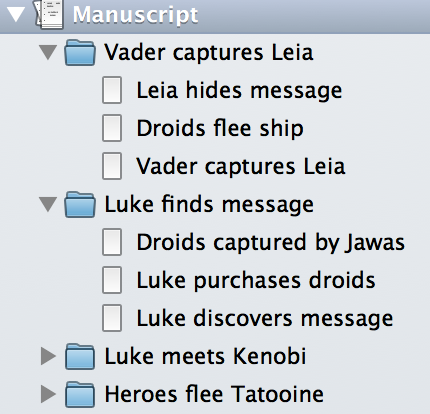
As you can see, some of these have scenes in them, but the bottom two do not. Whether you choose to break things down smaller like this or not doesn't really matter. The point is, look at how easy that is to navigate! Imagine this expanded over 50 chapters each with multiple scenes. Can't recall if Han shot first in that bar scene just before they flee Tatooine? Well, just click the chapter in your binder and there you are. With split view mode, you don't even need to leave the spot you were writing in to do this. Using tags properly is another way to do this, and I'll cover that in part 2.
By the way, this doubles as an example of how I outline, which I've mentioned before here and in some interviews. A few words per chapter or scene, usually noun-verb-noun, is what I use once I start writing. This is enough for me to know where the chapter is going without taking all the creative spontaneity out of the writing itself.
Before reading this, there's one thing you absolutely need to know. When it comes to writing, "there's no rules, only tools." Take all writing advice with a grain of salt. If you have time, or know you need a change, give things a try and keep what works for you. If things are working for you, keep doing what you're doing and file this stuff for future reference.
Now then, ready?
Scrivener. You've probably heard about it by now. If not, you should give it serious consideration for your next project. I say next because I think Scrivener works best when you use it from Day 1. And, generally speaking, it's a bad idea to switch software tools in the middle of a project. With November approaching, that's a pretty good opportunity for all you Nanites out there to give Scrivener a shot, especially since they usually offer a free trial version in November (and a discount if you finish Nano).
Why Scrivener?
If you've ever developed any software, you should get what I'm about to explain instantly. For the rest of you, I'll try to make this as clear as possible.
Scrivener treats your manuscript like source code. You've got a project (the book, or even books in my case), and all the material involved is contained in that project. Not just the manuscript, like you'd have in Word, but everything. Chapters, scenes, research, character bios, you name it... each is within the project and each is treated as a separate thing.
Whereas in Word your manuscript is the file, just one big stream of text, in Scrivener you can keep everything in nice tidy chunks. Why's that important? Well, first and foremost is speed.
You can zip from one chapter to another in seconds, and since each is titled with a name you provide, making a quick jump to review what happened in a previous chapter is just a single click away, rather than minutes of scrolling around in Word trying to find the right spot. If you've never dealt with a long document in Word you might not realize this is even an issue, but once you've got a big novel going, it's incredibly useful.
Let me highlight a few things I can do in Scrivener that are impossible, or so cumbersome they might as well be, in Word:
I have a single Scrivener project that contains all three manuscripts (multiple versions, too), every bit of research (text, images, audio, even video), worldbuilding notes including maps, character sketches, deleted scenes, plus hundreds of notes or ideas I came up with during this process. That's 500,000 words of core work, plus tons of additional stuff, and it's all instantly available and searchable. Word basically chokes on anything over 300 pages or so. In Scrivener I can zip around nearly 1800 pages easily, and it's all lightning fast and incredibly stable (zero crashes).Scrivener focuses on content, not "the document". I've tagged every scene with who is in it and where it takes place. This means I can instantly filter down my view to just the bits where a certain character is present, or scenes that take place in a certain location. If you're writing multiple POV's, or have many subplots, this is unbelievably helpful.Scrivener treats each chapter, indeed each scene, as a separate entity. Want to try a different chapter arrangement? Just drag and drop. Its as easy as moving files.Scrivener treats the final "document" as a product you produce at the end. You're not editing a document in Scrivener, you're editing the content that will make up a document. This is the key paradigm shift over something like Word, and probably the hardest thing for a new user to grasp. Programmers probably get this quickly because basically it's a workflow they're used to: your content is like source code, and the outputted manuscript is compiled. Need a standard manuscript in Word format? Compile. Ebook properly setup for Kindle? Compile. PDF with notes and watermarks and with the alternate ending? Compile. None of this changes the content at all.As with software development, a few simple organizational tips up front will help you immensely down the road. I'll start with one here, and cover others in subsequent posts.
TIP 1: Naming chapters
Or, perhaps a better way to say it, let your chapter names be your outline. Never, ever, name them "Chapter 1, Chapter 2," and so on. Why? Chapter numbers will change and besides naming them this way doesn't help you at all.
Here's an example that uses the first few "chapters" of the movie Star Wars as an example:

As you can see, some of these have scenes in them, but the bottom two do not. Whether you choose to break things down smaller like this or not doesn't really matter. The point is, look at how easy that is to navigate! Imagine this expanded over 50 chapters each with multiple scenes. Can't recall if Han shot first in that bar scene just before they flee Tatooine? Well, just click the chapter in your binder and there you are. With split view mode, you don't even need to leave the spot you were writing in to do this. Using tags properly is another way to do this, and I'll cover that in part 2.
By the way, this doubles as an example of how I outline, which I've mentioned before here and in some interviews. A few words per chapter or scene, usually noun-verb-noun, is what I use once I start writing. This is enough for me to know where the chapter is going without taking all the creative spontaneity out of the writing itself.


date newest »
newest »
message 1:
by
Wendy
(new)
Sep 19, 2013 08:37PM
 This looks amazing! I have all my stuff organized, but it's all over the place in different programs. I love the all in one place aspect. I'm only problem is that I'll spend hours organising at first before I finally settle down to write. Thanks for sharing!
reply
|
flag


