Copilot in Excel: How to understand Think Deeper with Python
Exploratory data analysis often feels like wide-open territory. There’s no single formula or button that tells you the “right” way to cut through your data. And when Python enters the picture, the intimidation factor often goes up… now you’re thinking about code, errors, and environments before you even start analyzing anything.
If that feels familiar, the Think Deeper mode in Copilot for Excel is a great middle ground. It sits on top of Python in Excel, but you don’t have to write or tweak code yourself. Instead, it uses a reasoning-focused LLM to build a structured plan, generate the Python steps, and walk you through deeper insights with more context.
What makes this different from a quick Copilot answer is its reasoning model. Think Deeper breaks your question into steps, chooses appropriate techniques, tests options, and explains why it’s taking a particular approach. It behaves more like an analyst thinking through a problem than a tool spitting out a single-shot response.
For this example we’ll use the well-known vehicle mileage dataset. Say you’re an insurance data analyst studying how vehicle characteristics like weight, cylinders, and horsepower relate to fuel efficiency as a proxy for driving patterns and risk. The dataset gives you a clean historical baseline for building and validating models that predict claim likelihood for older vehicles.
Think Deeper is a great place to start because it walks through the relationships for you, tests different angles, and explains why certain features matter. You get a structured reasoning path instead of a quick one-off answer, which is exactly what you want when you’re scoping a risk model from scratch.
To follow along, download the exercise file below:
Download the exercise file here
If you’ve used Advanced Analysis with Python before, this workflow will feel pretty familiar. (If not, check out my earlier post for a quick primer.)
How to get started with Advanced Analysis with Python for Copilot in Excel
You’ll still want to save your raw data as a table, make sure the workbook is in OneDrive, launch Copilot, and say the magic words: “Analyze this data with Python.” The only real difference is what you do next: instead of the default option, you’ll click the second button to run the analysis with Think Deeper.
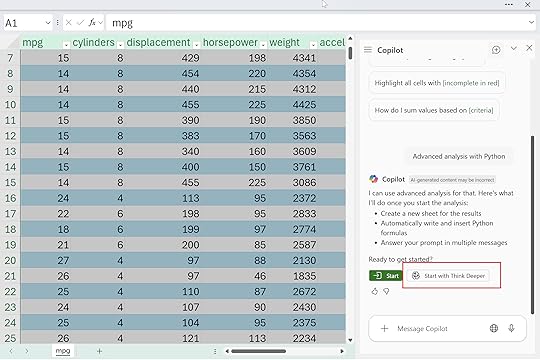
Mine says, “With Think Deeper, I take longer to respond with more in-depth answers for complex tasks.” You’ll also see a basic analysis plan appear in the side panel, and then Copilot starts generating and running the code. It can take a little while, and there’s a lot happening under the hood, so don’t get overwhelmed by the code flying by.
The nice part is you can use Copilot itself to review, understand, and even troubleshoot the analysis it just created.
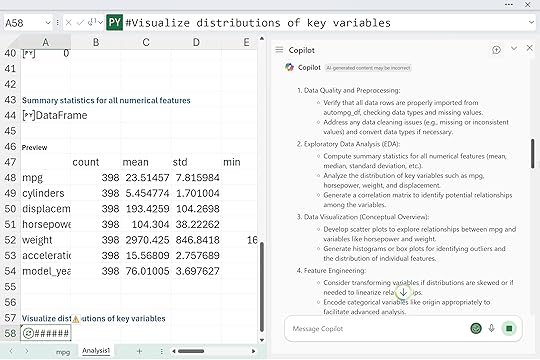
Eventually, Think Deeper will push all the way into predictive analytics, which might be farther than you planned to go with simple EDA. Results will vary from run to run, of course, but the overall structure is consistent. You can even run it a couple of times on copies of the same data to see different angles and deepen your understanding of the dataset.
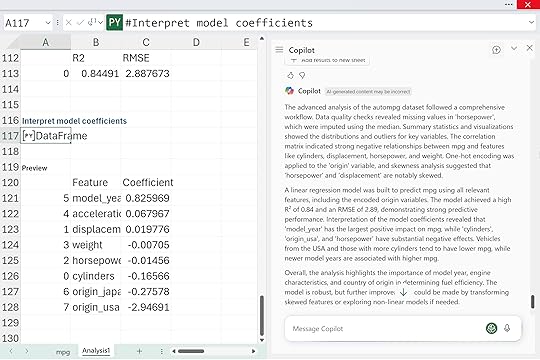
Think Deeper can be a really helpful middle step between “I don’t want to code” and “I want deeper analysis than a quick summary.” It’s great when you need structure, when your data has multiple angles worth exploring, or when you want to see how a reasoning model approaches the problem before you commit to your own Python or Excel work.
But it’s not always the right choice. Think Deeper takes longer to run, it generates a lot of code, and it can easily wander deeper into predictive analytics than you planned. If you already know exactly what question you want answered, or you just need a quick chart or summary, the standard Advanced Analysis workflow is faster, simpler, and a lot less overwhelming.
Here’s a quick side-by-side comparison you can skim before choosing which mode to use:
FeatureAdvanced Analysis (Standard)Think DeeperSpeedFasterSlower (multi-step reasoning)DepthDirect answersStructured plans, explanations, alternativesOutputA single chart, summary, or insightFull analysis plan + Python code + narrativeReasoningMinimalHigh — breaks the problem into stepsBest forClear, focused questionsOpen-ended exploration and EDACoding involvementPython behind the scenes, minimal exposureHeavy Python generation (you don’t write it, but you’ll see it)Learning valueGood for dipping your toes into PythonGreat for understanding how an analysis comes togetherPredictive analyticsOnly when promptedOften included automaticallyRisk of overwhelmLowMedium — longer runs and more outputIdeal userSomeone with a precise question and limited timeSomeone exploring a dataset or scoping a modelBoth tools are useful. They’re just useful in different moments. And you can always query, question, or refine anything Think Deeper generates. Copilot can even help you understand, troubleshoot, or simplify its own work, which is honestly one of the best parts of using it.
The post Copilot in Excel: How to understand Think Deeper with Python first appeared on Stringfest Analytics.