Jupyter to Medium Initial Post
I am very excited to announce the official release of jupyter_to_medium, a Python package that extends Jupyter Notebooks, allowing you to automate the process of publishing them as Medium blog posts.
Video WalkthroughI created a video showing exactly how to deploy a notebook as a Medium blog post.
https://medium.com/media/57e8b63a8834adc83eb0899be86b2c00/hrefMotivationI’ve published dozens of blog posts on Medium myself with all of them beginning as Jupyter Notebooks. Manually converting them to Medium posts was a fairly lengthy, painstaking process. One particularly painful process was inserting tables, which Medium does not support, into my posts. Nearly all of my posts contain numerous pandas DataFrames (such as this one, which has 40! DataFrames) which are represented as HTML tables within a notebook. I’d take screenshots of each one to insert them into my Medium posts.
jupyter_to_medium automates the process of converting Jupyter Notebooks to Medium blog posts allowing you to save a substantial amount of time.
InstallationInstall from PyPI with the following command:
pip install jupyter_to_mediumAfter installation, fire up a Jupyter Notebook that you’d like to publish on Medium. Make sure you start a brand new notebook session. Even if you don’t have a notebook that is ready to publish, you can still test this extension and publish as a draft so that it remains private.
Deploy as Medium PostOnce you open your notebook, head into the File menu and notice that you’ll have a new option Deploy as -> Medium Post.
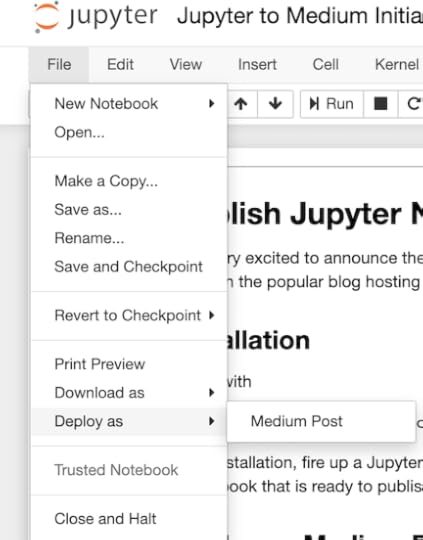 If ‘Deploy as’ option is missing
This new option should automatically show up in your notebook without doing anything. If it is missing, run the follow command to enable it.
jupyter bundlerextension enable --py jupyter_to_medium._bundler --sys-prefixFill out formClicking on Deploy as -> Medium Post triggers a new browser tab with a short form that needs to be filled out before posting.
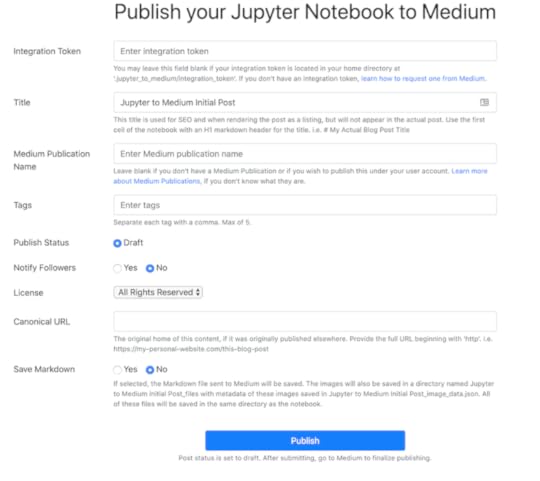 Medium Integration Token
Before you can post to Medium, you’ll need to request an integration token from them. Do this by emailing them at yourfriends@medium.com. Please read the entire instructions on how to get your integration token.
Once your request is granted, navigate to your Medium settings page. Towards the bottom of the page exists the section on Integration Tokens. Enter a description for the token (jupyter_to_medium is a good choice) and then create the token.
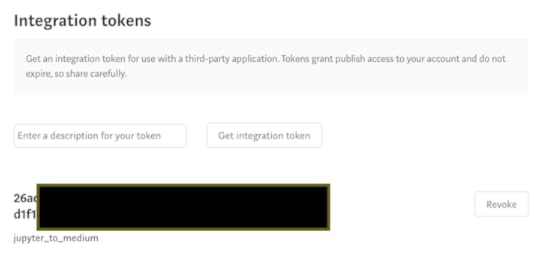 Save your integration token
Once you have your integration token, create the folder and file .jupyter_to_medium/integration_token in your home directory and save the token there. If you don't save it, you'll need to access it every time you wish to make a new post.
Complete formOnce you have your integration token, you can complete the rest of the form. Note that the ‘Title’ text box is not the actual title of the post, but a title that Medium uses for SEO purposes. Use an H1 Markdown header in the first cell of your notebook to create the actual title of your post.
PublishOnce you’ve completed the form, click the Publish button. At this time, only publishing as a ‘draft’ is allowed as you probably want to review what your post looks like before publishing it publicly.
SuccessIf your post was successful, you’ll see the following screen with the URL of your post.
 Finalize on Medium
As stated, jupyter_to_medium only allows for publishing as a draft. To make your post public, go to your post on Medium and publish there.
 Features
There are several features that jupyter_to_medium provides to ensure that your notebook appears in the
All images in Markdown are found and uploaded to MediumAll images in the Markdown cells, such as the five above are found and uploaded to Markdown. Medium limits the image types to png, jpeg, gif, and tiff.
Pandas DataFrames are converted to imagesMedium does not support tables, such as those produced in output cells by pandas DataFrames. As a workaround, these tables are uploaded as images captured by the Chrome browser’s screenshot ability. In the following code cell, the bar_chart_race package is used to import a pandas DataFrame containing deaths from COVID-19 in several countries. It is embedded in the Medium post as an image.
import bar_chart_race as bcrdf = bcr.load_dataset('covid19')
df = df.iloc[-15:-10, ::3]
df
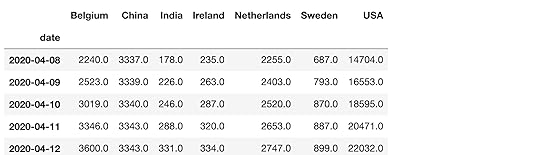 Styled pandas DataFrames
Styled pandas DataFrames are also embedded in your post as images.
df.style.highlight_max()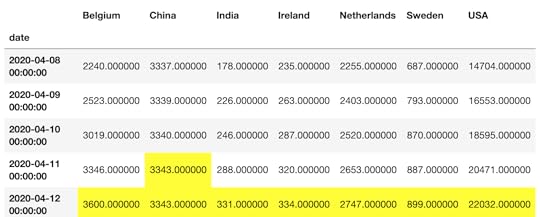 Matplotlib Plots
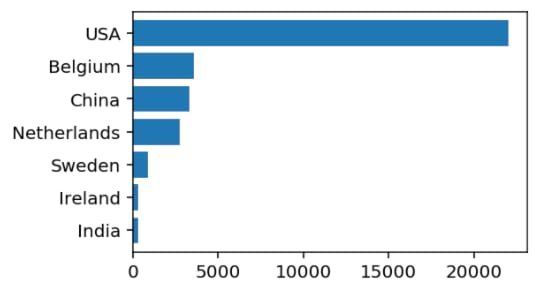
All matplotlib plots, along with any other command that outputs an image will be safely embedded in your post.
import matplotlib.pyplot as pltfig, ax = plt.subplots(figsize=(4, 2.5), dpi=144)
df.loc['2020-04-12'].sort_values().plot(kind='barh', ax=ax, width=.8);
 Animated gifs
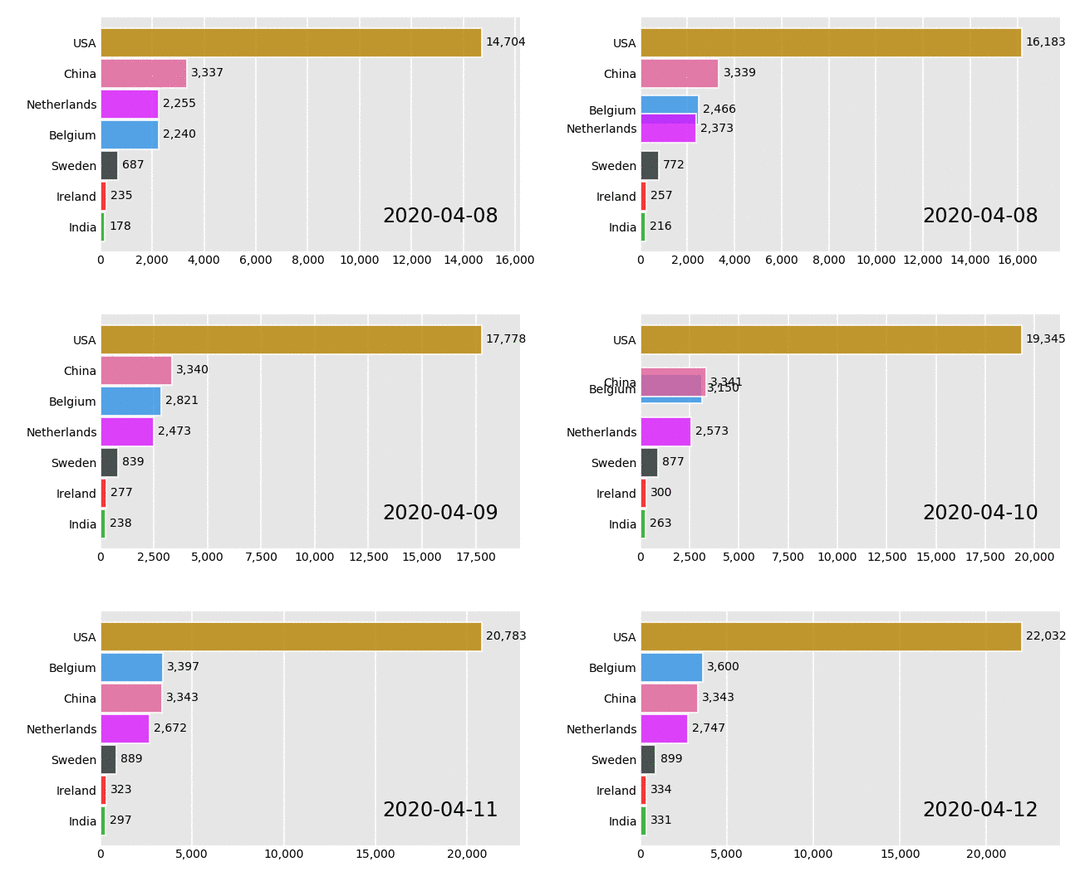
Even animated gifs are supported by Medium. This one created by the bar_chart_race function.
from IPython.display import Imagebcr.bar_chart_race(df, 'docs/images/covid19.gif', figsize=(4, 2.5))
Image(filename='docs/images/covid19.gif')
 Citing Jupyter to Medium
If you do use jupyter_to_medium, please mention in the post that you’ve used it, so that others can find out about it.
Master Python, Data Science and Machine LearningImmerse yourself in my comprehensive path for mastering data science and machine learning with Python. Purchase the All Access Pass to get lifetime access to all current and future courses. Some of the courses it contains:
Exercise Python A comprehensive introduction to Python (200+ pages, 100+ exercises)Master Data Analysis with Python The most comprehensive course available to learn pandas. (800+ pages and 350+ exercises)Master Machine Learning with Python A deep dive into doing machine learning with scikit-learn constantly updated to showcase the latest and greatest tools.
Jupyter to Medium Initial Post was originally published in Dunder Data on Medium, where people are continuing the conversation by highlighting and responding to this story.