Productivity Apps
I’m on a constant mission to find tricks to improve my productivity. The number of productivity apps out there is staggering, and after a long time of searching and testing, I found three apps that helped me move from writing every now and then to writing every day, and even helped me finish and revise my first novel.
Rescue Time
Rescue Time downloads to your computer and tracks how you spend your computer time, including logging which websites you visit and how much time you spend on them (for one browser, for all others it just tells which application you were using).
It takes all of this information and aggregates a productivity score, as well as the number of hours you spent doing different categorized activities.
Below is a snapshot from this last month. I hovered over “Design & Composition” so you can see my top activities under Design & Composition were Scrivener, NaNoWriMo.org and Google Documents.
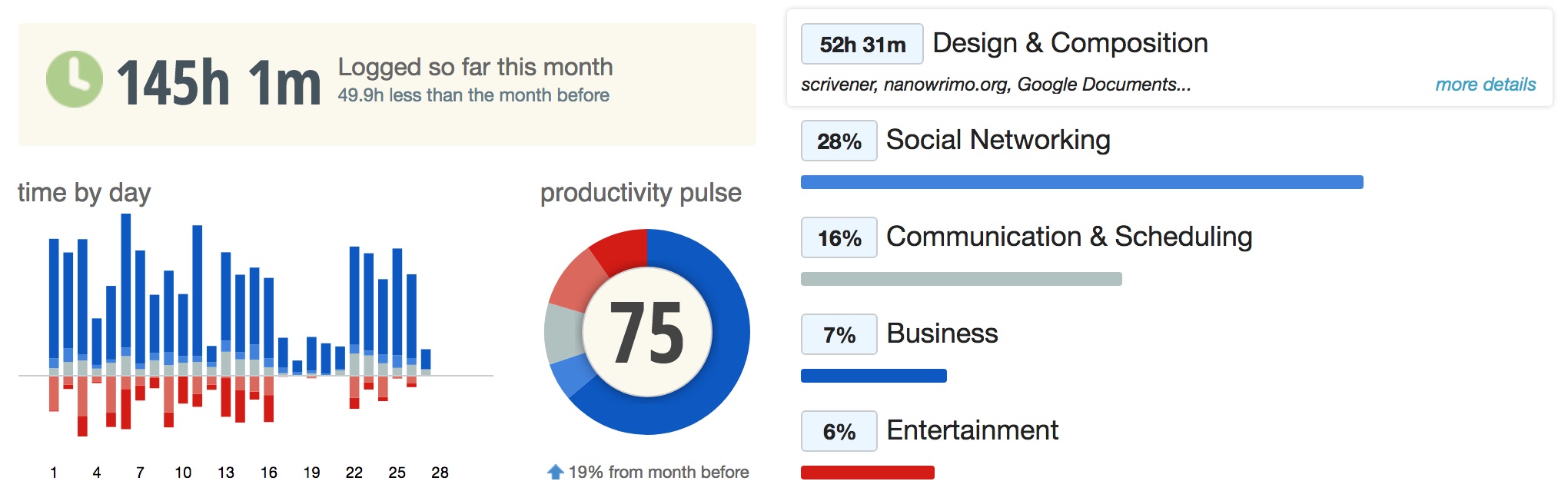
You can use Rescue Time with its default settings, or customize websites and activities for what you would call “productive” or “distracting.” You can also add or edit categories to fit your tasks. For example, while I was in the MFA Program, I added an “MFA” distinction under “Reference & Learning,” so I could get productive credit for things like working on online classes.
Use: After you get it set up, it tracks your productivity passively. You may need to tweak it as you use it, but even the default settings are pretty good for starting to get a grip on your life. Use it to find out where you’ve been spending your time so you can make better choices about how you spend your time.
Ease: I’ll be honest, it took me awhile to really get the hang of Rescue Time to tweak it to my “productive” tasks and then understand the data. The passive tracking makes it easy to collect data, and then I could analyze it at my own pace.
Benefit: Rescue Time emails a weekly summary of activity. Seeing “Design & Composition” as my top activity lets me know when I’m putting my writing first. Rescue Time also helped point out what was most distracting for me and helped me take steps to avoid and mitigate those distractions.
Paid: There is a paid option to Rescue Time that gives you more bang. It has a built-in block out timer, alerts, offline tracking, and—this is the one I like the best—it can track which document you’re working in, not just that you’re in MS Word.
Productivity Challenge Timer
Sometimes the best way to be productive is to set aside productive time. Productivity Challenge Timer is a phone app that allows you to set a timer and get to work! The timer can be for as few as 10 minutes or as many as 120 minutes (you can also add 5 minutes if you need to keep working).
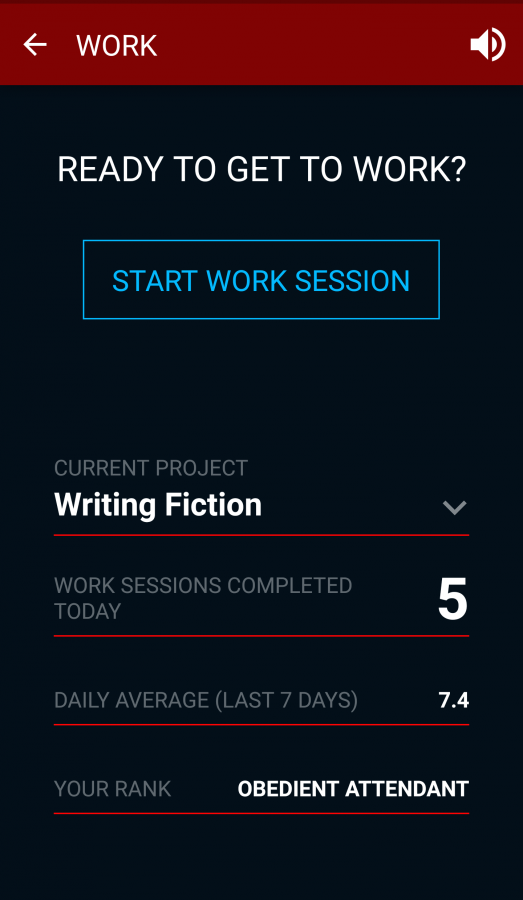
Finishing work sessions earns ranks and achievements, so there’s a little gamification involved with the Challenge Timer, if that’s your thing. Be warned: if you don’t work you’ll lose ranks (I have lost so many). If losing ranks stresses you out, that’s a feature you can turn off.
In the free version you can set up 4 projects and then track the amount of time you spend doing each thing. I set mine to track Writing, Reading, Editing, and Business.
Use: Being able to decide how long I’ll work each time makes this app extremely useful. It also helped me learn that working for 10 minutes is better than not working at all. (And that several 10-minute sessions start to add up!) Use it to help you focus on the activity you’re working on at the moment. The timer means focus!
Ease: Getting started is easy, just create a project and hit the button to start. The stats took a little time to understand, but they can easily be ignored until you’re ready to tackle them.
Benefit: Productivity Challenge Timer is good for focusing when you want to work and rewarding yourself with a break. It’s easier to focus if you know a break is coming up, or if you know you only have 2 more minutes, etc.
If you like stats, this also can help you determine when your most productive hours are. The app tracks when you work along with how long you work, so you can discover, for example, that you work more often in the evening. For some of you that might be obvious, but you’ll now have the evidence to show your family and friends when they try to encroach on your writing time.