Vlad Catrinescu's Blog, page 18
November 5, 2018
Office 365 Profile Completeness: Finding users with no department set in the user profile
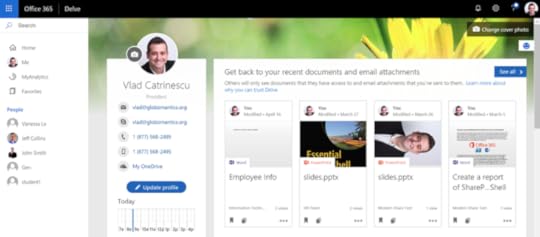
In Office 365, profile completeness is key to multiple cloud experiences. For example, you cannot really do approvals by the manager, if the manager is not set in the user’s profile! Another good example would be a people directory, which would be a bit useless if users don’t have their location and phone numbers filled in! In this series, we will look at how to use PowerShell to create a report of Office 365 Users missing key properties!
Office 365 Profile Completeness Series
Finding users with no Birthday set in the user profile: https://wp.me/p3utgI-8hW
Finding users with no Manager set in the user profile: https://wp.me/p3utgI-8hR
Finding users with no Cell Phone set in the user profile: https://wp.me/p3utgI-8iq
Finding users with no Picture set in the user profile: https://wp.me/p3utgI-8ib
Finding users with no Department set in the user profile: https://wp.me/p3utgI-8ik
Finding users with no Country set in the user profile: https://wp.me/p3utgI-8iz
Finding users with no Skills set in the user profile: https://wp.me/p3utgI-8i1
Finding users with no About Me set in the user profile : https://wp.me/p3utgI-8iv
Finding users with no Past Projects set in the user profile: https://wp.me/p3utgI-8if
Finding users with no department set in the user profile
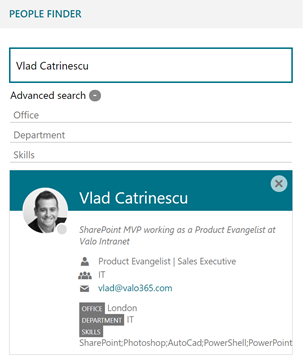
In every people directory, the department is a key property that people filter on when searching for other employees. It also allows Office 365 administrators to apply different settings to different people, depending on the department.
There is no out of the box report on Profile Completeness in Office 365, so PowerShell is your best tool in creating reports on user’s profiles! Here is what we will need to get started:
Requirements:
Azure AD Administrator
AzureAD PowerShell Module : https://www.powershellgallery.com/packages/AzureAD
The Script
First thing we are going to do is get our Office 365 credentials, and connect to Azure Active Directory.
$cred = get-CredentialConnect-AzureAD -Credential $cred
I will then get all of the users in my tenant, that are internal to the company (Member) and that have at least one license assigned to them.
$Users = Get-AzureADUser | Where {$_.UserType -eq 'Member' -and $_.AssignedLicenses -ne $null}Next up, we will create an empty array in which we will later store our users without their department setup.
$NoDeptUsers = @()Now that we have all our information, we will loop trough each user, and find out if they have anything in the Department property of their Azure AD user profile. If not, we will add our user to the array!
foreach ($user in $Users){
if ($user.Department -eq $null)
{
$NoDeptUsers += $user
}
}
Lastly, we will export the results to a CSV file
$NoDeptUsers | Select DisplayName, UserPrincipalName | Export-Csv -Path "C:\O365Reports\UsersWithNoDepartment.csv" -NoTypeInformationAnd here is the full script in one piece!
$cred = get-CredentialConnect-AzureAD -Credential $cred
$Users = Get-AzureADUser | Where {$_.UserType -eq 'Member' -and $_.AssignedLicenses -ne $null}
$NoDeptUsers = @()
foreach ($user in $Users)
{
if ($user.Department -eq $null)
{
$NoDeptUsers += $user
}
}
$NoDeptUsers | Select DisplayName, UserPrincipalName | Export-Csv -Path "C:\O365Reports\UsersWithNoDepartment.csv" -NoTypeInformation
The Result
The final result is a CSV file in which we can see the display names and user names of all of the users in our tenant that don’t have their department set in their profile! You can either contact them individually, or even Send Email from PowerShell in Office 365 in order to automatically send them a nicely formatted HTML e-mail asking them to fill it!

More Resources
PowerShell for Office 365 is an essential tool as part of every Office 365’s administrator toolbox. Without PowerShell, you cannot do cool reports such as the one in this blog post, and you are missing out on multiple Office 365 reporting, productivity and security settings. Here are some resources that you could use to learn PowerShell for Office 365:
Books
Books are really ways to learn a topic from start to master, and even if they cost some dollars, they’re always a good investment!

Essential PowerShell for Office 365: Managing and Automating Skills for Improved Productivity
Take your Office 365 skills to the next level. Master PowerShell for Office 365 to stay competitive in today’s world of highly sought after cloud management skills. With expert guidance, IT pros will learn how to leverage the muscle of PowerShell to automate many advanced administrative tasks not otherwise accessible in the Office 365 Admin Center. You will discover how to unlock configuration options and automate tasks in order to free up valuable time and resources.
Get it on Amazon at the following links:
Amazon.com: http://amzn.to/2FsqX8y
Amazon.ca: http://amzn.to/2GuDycC
Amazon.fr: http://amzn.to/2EkGJTI
Amazon.uk: http://amzn.to/2DMXxFM
Amazon.de: http://amzn.to/2FrCR2z
Video Training
NOTE: Pluralsight is a paid resource unlike Channel9, Youtube, and Microsoft Virtual Academy which are free. The quality they provide is also superior because of all the quality checks they go through, and the instructors are one of the best in the industry. The Pluralsight courses have a link to where you can get a free trial and decide for yourself if paying a subscription or not is worth it, but the 10 day free trial should allow you to view all those courses for free.

PowerShell for Office 365
In this course, you will learn how to use PowerShell to manage Office 365 services. You will learn how to connect and manage users and licensing, SharePoint Online, Exchange Online, Compliance Center and last but not least, Skype for Business Online.
Link: http://spvlad.com/PowerShellO365
Free Pluralsight Trial: Get a free 10 day Pluralsight Trial!

PowerShell Playbook for Office 365
A more advanced look at multiple real-life scenarios that span across all Office 365 Services and show you how your PowerShell for Office 365 skills can be applied in your day to day life
Link:https://spvlad.com/PowerShellPlaybook
Free Pluralsight Trial: Get a free 10 day Pluralsight Trial!

PowerShell for common Office 365 Operations
In this 300 level session, you will learn how to automate the management of Office 365 using Windows PowerShell. We will discuss how to connect Windows PowerShell to Office 365, tour the Office 365 cmdlets, and demonstrate how to manage domains, users, and services including Exchange Online, and SharePoint Online.
Link: https://www.youtube.com/watch?v=I2lj1rbzjCk

Support Corner: Using PowerShell to Manage Office 365 Users
Join us in this fast-paced demo to learn how to manage Office 365 users using PowerShell. Experts show you how to create and delete users, update user IDs and passwords, assign licenses and groups, and much more.
Link: https://mva.microsoft.com/en-US/training-courses/support-corner-using-powershell-to-manage-office-365-users-8934?l=KGtEBIC3_304984382
Leave a comment and don’t forget to like the Absolute SharePoint Blog Page on Facebook and to follow me on Twitter here for the latest news and technical articles on SharePoint. I am also a Pluralsight author, and you can view all the courses I created on my author page.
The post Office 365 Profile Completeness: Finding users with no department set in the user profile appeared first on Absolute SharePoint Blog by Vlad Catrinescu.


Office 365 Profile Completeness: Finding users with no Cell Phone set in the user profile
In Office 365, profile completeness is key to multiple cloud experiences. For example, you cannot really do approvals by the manager, if the manager is not set in the user’s profile! Another good example would be a people directory, which would be a bit useless if users don’t have their location and phone numbers filled in! In this series, we will look at how to use PowerShell to create a report of Office 365 Users missing key properties!

Office 365 Profile Completeness Series
Finding users with no Birthday set in the user profile: https://wp.me/p3utgI-8hW
Finding users with no Manager set in the user profile: https://wp.me/p3utgI-8hR
Finding users with no Cell Phone set in the user profile: https://wp.me/p3utgI-8iq
Finding users with no Picture set in the user profile: https://wp.me/p3utgI-8ib
Finding users with no Department set in the user profile: https://wp.me/p3utgI-8ik
Finding users with no Country set in the user profile: https://wp.me/p3utgI-8iz
Finding users with no Skills set in the user profile: https://wp.me/p3utgI-8i1
Finding users with no About Me set in the user profile : https://wp.me/p3utgI-8iv
Finding users with no Past Projects set in the user profile: https://wp.me/p3utgI-8if
Finding users with no cell phone set in the user profile
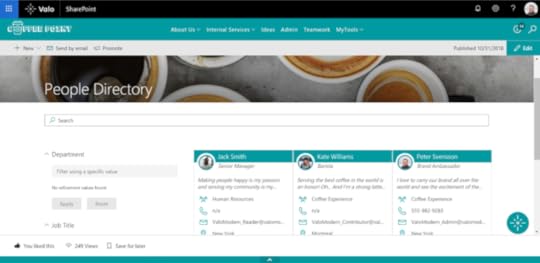
The cell phone is one of the trickiest properties to follow up on in Office 365. One of the main reasons is that the cell-phone is stored inside the user’s Azure AD profile. The SharePoint Online user profile also has a cell phone user property, and they are not synchronized together. This means that even if you see a user’s mobile phone inside Azure AD, you will see it everywhere in Office 365, except SharePoint Online and Delve.
There is no out of the box report on Profile Completeness in Office 365, so PowerShell is your best tool in creating reports on user’s profiles! Here is what we will need to get started:
Requirements:
SharePoint Online Administrator
Azure AD Administrator
AzureAD PowerShell Module : https://www.powershellgallery.com/packages/AzureAD
SharePoint Online PnP Module: https://www.powershellgallery.com/packages/SharePointPnPPowerShellOnline/
The Script
First thing we are going to do is get our Office 365 credentials, and connect to both Azure Active Directory and the SharePoint Online Admin Center (with the PnP cmdlets)
$cred = get-CredentialConnect-AzureAD -Credential $cred
Connect-PnpOnline -Url https://globomanticsorg-admin.sharepo... -Credentials $cred
I will then get all of the users in my tenant, that are internal to the company (Member) and that have at least one license assigned to them.
$Users = Get-AzureADUser | Where {$_.UserType -eq 'Member' -and $_.AssignedLicenses -ne $null}Since we have two places to check, with users that might have their mobile phone in one, but not the other, we will start checking their Azure AD profile! I will create an empty array, in which we will store all of the users without a cellphone set!
$NoCellUsers = @()We will then loop trouch each user, and check if their Mobile property is set or not. If not, we will add them to the array, and export them to a CSV file called UsersWithNoCellInAD.csv!
$Users = Get-AzureADUser | Where {$_.UserType -eq 'Member' -and $_.AssignedLicenses -ne $null}$NoCellUsers = @()
foreach ($user in $Users)
{
if ($user.Mobile -eq $null)
{
$NoCellUsers += $user
}
}
$NoCellUsers | Select DisplayName, UserPrincipalName | Export-Csv -Path "C:\O365Reports\UsersWithNoCellInAD.csv" -NoTypeInformation
With the AD done, we need to do a very similar thing , but for SharePoint Online! We will loop trough each user, and find out if they have a SharePoint Online Profile or not. If the profile exists, and the CellPhone property is equal to an empty string, it means the cell phone for this user is not set in SharePoint Online , so we will save the user object in a new array for SharePoint only reporting.
$NoCellinSPUsers = @()foreach ($user in $Users)
{
$SPProfile = Get-PnPUserProfileProperty -Account $user.UserPrincipalName -ErrorAction SilentlyContinue
if ($SPProfile -ne $null)
{
if ($SPProfile.UserProfileProperties.CellPhone -eq "")
{
$NoCellinSPUsers += $user
}
}
}
Lastly, we will export the results of the SharePoint results to a CSV file as well!
$NoCellinSPUsers | Select DisplayName, UserPrincipalName | Export-Csv -Path "C:\O365Reports\UsersWithNoCellInSP.csv" -NoTypeInformationAnd here is the full script in one piece!
$cred = get-CredentialConnect-AzureAD -Credential $cred
Connect-PnpOnline -Url https://globomanticsorg-admin.sharepo... -Credentials $cred
$Users = Get-AzureADUser | Where {$_.UserType -eq 'Member' -and $_.AssignedLicenses -ne $null}
$NoCellUsers = @()
foreach ($user in $Users)
{
if ($user.Mobile -eq $null)
{
$NoCellUsers += $user
}
}
$NoCellUsers | Select DisplayName, UserPrincipalName | Export-Csv -Path "C:\O365Reports\UsersWithNoCellInAD.csv" -NoTypeInformation
$NoCellinSPUsers = @()
foreach ($user in $Users)
{
$SPProfile = Get-PnPUserProfileProperty -Account $user.UserPrincipalName -ErrorAction SilentlyContinue
if ($SPProfile -ne $null)
{
if ($SPProfile.UserProfileProperties.CellPhone -eq "")
{
$NoCellinSPUsers += $user
}
}
}
$NoCellinSPUsers | Select DisplayName, UserPrincipalName | Export-Csv -Path "C:\O365Reports\UsersWithNoCellInSP.csv" -NoTypeInformation
The Result
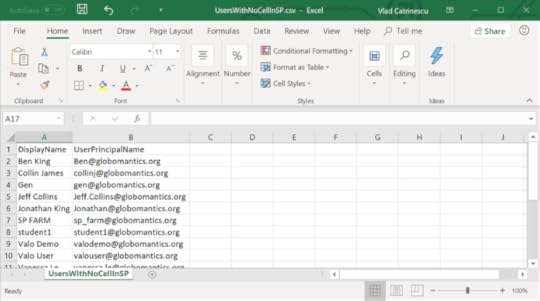
The final result is two CSV files, (one for Azure AD and one for SharePoint) in which we can see the display names and user names of all of the users in our tenant that don’t have a cell phone in their profile! You can either contact them individually, or even Send Email from PowerShell in Office 365 in order to automatically send them a nicely formatted HTML e-mail asking them to fill it!

More Resources
PowerShell for Office 365 is an essential tool as part of every Office 365’s administrator toolbox. Without PowerShell, you cannot do cool reports such as the one in this blog post, and you are missing out on multiple Office 365 reporting, productivity and security settings. Here are some resources that you could use to learn PowerShell for Office 365:
Books
Books are really ways to learn a topic from start to master, and even if they cost some dollars, they’re always a good investment!
Essential PowerShell for Office 365: Managing and Automating Skills for Improved Productivity
Take your Office 365 skills to the next level. Master PowerShell for Office 365 to stay competitive in today’s world of highly sought after cloud management skills. With expert guidance, IT pros will learn how to leverage the muscle of PowerShell to automate many advanced administrative tasks not otherwise accessible in the Office 365 Admin Center. You will discover how to unlock configuration options and automate tasks in order to free up valuable time and resources.
Get it on Amazon at the following links:
Amazon.com: http://amzn.to/2FsqX8y
Amazon.ca: http://amzn.to/2GuDycC
Amazon.fr: http://amzn.to/2EkGJTI
Amazon.uk: http://amzn.to/2DMXxFM
Amazon.de: http://amzn.to/2FrCR2z
Video Training
NOTE: Pluralsight is a paid resource unlike Channel9, Youtube, and Microsoft Virtual Academy which are free. The quality they provide is also superior because of all the quality checks they go through, and the instructors are one of the best in the industry. The Pluralsight courses have a link to where you can get a free trial and decide for yourself if paying a subscription or not is worth it, but the 10 day free trial should allow you to view all those courses for free.
PowerShell for Office 365
In this course, you will learn how to use PowerShell to manage Office 365 services. You will learn how to connect and manage users and licensing, SharePoint Online, Exchange Online, Compliance Center and last but not least, Skype for Business Online.
Link: http://spvlad.com/PowerShellO365
Free Pluralsight Trial: Get a free 10 day Pluralsight Trial!
PowerShell Playbook for Office 365
A more advanced look at multiple real-life scenarios that span across all Office 365 Services and show you how your PowerShell for Office 365 skills can be applied in your day to day life
Link:https://spvlad.com/PowerShellPlaybook
Free Pluralsight Trial: Get a free 10 day Pluralsight Trial!
PowerShell for common Office 365 Operations
In this 300 level session, you will learn how to automate the management of Office 365 using Windows PowerShell. We will discuss how to connect Windows PowerShell to Office 365, tour the Office 365 cmdlets, and demonstrate how to manage domains, users, and services including Exchange Online, and SharePoint Online.
Link: https://www.youtube.com/watch?v=I2lj1rbzjCk
Support Corner: Using PowerShell to Manage Office 365 Users
Join us in this fast-paced demo to learn how to manage Office 365 users using PowerShell. Experts show you how to create and delete users, update user IDs and passwords, assign licenses and groups, and much more.
Link: https://mva.microsoft.com/en-US/training-courses/support-corner-using-powershell-to-manage-office-365-users-8934?l=KGtEBIC3_304984382
Leave a comment and don’t forget to like the Absolute SharePoint Blog Page on Facebook and to follow me on Twitter here for the latest news and technical articles on SharePoint. I am also a Pluralsight author, and you can view all the courses I created on my author page.
The post Office 365 Profile Completeness: Finding users with no Cell Phone set in the user profile appeared first on Absolute SharePoint Blog by Vlad Catrinescu.
Office 365 Profile Completeness: Finding users with no About Me set in the user profile
In Office 365, profile completeness is key to multiple cloud experiences. For example, you cannot really do approvals by the manager, if the manager is not set in the user’s profile! Another good example would be a people directory, which would be a bit useless if users don’t have their location and phone numbers filled in! In this series, we will look at how to use PowerShell to create a report of Office 365 Users missing key properties!

Office 365 Profile Completeness Series
Finding users with no Birthday set in the user profile: https://wp.me/p3utgI-8hW
Finding users with no Manager set in the user profile: https://wp.me/p3utgI-8hR
Finding users with no Cell Phone set in the user profile: https://wp.me/p3utgI-8iq
Finding users with no Picture set in the user profile: https://wp.me/p3utgI-8ib
Finding users with no Department set in the user profile: https://wp.me/p3utgI-8ik
Finding users with no Country set in the user profile: https://wp.me/p3utgI-8iz
Finding users with no Skills set in the user profile: https://wp.me/p3utgI-8i1
Finding users with no About Me set in the user profile : https://wp.me/p3utgI-8iv
Finding users with no Past Projects set in the user profile: https://wp.me/p3utgI-8if
Finding users with no About Me set in the user profile
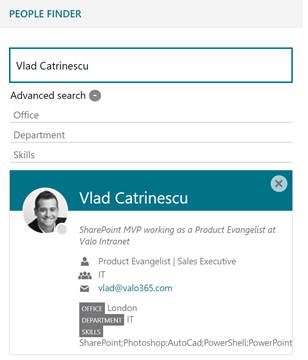
In this blog post, we will focus on how to find users that did not set their About Me as part of their SharePoint Online profile. The About Me is not usually a required property, but can increase the value and efficiency of a User Profile Directory inside your organization.
There is no out of the box report on Profile Completeness in Office 365, so PowerShell is your best tool in creating reports on user’s profiles! Here is what we will need to get started:
Requirements:
SharePoint Online Administrator
Azure AD Administrator
AzureAD PowerShell Module : https://www.powershellgallery.com/packages/AzureAD
SharePoint Online PnP Module: https://www.powershellgallery.com/packages/SharePointPnPPowerShellOnline/
The Script
First thing we are going to do is get our Office 365 credentials, and connect to both Azure Active Directory and the SharePoint Online Admin Center (with the PnP cmdlets)
$cred = get-CredentialConnect-AzureAD -Credential $cred
Connect-PnpOnline -Url https://globomanticsorg-admin.sharepo... -Credentials $cred
I will then get all of the users in my tenant, that are internal to the company (Member) and that have at least one license assigned to them.
$Users = Get-AzureADUser | Where {$_.UserType -eq 'Member' -and $_.AssignedLicenses -ne $null}Next up, we will create an empty array in which we will later store our users without an About me.
$NoAboutMeUsers = @()Now that we have all our information, we will loop trough each user, and find out if they have a SharePoint Online Profile or not (since the About Me is stored in the SPO profile, not in Azure AD). If the profile exists, and the AboutMe property is equal to an empty string, it means the About Me for this user is not set, so we will save the user object in the array we created in the previous step!
foreach ($user in $Users){
$SPProfile = Get-PnPUserProfileProperty -Account $user.UserPrincipalName -ErrorAction SilentlyContinue
if ($SPProfile -ne $null)
{
if ($SPProfile.UserProfileProperties.AboutMe -eq "")
{
$NoAboutMeUsers += $user
}
}
}
Lastly, we will export the results to a CSV file
$NoAboutMeUsers | Select DisplayName, UserPrincipalName | Export-Csv -Path "C:\O365Reports\UsersWithNoAboutMe.csv" -NoTypeInformationAnd here is the full script in one piece!
$cred = get-CredentialConnect-AzureAD -Credential $cred
Connect-PnpOnline -Url https://globomanticsorg-admin.sharepo... -Credentials $cred
$Users = Get-AzureADUser | Where {$_.UserType -eq 'Member' -and $_.AssignedLicenses -ne $null}
$NoAboutMeUsers = @()
foreach ($user in $Users)
{
$SPProfile = Get-PnPUserProfileProperty -Account $user.UserPrincipalName -ErrorAction SilentlyContinue
if ($SPProfile -ne $null)
{
if ($SPProfile.UserProfileProperties.AboutMe -eq "")
{
$NoAboutMeUsers += $user
}
}
}
$NoAboutMeUsers | Select DisplayName, UserPrincipalName | Export-Csv -Path "C:\O365Reports\UsersWithNoAboutMe.csv" -NoTypeInformation
The Result
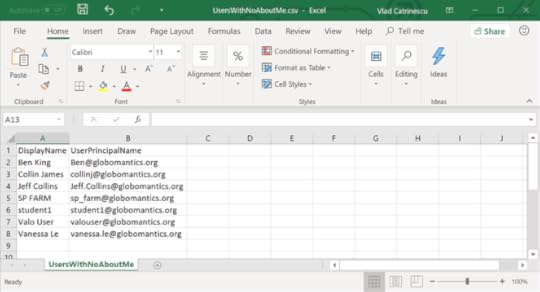
The final result is a CSV file in which we can see the display names and user names of all of the users in our tenant that don’t have their About me in their profile! You can either contact them individually, or even Send Email from PowerShell in Office 365 in order to automatically send them a nicely formatted HTML e-mail asking them to fill it!
More Resources
PowerShell for Office 365 is an essential tool as part of every Office 365’s administrator toolbox. Without PowerShell, you cannot do cool reports such as the one in this blog post, and you are missing out on multiple Office 365 reporting, productivity and security settings. Here are some resources that you could use to learn PowerShell for Office 365:
Books
Books are really ways to learn a topic from start to master, and even if they cost some dollars, they’re always a good investment!
Essential PowerShell for Office 365: Managing and Automating Skills for Improved Productivity
Take your Office 365 skills to the next level. Master PowerShell for Office 365 to stay competitive in today’s world of highly sought after cloud management skills. With expert guidance, IT pros will learn how to leverage the muscle of PowerShell to automate many advanced administrative tasks not otherwise accessible in the Office 365 Admin Center. You will discover how to unlock configuration options and automate tasks in order to free up valuable time and resources.
Get it on Amazon at the following links:
Amazon.com: http://amzn.to/2FsqX8y
Amazon.ca: http://amzn.to/2GuDycC
Amazon.fr: http://amzn.to/2EkGJTI
Amazon.uk: http://amzn.to/2DMXxFM
Amazon.de: http://amzn.to/2FrCR2z
Video Training
NOTE: Pluralsight is a paid resource unlike Channel9, Youtube, and Microsoft Virtual Academy which are free. The quality they provide is also superior because of all the quality checks they go through, and the instructors are one of the best in the industry. The Pluralsight courses have a link to where you can get a free trial and decide for yourself if paying a subscription or not is worth it, but the 10 day free trial should allow you to view all those courses for free.
PowerShell for Office 365
In this course, you will learn how to use PowerShell to manage Office 365 services. You will learn how to connect and manage users and licensing, SharePoint Online, Exchange Online, Compliance Center and last but not least, Skype for Business Online.
Link: http://spvlad.com/PowerShellO365
Free Pluralsight Trial: Get a free 10 day Pluralsight Trial!
PowerShell Playbook for Office 365
A more advanced look at multiple real-life scenarios that span across all Office 365 Services and show you how your PowerShell for Office 365 skills can be applied in your day to day life
Link:https://spvlad.com/PowerShellPlaybook
Free Pluralsight Trial: Get a free 10 day Pluralsight Trial!
PowerShell for common Office 365 Operations
In this 300 level session, you will learn how to automate the management of Office 365 using Windows PowerShell. We will discuss how to connect Windows PowerShell to Office 365, tour the Office 365 cmdlets, and demonstrate how to manage domains, users, and services including Exchange Online, and SharePoint Online.
Link: https://www.youtube.com/watch?v=I2lj1rbzjCk
Support Corner: Using PowerShell to Manage Office 365 Users
Join us in this fast-paced demo to learn how to manage Office 365 users using PowerShell. Experts show you how to create and delete users, update user IDs and passwords, assign licenses and groups, and much more.
Link: https://mva.microsoft.com/en-US/training-courses/support-corner-using-powershell-to-manage-office-365-users-8934?l=KGtEBIC3_304984382
Leave a comment and don’t forget to like the Absolute SharePoint Blog Page on Facebook and to follow me on Twitter here for the latest news and technical articles on SharePoint. I am also a Pluralsight author, and you can view all the courses I created on my author page.
The post Office 365 Profile Completeness: Finding users with no About Me set in the user profile appeared first on Absolute SharePoint Blog by Vlad Catrinescu.
Office 365 Profile Completeness: Finding users with no birthday set in the user profile
In Office 365, profile completeness is key to multiple cloud experiences. For example, you cannot really do approvals by the manager, if the manager is not set in the user’s profile! Another good example would be a people directory, which would be a bit useless if users don’t have their location and phone numbers filled in! In this series, we will look at how to use PowerShell to create a report of Office 365 Users missing key properties!

Office 365 Profile Completeness Series
Finding users with no Birthday set in the user profile: https://wp.me/p3utgI-8hW
Finding users with no Manager set in the user profile: https://wp.me/p3utgI-8hR
Finding users with no Cell Phone set in the user profile: https://wp.me/p3utgI-8iq
Finding users with no Picture set in the user profile: https://wp.me/p3utgI-8ib
Finding users with no Department set in the user profile: https://wp.me/p3utgI-8ik
Finding users with no Country set in the user profile: https://wp.me/p3utgI-8iz
Finding users with no Skills set in the user profile: https://wp.me/p3utgI-8i1
Finding users with no About Me set in the user profile : https://wp.me/p3utgI-8iv
Finding users with no Past Projects set in the user profile: https://wp.me/p3utgI-8if
Finding users with no birthday set in the user profile
In this blog post, we will focus on how to find users that did not set their birthday as part of their SharePoint Online profile. Honestly, one year ago, I never thought this was something I would write, because I didn’t think anyone used this. However, since I have joined Valo Intranet last December one of our most common requests has been a Birthday webpart! The webpart now exists, however, like anything else in tech, if you do not have the information in your profile, the webpart is a bit useless!

There is no out of the box report on Profile Completeness in Office 365, so PowerShell is your best tool in creating reports on user’s profiles! Here is what we will need to get started:
Requirements:
SharePoint Online Administrator
Azure AD Administrator
AzureAD PowerShell Module : https://www.powershellgallery.com/packages/AzureAD
SharePoint Online PnP Module: https://www.powershellgallery.com/packages/SharePointPnPPowerShellOnline/
The Script:
First thing we are going to do is get our Office 365 credentials, and connect to both Azure Active Directory and the SharePoint Online Admin Center (with the PnP cmdlets)
$cred = get-CredentialConnect-AzureAD -Credential $cred
Connect-PnpOnline -Url https://globomanticsorg-admin.sharepo... -Credentials $cred
I will then get all of the users in my tenant, that are internal to the company (Member) and that have at least one license assigned to them.
$Users = Get-AzureADUser | Where {$_.UserType -eq 'Member' -and $_.AssignedLicenses -ne $null}Next up, we will create an empty array in which we will later store our users without a birthday.
$NoBirthdayUsers = @()Now that we have all our information, we will loop trough each user, and find out if they have a SharePoint Online Profile or not (since the birthday is stored in the SPO profile, not in Azure AD). If the profile exists, and the SPS-Birthday property is equal to an empty string, it means the birthday for this user is not set, so we will save the user object in the array we created in the previous step!
foreach ($user in $Users){
$SPProfile = Get-PnPUserProfileProperty -Account $user.UserPrincipalName -ErrorAction SilentlyContinue
if ($SPProfile -ne $null)
{
if ($SPProfile.UserProfileProperties.'SPS-Birthday' -eq "")
{
$NoBirthdayUsers += $user
}
}
}
Lastly, we will export the results to a CSV file
$NoBirthdayUsers | Select DisplayName, UserPrincipalName | Export-Csv -Path "C:\O365Reports\UsersWithNoBirthday.csv" -NoTypeInformationAnd here is the full script in one piece!
$cred = get-CredentialConnect-AzureAD -Credential $cred
Connect-PnpOnline -Url https://globomanticsorg-admin.sharepo... -Credentials $cred
$Users = Get-AzureADUser | Where {$_.UserType -eq 'Member' -and $_.AssignedLicenses -ne $null}
$NoBirthdayUsers = @()
foreach ($user in $Users)
{
$SPProfile = Get-PnPUserProfileProperty -Account $user.UserPrincipalName -ErrorAction SilentlyContinue
if ($SPProfile -ne $null)
{
if ($SPProfile.UserProfileProperties.'SPS-Birthday' -eq "")
{
$NoBirthdayUsers += $user
}
}
}
$NoBirthdayUsers | Select DisplayName, UserPrincipalName | Export-Csv -Path "C:\O365Reports\UsersWithNoBirthday.csv" -NoTypeInformation
The Result
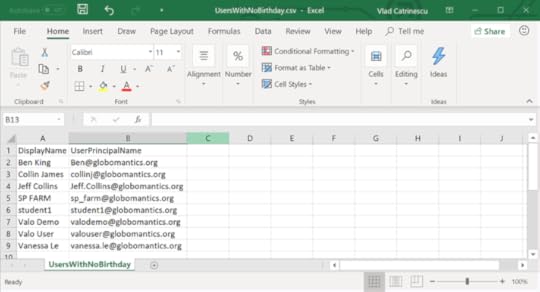
The final result is a CSV file in which we can see the display names and user names of all of the users in our tenant that don’t have a birthday in their profile! You can either contact them individually, or even Send Email from PowerShell in Office 365 in order to automatically send them a nicely formatted HTML e-mail asking them to fill it!
More Resources
PowerShell for Office 365 is an essential tool as part of every Office 365’s administrator toolbox. Without PowerShell, you cannot do cool reports such as the one in this blog post, and you are missing out on multiple Office 365 reporting, productivity and security settings. Here are some resources that you could use to learn PowerShell for Office 365:
Books
Books are really ways to learn a topic from start to master, and even if they cost some dollars, they’re always a good investment!
Essential PowerShell for Office 365: Managing and Automating Skills for Improved Productivity
Take your Office 365 skills to the next level. Master PowerShell for Office 365 to stay competitive in today’s world of highly sought after cloud management skills. With expert guidance, IT pros will learn how to leverage the muscle of PowerShell to automate many advanced administrative tasks not otherwise accessible in the Office 365 Admin Center. You will discover how to unlock configuration options and automate tasks in order to free up valuable time and resources.
Get it on Amazon at the following links:
Amazon.com: http://amzn.to/2FsqX8y
Amazon.ca: http://amzn.to/2GuDycC
Amazon.fr: http://amzn.to/2EkGJTI
Amazon.uk: http://amzn.to/2DMXxFM
Amazon.de: http://amzn.to/2FrCR2z
Video Training
NOTE: Pluralsight is a paid resource unlike Channel9, Youtube, and Microsoft Virtual Academy which are free. The quality they provide is also superior because of all the quality checks they go through, and the instructors are one of the best in the industry. The Pluralsight courses have a link to where you can get a free trial and decide for yourself if paying a subscription or not is worth it, but the 10 day free trial should allow you to view all those courses for free.
PowerShell for Office 365
In this course, you will learn how to use PowerShell to manage Office 365 services. You will learn how to connect and manage users and licensing, SharePoint Online, Exchange Online, Compliance Center and last but not least, Skype for Business Online.
Link: http://spvlad.com/PowerShellO365
Free Pluralsight Trial: Get a free 10 day Pluralsight Trial!
PowerShell Playbook for Office 365
A more advanced look at multiple real-life scenarios that span across all Office 365 Services and show you how your PowerShell for Office 365 skills can be applied in your day to day life
Link:https://spvlad.com/PowerShellPlaybook
Free Pluralsight Trial: Get a free 10 day Pluralsight Trial!
PowerShell for common Office 365 Operations
In this 300 level session, you will learn how to automate the management of Office 365 using Windows PowerShell. We will discuss how to connect Windows PowerShell to Office 365, tour the Office 365 cmdlets, and demonstrate how to manage domains, users, and services including Exchange Online, and SharePoint Online.
Link: https://www.youtube.com/watch?v=I2lj1rbzjCk
Support Corner: Using PowerShell to Manage Office 365 Users
Join us in this fast-paced demo to learn how to manage Office 365 users using PowerShell. Experts show you how to create and delete users, update user IDs and passwords, assign licenses and groups, and much more.
Link: https://mva.microsoft.com/en-US/training-courses/support-corner-using-powershell-to-manage-office-365-users-8934?l=KGtEBIC3_304984382
Leave a comment and don’t forget to like the Absolute SharePoint Blog Page on Facebook and to follow me on Twitter here for the latest news and technical articles on SharePoint. I am also a Pluralsight author, and you can view all the courses I created on my author page.
The post Office 365 Profile Completeness: Finding users with no birthday set in the user profile appeared first on Absolute SharePoint Blog by Vlad Catrinescu.
October 17, 2018
New Pluralsight Course: Migrating to Office 365 SharePoint Online
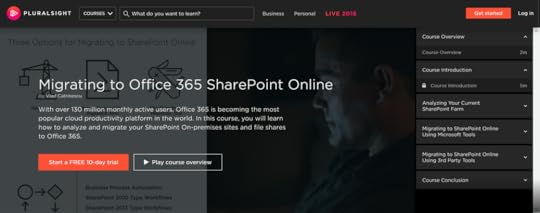
I am extremely happy to announce that my 14th Pluralsight course and probably last one of 2018 (as the conference season is picking up!) is published and this one is on how to migrate from on-premises SharePoint Server and file shares, to SharePoint Online in Office 365! We will cover things such as the SharePoint Migration Assessment Tool (SMAT), the SharePoint Migration Tool and of course, some PowerShell!
Here is the official description:
As organizations are moving to the cloud, IT professionals will be charged of migrating their file shares / SharePoint on-premises content in SharePoint Online. In this course, Migrating to Office 365 SharePoint Online, you will learn how to use different tools to successfully do your migration to SharePoint Online. First, you will learn how to analyze your current SharePoint Farm. Next, you will discover the different Microsoft tools that we can use to do our migration. Finally, you will explore other options for migrating to SharePoint Online. When you’re finished with this course, you will have the skills and knowledge of SharePoint Migrations needed to successfully migrate file shares and SharePoint sites to SharePoint Online.
You can find the course at: https://spvlad.com/MigrateToSPO
Follow me on Social Media and Share this article with your friends!
Check out my newest @Pluralsight Course: Migrating to #Office365 #SharePoint Online https://t.co/voVkoImpbX pic.twitter.com/gooGdrJ9kx
— Vlad Catrinescu (@vladcatrinescu) October 17, 2018
The post New Pluralsight Course: Migrating to Office 365 SharePoint Online appeared first on Absolute SharePoint Blog by Vlad Catrinescu.
October 10, 2018
My Session Resources from Microsoft Ignite 2018!
It’s been a week since Microsoft Ignite 2018, and now that all my sessions have been posted, I wanted to share the three sessions I had presented over there, as well as a few resources!

BRK3273 – From start to finish: How to create your modern SharePoint site provisioning solution
Speakers: Vlad Catrinescu, Drew Madelung
Creating modern SharePoint sites only takes a second but what if you want to customize or control that process? It can be a challenge to keep up with all the sites in an organization and can affect support and governance of a SharePoint environment. In this session, learn how to use Microsoft’s latest tools such as Site Designs, Site Scripts, PnP Site Provisioning, PowerApps and Flow to create a full site provisioning system with custom templates, custom branding, and easy approval before creation!
Ressources:
https://github.com/vladcatrinescu/Ignite-2018
BRK1109 – Three must-have workflows with Microsoft Flow
Speakers: Vlad Catrinescu
Process automation is one of the most powerful benefits that SharePoint offers. In this session, we use Microsoft’s preferred workflow tool, Microsoft Flow, and look at three real-life examples of processes that you can automate by using Microsoft Flow.
Resources:
https://github.com/vladcatrinescu/Ignite-2018/blob/master/BRK1109/Flow%20Screenshots.docx?raw=true
THR2131 – Three PowerShell reports every Office 365 admin needs to have
Speakers: Vlad Catrinescu
PowerShell not only gives administrators access to all the settings in Office 365, it makes it easy to connect to multiple services and gather information to create useful reports. In this short session, we look at three reports every Office 365 administrator needs to have in their toolbox!
Resources: https://github.com/vladcatrinescu/Ignite-2018
I hope you enjoy, and if there any questions, feel free to ask them over here!
The post My Session Resources from Microsoft Ignite 2018! appeared first on Absolute SharePoint Blog by Vlad Catrinescu.
July 30, 2018
How to convert string to URL friendly string with Microsoft Flow
I was working on a project to automate Office 365 Group creation using Microsoft Flow and a custom system. When trying to convert the title from another system , which could include !@#$%^? and a bunch of other characters, I had to find a way to convert that string, into an URL friendly string with Microsoft Flow, At the time of writing this blog, there was no regex support in Microsoft Flow, so we need to get a bit more creative!
One function that we have access to in Microsoft Flow, is the replace function. The Replace function allows you to replace a character by another one, in our case, we need to replace for example a hashtag (#) by nothing! While this is done one character at a time, you can also nest them, so while not pretty, you would have all the info in a single function. In the example below, I strip the Title dynamic property of the Trigger of the following characters: : % # * < > ? / ” @ & = / ; |) \ [ ] ~ { } ^ ! , .
PS: The widget below has a “copy” button in the toolbar to make sure you copy it all!
replace(replace(replace(replace(replace(replace(replace(replace(replace(replace(replace(replace(replace(replace(replace(replace(replace(replace(replace(replace(replace(replace(replace(replace(replace(replace(triggerBody()?['Title'],':',''),'%',''),'#',''),'*',''),'',''),'?',''),'/',''),'"',''),'"',''),'@',''),'&',''),'=',''),'/',''),';',''),'|',''),'\',''),'[',''),']',''),'~',''),'{',''),'}',''),'^',''),'!',''),',',''),'.',''I have created a quick Flow over here in a completely different system, just to show you the results! First, let’s create the simple Flow, three easy steps – Trigger – Create a Variable with the Friendly URL (Optional) – Update the Item
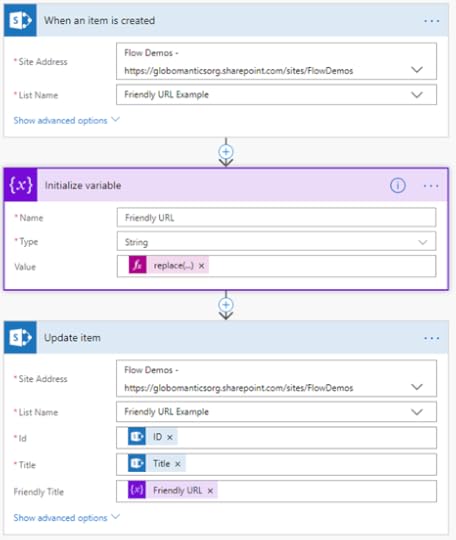
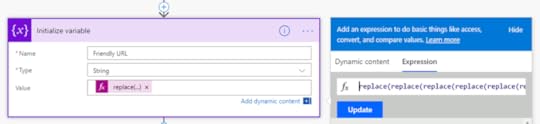
The value of the Variable is the formula we have above and remember to update it with the actual string that you want fixed! If you copy paste it from the blog, it will fix the Title property of the Trigger.
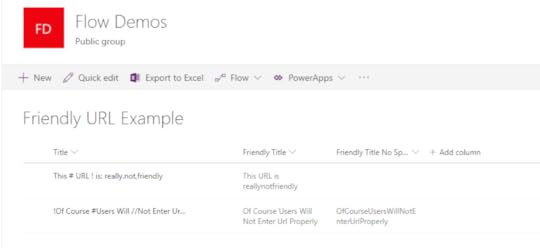
And here is the result:
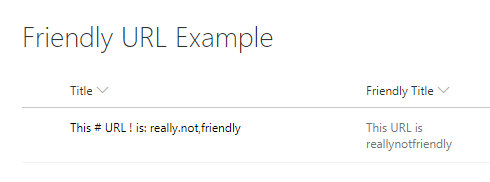
As you see, my previous example did not take out the spaces, if you want a formula that takes out the spaces, you can use the following one!
replace(replace(replace(replace(replace(replace(replace(replace(replace(replace(replace(replace(replace(replace(replace(replace(replace(replace(replace(replace(replace(replace(replace(replace(replace(replace(replace(triggerBody()?['Title'],':',''),'%',''),'#',''),'*',''),'',''),'?',''),'/',''),'"',''),'"',''),'@',''),'&',''),'=',''),'/',''),';',''),'|',''),'\',''),'[',''),']',''),'~',''),'{',''),'}',''),'^',''),'!',''),',',''),'.',''),' ','')Here is the result on the second item:
Leave a comment and don’t forget to like the Absolute SharePoint Blog Page on Facebook and to follow me on Twitter here for the latest news and technical articles on SharePoint. I am also a Pluralsight author, and you can view all the courses I created on my author page.
The post How to convert string to URL friendly string with Microsoft Flow appeared first on Absolute SharePoint Blog by Vlad Catrinescu.
July 26, 2018
Win a free Pass to SPTechCon Boston 2018
I have been blogging about learning resources for a while and one of the best ways to learn from the experts is to attend in person conferences! Since Valo Intranet is sponsoring , we have a few passes to give away! There are two contests going on, the first one is to simply retweet this tweet by Valo Intranet! The Second one is trough this blog post and gives you the chance to win three Full Access Conference Passes to SPTechCon Boston 2018! To enter you simply have to put your name and email (They will not be shared with any 3rd parties unless you’re the winner of the pass), and you can get bonus entries if you follow @vladcatrinescu on Twitter and like the Absolute SharePoint page on Facebook! Furthermore you can tweet about the giveaway every day and get 9 bonus entries for every time you tweet!

The prize only includes the conference pass and not any travel costs or anything else. Just the conference pass! Here is a small paragraph about the conference
SPTechCon: The SharePoint & Office 365 Conference is returning to Boston, MA, August 26 – 29, 2018! SPTechCon is a training, problem solving, and networking event for those who are working with SharePoint, OneDrive, and Office 365. This includes the varied uses and approaches to managing SharePoint; On-Premises (2013 thru 2019), Hybrid Variations, and SharePoint Online. Sessions at SPTechCon are presented by today’s most approachable and knowledgeable instructors. Find solutions to your current environment and seek ways to continue to Work Smarter, Collaborate, and Increase Productivity!
Good Luck, and if you are at SPTechCon, make sure to visit me at the Valo Booth to say hello :)!
Click here to view this promotion.
You need to enable javascript to enter this campaign!
Powered by PromoSimple.
The post Win a free Pass to SPTechCon Boston 2018 appeared first on Absolute SharePoint Blog by Vlad Catrinescu.
July 10, 2018
Renewed as Office Apps and Services MVP and awarded Cloud and Datacenter Management
A bit late on the blog post compared to the other MVPs, but I am honored, humbled and excited to announce I have been renewed as an Office Apps and Services (previously known as Office Servers and Services) MVP for a fifth year in a row! This year is even a bit more special as I have also been awarded the Cloud and Datacenter Management MVP for the first time, for my contributions in the PowerShell community!
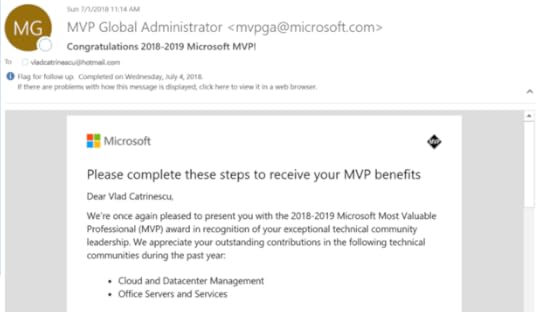
Thanks to Microsoft community for giving me the opportunity to share my knowledge, I will continue to share my passion for Office 365, SharePoint, Flow and of course PowerShell! Special mention to the whole team at Valo Intranet who keeps encouraging me to do more and enables me to give back to community as much as I do! All of the five MVPs on the team got renewed and I am looking forward to creating awesome content with all of them this upcoming year!
The post Renewed as Office Apps and Services MVP and awarded Cloud and Datacenter Management appeared first on Absolute SharePoint Blog by Vlad Catrinescu.
Overview of harmon.ie 10: Bringing Office 365 in your Outlook
Product overview by Vlad Catrinescu – requested by harmon.ie, but thoughts are my own.
All proceeds from this review will be used to fund my 100-mile Pelotonia bike ride to end cancer.
Information Overload is an increasing problem both in the workplace, and in life in general. Information Overload is when you are trying to deal with more information than you can process to make sensible decisions. The result is that you either delay making decisions, or that you make the wrong decisions. And let’s be honest, we all feel a kind of information overload because of all the sources of information we have today. Even if we talk only Office 365, we need to look for information in SharePoint, Outlook, Groups, Planner, Teams, etc! With it’s latest release called harmon.ie attempts to solve this problem and allow users to focus on work rather than tools. harmon.ie 10 delivers your SharePoint, OneDrive, and Teams documents, Outlook emails and calendar invites, plus Office 365 app notifications directly to your Outlook window… organized by topics, the way you think. The harmon.ie team gave me an early version of their newest release to test, so let’s see what the features are!

Having reviewed harmon.ie in the past, I will focus only on the newest features in harmon.ie 10! If you want a tour of the functionality that was already there in the past, check out this review: Review of harmon.ie One: Improve SharePoint Collaboration.
Harmon.ie 10 Overview
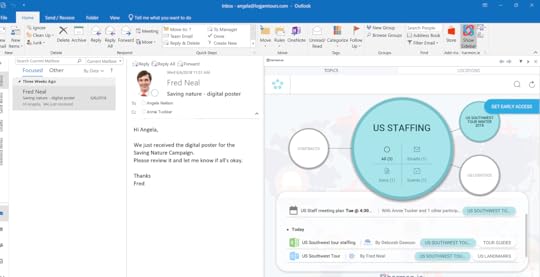
Similar to previous harmon.ie Outlook clients, harmon.ie 10 is a sidebar on the right side of your Outlook window. What is new in this version, is that the harmon.ie team now uses the power of the Microsoft Graph to analyze all of the data in Office 365 that you have access to, and group those by different topics. Right now, in this preview version of harmon.ie 10 , the sidebar is not yet responsive, so as you can see , some of the topics are cut off, but the team told me it will be fixed before this becomes final.
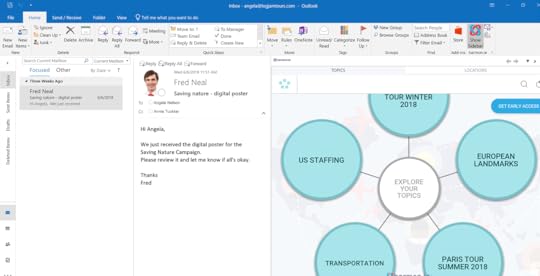
Once you clock on a certain topic, you get an overview of the number of items of each type, that are related to that certain topic. In the US Staffing example below, harmon.ie found one e-mail, one document and one calendar event!
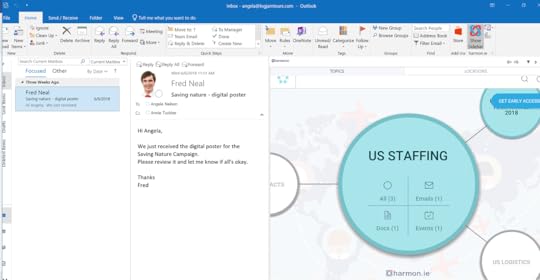
Clicking on it again, you can see the different documents, events and e-mails relating to this topic, and clicking on them will automatically open them using the native Microsoft application assigned to it, or for documents, using Office Online and opening them directly from SharePoint, or OneDrive for Business.
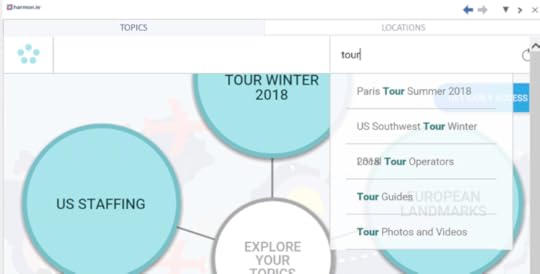
Harmon.ie 10 also allows you to search for different topics to quickly access the different items associated with the topics that you’re interested in!
As mentioned previously, those features are added on top of the other great features included in the harmon.ie Outlook sidebar such as SharePoint integration ,easy drag and drop of documents and e-mails, and quick collaboration directly from Outlook.
Conclusion
You depend on Office 365 apps to get work done, but with the number of different apps, and different way of collaborating today, it’s tough to keep up with everything that is happening in your organization. The latest release of the harmon.ie sidebar for Outlook called harmon.ie 10 uses the Microsoft Graph, and machine learning to group information the way you think, by using topics, customers, project names, so you can work the way you think, and not by focusing on the different apps in Office 365.
I loved the idea of grouping information by topics, instead of apps and it made it a lot easier to find information proactively, rather than search for it in the different applications part of my tenant. The harmon.ie version I had is an early release beta, and while the “logic” functionality worked well, and it was able to find/group different items, the fact that the pane was not fully responsive made it hard sometimes so have full control over the topics window. This should not be too much of a big issue for customers as this should be fixed before it gets full released.
If you want to try this in your own tenant to see how it can help your users increase productivity and adoption of office 365, register for an early preview over here: https://pages.harmon.ie/harmonie10-early-access-registration.html or click the banner below!

The post Overview of harmon.ie 10: Bringing Office 365 in your Outlook appeared first on Absolute SharePoint Blog by Vlad Catrinescu.