
Periscope: What it is, How to Use it, and Why it’s so Amazing
To kick off 2016 I began focusing a lot more on public speaking. Part of my plan includes hosting a LIVE video session every weekday morning at 8:00 am Central on Periscope.
During my quick videos (usually less than 10 minutes) I will be sharing strategies, lessons, and my thoughts on healthy habits, personal development, and rockin’ productivity!
If you haven’t heard of Periscope, I may be introducing you to the best thing since sliced bread (or, in my case, sliced bananas).
Watch this quick video I made about what Periscope is, how to use it, and why it’s just so amazing.
How to Get Started with Periscope
Step-by-Step
Download Periscope on your iOS or Android device.
Click on the people icon in the bottom right corner.
Click the search magnifying glass icon in the top left corner.
Search for “Jeff Sanders” or my username “JeffSandersTV“
Click the plus icon on the right side to follow my feed.
Return to the home screen with the TV icon in the bottom left corner.
Find my latest scope (Periscope video), click on it, and then press the play button to watch.
Using the App and Watching Live Scopes
The next time one of my scopes is live you will get a notification on your phone (you can turn off these settings in the app).
If you watch a live video, you will be able to leave live comments, ask questions, and tap the screen to add hearts whenever you like something I said.
Scopes are available on the app for 24 hours after their air, but you can watch all of my past scopes from my Katch page. Katch is a service that records Periscopes videos and makes them available for viewing anytime.
Currently, Periscope is only available on mobile devices, but hopefully there will be a desktop version as well. Cross your fingers!
Also, Periscope usernames are based on Twitter profiles (because Twitter intelligently bought Periscope last year) and so you can easily find someone to follow if you know their Twitter handle.
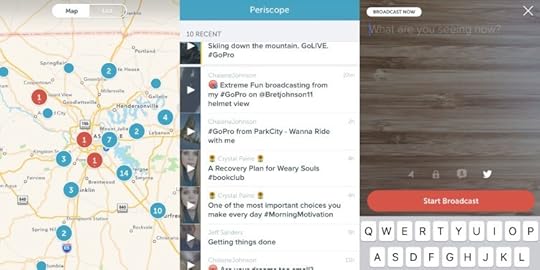
Host Your Own Scope!
If you want to host your own live video, just press the camera icon (second one from the right), type in a title for your session, and click the “Start Broadcast” button.
You can then double-tap the screen to turn the camera around for a selfie video.
Be sure to visit the settings page and click the button that allows your videos to automatically save to your phone.
Quick Note About My Upcoming Webinar
In addition to using Periscope, one of my public speaking plans this year is to host a series of live webinars.
I had originally planned to launch my first webinar in January, but the preparation is taking longer than expected. I will be sure to let you know as soon as I have everything ready to rock and roll!
Questions?
If you have any questions, simply leave a comment below. I’m happy to help.
Thanks a bunch!
[image error]


Jeff Sanders' Blog + Podcast

You can sign up for email updates here: https://www.jeffsanders.com/join-the-... ...more
- Jeff Sanders's profile
- 59 followers

