Virginia S. Anderson's Blog, page 26
September 7, 2016
Great Advice from The Book Designer blog!


September 5, 2016
Introducing a great friend of all #authors, the Story Reading Ape (@Storyreadingape) and a project very close to his heart.
Hi all: I wanted to let you know that I’ve started working on a new project and due to deadlines I might not be around as much as I’ve liked. I thought I’d share…

September 3, 2016

August 29, 2016
Using -ing Words | The Editor’s Blog
This article provides excellent, detailed discussion. In critique groups I’ve been enrolled in, some critiquers seem terrified of the progressive tenses, and some believe that using a present-participle phrase as a modifier constitutes “mixing tenses” and therefore incorrect. The article is on point that glomming onto such rigid rules limits writers’ options for rhythm and meaning.
And the discussion here of dangling modifiers should be required reading for all aspiring writers. i see so many of these. Otherwise competent writers seem oblivious to them. The examples here precisely mirror what I see. Here’s my rant on dangling modifiers.
I think writers need to READ, widely, and not just the latest free examples of their favorite genre, to see how good writers make use of many available strategies and apply rules thoughtfully rather than blindly.
If you’ve ever been told to cut “-ing” words, take the time to read this!
 Silver Threading ~ Fairy Whisperer ~
 I wish there was a magic wand I could wave to correct my grammar as I continue editing my novel. How about you? Read this comprehensive article about editing and how to fix some of your mistakes. This is a MUST-READ!
There’s a lot of conflicting advice that tells writers to never use words that end in -ing or to not use -ing words under certain conditions. Explore both the advice and the rationale behind it.
Source:Using -ing Words | The Editor’s Blog


August 26, 2016
How To Set Up An Amazon Giveaway
Just what I needed! I was hovering over the Amazon Giveaway screens for King of the Roses and discovered I didn’t know how the odds-setting worked. This post, from February of this year, explains it! This is Nicholas Rossis’s “secondary blog” that shows a reblog button, but you can access the original, with many informative comments, here. Now watch for my Giveaway, coming up next week!

Amazon has recently started offering everyone the opportunity to offer a giveaway. What’s interesting about this is that you can run one for pretty much any item in their inventory – except for ebooks. So, you can run a giveaway for your print edition, but not your Kindle one.
Alternatively, you could go all the way and offer people, say, a Kindle. Or, indeed, an item that is somehow related to your books. For example, if you’ve written a cookbook, you may give away kitchen gadgets or aprons. The key here is to be imaginative and original.
So, how would you go about it? Here’s the complete how-to.
Step 1: Find your book
Right after the reviews, you will see a “Set up an Amazon Giveaway” button. If you can’t find it, press Control-F (for Find) on your browser and enter the word “giveaway”…
View original post 645 more words


August 22, 2016
My Inerview is up at Don Massenzio’s site. Go admire my sweet Paddy!
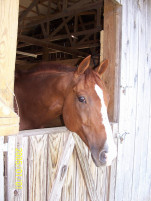 Check out my writer’s interview, now available at Don Massenzio’s site! This was a lot of fun to write.


August 21, 2016
My Writer’s Interview with Don Massenzio—Tomorrow!
 Great News! My writer’s interview on Don Massenzio’s highly active, informative blog is scheduled for tomorrow! It posts in the early morning hours and should be up in the a.m. on Monday. My deepest gratitude to Don for highlighting so many terrific authors and for sharing so much information on writing and publishing. Check him out!


August 18, 2016
InDesign Beginner’s Cheat Sheet: Finishing Up, Part I
This is Part 9 of my “InDesign Beginner’s Cheat Sheet” series. You can follow the links at the bottom of this post to check out the whole series, from opening a file in InDesign to formatting.
In this post: Part 1 of some follow-up moves you can and should make in InDesign as you format your POD book interior.
***CLICK ON THE IMAGES TO SEE FULL-SIZED VERSIONS***
Creating Additional Styles for Chapter Titles and Numbers
Just like Word, InDesign works best if you create a style for each element you use often and apply that style consistently across chapters. So you need a style for whatever elements—for example, chapter names—that you plan to include.
Create these additional styles exactly as you created your original main body style.
Select the text you want to style, for example a chapter title.
Format it to look the way you want.
Click “Create New Style” in the Paragraph Styles panel.
The new style, called “Paragraph Style 1” (or “2” if there’s already a “1” in the list, possibly for a style you never developed) will appear in the panel. In the figure below, I’ve created several new styles, renaming “Paragraph Style 1,” for example, “Chapter nos.” for chapter names.

I created additional styles for my “Part” and “Chapter names,” as well as for the numbers of sections within chapters.
Double-click this new style in the Panel list to open the Paragraph Styles Option dialogue, where you will see the features you’ve selected, such as font, font size, and justification.
Make any adjustments using the menu on the left of this box.

In this example, I formatted a style I’ve called “Experiment,” clicked “Create New Style” in the Paragraph Styles box, renamed the style “Experiment,” and double-clicked to open the Paragraph Styles Options box, where I can see the Style Settings I’ve chosen.
A Consideration in Creating Additional Styles: “Before” and “After.”
When formatting elements like chapter titles, you will need to decide how much space to require “before” and “after.” Just as when formatting an ebook, say, for Kindle, you want to avoid long stretches of returns.
Creating a specific style with appropriate “before/after” attributes is optimal.
Double-click on the style name to open the Paragraph Styles Options dialogue.
From the menu on the left, choose “Indents and Spacing.”
Locate the fields for “Space Before” and “Space After.”
Use the fields to indicate the spacing you want.
It appears that your choices here are limited by defaults that you access by clicking the up and down arrows. I’m not sure why you can’t type in any value, but I’ve never been able to do so.

Set “before” and “after” using the small arrows to the left of each field. Your choices seem to be limited to preset distances.
For your main body styles, by the way, you generally want these fields to be set to zero—no extra spacing between paragraphs. (This is one of the annoyances of recent versions of Word: extra space between paragraphs seems to be the default, and people often do not know to go to “Format>Paragraph” and turn this default off.)
For the book I’m currently formatting, Blood Lies, I have a style for “Chapter nos.” or names, and one for “subset numbers,” or the little numbers between sections in each chapter. Because I place the text chapter by chapter, I can then “Select All” (CTRL/COMMSND + A) and apply my main body style. I then do have to change the style of the chapter title and go through the chapter to find the “subset numbers,” select them, and apply the style. You may find a much faster way to apply your styles. If so, please let us all know!
Creating Character Styles
I discovered that if I wanted to italicize a single word in a paragraph, I couldn’t do so—the whole paragraph would be converted to italics.
Solution: Create an Italic “Character Style.”
Like the Paragraph Styles panel, the Character Styles panel will appear in the right-side menu. (It can be called up via the “Window” menu if necessary.) It works exactly the same as the Paragraph Styles panel:
Select the text you want to change.
Format it.
Click “Create New Style.”
Double-click the new style that appears in the list, and you’ll get the now-familiar dialogue box showing your settings.
adjust your settings from the left-side menu in this dialogue box.

In this close-up, I still need to rename my new style, and to click on “Basic Character Formats” in the left-hand menu to choose “italics.” I also need to adjust the font size slightly.
You have a great deal of control over these styles. Conversations with readers of my developing design suggested to me that the italic that came with Garamond, which I was using for my main body style, was too ornate: crabby and hard to read. I experimented with a number of italics and finally created a Character Style using Book Antiqua with a slightly reduced font size. Again, I do have to locate italics in the text and apply the style manually.
By the way, I have not found InDesign’s Find/Change box to work well when asked to locate italics, perhaps because I haven’t always specified precisely the attributes it needs to search for. I make double-checking for italics part of my proofing process when I’m reading my pdf.

In the final version of this character style, I’ll reduce the Book Antiqua font size slightly to match the Garamond body text, and then apply the style manually to italicized words in the text.
Next: Part II of Finishing Up!
Please visit other posts in this series! Your feedback is welcome!
Formatting for IngramSpark in InDesign: You’re Almost Already There!
InDesign for Book Formatting: Cheat Sheet I
InDesign Cheat Sheet 2: How to Get Started
InDesign Master Pages: No Big Deal!
InDesign Cheat Sheet! Add Some Text!
Finally! Formatting Text in InDesign, Part I
InDesign Obstacle: When Smart Text Reflow Doesn’t Work
InDesign Beginner’s Cheat Sheet: Finally Formatting Part II


Amazon Categories and Rankings? This Helps!

Here’s what I sometimes feel like as a marketer: Deer in the headlights!
Well, I bought the book. I’ll report back on how much it helped me in my goal to begin taking marketing seriously. In the meantime, this article on how Amazon rankings and keywords differ in helping me sell my books provided some really useful distinctions.Can you add to this advice?


August 13, 2016
Horse nut/Professor/Writer
My bio on Chuck Suddeth’s site! He’s posting info on sponsors and judges for the Green River Writers 2016 contest, now open. Check out the guidelines! And thanks, Chuck, for sharing!

V. S. Anderson always been a horse nut, and as a young person, was a rabid horse-racing fan. So it’s no surprise that her first novels were about horses: the Kentucky Derby and the glamour of a Thoroughbred breeding farm—but with a little mystery and mayhem thrown in! For King of the Roses and Blood Lies, she drew on her years of working in the horse world, teaching riding, showing hunters, moonlighting on the racetrack, and for a while, owning and galloping her own racehorse.
Since then she has used her doctorate in English to teach writing at a regional campus of a Midwestern university—right across the river from Louisville and the Derby, in fact! She lives in New Salisbury, Indiana, where she gardens, watches birds, writes mystery/suspense (three novels in progress!), and rides Paddy, her sweet, sweet horse.
Visit her at
www.justcanthelpwriting.wordpress.com
www.facebook.com/virginiasanderson.writer
www.amazon.com/author/virginiasanderson
or follow her…
View original post 4 more words